

The message list and reader
The folder pane, the message list, the bar that appears when you select messages, and the buttons above an open message.
Reading mail takes three columns: folders on the left, the list in the middle, the open message on the right. Each has its own controls, and a fourth bar shows up when you select messages.
The folder pane
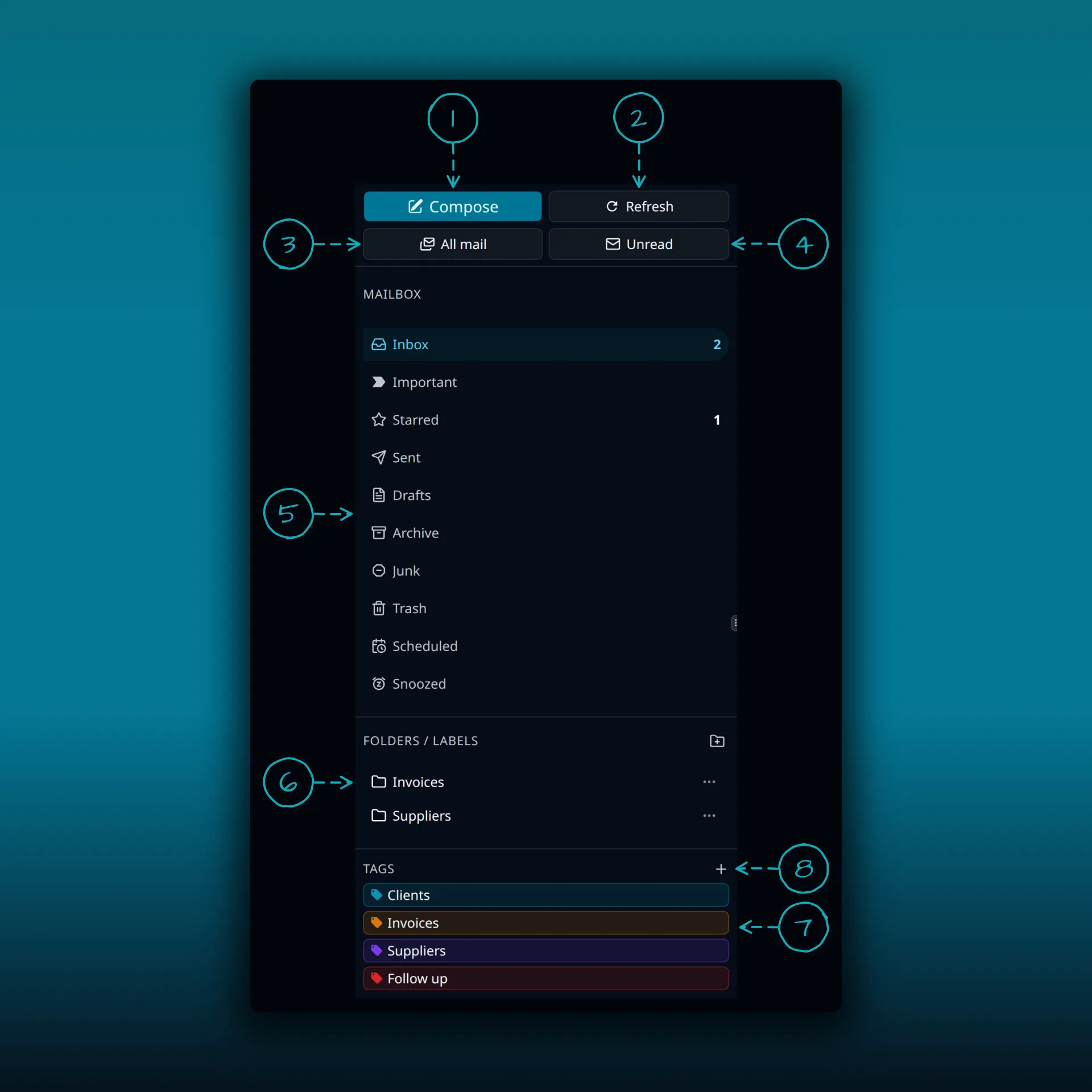
- Compose. Opens the composer.
- Refresh. Checks for new mail.
- All mail. Shows read and unread messages together.
- Unread. Shows only what you have not read.
- The mailbox folders: Inbox, Important, Starred, Sent, Drafts, Archive, Junk, Trash, Scheduled and Snoozed. The small numbers are counts. Here the inbox has 2 unread messages and 1 is starred.
- Folders and labels. These come from your mail provider. The button beside the heading adds a new folder.
- Tags. These are your own colored tags. Each row has edit and delete buttons.
- Add tag. Creates a new tag.
The message list
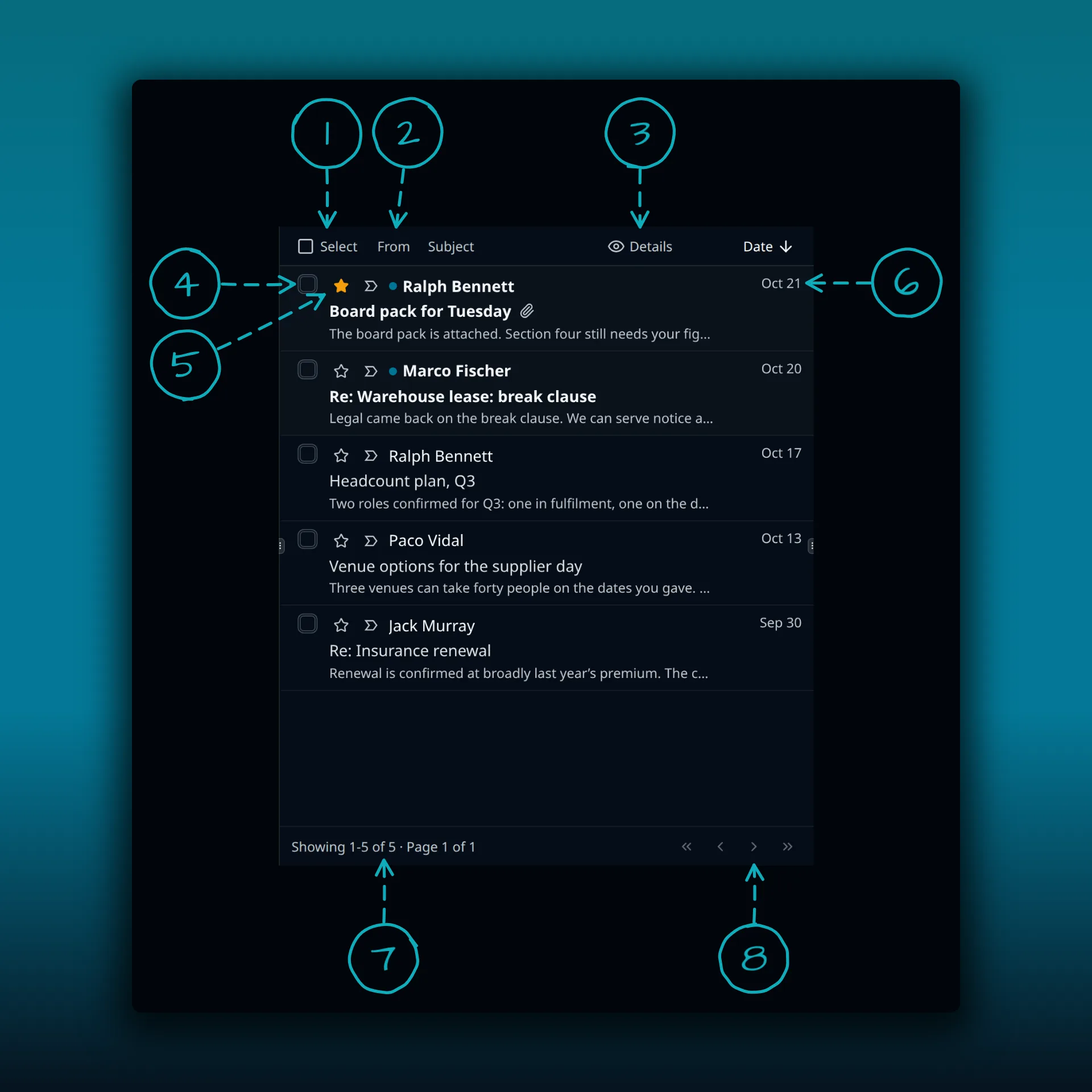
- Select. Turns on selection so you can tick several messages.
- From and Subject. Click either to sort by sender or by subject. The sort arrow on Date works the same way.
- Details. Changes how much each row shows.
- The checkbox on a row. Tick it to select that message.
- The star. Click it to star a message. A starred message gets a gold star.
- The date the message arrived.
- The page status, for example “Showing 1-5 of 5, Page 1 of 1”.
- The page arrows. They jump to the first, previous, next and last page.
Unread messages are bold and carry a blue dot. A paperclip after the subject means the message has an attachment.
The selection bar
Select messages and a row of buttons appears under the list header. The header itself now shows how many messages you picked.
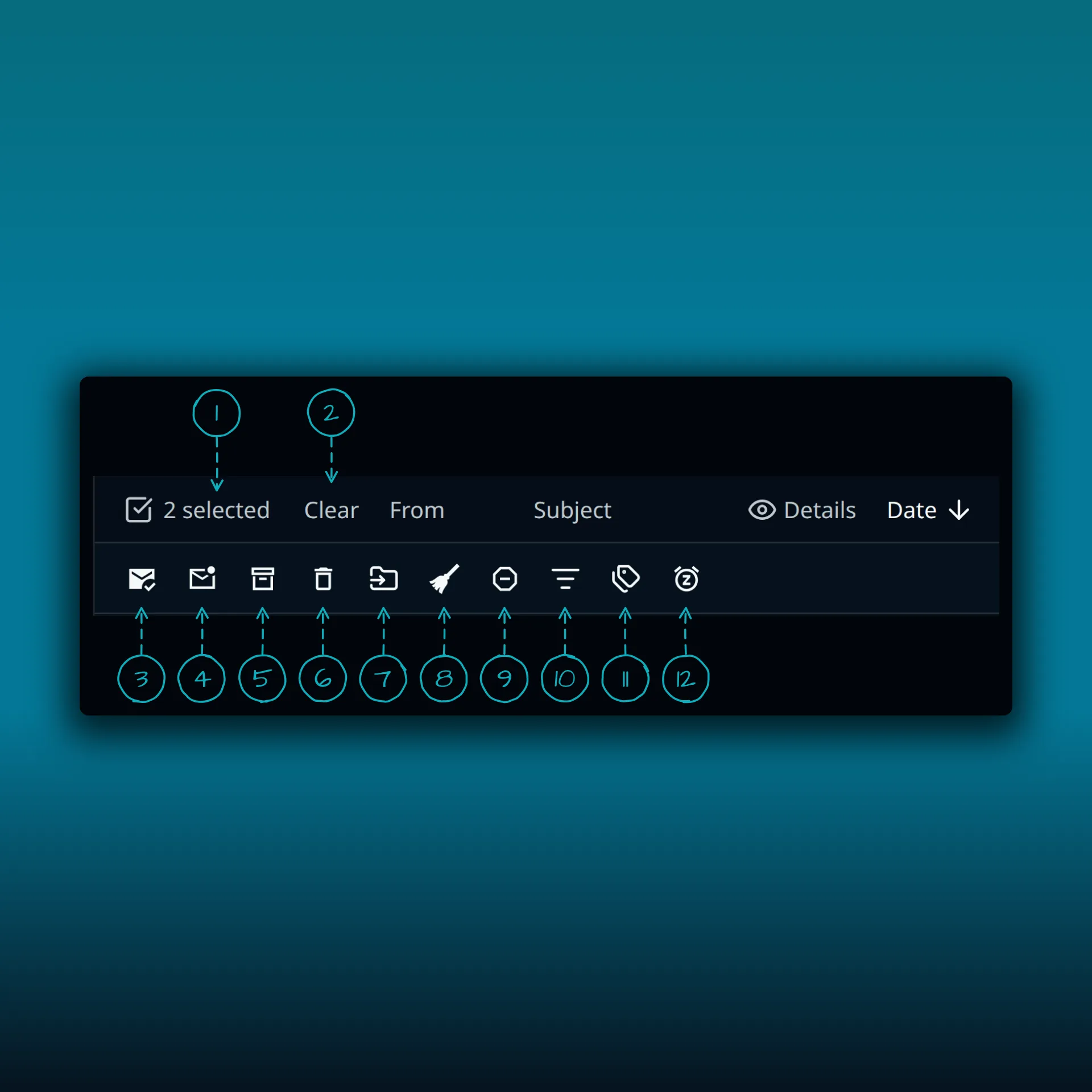
- The count of selected messages.
- Clear. Drops the selection.
- Mark as read.
- Mark as unread.
- Archive.
- Delete.
- Move to folder.
- Sweep selected messages. Starts a sweep on the selection.
- Move selected emails to junk.
- Organize with a rule. Lets you build an email rule around the selection. Email rules explains how rules work.
- Edit tags.
- Snooze. Snooze, scheduled sending, and follow-ups covers it.
The reader
Click a message and it opens on the right. The row of buttons above it works on that one message.
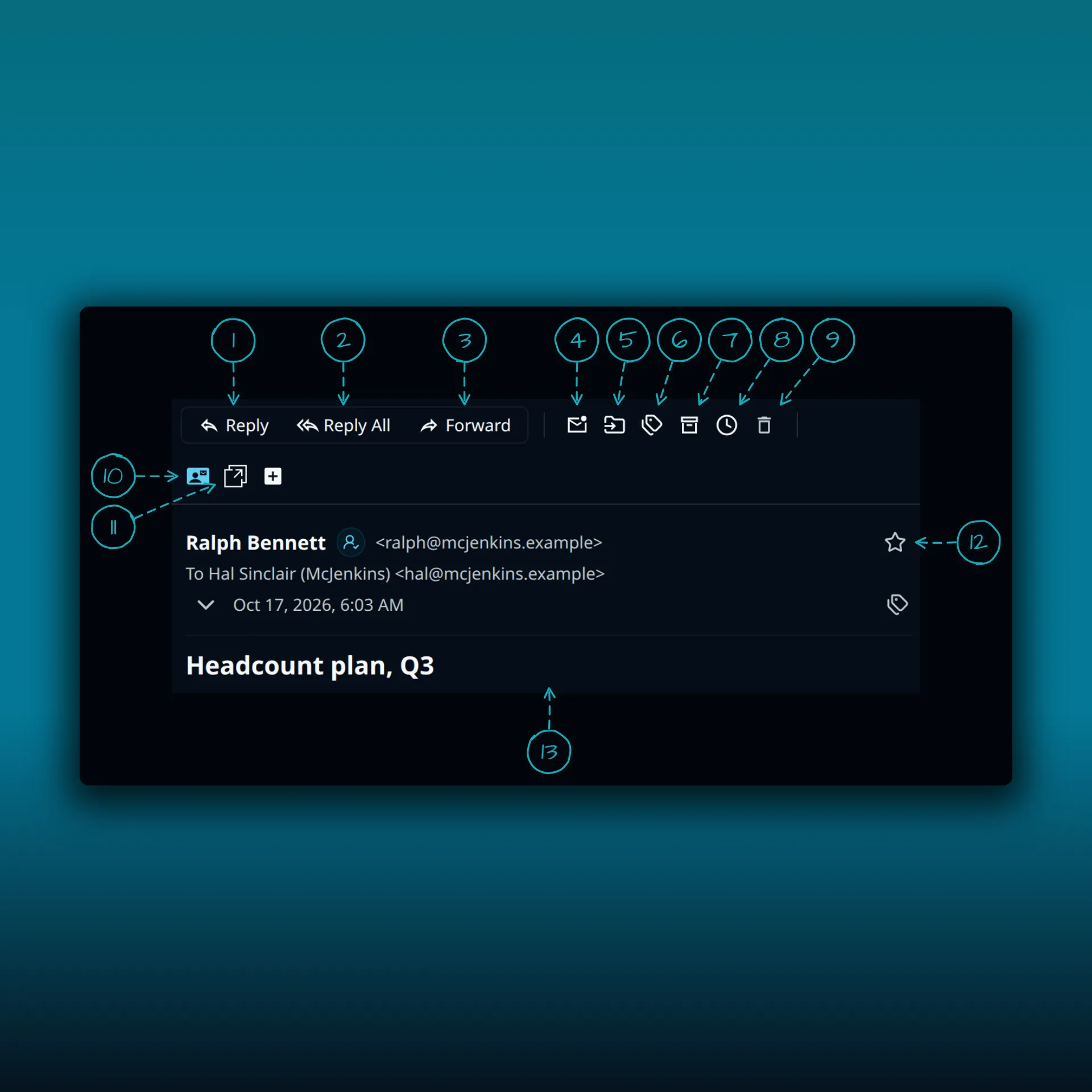
- Reply to sender.
- Reply to all recipients.
- Forward message.
- Mark as unread.
- Move to folder.
- Edit tags.
- Archive.
- Snooze email.
- Move to trash.
- The sender button. It shows whether the sender is in your contacts. In this example the sender is already a contact, so the button offers to remove them.
- Open in larger view.
- Star message.
- The subject line. The message body loads underneath it.
The picture stops at the subject. The body appears below.
Where to go next
- Inbox and folders explains accounts, the combined inbox and provider folders.
- Search, filters, and tags covers finding and labeling mail.
- The composer screen covers what opens when you click Compose or Reply.