

The calendar screen
The calendar toolbar, the month view, the side panels and the new event form.
Calendar is the third icon in the header. It opens on the current month.
The month view
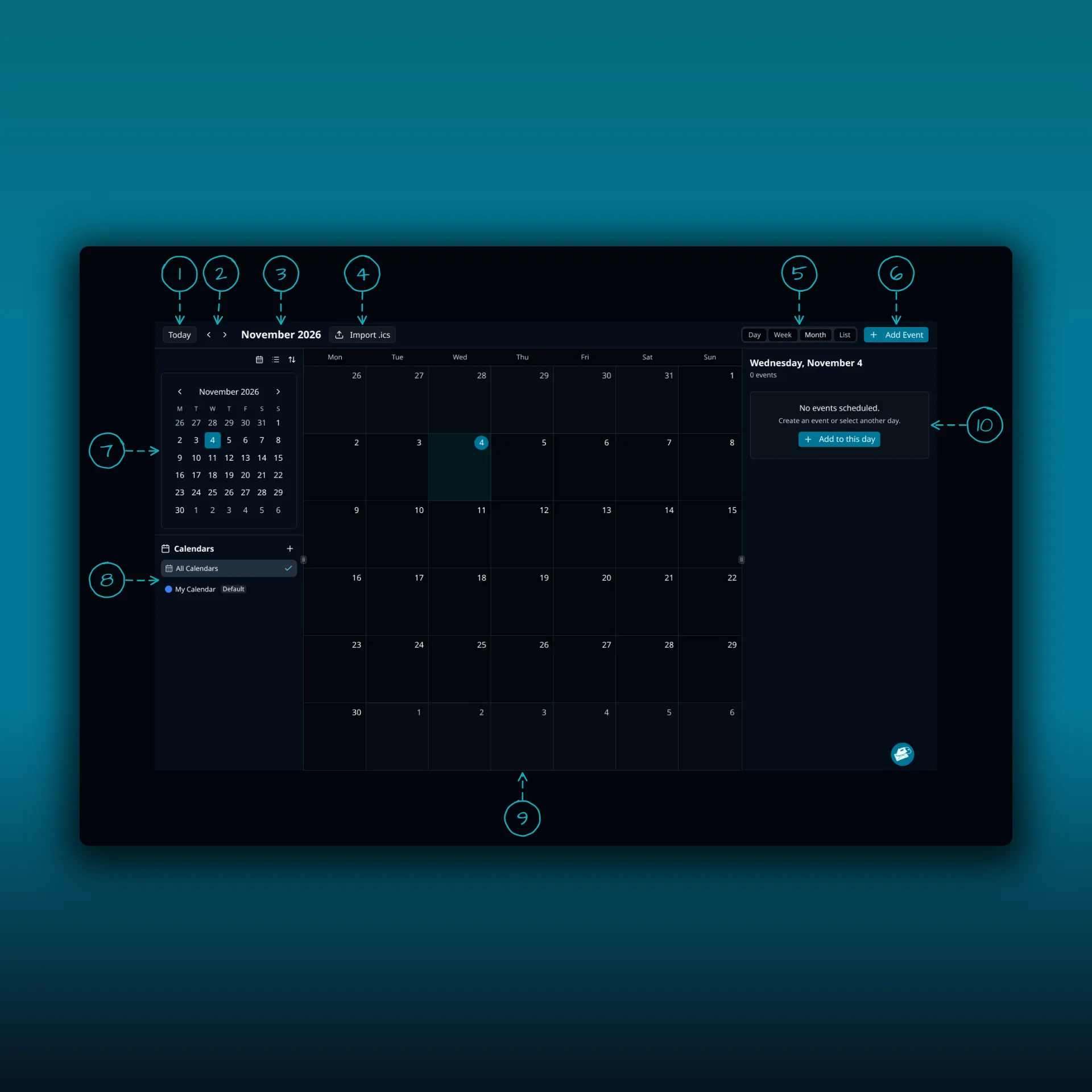
- Today. Jumps back to the current date.
- The previous and next arrows. They move one month at a time.
- The month and year you are looking at.
- Import .ics. Brings events in from a calendar file.
- The view buttons: Day, Week, Month and List.
- Add Event. Opens the new event form.
- The small month calendar on the left. Click a day to select it.
- Calendars. The plus button adds a calendar. Each calendar has a color. The default one carries a Default badge.
- The month grid.
- The panel for the selected day. It lists that day’s events, or says “No events scheduled.” with an Add to this day button.
The new event form
Click Add Event, or Add to this day, and the form opens on the right.
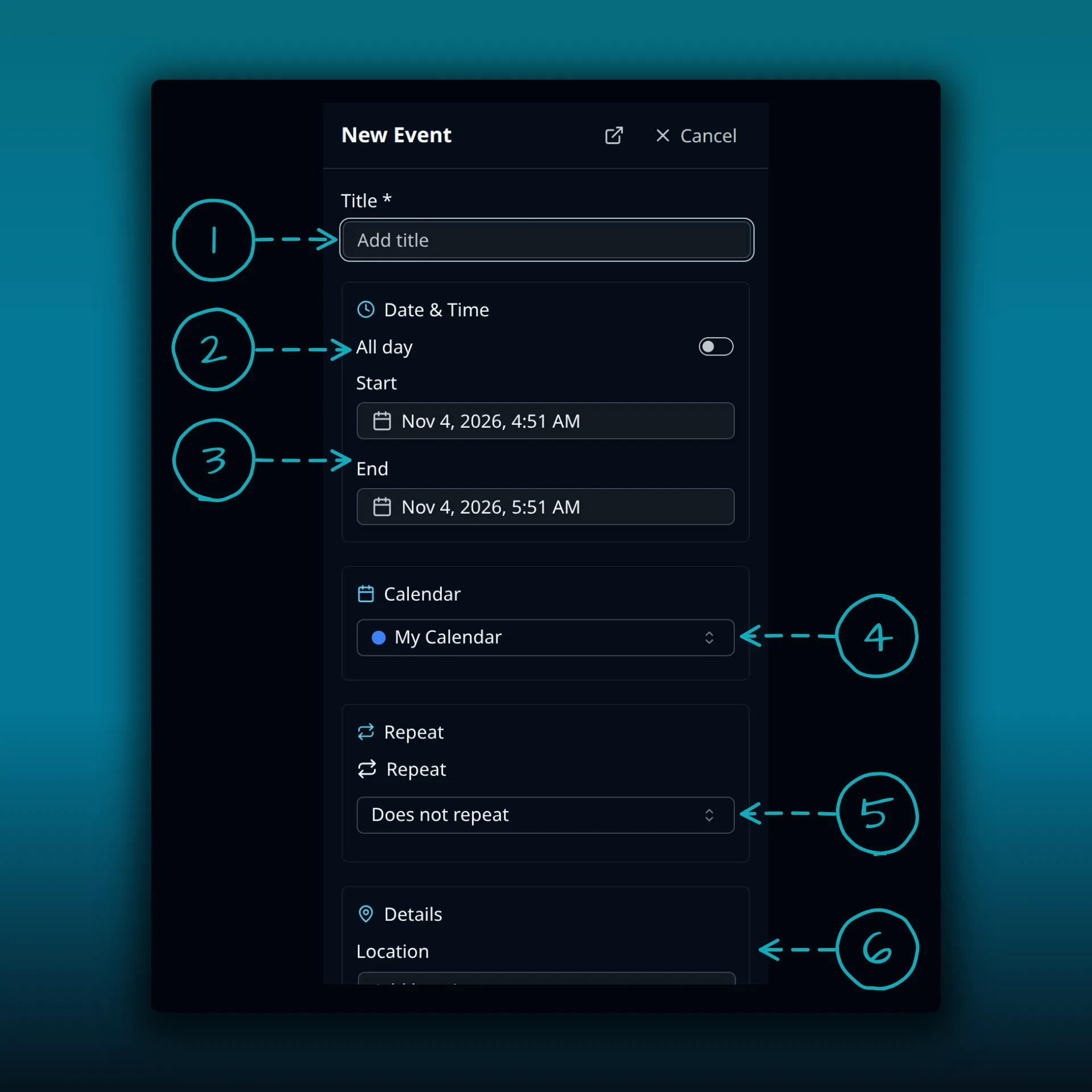
- Title. The only required field.
- All day. Switch it on for an event with no start time.
- Start and End. Each has a date and a time.
- Calendar. Pick which of your calendars gets the event.
- Repeat. The default is “Does not repeat”.
- Details. Location comes first, with more fields below it.
The form ends with Cancel and Save Event.
Where to go next
- Calendars and events covers repeating events, imports and calendar settings.
- Share inboxes, calendars, and contact lists covers sharing a calendar.