

Popovers and panels
The small menus and panels that open from the header, the status bar and the speed dial.
Several controls open a small menu or a panel on top of the screen you are on, instead of taking you to a new one.
The account switcher
Click the account box at the left of the header.
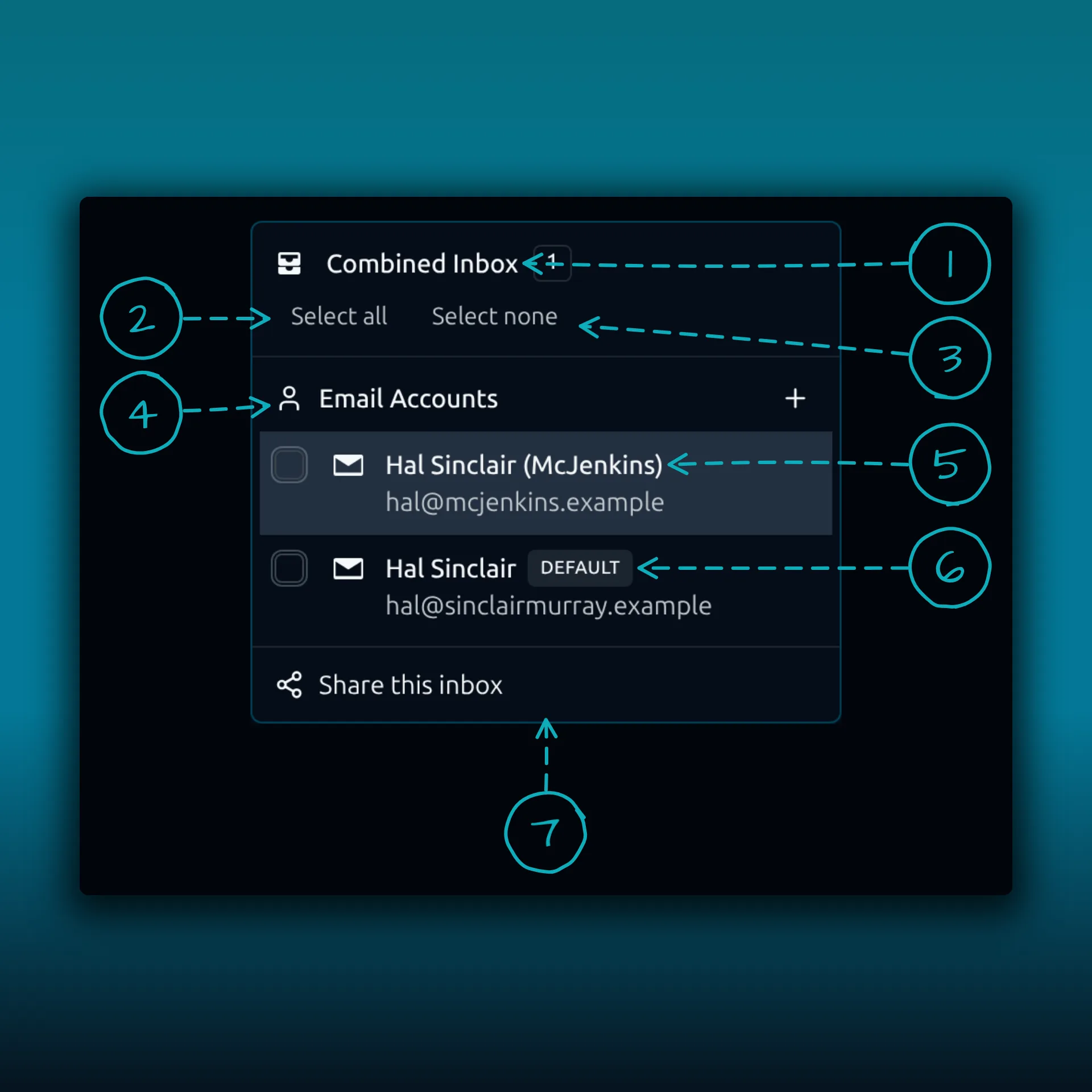
- Combined Inbox. Shows mail from several accounts in one list.
- Select all. Includes every account in the combined view.
- Select none. Clears them again.
- Email Accounts. Your connected mailboxes. The plus button on the right adds another one.
- An account row. It shows the display name and the address. Click a row to work in that mailbox.
- The Default badge. It marks your default account.
- Share this inbox. Sharing a mailbox needs Ultimate or Lifetime. Share inboxes, calendars, and contact lists has the steps.
The search scope menu
The small button to the left of the search box decides what the search looks in.
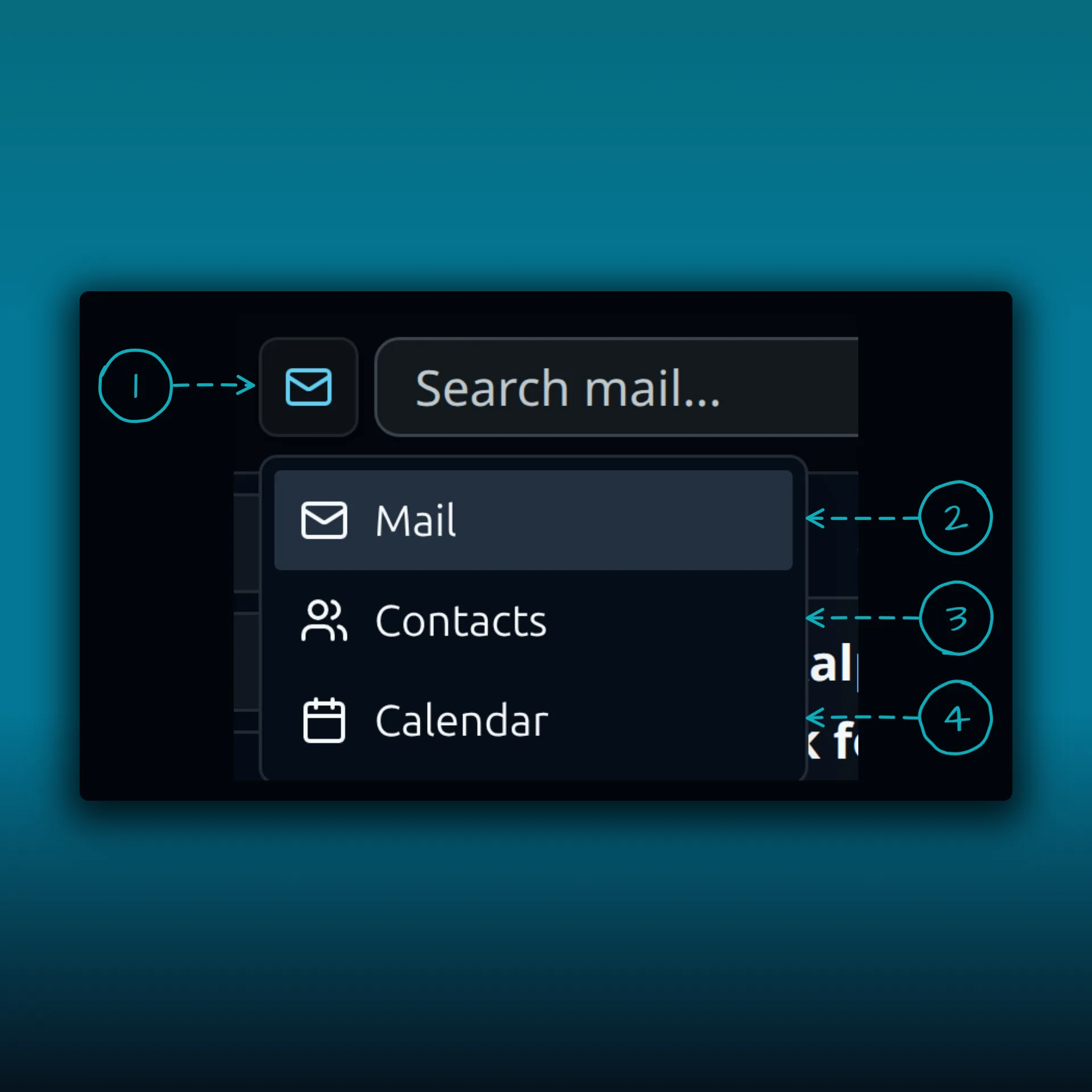
- The scope button. It shows the icon of the current scope.
- Mail.
- Contacts.
- Calendar.
The theme popover
Click Theme in the header.
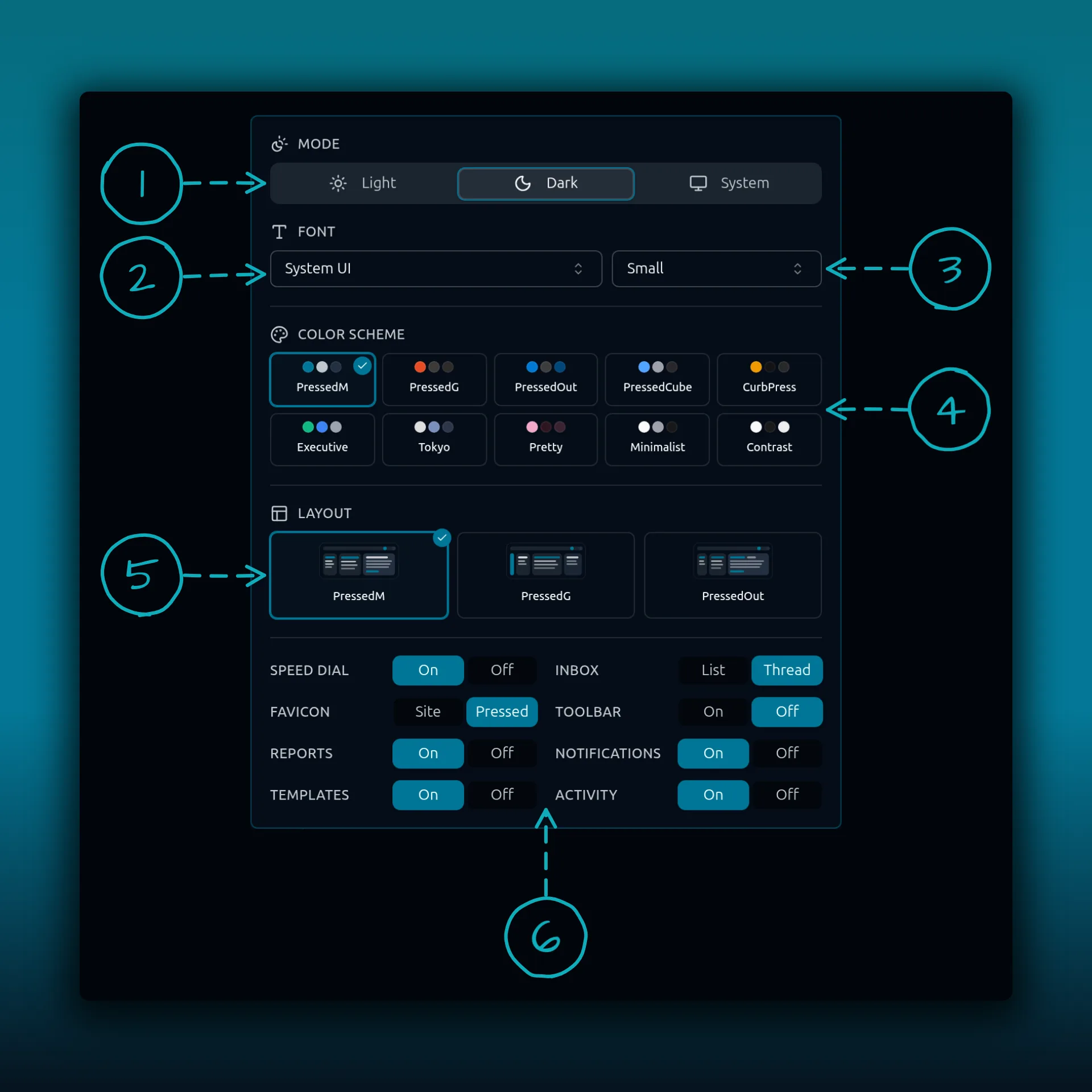
- Mode. Light, Dark or System.
- Font family.
- Font size.
- Color scheme. There are ten: PressedM, PressedG, PressedOut, PressedCube, CurbPress, Executive, Tokyo, Pretty, Minimalist and Contrast.
- Layout. Three inbox layouts: PressedM, PressedG and PressedOut.
- Display switches. Each row turns one piece of the interface on or off: Speed dial, Favicon, Reports, Templates, Inbox (list or thread), Toolbar, Notifications and Activity.
The display switches are saved to your user preferences. Personal preferences and appearance covers changing the look.
The notifications popover
Click the bell in the header. The badge on the bell is the unread count.
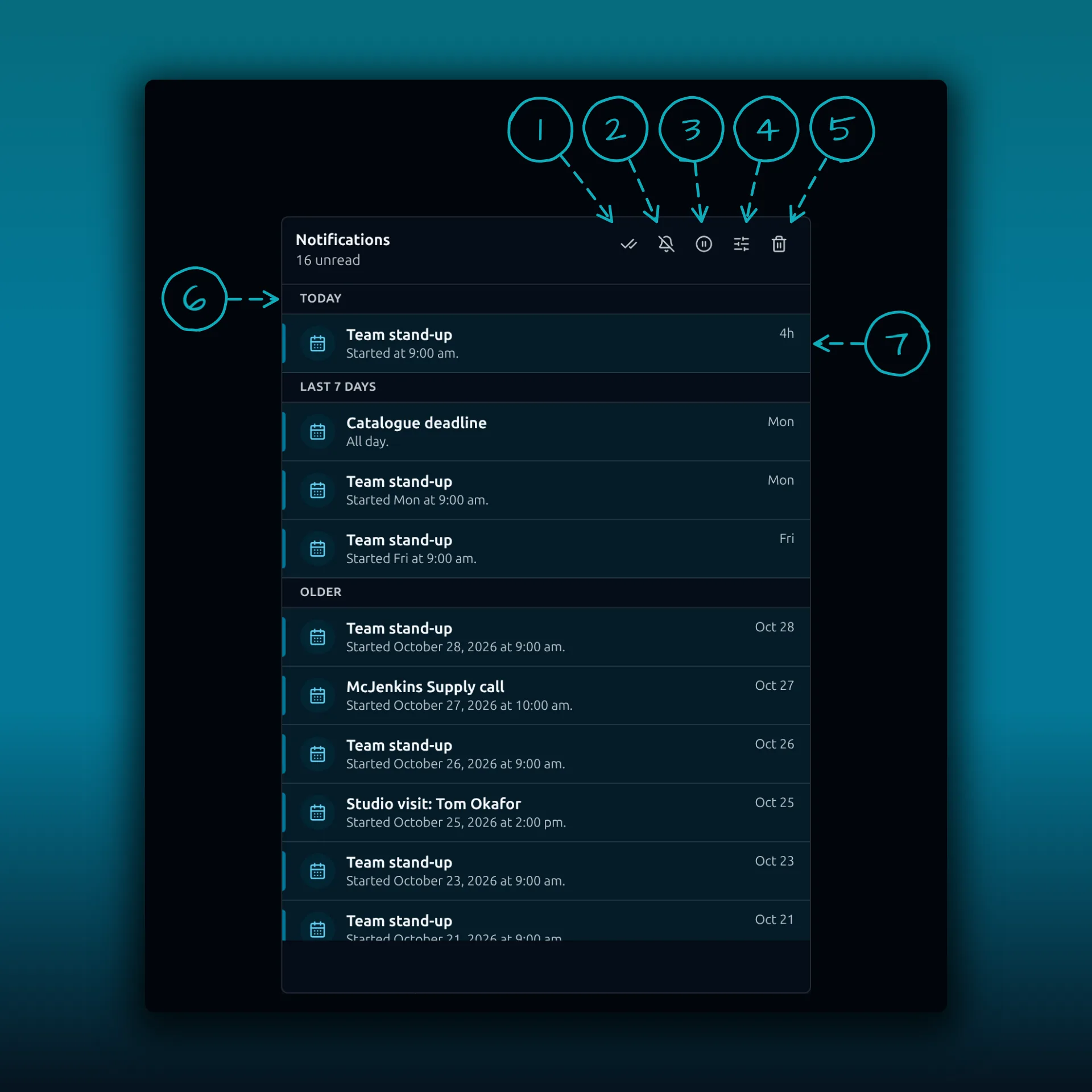
- Mark all as read.
- Mute sound and pop-ups.
- Pause notifications.
- Alert settings.
- Clear all.
- A group heading. The list is grouped under Today, Last 7 days and Older.
- A notification. The ones in this picture are calendar reminders.
The activity panel
Open it with the Toggle activity log button in the header, or with Activity at the right end of the status bar. Both open the same panel.
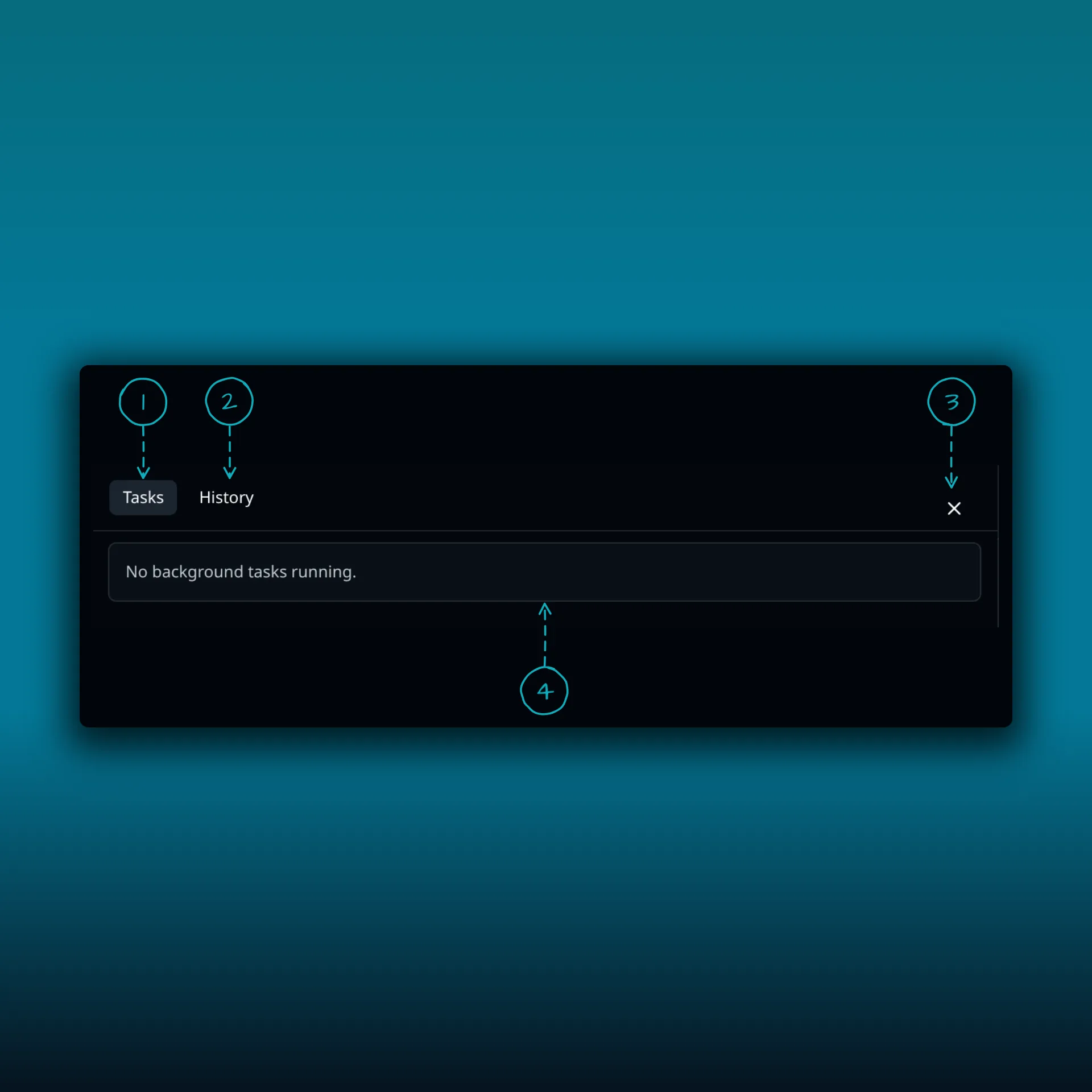
- Tasks. Background jobs while they run.
- History. Past activity.
- Close.
- The message under the tabs. With nothing running it says “No background tasks running.”
The speed dial
The round button in the corner of the window. Click it and seven more buttons fan out from it.
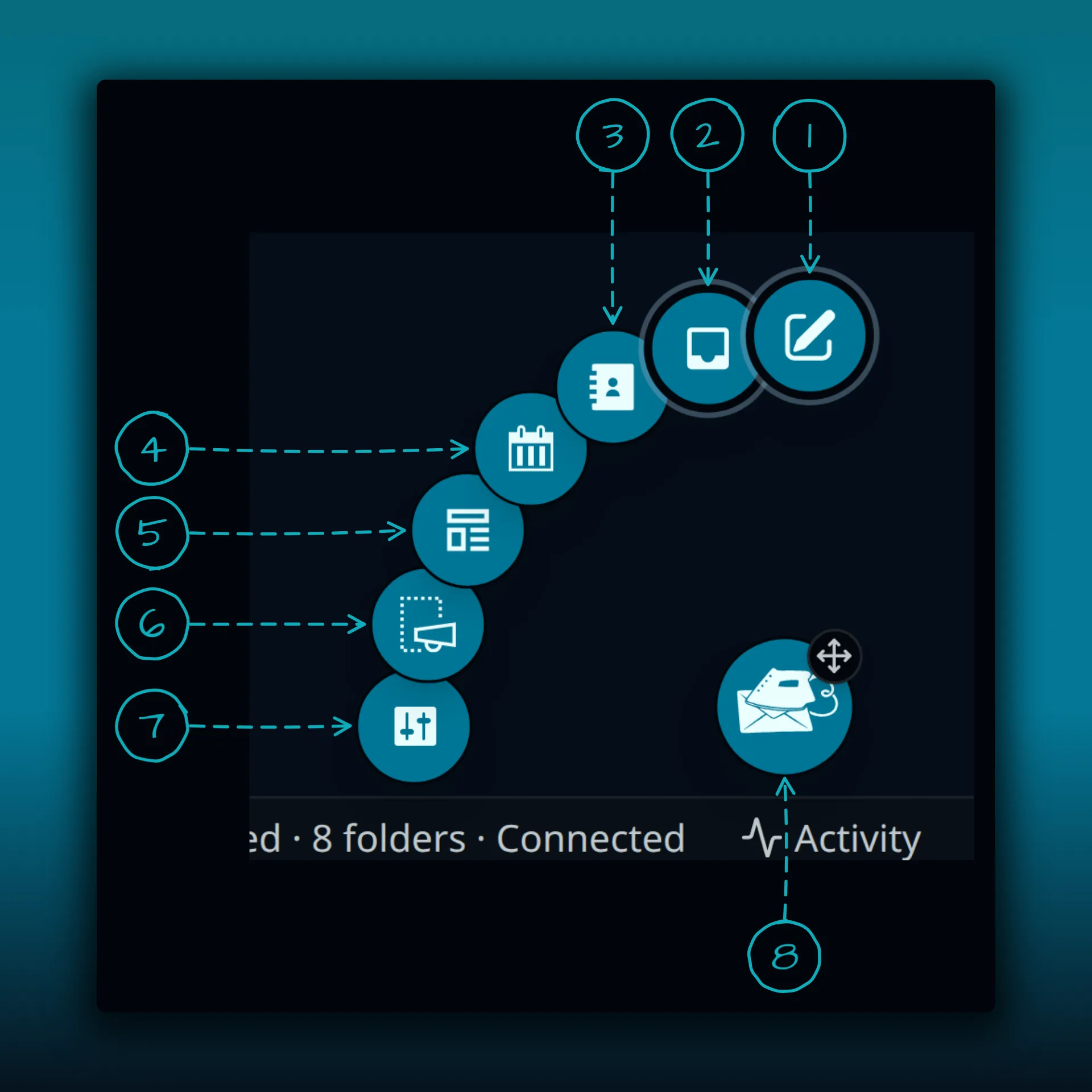
- Compose.
- Inbox.
- Contacts.
- Calendar.
- Templates.
- Campaigns.
- Settings.
- The speed dial button. Drag the small handle on its corner to move it, or focus it and use the arrow keys.
The speed dial can be turned off in the theme popover.