

The composer screen
The controls in the composer, from the sending account to the formatting toolbar.
Click Compose, or reply to a message, and the composer opens in the reading pane. Replies and forwards use the same screen with the recipients and subject filled in.
The top of the composer
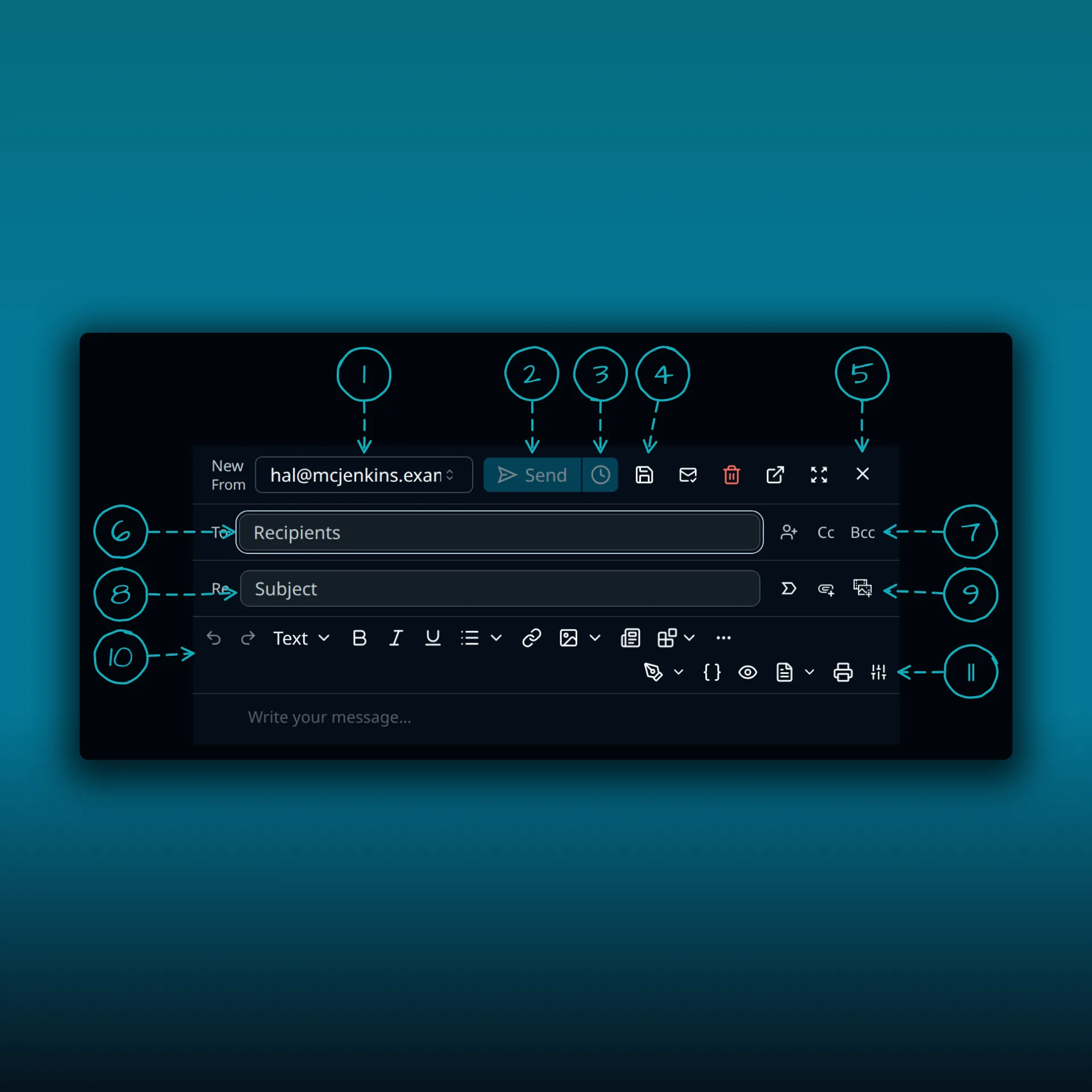
- From account. Pick which of your connected mailboxes sends the message.
- Send.
- Schedule send. Pick a later time instead of sending now.
- Save draft.
- Close.
- To. Type an address or pick one. The button beside the field browses your contacts.
- Cc and Bcc. Add copy and blind copy recipients.
- Subject.
- Mark as important, Attach files and Attach from Media Library. These three sit at the end of the subject row. The Media Library button attaches a file already in your WordPress site.
- The formatting toolbar: undo and redo, the text style menu, bold, italic, underline, lists, link, image and block insert, and a More menu.
- The second toolbar row: Signature, Fields, Preview, Format, Print and Customize toolbar.
Four more buttons sit beside Save draft: a read receipt toggle, Delete message, Pop out compose pane and Expand compose to full view.
The writing area is below the toolbar. It is empty in this picture, so it is cropped.
Where to go next
- Compose, reply, and attach files covers writing and sending mail.
- Signatures and snippets covers the Signature menu and reusable blocks.
- Snooze, scheduled sending, and follow-ups covers Schedule send.