

The contacts screen
Your address book, with the list, a contact's detail view and the form for adding someone.
Contacts is the second icon in the header. The screen has three parts: a left column that groups your contacts, the list itself, and a pane on the right that shows one contact or the add form.
The contact list
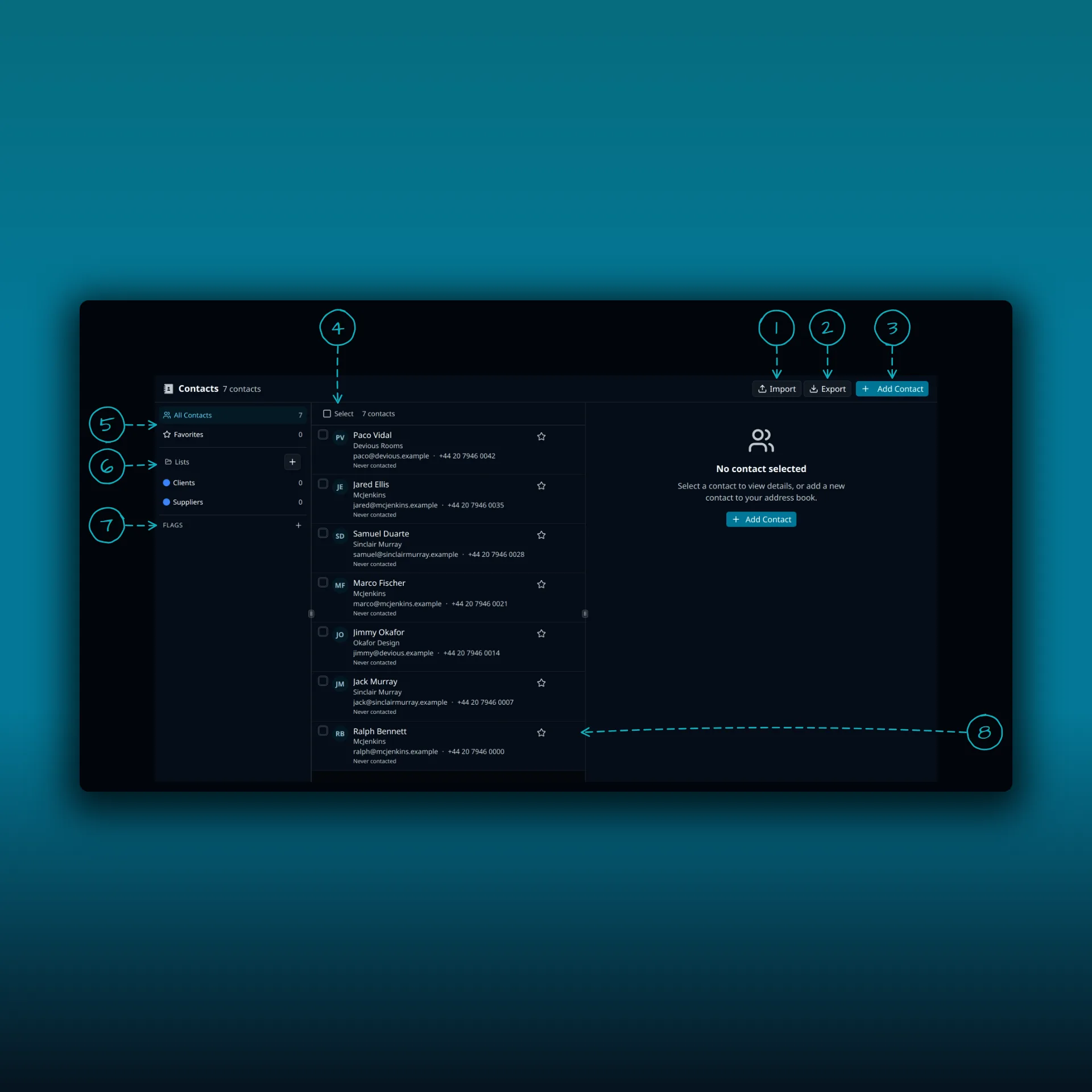
- Import. Brings contacts in from a file.
- Export. Saves your contacts to a file.
- Add Contact. Opens the add form in the right pane.
- Select contacts. Turns on selection so you can tick several rows.
- All Contacts and Favorites. The number on each is how many contacts it holds.
- Lists. The plus button beside the heading creates a new list. The lists you have, here Clients and Suppliers, sit underneath.
- Flags. The plus button adds a flag. A flag is a short label you can put on any contact.
- The buttons at the right end of a row: add to favorites, send email and more actions.
Each row shows the contact’s initials, name, company, address and phone number, and when you last emailed them. “Never contacted” means you have not.
A contact’s details
Click a row and the right pane shows that contact.
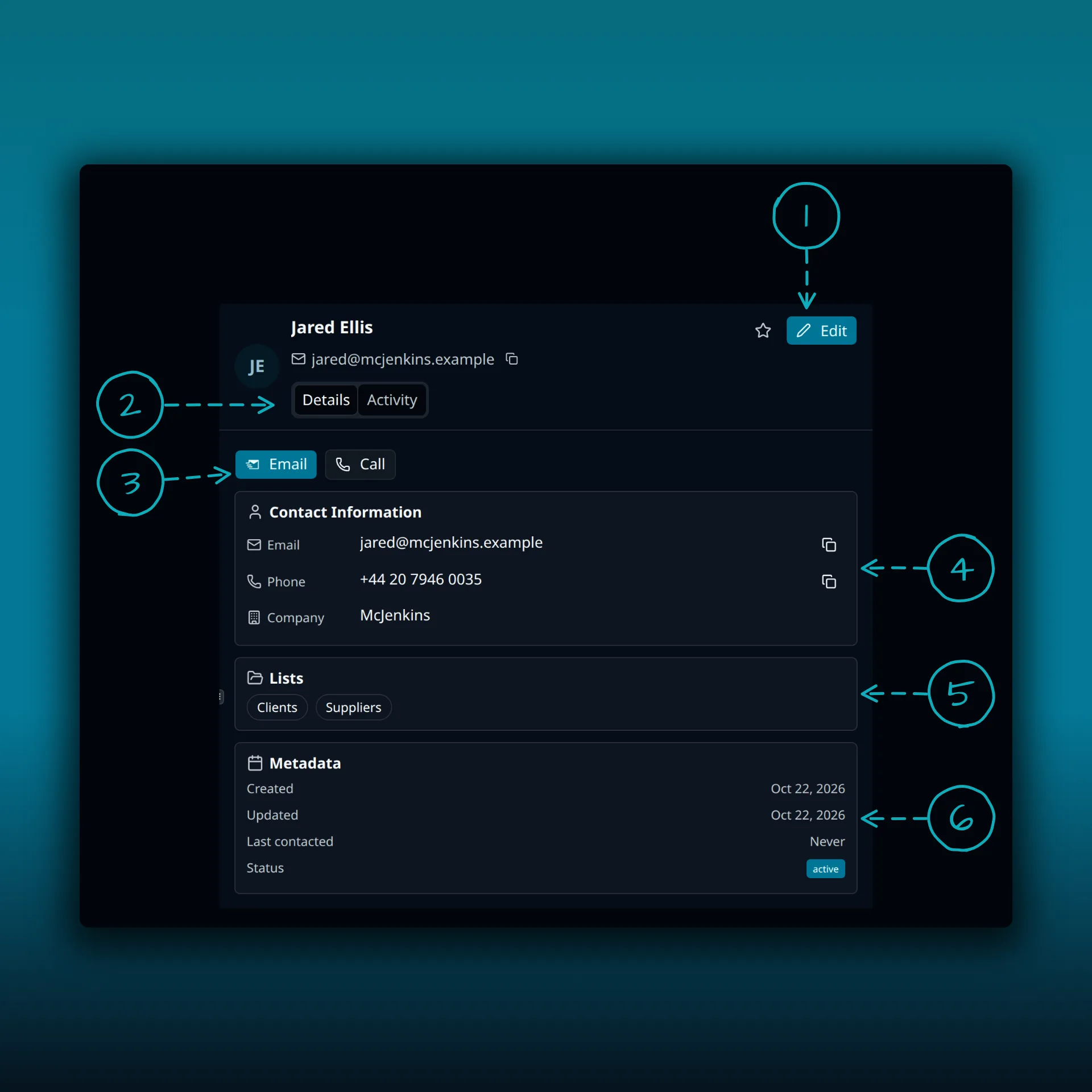
- Edit.
- Details and Activity. Details is the view in this picture.
- Email and Call. Quick actions for this contact.
- Contact Information. The email, phone and company, with a copy button beside the email and the phone number.
- Lists. The lists this contact belongs to.
- Metadata. When the contact was created and last updated, when you last contacted them, and their status.
Adding a contact
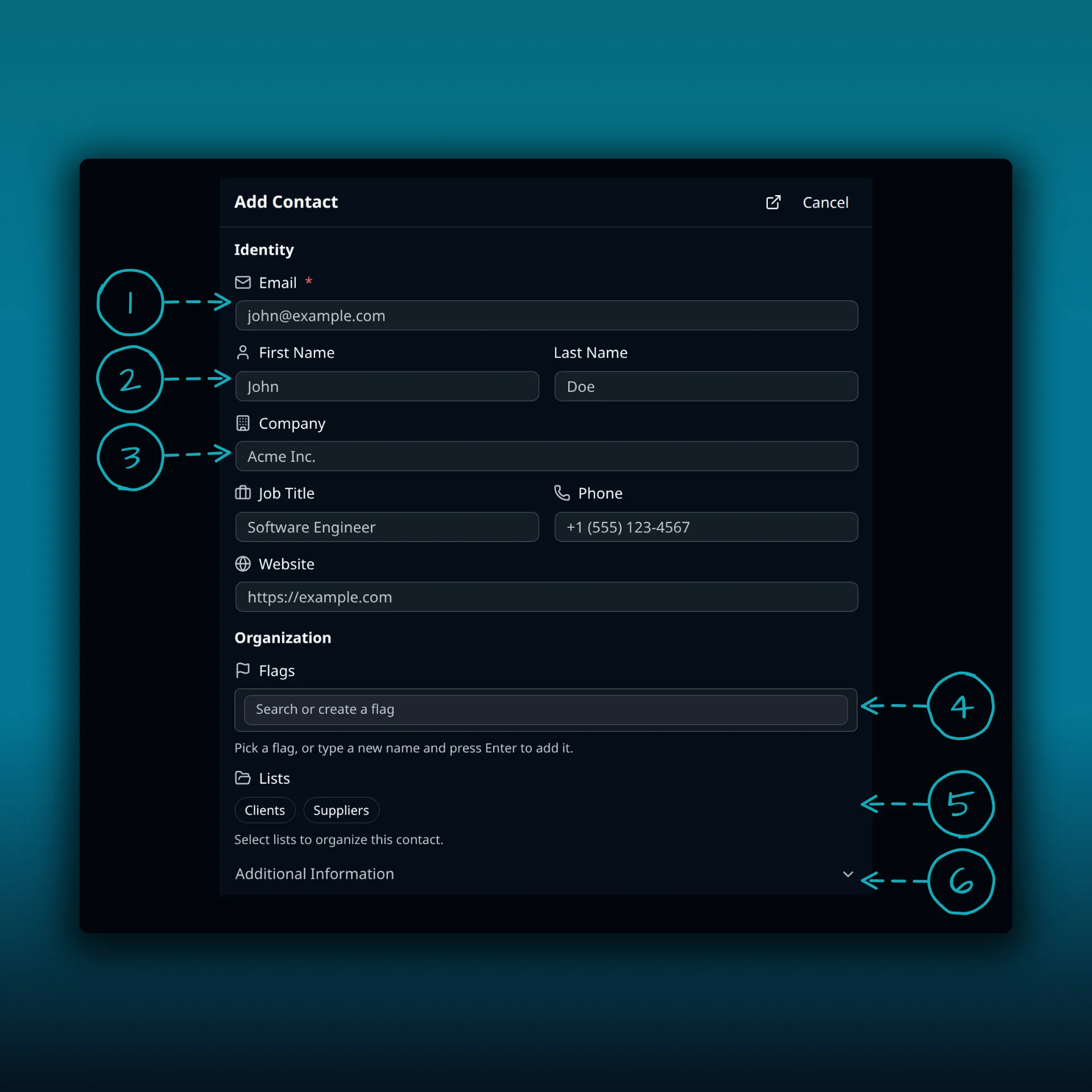
- Email. The only required field. It is marked with a red star.
- First Name and Last Name.
- Company. Job Title, Phone and Website follow it.
- Flags. Pick a flag, or type a new name and press Enter to add it.
- Lists. Tick the lists the contact should join.
- Additional Information. Expands to show more fields.
The form closes with Cancel, or saves with the Add Contact button at the bottom of the pane.
Where to go next
- Contacts, lists, and imports covers importing, exporting and lists in depth.
- Campaigns covers emailing a list.
- Share inboxes, calendars, and contact lists covers sharing a list with a teammate.