

The main screen
The parts of the PressedMail window, from the account switcher to the status bar.
PressedMail opens on your inbox. Every other screen sits inside the same frame: a header across the top, a folder pane on the left, the message list in the middle and a reading pane on the right.
This page names each part. The rest of the tour zooms in on one screen at a time. The screens on these pages come from an Ultimate site. Free shows fewer buttons, and a few controls only appear when your plan includes the feature.
The whole window
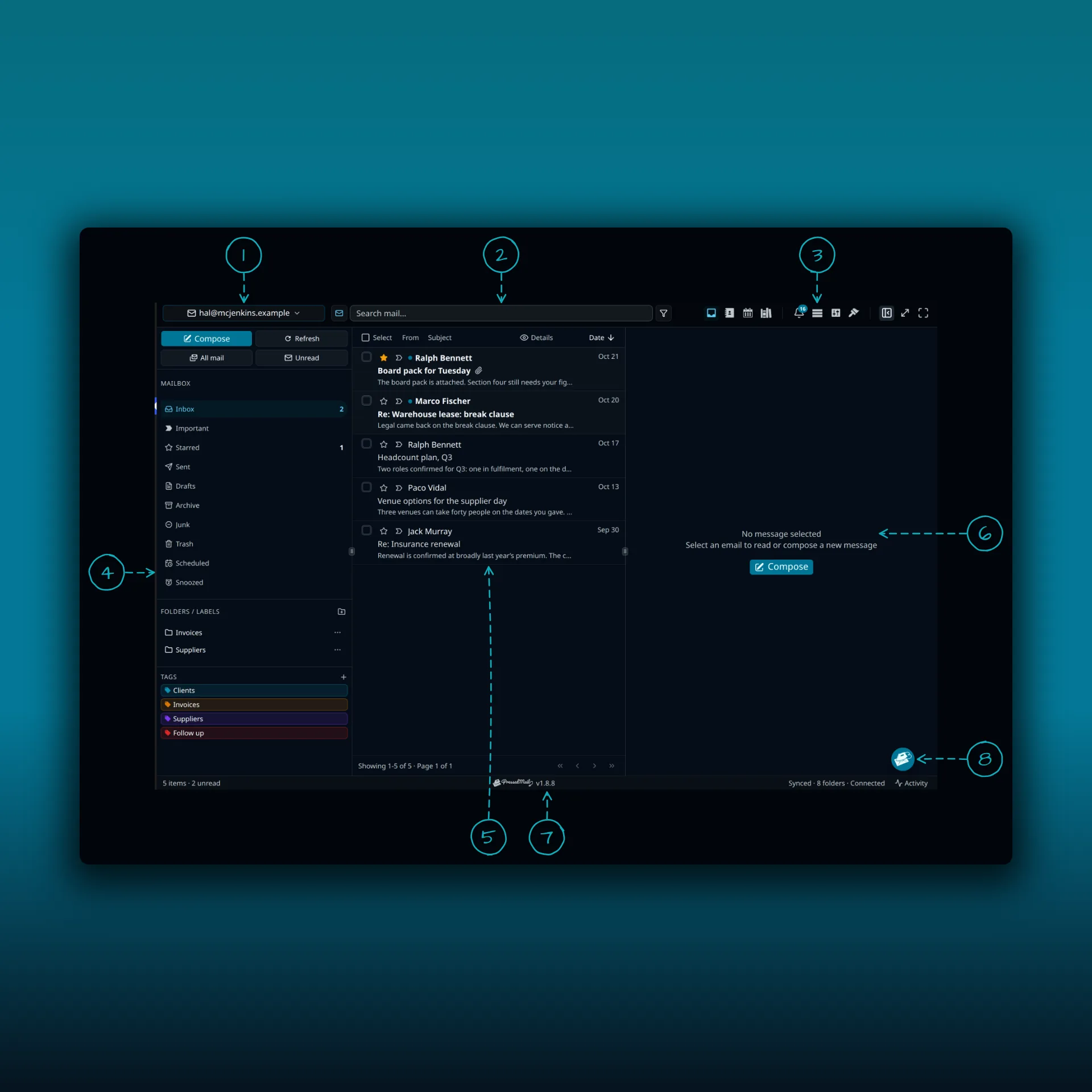
- The account switcher. Choose one mailbox, or the combined inbox that merges them.
- The search box. The small button on its left sets what you search: mail, contacts or calendar.
- The icon cluster. The next section goes through it.
- The folder pane. It lists the folders, labels and tags of the account you picked.
- The message list.
- The reading pane. It says “No message selected” until you open a message.
- The status bar. It shows the item and unread counts, the sync state, the plugin version and a button for the activity panel.
- The speed dial, a round button in the corner. You can drag it somewhere else.
The icon cluster
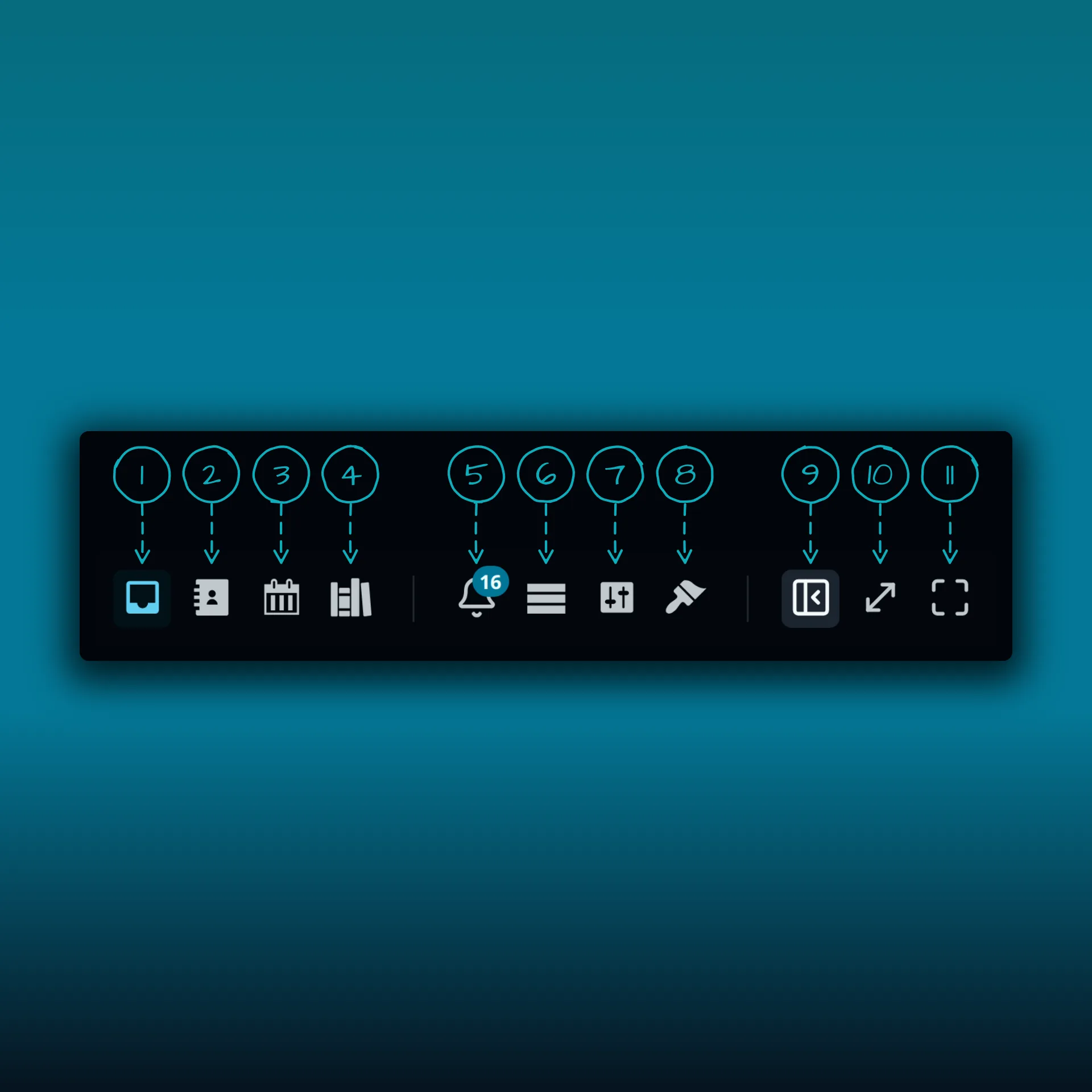
- Inbox. Back to your mail.
- Contacts. Your address book.
- Calendar. Your events.
- Templates. Email templates, content blocks and forms.
- Notifications. The badge counts what you have not read yet.
- Toggle activity log. Opens and closes the activity panel.
- Settings. Your preferences and, if you administer the site, the admin screens.
- Theme. Opens the appearance popover.
- Collapse main menu. Folds the WordPress admin menu on the left to give PressedMail more width.
- Immersive mode. Hides the WordPress admin menu and top bar so PressedMail fills the window. Click it again to bring them back.
- Fullscreen. Takes the browser window fullscreen.
Some of these can be switched off. The Theme popover has an on and off setting for the activity button, notifications, templates and reports, so your header may show fewer icons than this one.
Where to go next
- The message list and reader covers the folder pane, the list and the buttons above a message.
- Popovers and panels covers the account switcher, search scope, notifications, theme, speed dial and activity panel.
- Inbox and folders explains how mail behaves once you click.