

The add account screen
The first step of adding a mailbox is choosing a provider.
Click Add Account in the Accounts tab and a full-width screen replaces the settings. It walks you through adding a mailbox in three steps. The first is choosing who hosts it.
Choose a provider
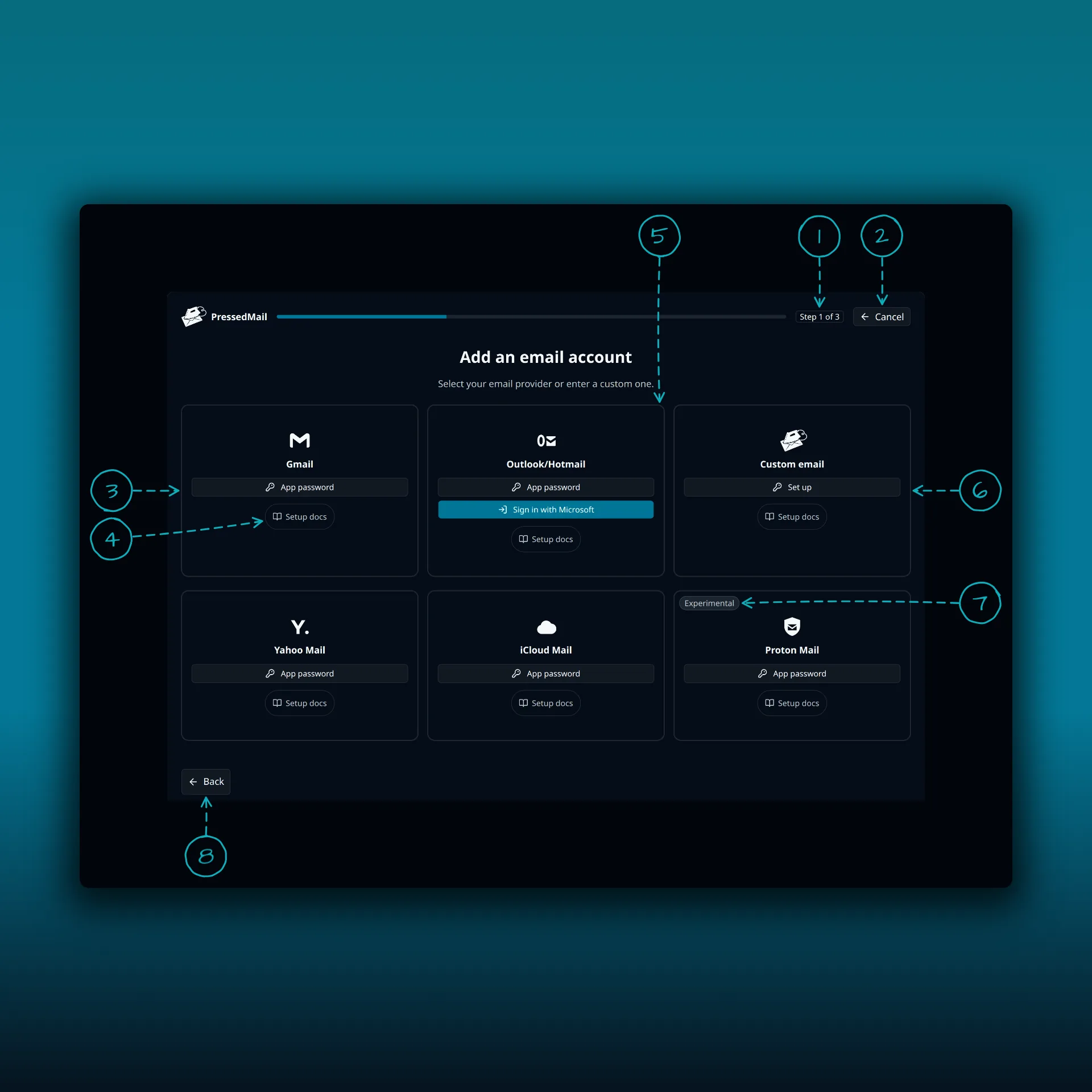
- The progress bar and the step count. This is Step 1 of 3.
- Cancel. Takes you back to the settings.
- Gmail. It offers App password.
- Setup docs. Every card has one, and it opens the provider’s guide in a new tab.
- Outlook/Hotmail. It offers App password and Sign in with Microsoft.
- Custom email. Choose Set up for any provider that speaks IMAP and SMTP.
- The Experimental badge. It sits on the Proton Mail card.
- Back.
Yahoo Mail, iCloud Mail and Proton Mail each offer App password.
Where to go next
- Connect your first mailbox covers the three steps.
- Gmail and Google Workspace, Outlook and Microsoft 365 and Custom IMAP and SMTP cover the most common providers.
- Proton Mail Bridge explains the experimental one.