

The settings screen
The settings tabs, the accounts table and the personal preferences.
Settings is the icon in the header that looks like a set of sliders. The screen is a column of tabs on the left and the open tab on the right.
The tabs
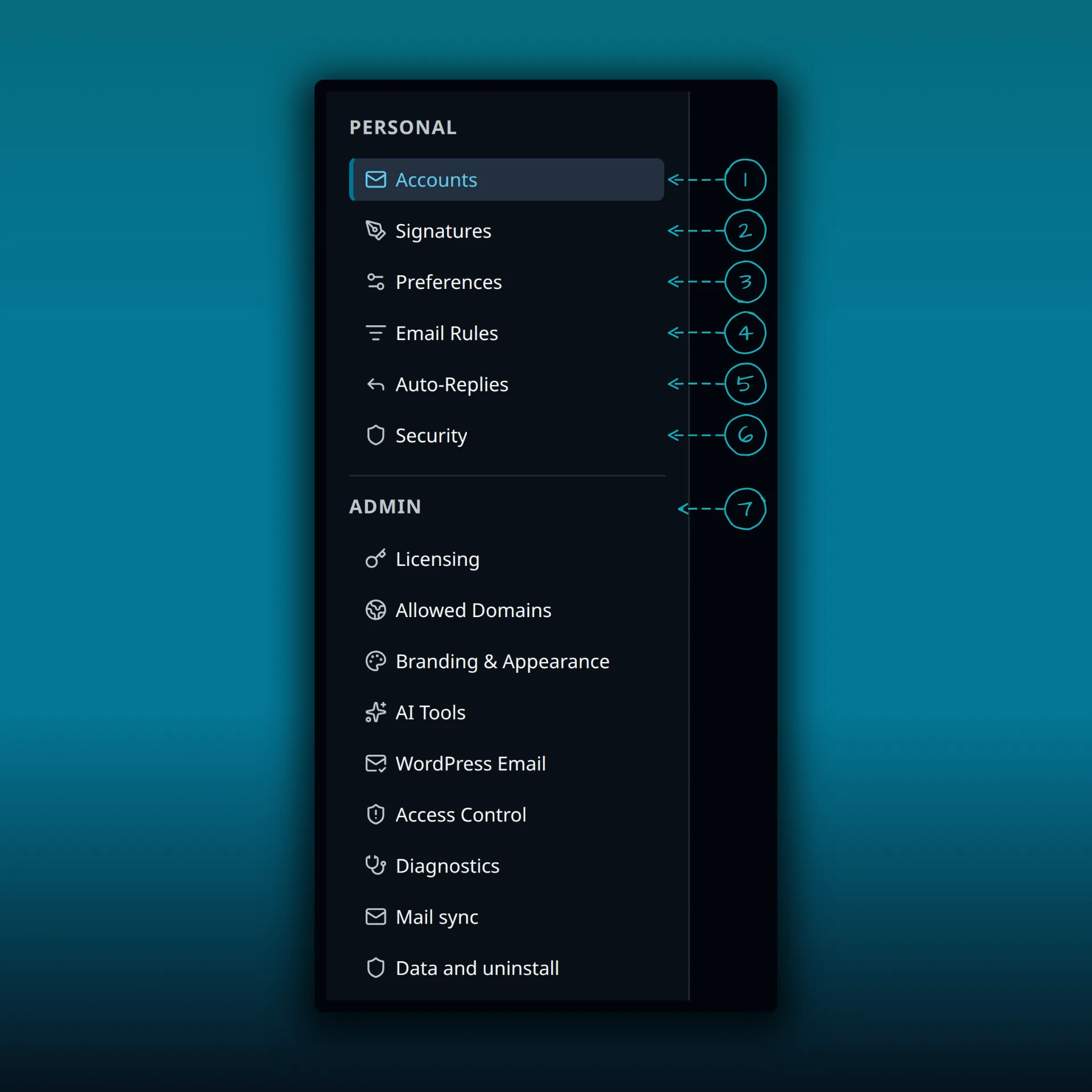
- Accounts. Your connected mailboxes.
- Signatures.
- Preferences.
- Email Rules.
- Auto-Replies.
- Security.
- The Admin heading. Everything under it configures the whole site: Licensing, Allowed Domains, Branding & Appearance, AI Tools, WordPress Email, Access Control, Diagnostics, Mail sync and Data and uninstall. The admin settings screens shows some of them.
Accounts
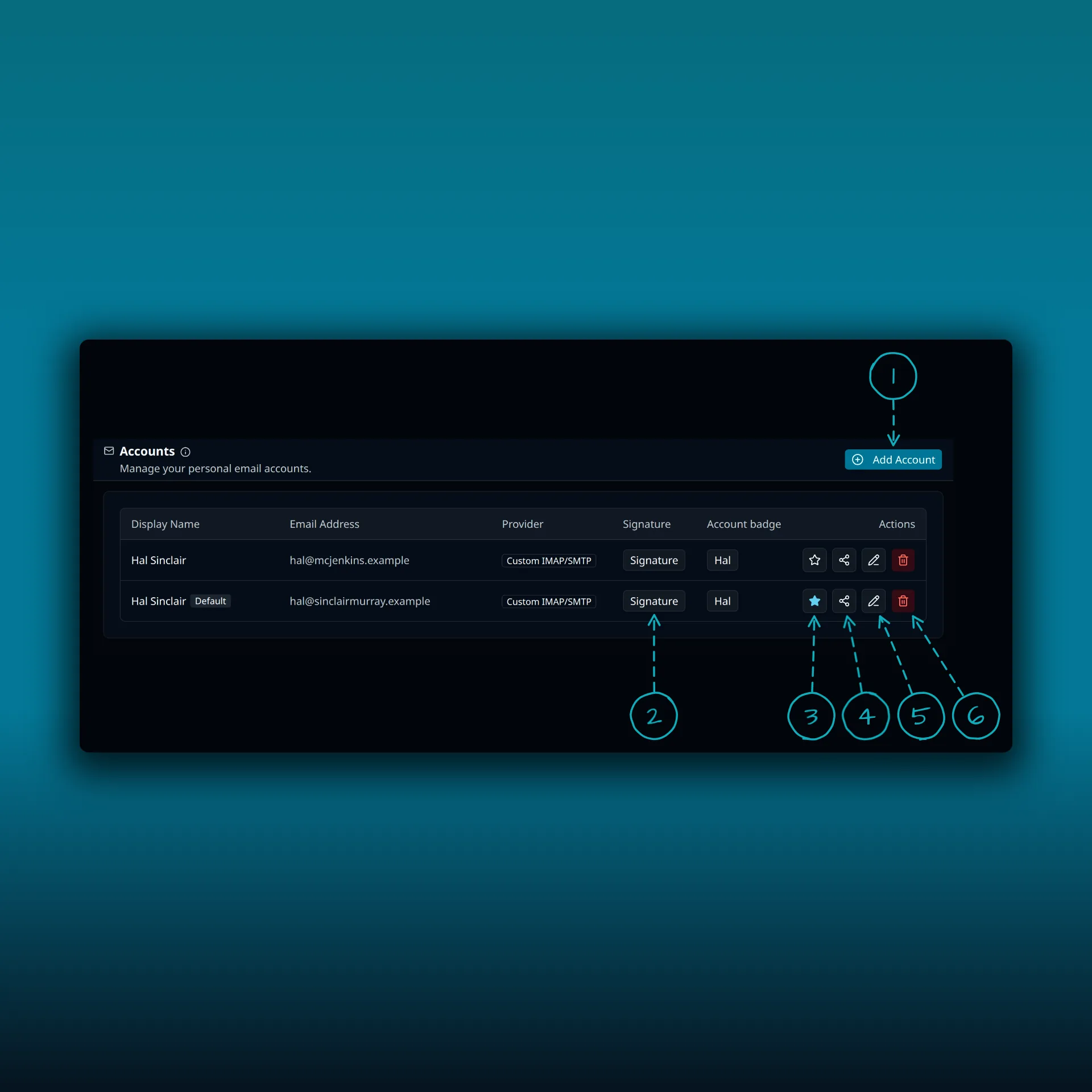
The table lists a display name, the address, the provider, a signature button, an account badge and a set of actions for each connected account.
- Add Account. Starts the add account screen.
- Signature. Opens the signature for that account.
- The star. A filled star marks the default account, which also carries a Default badge next to its name. Click an empty star to make another account the default.
- Share. Sharing a mailbox needs Ultimate or Lifetime.
- Edit.
- Delete.
Preferences
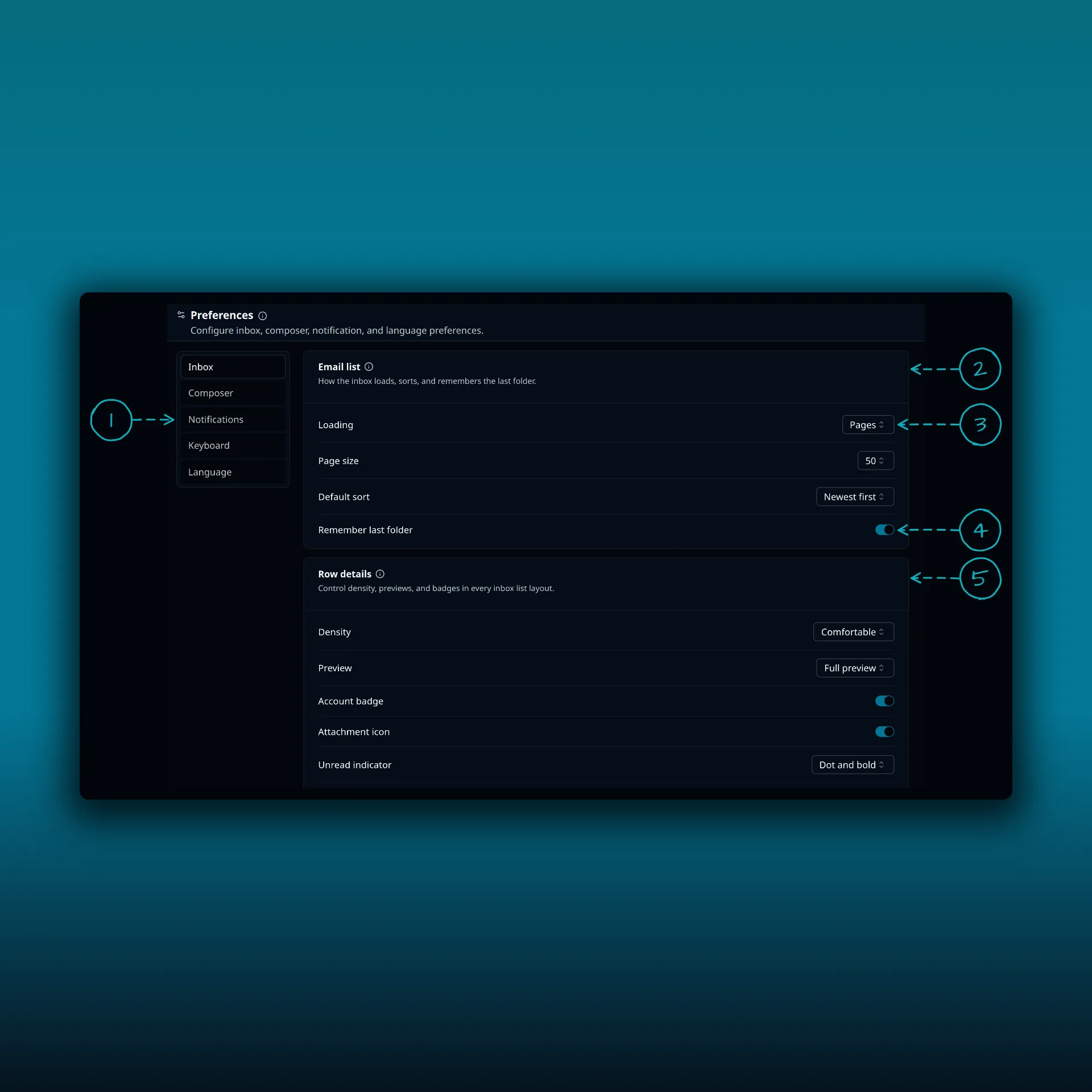
- The category list: Inbox, Composer, Notifications, Keyboard and Language.
- A section card. The Email list card controls how the inbox loads, sorts and remembers the last folder.
- A drop-down. Loading is set to Pages here.
- A switch. Remember last folder is on here.
- Another section card. Row details controls density, previews and badges in every inbox list layout.
Where to go next
- Personal preferences and appearance goes through each preference.
- Keyboard and accessibility covers the Keyboard category.