

Proton Mail Bridge
Run Proton's official Bridge program on your server with the PressedMail Pro companion, and connect Proton Mail without desktop software.
Proton Mail does not offer IMAP and SMTP to other clients directly. Proton Mail Bridge is Proton's official program that adds them, and the PressedMail Pro companion runs that program on your WordPress server. The mailbox then appears in PressedMail next to your other accounts, with no desktop app and no app passwords.
The companion is a separate plugin for PressedMail Pro. Without it, Proton Mail in Add account reads coming soon.
What you need
- PressedMail Pro, active on the site.
- A Linux server. The installer downloads Proton's official Linux build and checks the checksum Proton published for it before anything runs.
- A host that lets PHP start background processes. Hosts that disable those functions cannot run Bridge, and the Proton Mail panel says so when that is the case.
- A data directory outside your web root that the web server can write to. It holds Bridge's local data, which is a signed-in copy of your mailbox.
- Your Proton address and password, and a two-factor code if the account uses one.
Install the companion
Download the companion from the Downloads page in your PressedMail account, next to the Pro download. Install and activate it like any WordPress plugin, with Plugins > Add New > Upload Plugin. PressedMail Pro must be active first; the companion does nothing without it.
The companion adds no screen of its own. Its controls appear inside PressedMail, where you add the account.
Connect the mailbox
- Open PressedMail > Settings > Email Connections.
- Under Your Email Accounts, select Add Account and choose Proton Mail.
- Confirm the data directory. The panel suggests one outside the web root, and you can choose another.
- Select Install Bridge, then Start, and wait for the status to read running.
- Enter your Proton address, password, and two-factor code when asked, and choose the mailbox.
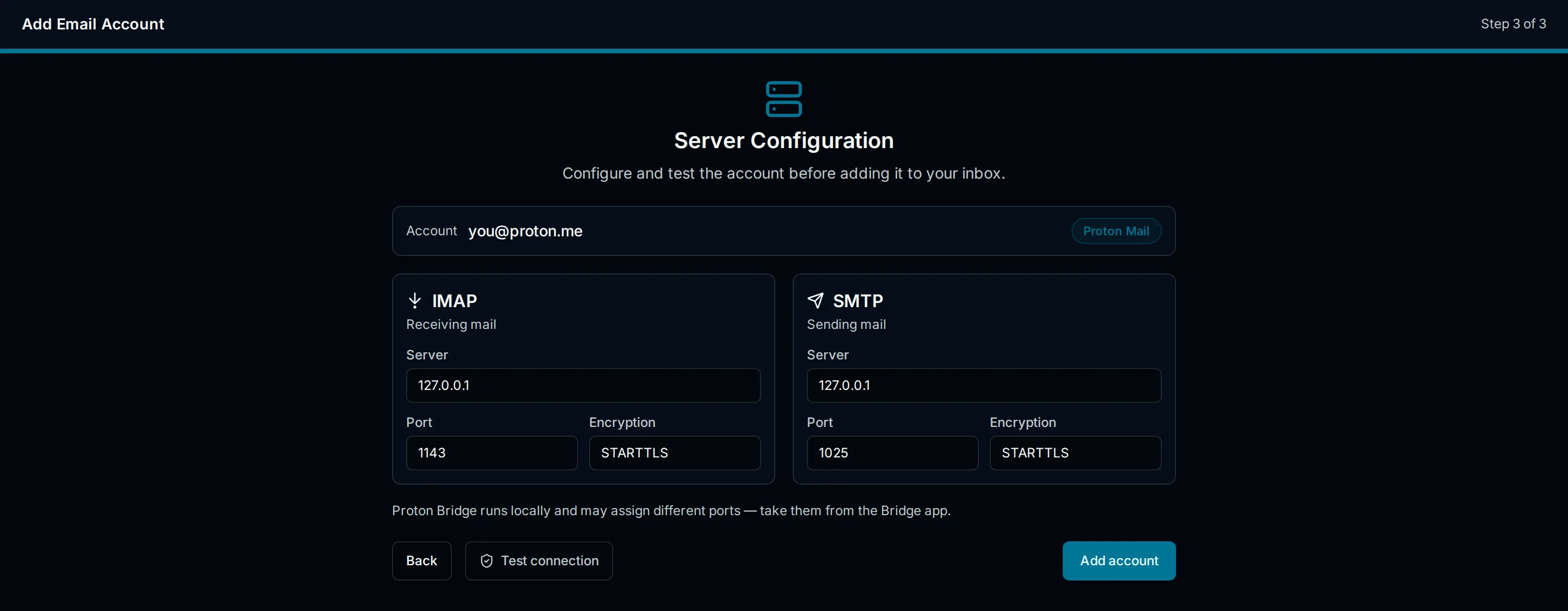
- PressedMail creates the account through the same checks as any other provider, runs its connection test, and the mailbox appears under Your Email Accounts.
How the Bridge runs
Bridge runs as a background process on the server and listens on the server's loopback interface only. A watchdog restarts it if it stops, and updating PressedMail does not interrupt it. The same panel stops and starts it.
Proton allows one Bridge instance at a time. The panel will not start a second one while another runs.
Security and privacy
Your Proton password is used for the sign-in and is never stored. The local password Bridge generates is saved into your PressedMail account, sealed the same way as any provider credential, and removing the account removes it.
Do not expose Bridge to the internet. It binds to loopback and has no authentication of its own, so there is nothing to gain and a mailbox to lose. Read Where your mail and data live for what PressedMail stores beside it.
If you change your Proton password, the credentials Bridge generated stop working. Sign in again from the Proton Mail panel and PressedMail updates the existing account instead of adding a duplicate.
Uninstalling the companion removes the plugin's stored state and leaves the Bridge program and its data directory on the server. Nothing stops a running Bridge, but with the plugin gone nothing restarts it either. The data directory holds your Proton login, and deleting it signs Bridge out of your account, so it is yours to remove deliberately: define PRESSEDBRIDGE_REMOVE_DATA_ON_UNINSTALL in wp-config.php before you uninstall to have uninstall delete it.
When the server cannot run Bridge
If Install fails, the message names the library or function the server is missing, and that is the package to ask the host about. A host that will not allow background processes cannot connect Proton Mail at all, and no setting in PressedMail changes that.
For everything else after the mailbox exists, follow Mailbox connections. For how this path compares with the others, read Connect your first mailbox.