

Connect your first mailbox
Choose a supported connection method, test IMAP and SMTP, and confirm mail works both ways.
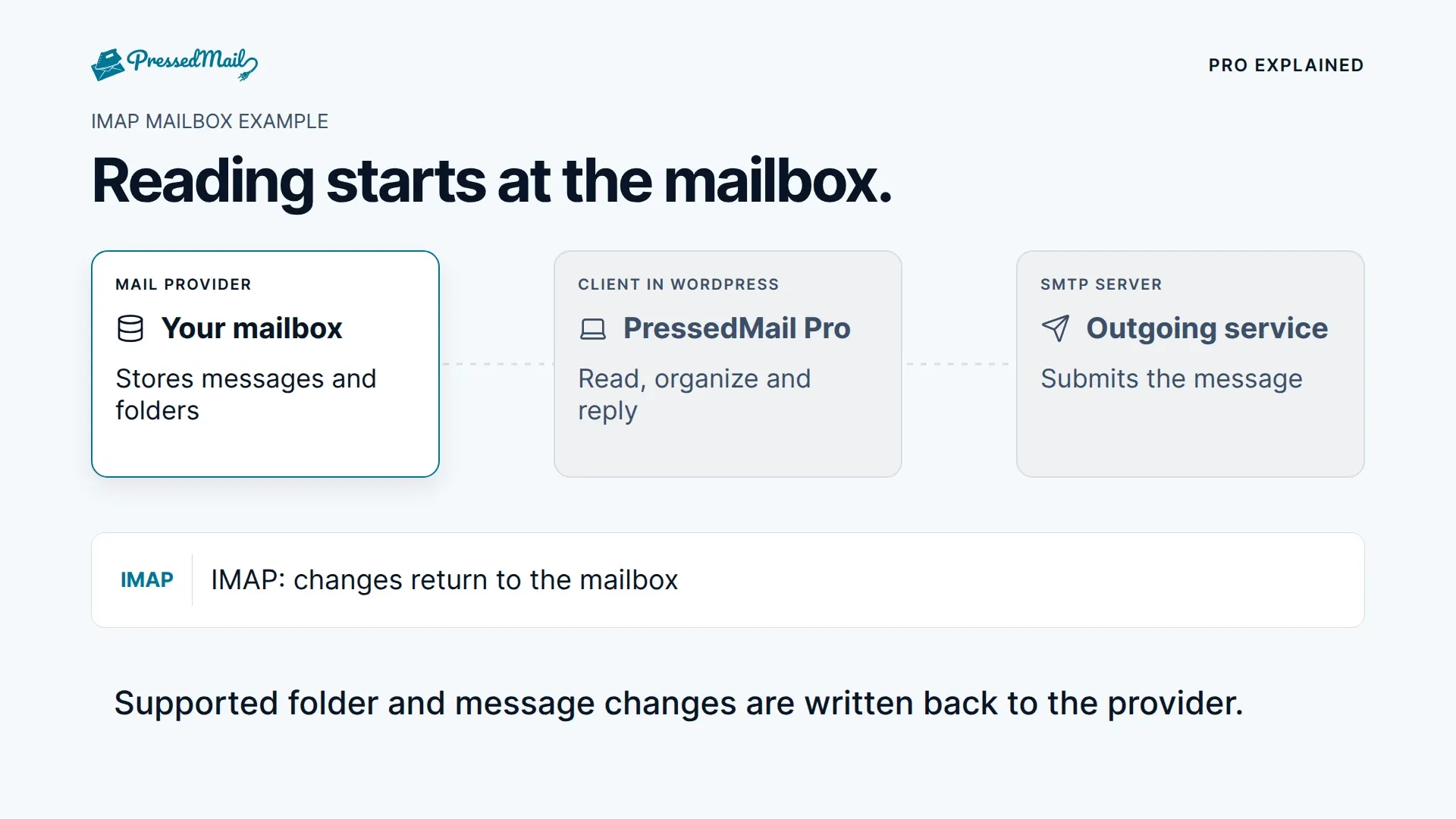
Connect a mailbox you already own. IMAP reads its folders and messages; SMTP sends outgoing mail. PressedMail needs both connections, even if webmail works in your browser.
Free and paid builds use the same account-connection flow. The combined inbox is a paid feature. Each connection belongs to the WordPress user who adds it.
Choose the connection method
| Mailbox | Choose in PressedMail | What you need |
|---|---|---|
| Gmail or Google Workspace | Gmail | A Google app password, where the account permits one |
| Outlook.com or Microsoft 365 | Outlook/Hotmail | Microsoft sign-in and any required organization consent |
| Yahoo Mail (Pro builds only) | Yahoo Mail | A Yahoo app password |
| iCloud Mail (Pro builds only) | iCloud Mail | An app password from your Apple account |
| Hosting email or another IMAP provider | Custom Email | The provider's server names, ports, encryption, and credentials |
Yahoo Mail and iCloud Mail connect with an app password from the provider, not a sign-in. Free does not list them. Proton Mail is marked coming soon in the setup flow and cannot be selected there, unless a Pro site has the Proton Bridge companion plugin active, which runs Proton's Bridge on the server for you. Follow Proton Mail Bridge for that setup. Do not expose Proton Bridge to the public internet to try to connect it.
Google OAuth is unavailable in the checked build. If your Google account requires OAuth and does not permit app passwords, use another client for that account. PressedMail cannot override the provider's security policy.
Add the account
- Open PressedMail > Settings > Email Connections.
- Under Your Email Accounts, select Add Account.
- Choose Gmail, Outlook/Hotmail, or Custom Email. Pro builds also list Yahoo Mail and iCloud Mail.
- Enter the mailbox address and display name. For Microsoft, complete the sign-in flow; for password-based connections, use the provider-approved mailbox or app password.
- For Custom Email, enter the incoming and outgoing server settings. Named presets supply their own values.
- Run Test Connection. This checks access from the WordPress server, not from your laptop.
- Save the account and wait for the first sync.
Use the provider guide for details: Gmail, Microsoft, Custom IMAP and SMTP, other providers, hosting email, or Proton Mail Bridge.
Confirm receiving and sending
Open Inbox and check for a recent message you can also see in webmail. Send a short message to another address you control, then reply to it. A connection test can pass even when a later message is rejected by a provider's sender or size policy.
If receiving works but sending fails, check SMTP separately. If neither works, record the error and open Mailbox connections. Keep TLS certificate verification enabled.
Keep the two SMTP settings separate
The SMTP settings on this account send messages from the PressedMail composer. WordPress notifications use WordPress SMTP setup, with a separate server configuration.
Removing a connection removes its local credentials and mirror. It does not delete the provider mailbox. Read Where your mail and data live before changing storage or retention settings.