

Custom IMAP and SMTP
Enter your provider's incoming and outgoing server settings through Custom Email.
Status: Supported with manual configuration.
Authentication: Password or app password (IMAP/SMTP password authentication).
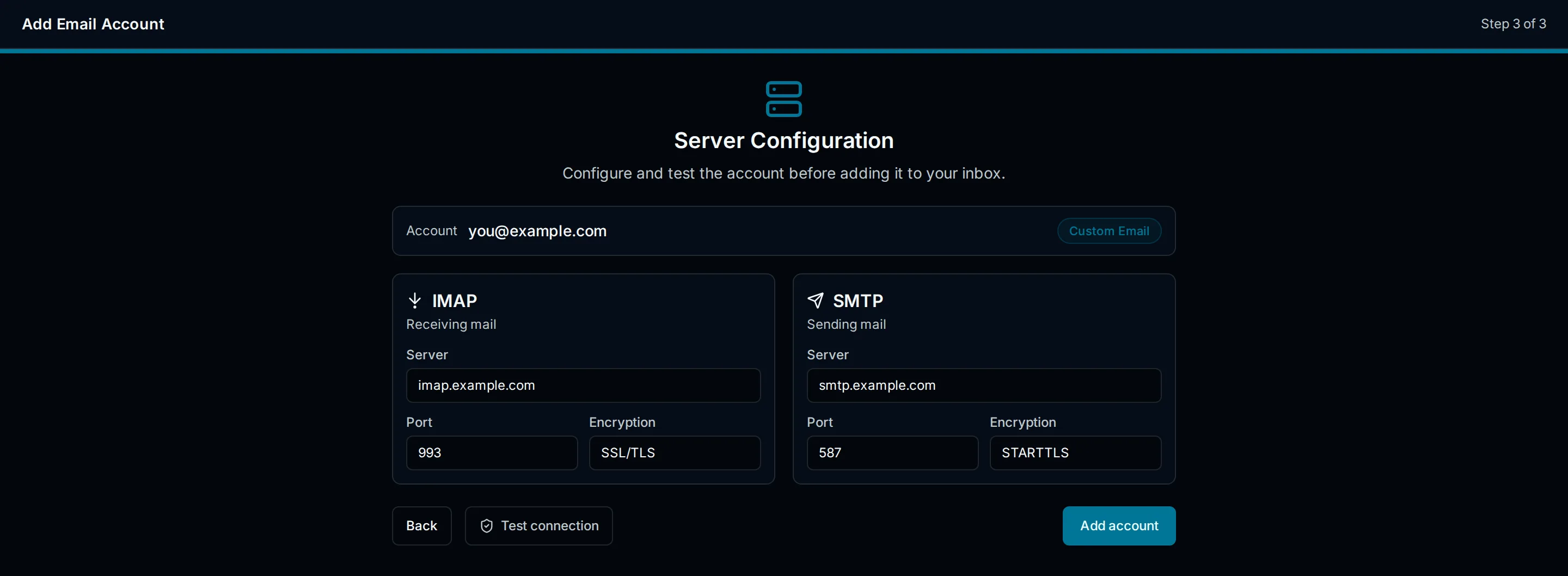
The image uses example hostnames. Enter the values supplied for your mailbox.
Use Custom Email for providers without a named preset, including hosting mailboxes, Fastmail, Zoho, and private IMAP servers. Recognized Gmail or Outlook addresses can prompt a suggestion to use their preset. For an unknown or custom domain, enter the provider's documented IMAP and SMTP values rather than assuming the domain determines them.
Fields
| Field | What to enter |
|---|---|
| Email address | The mailbox address shown to users. |
| Display name | The sender name shown to recipients. |
| IMAP host | The incoming mail server hostname. |
| IMAP port | Usually 993 for SSL/TLS or 143 for STARTTLS. |
| IMAP encryption | SSL/TLS, STARTTLS, or None. |
| IMAP username | Usually the full email address. |
| IMAP password | The mailbox password or provider-generated app password. |
| SMTP host | The outgoing mail server hostname. |
| SMTP port | Usually 587 for STARTTLS or 465 for SSL/TLS. |
| SMTP encryption | STARTTLS, SSL/TLS, or None. |
| SMTP username | The outgoing account username, usually the full email address. |
| SMTP password | The outgoing password. Often the same as IMAP, but not always. |
| Use same credentials for SMTP | Toggle that reuses the IMAP username and password for SMTP. |
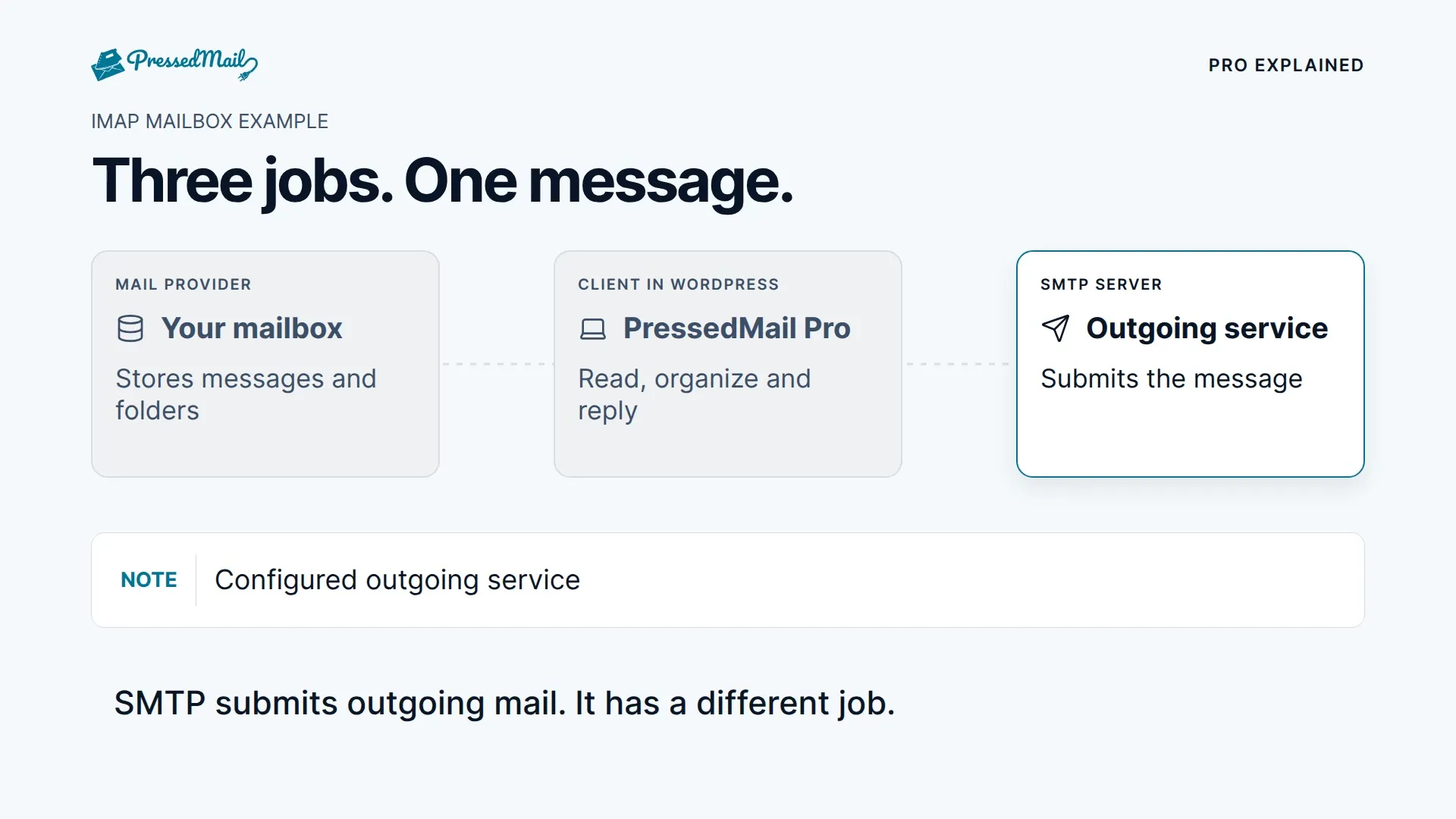
PressedMail can use the same credentials for IMAP and SMTP, or separate outgoing credentials when the provider requires them. Uncheck Use same credentials for SMTP to enter distinct IMAP and SMTP usernames and passwords.
The username is commonly the complete email address, but some providers use only the mailbox name (the part before the @). Check the provider's documentation. IMAP and SMTP passwords may be different on providers that issue separate incoming and outgoing credentials.
Common encryption and port combinations
IMAP
| Encryption | Common port |
|---|---|
| SSL/TLS | 993 |
| STARTTLS | 143 |
| None | 143 |
SMTP
| Encryption | Common port |
|---|---|
| SSL/TLS | 465 |
| STARTTLS | 587 |
| None | 25 or 587 |
Unencrypted connections should not be used over public networks. Prefer SSL/TLS or STARTTLS.
Common starting values
- IMAP:
993with SSL/TLS. - SMTP:
587with STARTTLS. - Username: full mailbox address.
- Authentication: provider-approved mailbox password or app password.
- SMTP authentication: enabled. PressedMail authenticates SMTP by default.
If the provider publishes different values, use the provider values first. The connection resolver can try common fallbacks, but a clean provider-specific configuration is easier to support.
Certificate and hostname requirements
PressedMail validates TLS certificates and does not expose a setting to disable certificate verification. A certificate error means the configuration must be corrected, not bypassed.
- The server hostname must match the name on the TLS certificate.
- Self-signed certificates can cause connection failures because they are not trusted.
- Expired or mismatched certificates must be fixed at the mail server, not in PressedMail.
- Selecting the wrong encryption for a port causes failures: implicit SSL/TLS belongs on
993/465, while STARTTLS belongs on143/587.
Do not disable certificate validation to work around a connection error. PressedMail intentionally does not provide that option.
Hosting and network considerations
- Hosting firewalls may block outbound ports
25,465,587,993, or143. Ask the host whether outbound mail ports are open. - The sender address may need to match the authenticated account; some providers reject aliases.
- Some providers restrict which addresses may send over a given SMTP login.
What not to enter
Do not enter MX records, webmail URLs, DNS control panel URLs, or WordPress SMTP plugin settings. PressedMail needs direct IMAP and SMTP server hostnames.
Setup in PressedMail
- Open Settings > Email Connections and select Add Account.
- On Add an Email Account, choose Custom Email.
- On Account Credentials, enter the email address and display name.
- On Server Configuration, enter the IMAP host, port, and encryption, and the SMTP host, port, and encryption.
- Enter the IMAP username and password, then the SMTP credentials (or keep them shared with IMAP).
- Run Test Connection to validate both servers.
- Save the account.