
Zoho Mail
Connect personal Zoho Mail, Zoho Workplace, or custom-domain accounts through the Custom Email preset with Zoho's IMAP and SMTP servers.
Status: Supported with manual configuration.
Authentication: Mailbox password or app password (IMAP/SMTP password authentication).
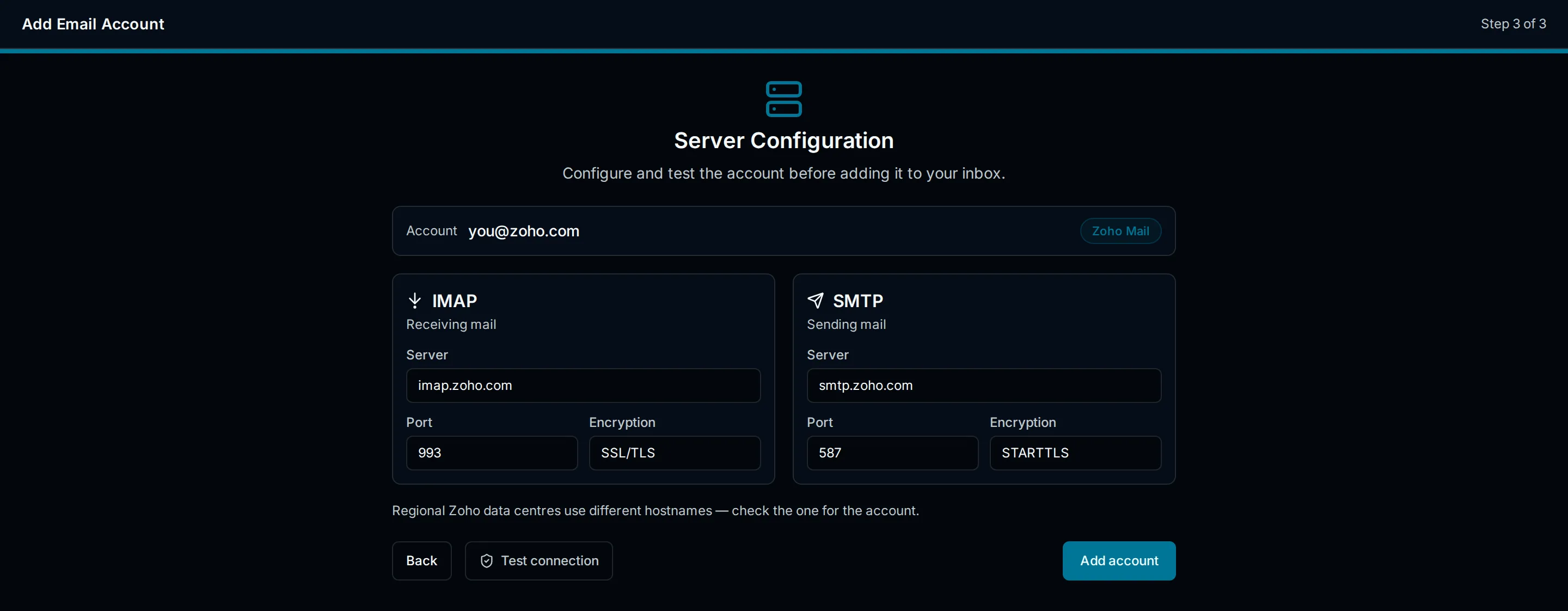
Zoho Mail covers personal Zoho Mail accounts, Zoho Workplace, and custom-domain accounts. Zoho is not a PressedMail preset, so connect it through the Custom Email provider using Zoho's documented IMAP and SMTP settings. IMAP and SMTP access can depend on the Zoho plan, and settings can vary by region, account type, and organization.
Server Settings
| Setting | Value |
|---|---|
| IMAP host | imap.zoho.com |
| IMAP port | 993 |
| IMAP encryption | SSL/TLS |
| SMTP host | smtp.zoho.com |
| SMTP port | 465 (SSL/TLS) or 587 (STARTTLS) |
| SMTP encryption | SSL/TLS or STARTTLS |
| Username | Full Zoho email address |
Some regional Zoho data centres use different hostnames. If imap.zoho.com is rejected, check whether the account is hosted on a regional domain (for example a country-specific Zoho endpoint) and use the hostname Zoho publishes for the account.
Before you begin
- Confirm the Zoho plan allows IMAP and SMTP access. Some plans restrict external client access.
- When multi-factor authentication is enabled, generate a Zoho app password and use it instead of the normal account password.
- For business or organization accounts, confirm the administrator allows external IMAP/SMTP client access.
Generate a Zoho app password
- Sign in to the Zoho account security settings.
- Open the app passwords section.
- Generate a password labeled for PressedMail.
- Use the generated value as the mailbox password.
Setup in PressedMail
- Open Settings > Email Connections and select Add Account.
- On Add an Email Account, choose Custom Email.
- On Account Credentials, enter the full Zoho email address and display name.
- On Server Configuration, enter the Zoho IMAP and SMTP host, port, and encryption from the table above.
- Enter the username (full email address) and the password or app password.
- Run Test Connection to validate both servers.
- Save the account.
Special cases and limitations
- Business and organization accounts may require administrator permission before third-party clients can connect.
- SMTP sender restrictions may limit which addresses can send over a given login; aliases may be rejected.
- Custom-domain accounts use the same servers but rely on the domain being correctly configured in Zoho.
- The username should normally be the complete email address.
Troubleshooting
- Confirm IMAP and SMTP are enabled for the Zoho plan.
- Use the full Zoho email address as the username.
- Generate a fresh app password if MFA is on and password authentication is rejected.
- Confirm the regional hostname if the default endpoint is rejected.
- Check outbound access from WordPress to the Zoho hosts.
This provider may work through manual configuration, but the connection is not part of the officially tested preset matrix. Use Zoho's current published settings as the source of truth.
Security Recommendations
- Use a dedicated app password when MFA is enabled.
- Revoke the app password when you remove the account from PressedMail.
- See Security and Privacy for the credential storage model.