
mailbox.org
Connect mailbox.org through the Custom Email preset with standard IMAP and SMTP and an optional application password.
Status: Supported with manual configuration.
Authentication: Mailbox password or application password (IMAP/SMTP password authentication).
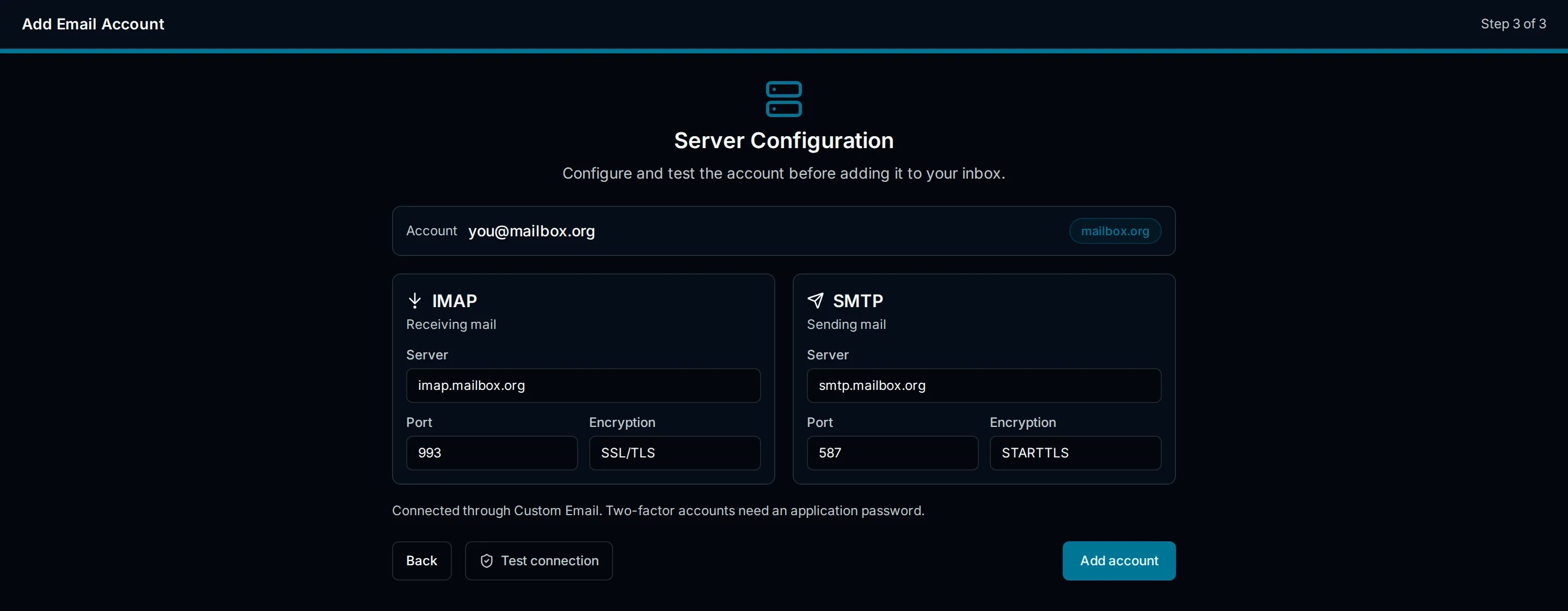
mailbox.org supports standard IMAP and SMTP. When two-factor authentication is enabled, an application password is required for third-party clients. mailbox.org is not a PressedMail preset, so connect it through the Custom Email provider.
Server Settings
| Setting | Value |
|---|---|
| IMAP host | imap.mailbox.org |
| IMAP port | 993 |
| IMAP encryption | SSL/TLS |
| SMTP host | smtp.mailbox.org |
| SMTP port | 465 (SSL/TLS) or 587 (STARTTLS) |
| SMTP encryption | SSL/TLS or STARTTLS |
| Username | Full mailbox.org email address |
Before you begin
- If two-factor authentication is enabled, generate a mailbox.org application password and use it instead of the normal account password.
- Use the complete mailbox.org email address as the username.
Generate a mailbox.org application password
- Sign in to the mailbox.org account settings.
- Open the application passwords or security section.
- Create a password labeled for PressedMail.
- Use the generated value as the mailbox password.
Setup in PressedMail
- Open Settings > Email Connections and select Add Account.
- On Add an Email Account, choose Custom Email.
- On Account Credentials, enter the full mailbox.org email address and display name.
- On Server Configuration, enter the mailbox.org IMAP and SMTP host, port, and encryption from the table above.
- Enter the username (full email address) and the password or application password.
- Run Test Connection to validate both servers.
- Save the account.
Special cases and limitations
- Custom-domain accounts hosted at mailbox.org use the same servers but rely on the domain being correctly configured.
- SMTP authentication is required; the sender address should match the authenticated account.
- Folder mapping follows the standard IMAP folder structure.
Troubleshooting
- Use the complete mailbox.org email address as the username.
- If two-factor authentication is on, confirm an application password is being used rather than the account password.
- Confirm SMTP authentication is enabled and the correct port is selected.
- Check outbound access from WordPress to the mailbox.org hosts.
This provider may work through manual configuration, but the connection is not part of the officially tested preset matrix.
Security Recommendations
- Use a dedicated application password when two-factor authentication is enabled.
- Revoke the application password when you remove the account from PressedMail.
- See Security and Privacy for the credential storage model.