
GMX Mail
Connect GMX Mail through the Custom Email preset with GMX's IMAP and SMTP servers, noting regional GMX domain differences.
Status: Supported with manual configuration.
Authentication: Mailbox password (IMAP/SMTP password authentication).
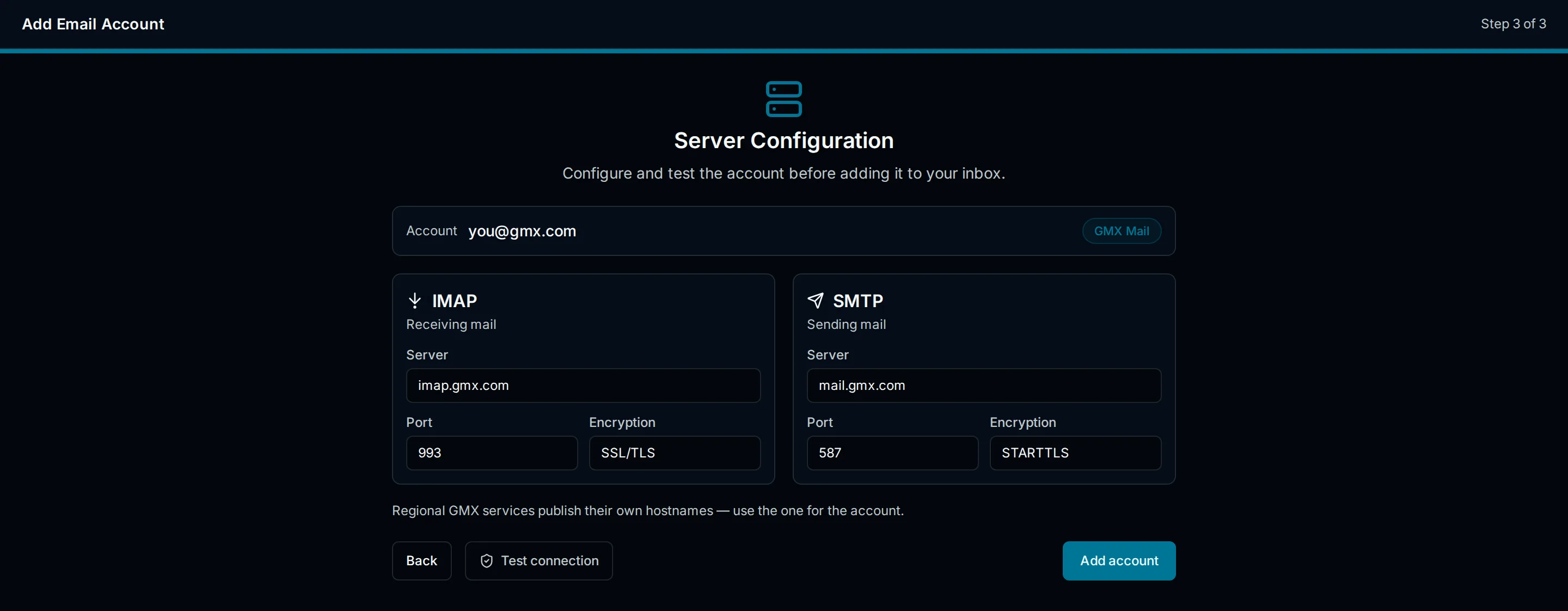
GMX supports standard IMAP and SMTP. IMAP or POP access may need to be enabled in GMX settings before a third-party client can connect. GMX is not a PressedMail preset, so connect it through the Custom Email provider.
Server Settings
| Setting | Value |
|---|---|
| IMAP host | imap.gmx.com |
| IMAP port | 993 |
| IMAP encryption | SSL/TLS |
| SMTP host | mail.gmx.com |
| SMTP port | 465 (SSL/TLS) or 587 (STARTTLS) |
| SMTP encryption | SSL/TLS or STARTTLS |
| Username | Full GMX email address |
Regional GMX domains may require different server names. Do not generalize imap.gmx.com to every regional GMX service. GMX operates separate regional services (for example GMX in different countries), and each may publish its own IMAP and SMTP hostnames. Use the hostname GMX documents for the account's region.
Before you begin
- Enable IMAP access in GMX settings if it is disabled by default.
- Use the complete GMX email address as the username.
- Confirm the regional hostname for the account.
Setup in PressedMail
- Open Settings > Email Connections and select Add Account.
- On Add an Email Account, choose Custom Email.
- On Account Credentials, enter the full GMX email address and display name.
- On Server Configuration, enter the GMX IMAP and SMTP host, port, and encryption from the table above. Adjust the host if the account is on a regional GMX domain.
- Enter the username (full email address) and the mailbox password.
- Run Test Connection to validate both servers.
- Save the account.
Special cases and limitations
- Security challenges or provider blocks may occur on new sign-ins; approve the activity in the GMX account review if prompted.
- Regional GMX services use different hostnames; verify before connecting.
- POP access is separate from IMAP; PressedMail uses IMAP.
Troubleshooting
- Confirm IMAP is enabled in GMX settings.
- Use the complete GMX email address as the username.
- Confirm the regional hostname if
imap.gmx.comis rejected. - Clear any suspicious-activity alert in the GMX account and retest.
- Check outbound access from WordPress to the GMX hosts.
This provider may work through manual configuration, but the connection is not part of the officially tested preset matrix.
Security Recommendations
- Use a provider-approved password; generate an app password if GMX offers one for the account.
- See Security and Privacy for the credential storage model.
Related Documentation
mailbox.org
Connect mailbox.org through the Custom Email preset with standard IMAP and SMTP and an optional application password.
Hosting and cPanel Email
Connect self-hosted, cPanel, Plesk, or hosting-provider email through the Custom Email preset with the provider's real IMAP and SMTP servers.