

An address such as hello@example.com does not tell you which server hosts its mailbox. It might belong to Google Workspace, Microsoft 365, Zoho, Fastmail, a web host, or another provider. The first step is identifying that provider, not guessing IMAP settings from the domain name.
Once you know the host, connect the existing mailbox to PressedMail using the authentication and mail servers that account permits. PressedMail becomes a client inside WordPress; it does not take over the domain's email hosting.
If you already have the provider's settings, the generic IMAP setup guide covers the connection fields. This guide focuses on finding the right account and avoiding DNS or identity mistakes.
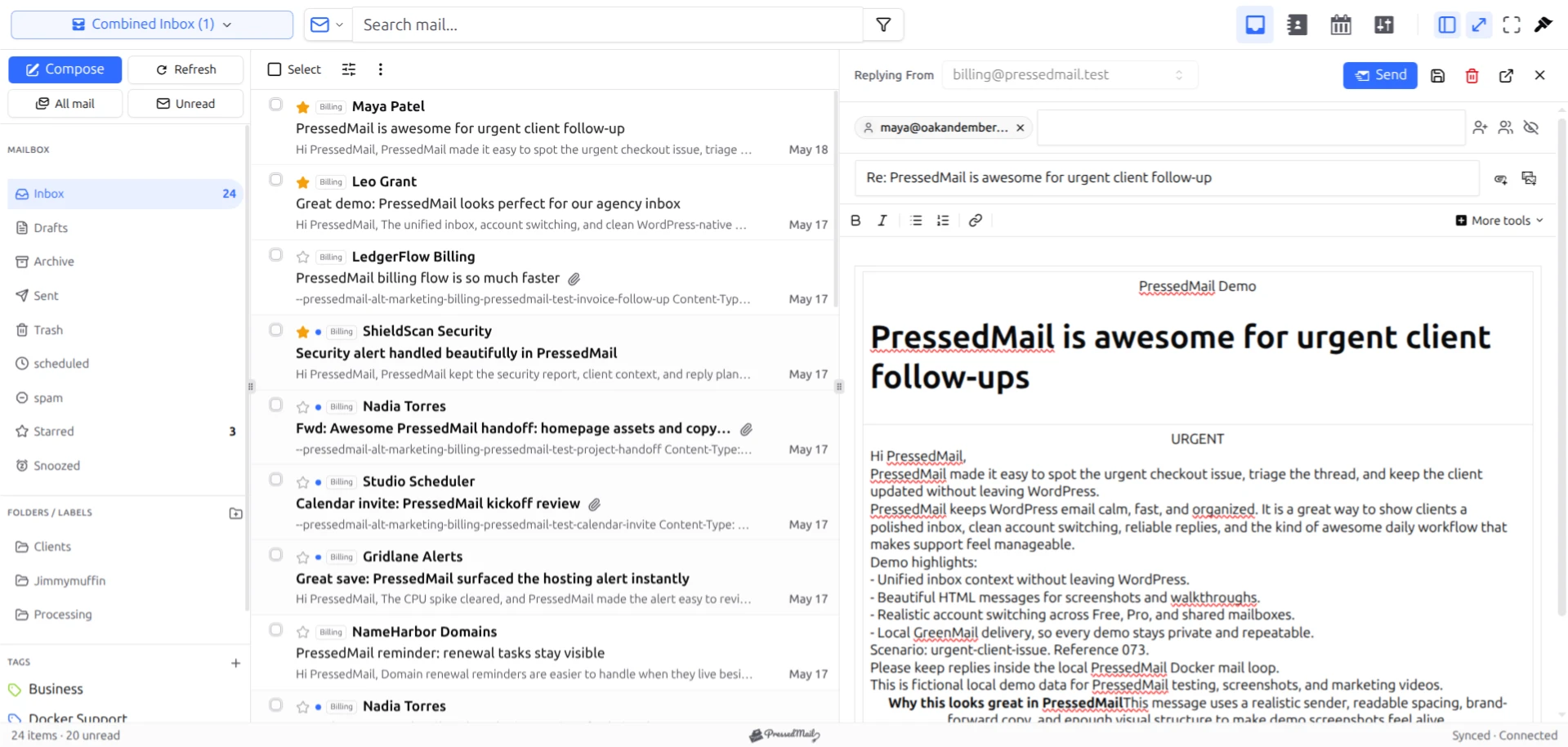
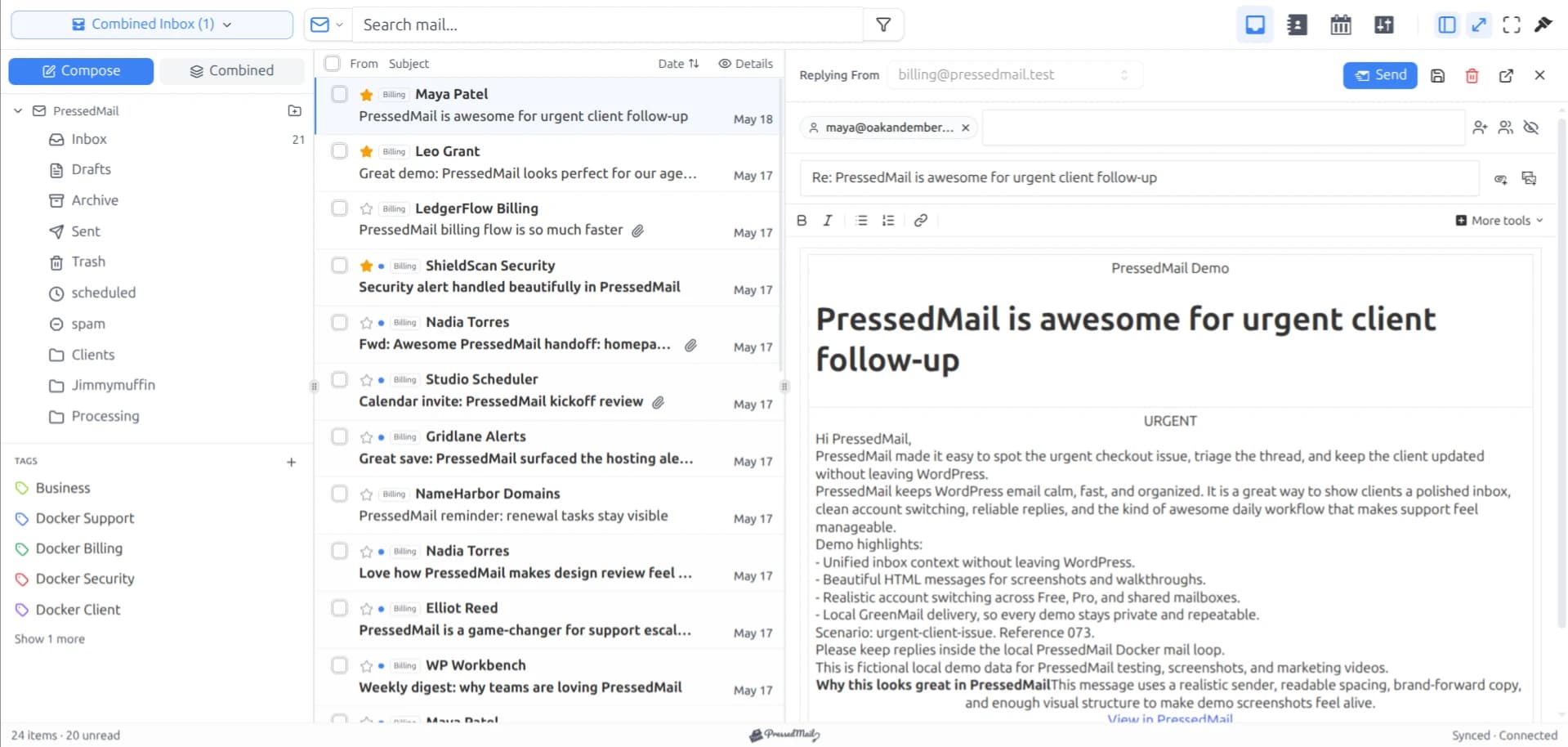
PressedMail screenshot showing the mailbox workspace. The example addresses do not identify a real domain's hosting provider.
1. Identify where the mail is hosted
Start with the place you currently read the mailbox. A Google Workspace sign-in, a Microsoft work account, or a hosting webmail page is a useful clue. Ask the domain or email administrator for confirmation if someone else set it up.
The domain registrar, DNS provider, website host, and email host can be four different companies. Paying one company for the domain does not mean its mail servers handle the mailbox.
MX records describe where incoming domain mail is routed. They can help identify the receiving service, but they are not a complete IMAP/SMTP client configuration. Do not paste an MX destination into an email client's server field without provider confirmation. Cloudflare's explanation of MX records.
You do not need to change MX records merely to add another client to an already working mailbox. A hosting migration or domain-routing repair is a separate task.
2. Check that the address is a mailbox
Ask whether the address has its own account or delivers into someone else's mailbox as an alias, forwarder, or group address.
For example, an alias can route mail into a primary account without becoming a separate account you can sign into. Google documents that distinction for Workspace aliases. Google Workspace alias guidance.
The same practical question applies elsewhere: which identity authenticates, and which mailbox will it open? Do not invent a password for an address that has no independent login.
Also separate receiving from sending permission. An address that delivers into your inbox is not automatically an address you may use as the outgoing From identity.
3. Follow the provider-specific route
Use the guide for the actual service:
- Google Workspace email inside WordPress covers managed Google accounts, policy, and eligible app-password access.
- Microsoft 365 email inside WordPress covers tenant approval and the current Exchange Online connection limitation.
- Zoho Mail setup covers plan eligibility and account-specific regional settings.
- Fastmail setup covers eligible plans, app passwords, and the original login identity.
- cPanel email setup shows where to obtain the host's secure connection values.
A custom domain does not remove provider restrictions. If the account requires OAuth, a password-based custom form is not a substitute. If the plan excludes IMAP, the WordPress plugin cannot enable it.
For a provider without a named guide, obtain its official incoming and outgoing client settings and check that PressedMail supports the required authentication method.
4. Gather the connection details
Before opening the WordPress form, collect the authorized mailbox username, IMAP hostname and secure port, SMTP hostname and secure port, encryption modes, and the required credential or sign-in method.
Record the source of those values. A provider account screen or official documentation is more useful than a remembered settings table from a previous client.
With hosting email, cPanel's Connect Devices page supplies account-specific manual settings. cPanel mail-client setup.
Keep passwords and tokens out of shared notes. If an app password is appropriate, create a dedicated credential so the connection can be identified and revoked later.
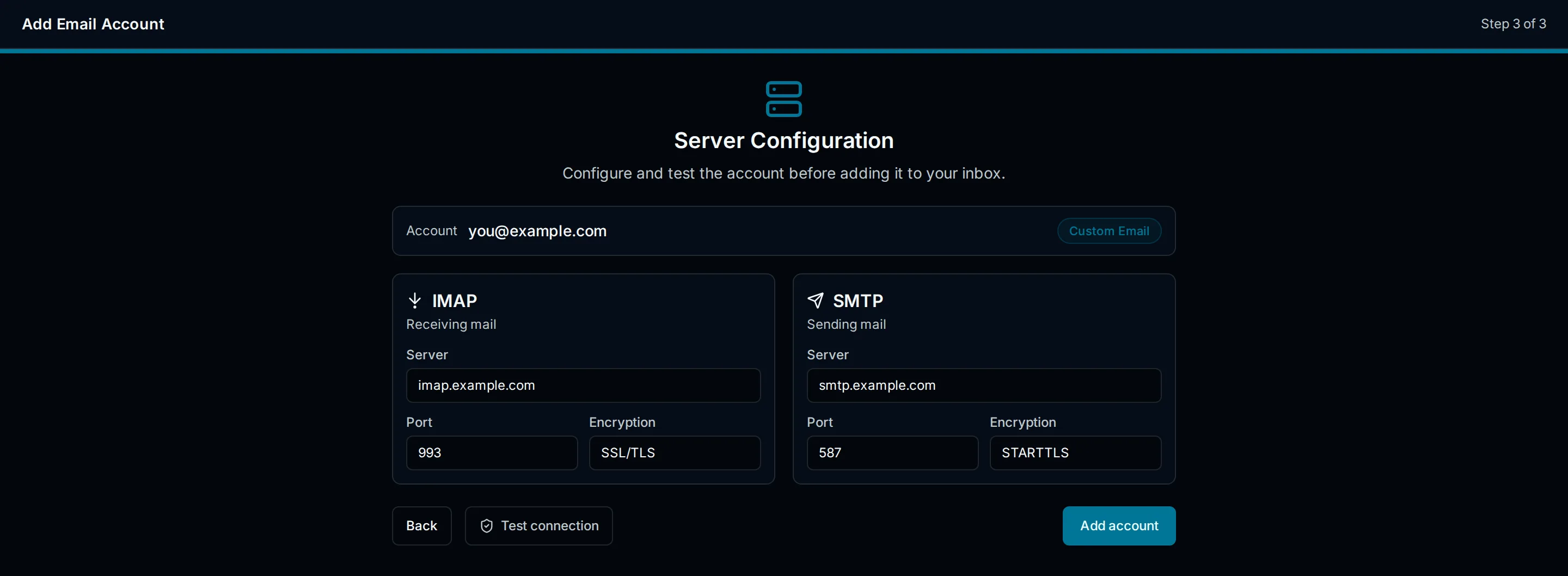
Drawn setup illustration. Copy your provider's values into the supported connection flow rather than treating the sample hostname as a real server.
5. Connect and test both directions
In PressedMail, use the supported provider flow or choose Custom Email for manual IMAP and SMTP setup, as appropriate for the account. Enter incoming and outgoing values separately and match each encryption mode to its port.
Send a plain message from another mailbox to the custom-domain address. Open it in PressedMail, then confirm it in the provider's webmail. This checks that the connection reaches the intended mailbox.
Reply from PressedMail and verify arrival at the other mailbox. Inspect the From address and sent-message behavior. A saved account form is not enough evidence that both directions work.
If only receiving fails, investigate the incoming path. If receiving works but sending fails, focus on SMTP and sending permission. The IMAP versus SMTP explanation helps keep those checks distinct.
Do not change DNS to fix a client login
An authentication rejection is not a reason to replace MX records. A wrong client password and a wrong domain delivery destination are different problems.
If messages arrive in the provider's webmail but not PressedMail, the provider is receiving them. Investigate client access before touching domain routing.
If messages do not arrive anywhere, involve the email administrator and inspect the provider account and delivery route. Make DNS changes only when the problem actually concerns that route and the domain owner has approved the change.
Outgoing domain authentication is another separate concern. A mailbox connection can work while messages are rejected or filed as spam. See WordPress email and spam troubleshooting for that stage.
Where PressedMail fits
PressedMail gives a compatible mailbox a place inside wp-admin. This can suit a business owner who handles site work and email together. It does not create the mailbox, manage the domain subscription, or grant access that the provider disallows.
WordPress-generated notifications are also separate. PressedMail's WordPress SMTP feature has its own server configuration; adding an inbox does not automatically route password resets or form submissions through it.
If all you need is reliable site notifications, start with WordPress SMTP rather than connecting a personal or business inbox unnecessarily.
FAQ
Do the website and email need to share a host?
No. The WordPress server needs permitted network access to the compatible mail service. The website's hosting company does not have to be the mailbox provider.
Can I use the domain's MX hostname for IMAP?
Not unless the provider explicitly gives it as the client endpoint. MX records describe incoming domain routing, not a complete mail-client setup.
Will connecting a mailbox change delivery for the whole domain?
Adding a client should not require changing the domain's mail routing. Keep any migration or DNS change separate from the connection task.
Can I connect a forwarding address?
A forwarder may have no mailbox or independent credentials. Identify and connect the underlying mailbox, then check any permitted outgoing identity separately.
Manage your email inside WordPress
PressedMail Free adds an email client directly to your WordPress dashboard. Connect a compatible IMAP/SMTP mailbox, read and send mail, organize messages, and configure WordPress SMTP.




