

Fastmail can provide the mailbox while PressedMail provides an email client inside WordPress. Use an eligible Fastmail plan, an app password, and the provider's IMAP and SMTP settings.
Two details cause avoidable failures: Fastmail Basic does not include third-party IMAP/SMTP access, and your ordinary Fastmail password is not the credential for an external mail client. Check both before entering anything in WordPress. Fastmail's server and access requirements.
This guide uses PressedMail's Custom Email option for manual IMAP and SMTP setup. It does not require moving the mailbox or changing the domain's email hosting. For the general process, see connecting an IMAP account to WordPress.
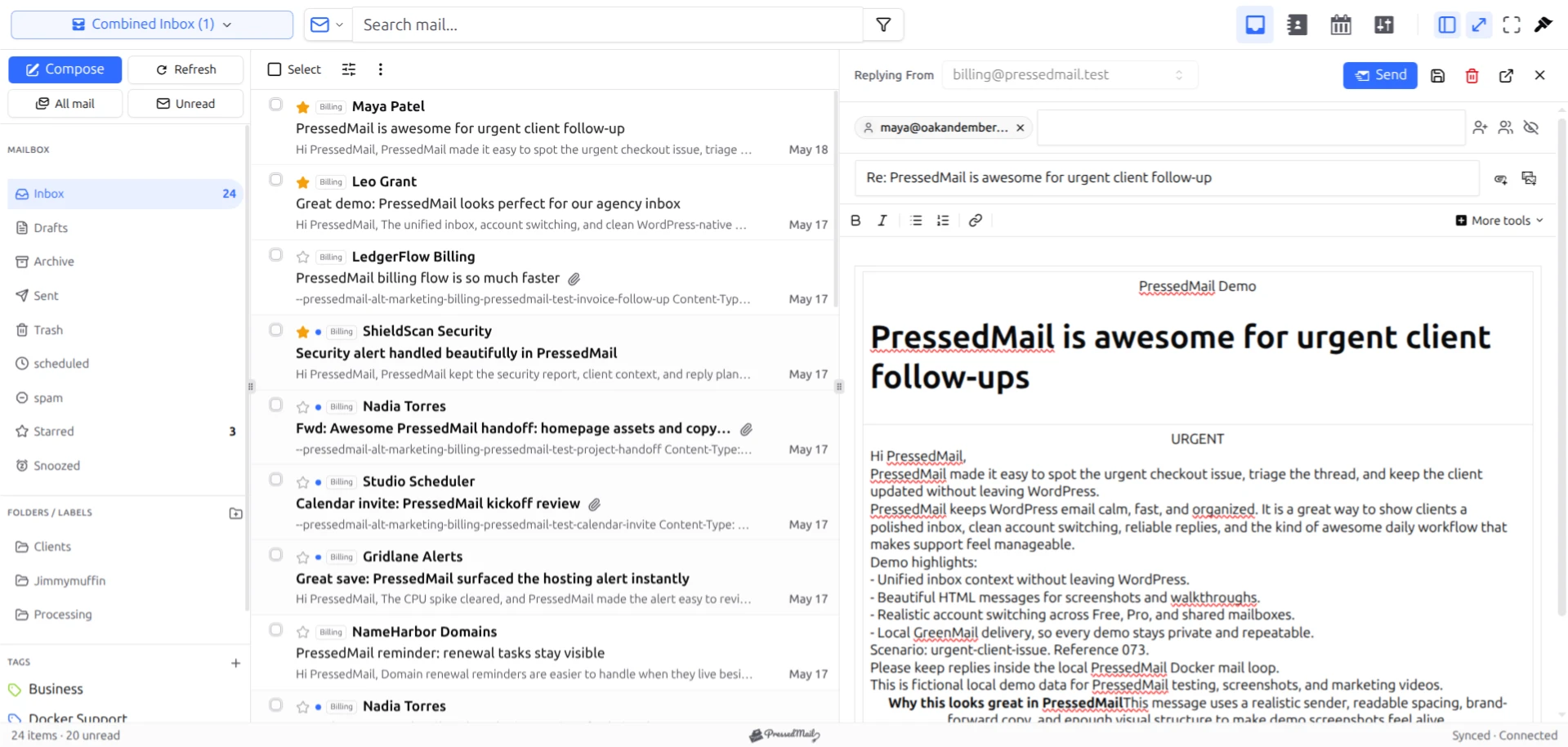
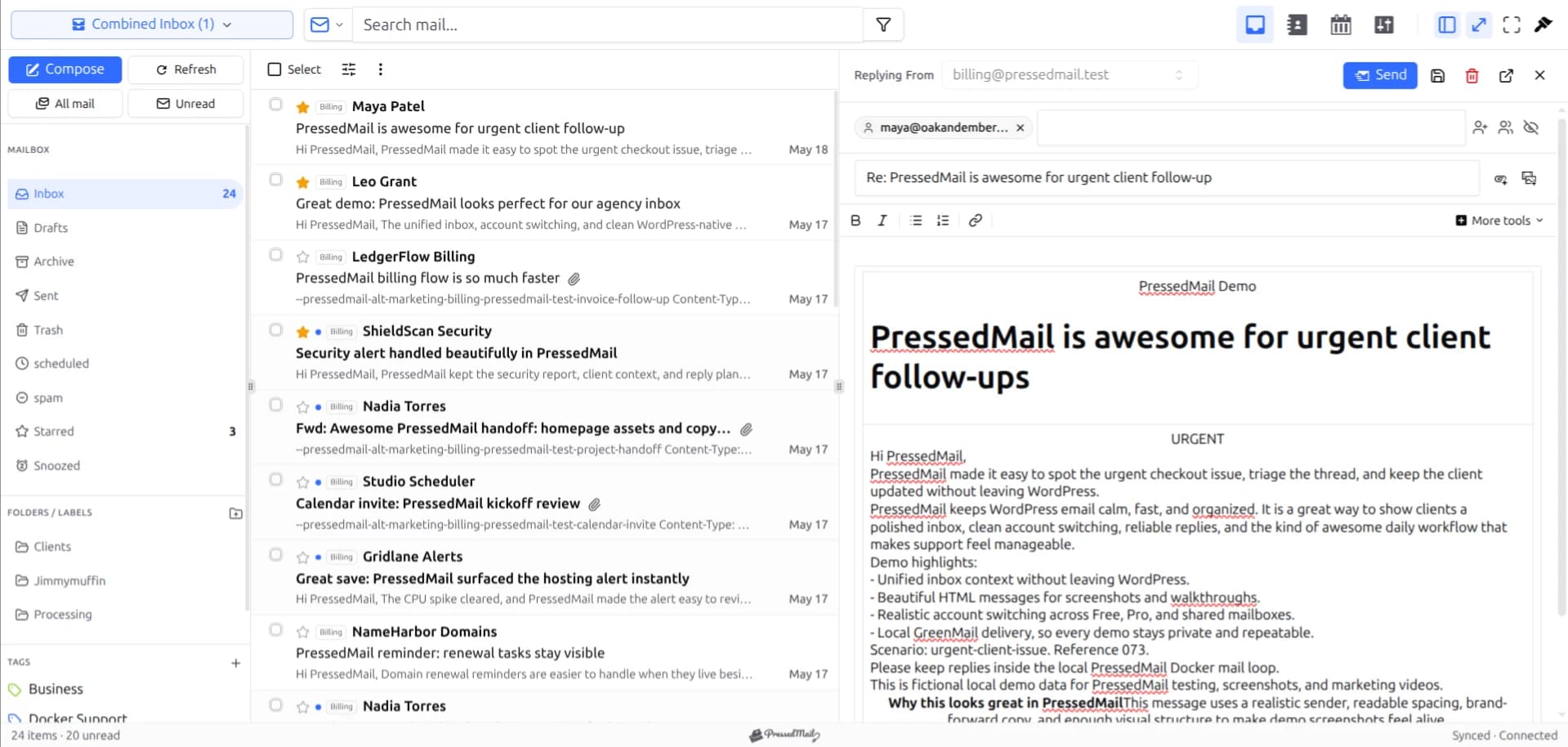
PressedMail screenshot showing the email workspace. The sample correspondence is not a live Fastmail connection test.
1. Check the plan and login identity
Sign into Fastmail on the web and confirm that the account includes external mail-client access. If it is on Basic, use Fastmail's own web or mobile client or assess an eligible plan before continuing. Do not interpret a missing app-password control as a WordPress plugin error.
Use the original full Fastmail username for authentication. Another address that delivers into the mailbox, including an alias, is not automatically a valid login. Fastmail's server reference specifically distinguishes the sign-up username from other addresses.
A custom domain does not change which company hosts the mailbox. If you are unsure whether the address belongs to a separate account or an alias, read the custom-domain email connection guide first.
2. Create a dedicated app password
In Fastmail, open Settings, then Privacy & Security. Under Connected apps & API tokens, choose Manage app passwords and access, then New app password.
Give the credential a recognizable name, such as the site name followed by PressedMail. Choose the minimum access offered that covers the mail connection, generate the password, and enter it in the email client's credential field. Do not publish it in a screenshot or save it in a shared setup document. Fastmail documents this flow and the ability to review or revoke individual app credentials. Fastmail app passwords.
A separate credential makes offboarding clearer: you can identify the WordPress connection without guessing which device reused a generic password. It still grants sensitive access, so secure the site and the account that manages it.
3. Enter the mail server settings
Use these standard Fastmail values:
| Field | Value |
|---|---|
| IMAP server | imap.fastmail.com |
| IMAP port | 993 |
| IMAP encryption | SSL/TLS |
| SMTP server | smtp.fastmail.com |
| SMTP port | 465 with SSL/TLS, or 587 with STARTTLS |
| Username | Original full Fastmail login address |
| Password | Dedicated app password |
These values come from Fastmail's server settings. Keep each port paired with its stated encryption mode.
In PressedMail, choose Custom Email from the account connection options. Enter the incoming and outgoing settings separately, using the authorized mailbox identity. Refer to the Custom IMAP documentation for the product fields.
Do not expect the account's visible email address to fill every field correctly. If your outgoing From address differs from the login identity, that is a separate sender-permission question.
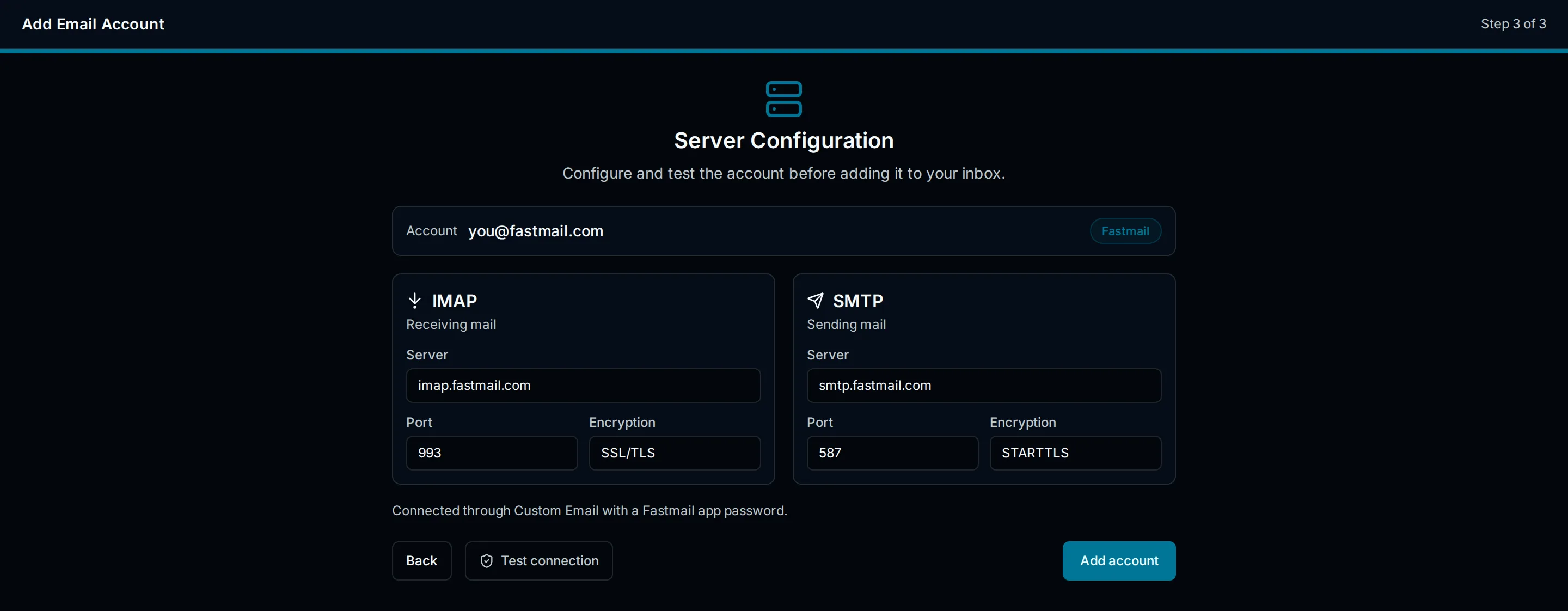
Drawn setup illustration. Use the current Custom Email flow; the illustration is not proof that a dedicated Fastmail preset is available.
4. Test the incoming mailbox
Send a plain message from another mailbox to the Fastmail account. Use a unique subject so you can recognize it in both clients.
Open the message in PressedMail and compare it with Fastmail webmail. Check the sender and body, then inspect an existing folder. This verifies more than a saved settings form: it checks access to the intended mailbox.
IMAP is the receiving and mailbox-management side of the connection. It does not prove SMTP sending works. Our IMAP versus SMTP explanation covers that separation.
Avoid moving or deleting important messages during the first test. Actions through a connected client can affect what you see in another client using the same mailbox.
5. Test an outgoing reply
Reply to the test message in PressedMail. At the destination, check that the reply arrived, the From address is correct, and the body is readable. Then inspect how the sent message appears in Fastmail.
If the inbox works but the reply fails, leave the incoming settings alone while checking the outgoing port, encryption, credential, and sender identity. Treat the exact SMTP response as evidence rather than trying unrelated combinations.
Once ordinary mail works, establish a small routine for reviewing and organizing messages. The WordPress tags and folders guide explains the workspace side without implying that every local label is a provider-side folder.
Troubleshoot by the failed stage
A password rejection should send you back to the original username and app credential. An ordinary account password, an alias used as a login, or a revoked app password can all lead to the wrong credentials reaching the server.
A timeout is different. Check that the WordPress host can reach the required Fastmail service and port. Give hosting support the destination hostname, port, and error timestamp, without sharing the password.
A certificate error calls for checking the hostname and encrypted connection. Do not turn TLS off to get past it.
If Fastmail webmail also cannot receive the message, investigate the mailbox or domain route first. PressedMail cannot display a message that has not reached the provider account.
WordPress notifications remain separate
Adding the Fastmail mailbox does not automatically route password resets or form notifications through it. PressedMail keeps WordPress SMTP server configuration separate from inbox connections.
If you want Fastmail to carry site-generated mail, confirm that the account's permitted usage suits that traffic and configure the WordPress mail route independently. A transactional mail service may fit automated notifications better. Start with sending WordPress email through SMTP, then test an actual SMTP message.
PressedMail Free can give one compatible mailbox a place inside wp-admin. Fastmail remains responsible for hosting and its account policy; the WordPress site remains another system that must protect access.
FAQ
Can I use my usual Fastmail password?
No. Fastmail requires an app password for external mail clients. Keep your ordinary password for the provider's own sign-in flow.
Does a custom-domain alias work as the login?
Use the original full Fastmail username. An alias receiving mail does not make it an independent authentication identity.
Which SMTP port should I choose?
Use 465 with SSL/TLS, or 587 with STARTTLS, as supported by the connection form. Do not mix the encryption mode from one option with the port from the other.
What happens when I stop using PressedMail?
Remove the unneeded connection and revoke its dedicated Fastmail app password. Separately review stored mail and backups under your retention needs; credential revocation does not prove that previously stored data has been erased.
Manage your email inside WordPress
PressedMail Free adds an email client directly to your WordPress dashboard. Connect a compatible IMAP/SMTP mailbox, read and send mail, organize messages, and configure WordPress SMTP.




