

When a WordPress message lands in Spam, the receiving mailbox has handled it differently from an ordinary Inbox message. Check the actual sender, domain authentication and recipient evidence before replacing the sending plugin.
Authenticated SMTP can provide a clear submission route, but no WordPress plugin can guarantee Inbox placement. The recipient provider applies its own filtering rules.
Start with one legitimate notification and an account you control. If you cannot establish that sending was attempted at all, use delivery troubleshooting before investigating Spam.
Inspect the message that reached Spam
Open the receiving mailbox and find the exact message by subject and time. Use its message-details or header view to inspect the sender and authentication results available there.
Compare that message with the notification you intended to send. A test sent from a different account or with another From address does not establish the behavior of the real form or order email.
Record the visible sender, sending route and relevant authentication result. Keep full headers private when they contain identifiers or information unrelated to the investigation.
Checking whether WordPress email was sent explains the difference between a local result and recipient evidence.
Use an authorized sender
The From address should be one the sending provider permits the site to use. A recognizable display name does not authorize an arbitrary domain.
For a contact-form notification, the visitor's address generally belongs in a validated Reply-To field. The site can send as its own authorized address while your reply goes to the visitor.
Putting the visitor's Gmail or business address in From can create a mismatch between the claimed sender and the system sending the notification. The contact-form SMTP guide explains the field mapping.
If the route forces a From address, inspect the received message after applying that setting. An override can affect notifications from several plugins.
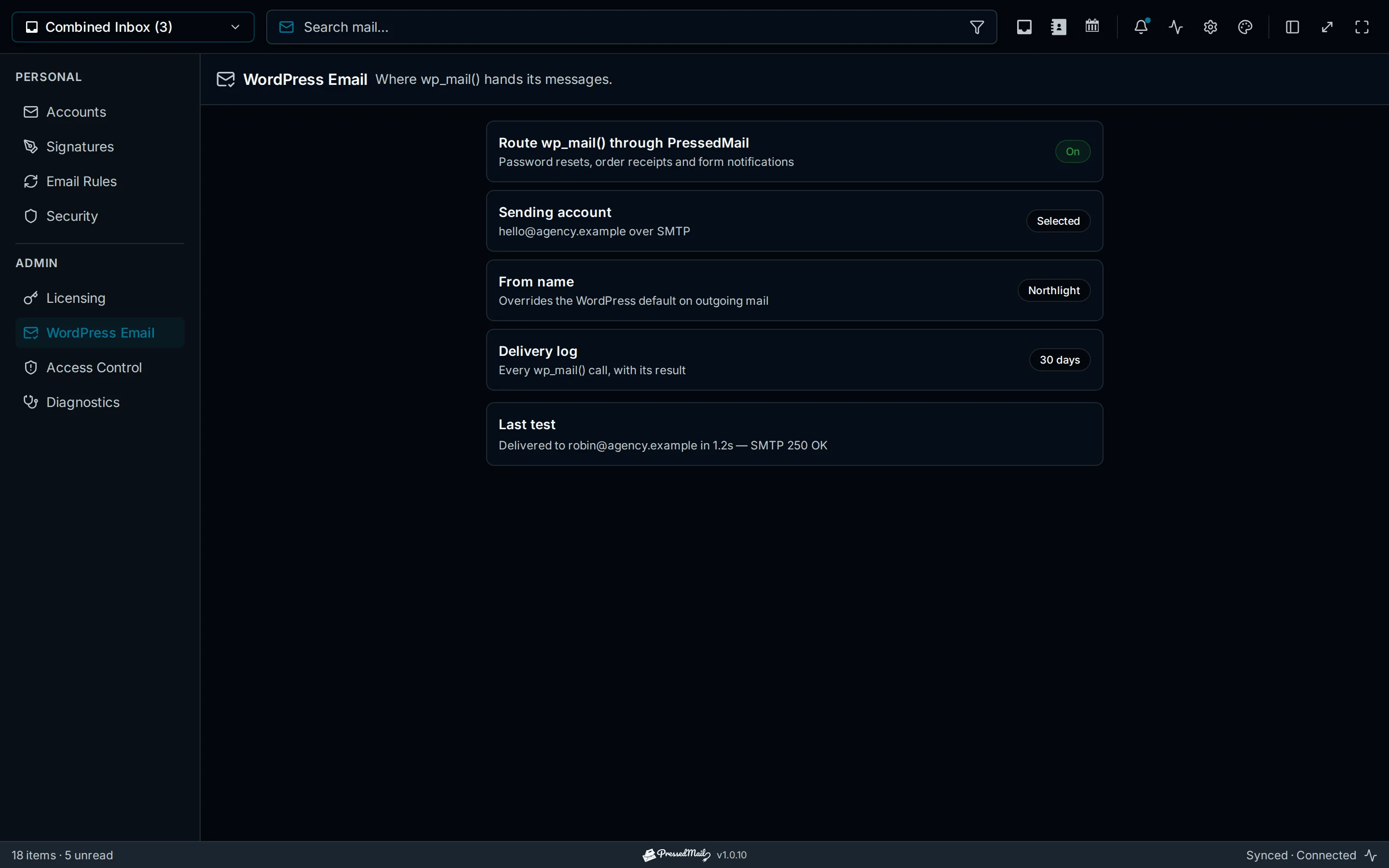
Illustration of WordPress email routing and sender settings. It explains the configuration area; its results are not evidence of Inbox placement.
Understand what authentication checks
SPF concerns whether a sending system is authorized for the identity being checked. DKIM attaches a domain-associated signature that a receiver can verify. DMARC relates authenticated identifiers to the domain in the visible From address and publishes the domain owner's policy.
Alignment is why an isolated “SPF pass” is not enough to conclude that every sender identity is correct. A message can pass authentication for a domain that does not align with the displayed From domain.
The DMARC specification describes that alignment relationship. In practice, inspect the receiver's results and the provider's setup instructions together.
Do not paste universal DNS records from a tutorial. Your actual sending provider supplies the values, and existing services using the domain may also depend on its current configuration.
Check provider-supplied DNS carefully
Identify who manages DNS and which service sends the message. Those may be different companies from the website host.
Compare the required authentication records with the records actually published for the domain. Preserve existing configuration and involve the domain administrator when several services send on its behalf.
A WordPress SMTP setting does not itself establish correct DNS authentication. Conversely, adding DNS records does not fix an invalid SMTP password or an absent form notification.
Use the provider's supported verification tools and then inspect a newly received test message. A settings screen reporting saved values is weaker evidence than the receiving system evaluating the actual message.
Google's sender requirements describe authentication and other conditions for messages sent to personal Gmail accounts. Requirements differ by sender category, so do not apply bulk-sender rules to every single notification without checking the relevant scope.
Review the message as a recipient would
Make the sender recognizable and keep the content related to the expected transaction. An order notification should identify the store and the transaction clearly; a password reset should have an understandable purpose.
Check that links go where their text suggests. Remove broken images, misleading labels and unrelated promotional material from a troubleshooting test.
Avoid treating spam filtering as a fixed list of forbidden words. The same phrase can occur in legitimate and abusive mail. Changing random words while ignoring an unauthorized sender is unlikely to resolve the underlying identity problem.
A plain test can establish a baseline, but the actual notification still needs testing. WooCommerce SMTP setup covers order-specific triggers and recipient checks.
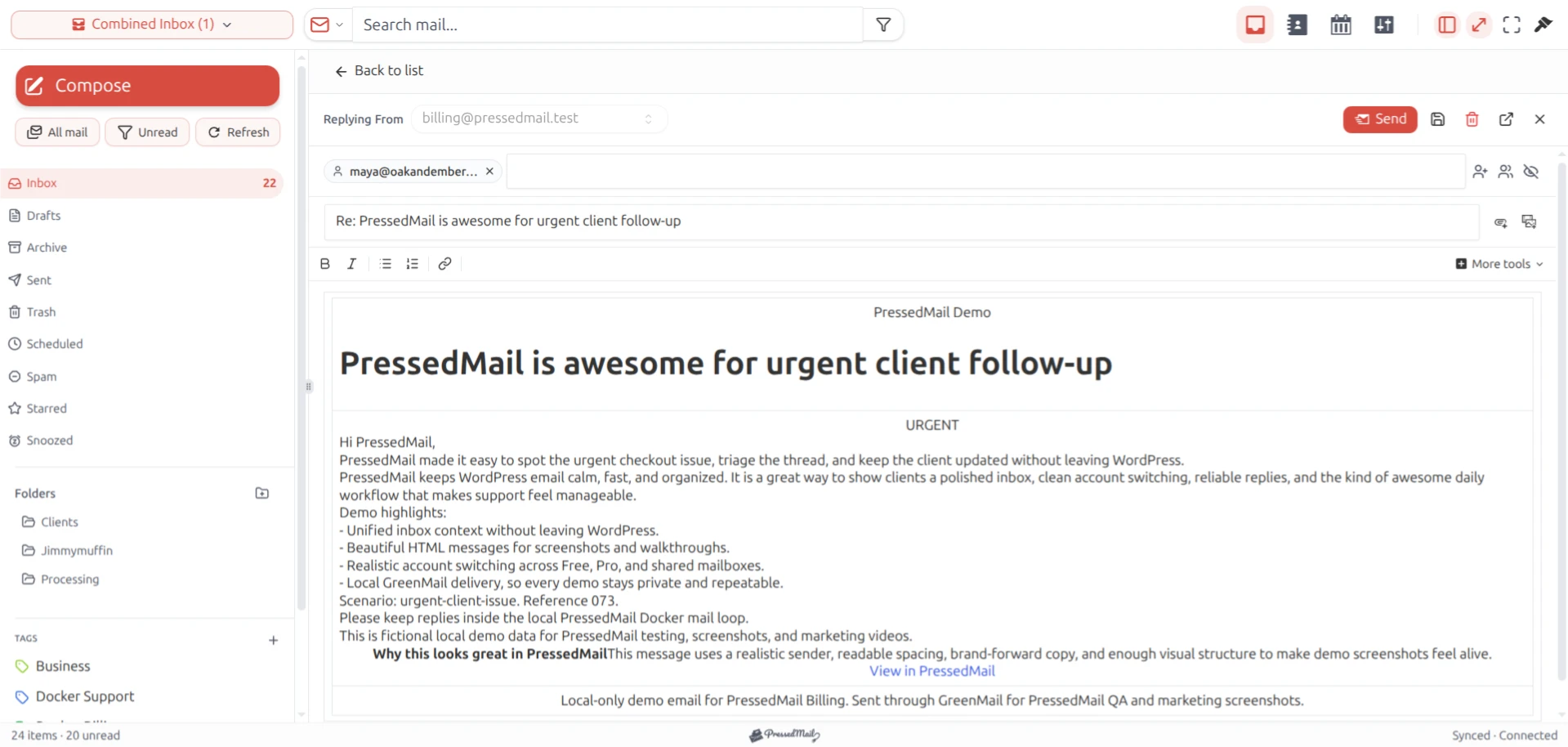
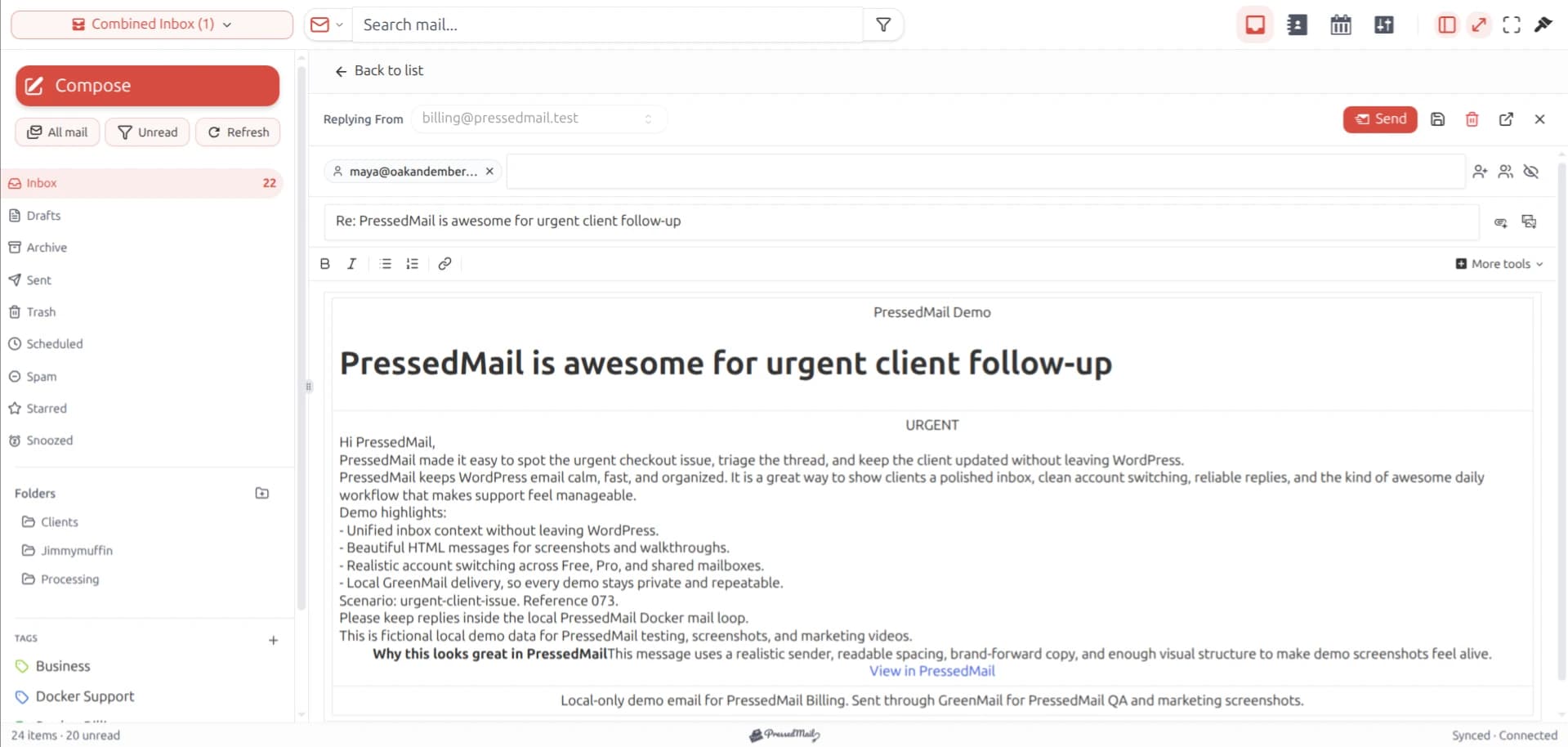
PressedMail screenshot of a reply composer with fictional email. It shows mailbox handling, not spam-classification results.
Retest the same notification
After correcting one identified issue, send the same type of controlled notification again.
Compare the actual sender and authentication results. Record whether the message arrived in Inbox, Spam or another location. Do not treat a different generic test as proof that the original message is fixed.
Testing with controlled recipients at more than one provider can reveal different handling, but each observation belongs to that account and message. It does not establish universal deliverability.
The SMTP test guide provides a small record for application and recipient results.
Recipient allow-listing can help a particular person receive expected messages, but it is not evidence that the sender's general configuration is correct. Do not ask every recipient to bypass filtering as a substitute for examining the actual failure.
Choose a route suited to the site's needs
A mailbox plan's sending limits and intended use still apply to WordPress notifications. For a site with different volume or support requirements, a transactional sending service may be a better fit.
Compare the actual provider terms and capabilities rather than assuming that switching from PHP mail to any SMTP account guarantees an improvement. The PHP mail versus SMTP comparison separates those operational choices.
If you use PressedMail, configure its administrator SMTP server explicitly. Its inbox connection is separate. Free includes one outgoing server and a metadata log, while the provider remains responsible for accepting that submission.
WordPress SMTP setup walks through the supported configuration without promising control over a recipient's Inbox.
Escalate persistent filtering with evidence
If sender identity and authentication are correct but filtering continues, follow the receiving provider's documented support or postmaster process.
Provide the relevant timestamps and sanitized message evidence. Avoid sending credentials, unrelated customer content or a bulk archive when one representative example is enough.
A domain or provider administrator may need to investigate reputation or account-level restrictions outside WordPress. Changing the plugin repeatedly can obscure the stable example they need.
Frequently asked questions
Can an SMTP plugin guarantee Inbox placement?
No. It controls the configured submission path, while recipient systems decide how to handle messages.
Why can SPF pass while DMARC fails?
The authenticated identity may not align with the visible From domain, and an aligned DKIM result may also be absent. Inspect the actual receiver results.
Should a visitor's address be the form sender?
Use an authorized site sender and a validated Reply-To mapping where appropriate.
Why do two providers file the same message differently?
Each applies its own filtering, reputation and account rules. Record those outcomes separately.
Will changing DNS fix an authentication password error?
No. DNS authentication and SMTP login are different layers. Follow the observed error before changing settings.
Manage your email inside WordPress
PressedMail Free adds an email client directly to your WordPress dashboard. Connect a compatible IMAP/SMTP mailbox, read and send mail, organize messages, and configure WordPress SMTP.




