

A Microsoft 365 mailbox can work in an email client even when that client runs inside WordPress. The question is whether your organization permits the application, the mail protocols it uses, and the WordPress system that will hold access to business messages.
PressedMail offers Microsoft OAuth for mailbox connections. That does not make every Microsoft 365 account a supported, ready-to-connect configuration. PressedMail's current Outlook preset uses the consumer Outlook SMTP hostname, while Microsoft documents a different hostname for Exchange Online client submission.
If you are assessing this for a business, start with the tenant and mailbox owner. If you already have an approved configuration, the Microsoft 365 mailbox walkthrough covers the connection and acceptance checks.
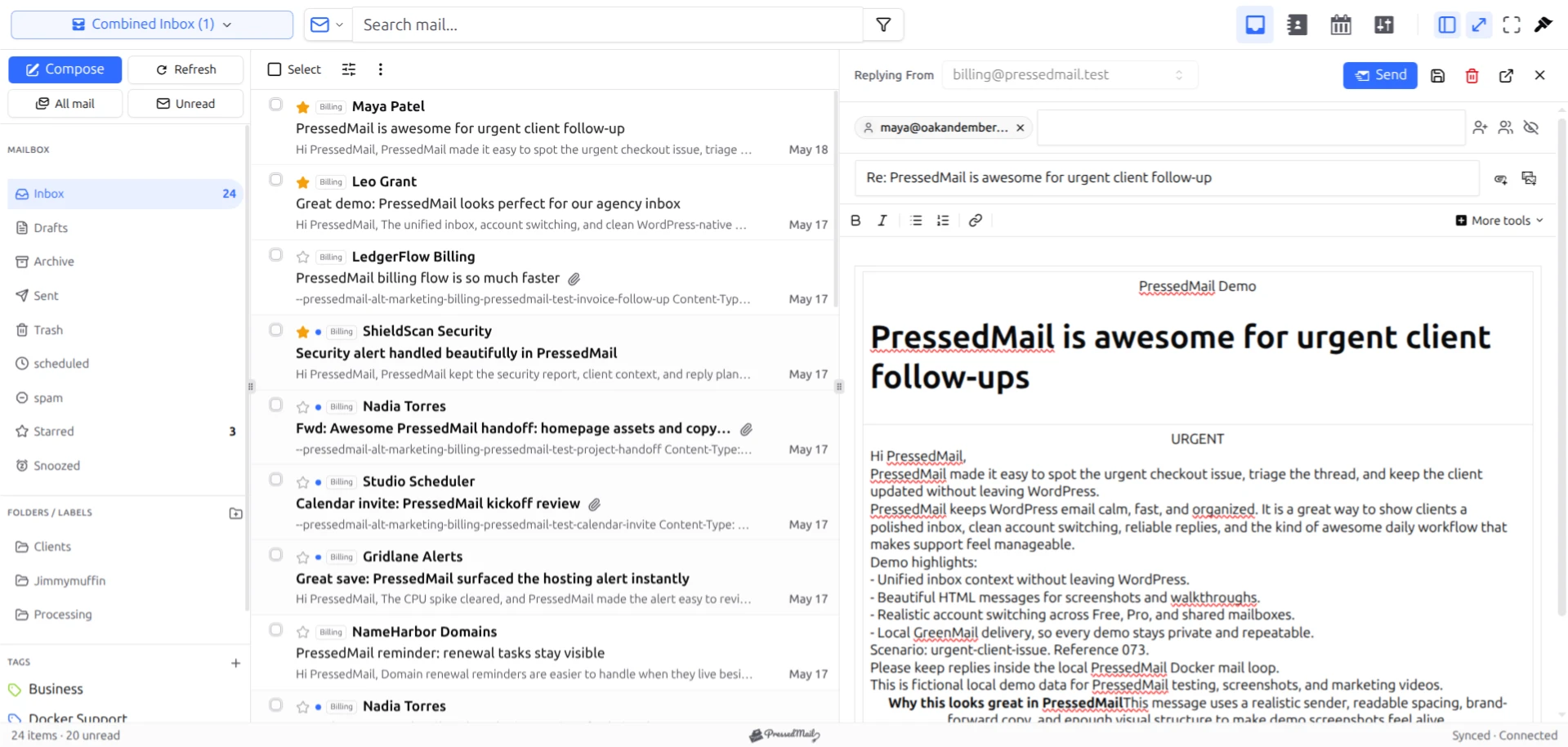
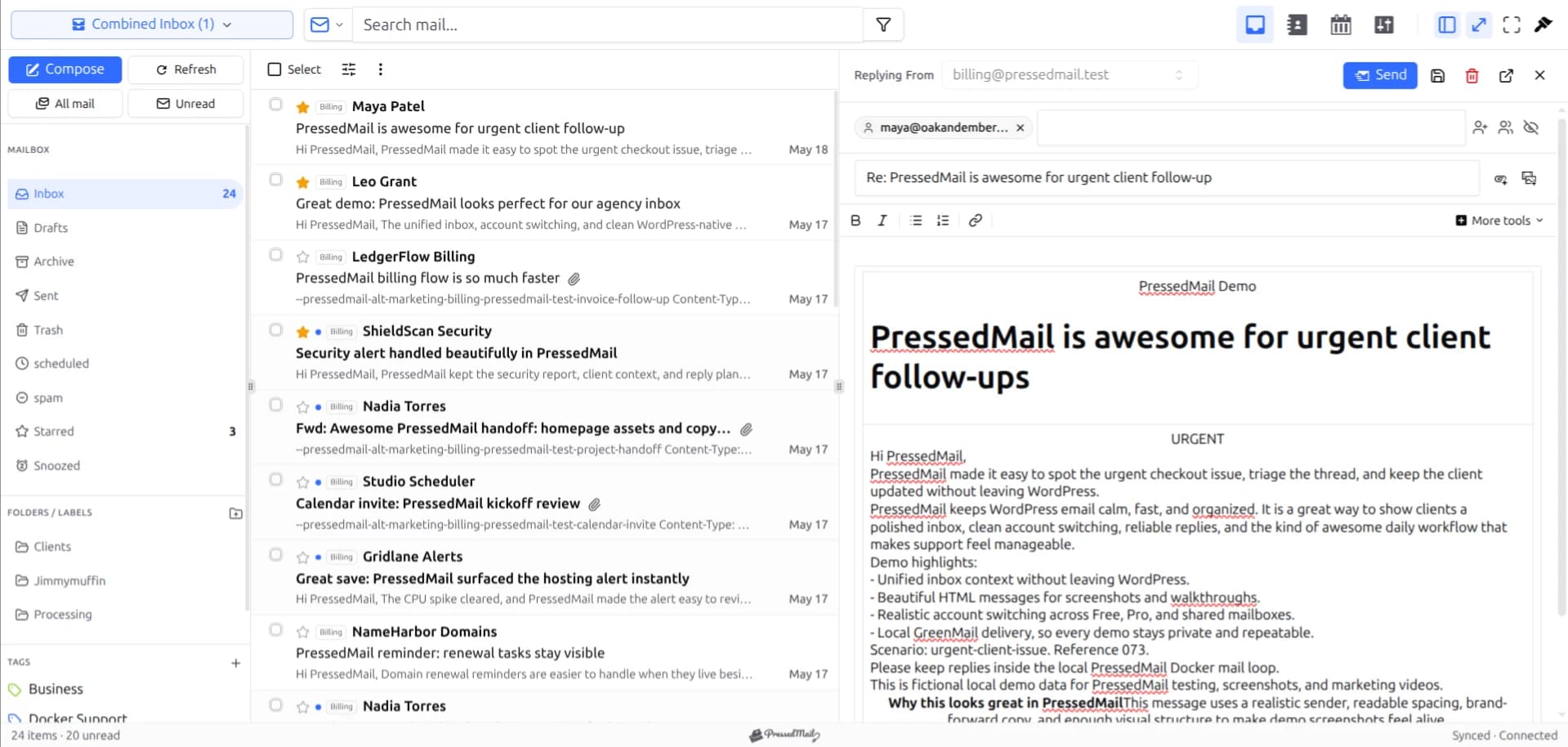
PressedMail screenshot with fictional email. This shows the workspace, not proof that a Microsoft 365 tenant connection has passed.
What WordPress would gain access to
Connecting a mailbox makes WordPress part of the route through which its messages can be read and sent. The mail remains hosted by Microsoft; PressedMail provides another interface to it. This is different from moving the domain's email hosting or changing its MX records.
The business decision is therefore about access. Who can sign into the relevant WordPress account? Who maintains the site? Which administrators can install plugins or inspect its server? A tightly managed Microsoft account does not remove the need to protect the site that uses it.
For an agency, answer those questions separately for each client. A mailbox belonging to a client should not become a shared convenience account for everyone who maintains the website. Our guide to client mailbox management for WordPress agencies covers the ownership decisions behind that setup.
OAuth, IMAP, and SMTP are separate checks
OAuth lets a user authorize an application through Microsoft's sign-in flow rather than giving the application an ordinary account password. Microsoft supports OAuth for IMAP and SMTP, including Exchange Online. The authorization still has to request the appropriate access and comply with the organization's policies. Microsoft's protocol authentication documentation.
IMAP handles mailbox access. SMTP handles outgoing submission. A successful browser sign-in does not, on its own, prove that either mail connection works.
SMTP AUTH also has its own controls in Exchange Online, including organization and mailbox settings. Those controls can prevent sending even after the user has completed OAuth. Do not disable security defaults, weaken Conditional Access, or broadly enable protocols to make a plugin fit an unsuitable tenant. Ask the administrator whether the intended configuration is allowed. Microsoft's SMTP AUTH policy reference.
The distinction between an authorization method and a permitted mail connection is explained further in Microsoft OAuth versus app passwords.
The current server-setting limitation
Microsoft documents smtp.office365.com for authenticated Exchange Online client SMTP submission. PressedMail's current Outlook preset instead uses smtp-mail.outlook.com, the hostname documented for consumer Outlook.com. Both use port 587 with STARTTLS, but a shared port does not make the services interchangeable. Microsoft 365 application email options.
The current preset has not been verified here as a Microsoft 365 sending path. Confirm that the installed PressedMail version supports the correct Exchange Online endpoint together with Microsoft OAuth before connecting a business-critical mailbox. If that combination is not available, keep using an approved client while the compatibility issue is resolved.
Do not switch to a password-based Custom IMAP connection simply to gain a different server field. Changing the hostname does not replace the required authentication method. The Outlook and Microsoft 365 settings reference separates the two account families.
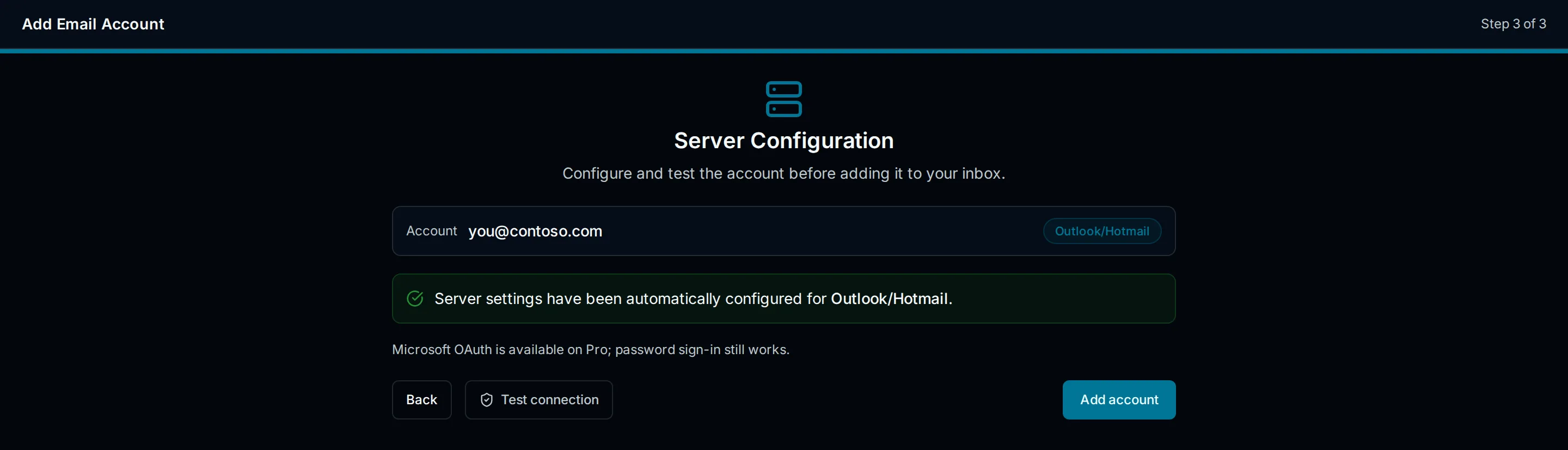
Drawn setup illustration. It explains the connection screen; it is not evidence of tenant approval or working Exchange Online SMTP.
Assess the deployment in five steps
- Identify the actual mailbox. Establish whether the address is a user mailbox, an alias, a group address, or a shared mailbox. Do not assume every address that receives messages has independent sign-in credentials.
- Name the owners. Record the mailbox owner, Microsoft administrator, and WordPress maintainer. Agree who can approve access and who can remove it.
- Review application access. Have the administrator assess the Microsoft authorization request, applicable policies, and whether IMAP and SMTP access are permitted for this use.
- Confirm product compatibility. Resolve the Exchange Online SMTP endpoint and OAuth requirements in the installed version. A familiar Outlook label is not sufficient evidence.
- Test an approved setup before relying on it. Receive a harmless message, open it, reply to a separate mailbox, and verify arrival there. Check sent-message behavior as well. Use a clearly marked test message without customer information.
Keep the results specific. “OAuth completed” is useful, but it is different from “IMAP opened the inbox” or “the reply arrived at another provider.” Separating those outcomes makes failures much easier to investigate.
Site notifications need their own configuration
A connected inbox and WordPress system email are different routes. PressedMail's WordPress SMTP feature uses a separate server configuration. Connecting Microsoft OAuth for an inbox does not automatically configure password resets, WooCommerce messages, or form notifications to send through that mailbox.
Choose a permitted transport for those site-generated messages independently. A transactional delivery service may suit them better than a staff mailbox. The WordPress SMTP setup guide explains that separate task.
Microsoft also documents relay and direct-send options for specific circumstances. Those are sending arrangements, not substitutes for an IMAP inbox or evidence that a WordPress plugin can use them without additional support.
When another approach is simpler
Outlook on the web is the straightforward choice when the tenant does not permit this application or when the current PressedMail configuration cannot meet the account's requirements. An organization-approved desktop client may already provide the needed workflow without introducing another system with mailbox access.
PressedMail fits a narrower situation: someone who already works in WordPress wants a compatible mailbox beside that work, and the organization approves that access. It is not a reason to bypass an established mail policy.
FAQ
Can a tenant block access after Microsoft sign-in succeeds?
Yes. Sign-in, application authorization, and permission to use a mail protocol are related but distinct. Preserve the non-sensitive error details and ask the tenant administrator to identify which control rejected the connection.
Does OAuth remove the need to check SMTP AUTH?
No. OAuth is an authentication method. Exchange Online's SMTP AUTH controls still affect whether the application may submit outgoing mail through that protocol.
Can I use a shared mailbox?
Do not assume so from ordinary user-mailbox support. Microsoft documents OAuth access patterns for shared mailboxes, but an application must implement the relevant behavior. Confirm explicit support in your installed PressedMail version before planning a shared-mailbox workflow.
Who removes access when an employee leaves?
The Microsoft administrator and WordPress maintainer should coordinate it. Revoke the application's Microsoft access where appropriate, remove unnecessary WordPress access, and review stored mail data under the organization's retention rules. Revoking an authorization is not a promise that previously stored messages have been erased.
Manage your email inside WordPress
PressedMail Free adds an email client directly to your WordPress dashboard. Connect a compatible IMAP/SMTP mailbox, read and send mail, organize messages, and configure WordPress SMTP.




