

You can connect an eligible Zoho Mail account to PressedMail through manual IMAP and SMTP setup. First check that the Zoho plan includes IMAP, then copy the server settings shown inside that account. Zoho's hostnames vary by account type and data center, so a generic settings table is not enough.
Zoho's current free offering does not include IMAP access. Installing a free WordPress email client cannot add a protocol that the mail plan excludes. Check the account's actual entitlement before spending time on passwords and ports. Zoho Mail plan comparison.
PressedMail Free provides the WordPress-side client for one compatible mailbox. Zoho remains the email host. If those roles are unfamiliar, the general IMAP connection guide explains what each part does.
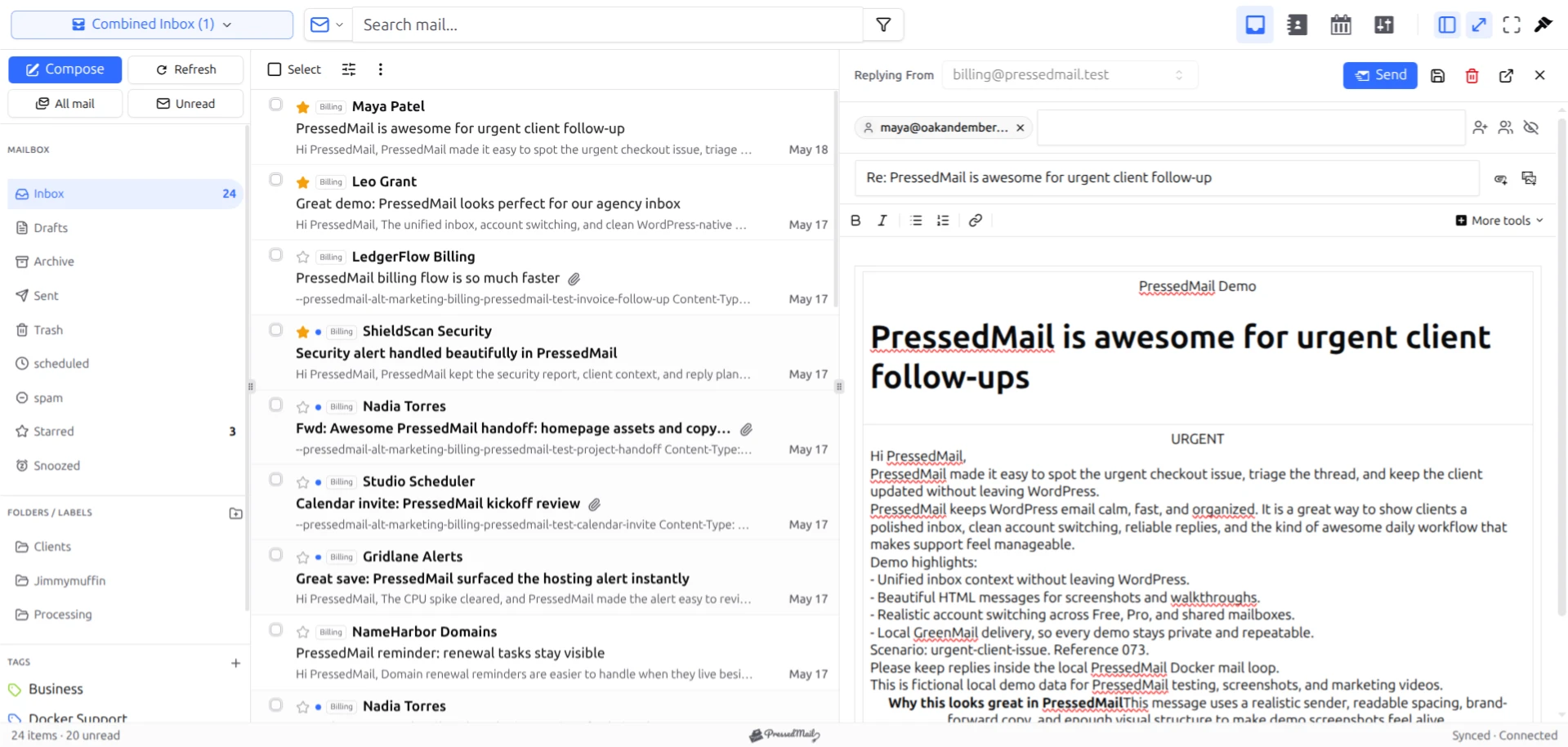
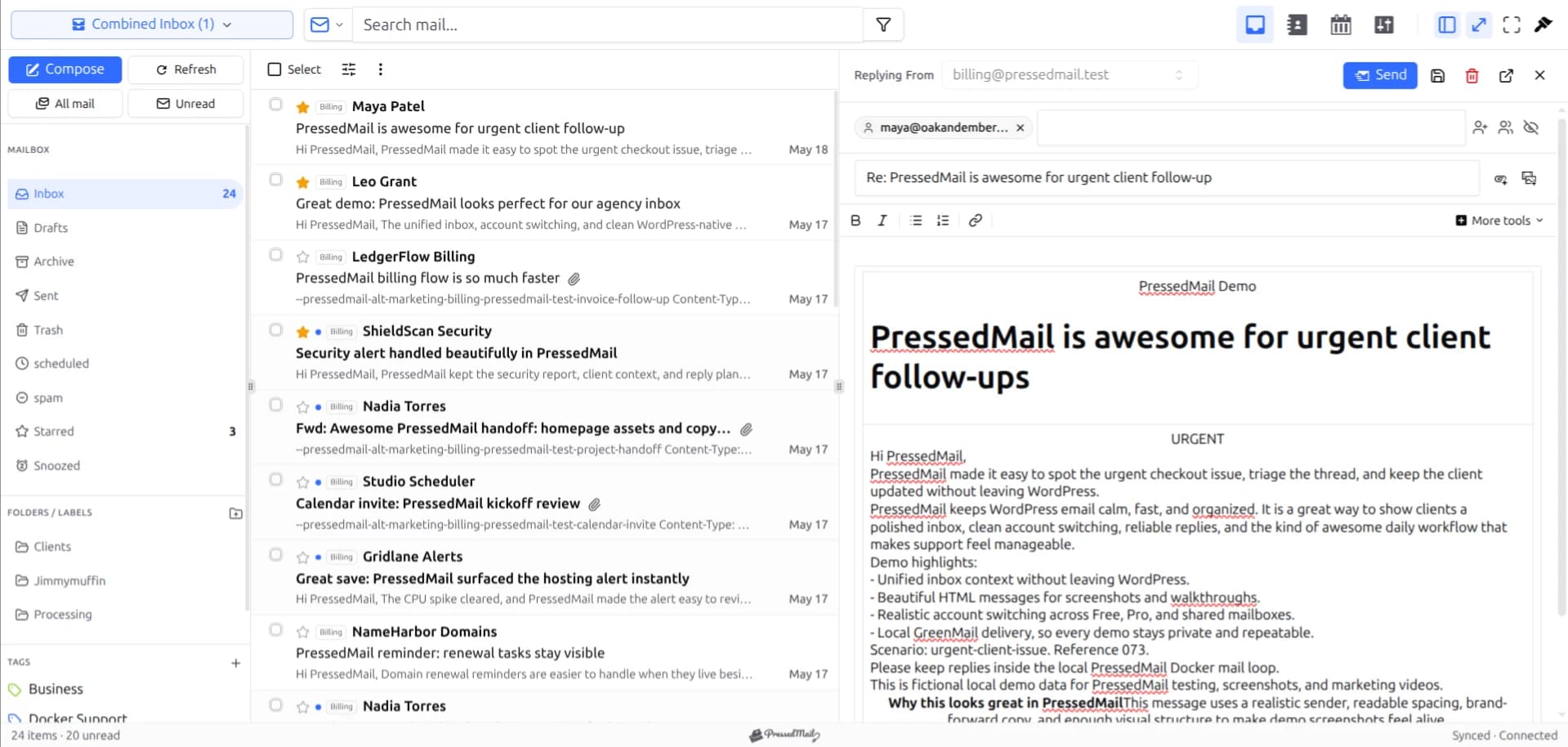
PressedMail screenshot with fictional email. It shows the client workspace, not a live Zoho account or plan entitlement.
1. Confirm that this account permits IMAP
Sign into Zoho Mail on the web and identify the mailbox you want to connect. Check its plan and, for an organization account, ask the administrator whether external IMAP access is permitted.
A working webmail login is not proof of IMAP eligibility. Webmail can remain available on a plan that excludes third-party mail clients. If the account cannot use IMAP, stay with Zoho's web or mobile client, or assess a plan that includes the access you need. Do not change a business subscription without its owner's approval.
Also distinguish the mailbox from an alias. The address printed on a contact page may deliver into another account rather than have its own sign-in. Our custom-domain mailbox guide helps identify that underlying account.
2. Get the account's own connection details
In Zoho Mail settings, open the mailbox's IMAP controls and review Server Configuration Details. Use the hostnames displayed for that account, not a guessed regional suffix or settings copied from another organization.
Zoho's documentation distinguishes personal and paid organization accounts and notes that data-center location affects the exact values. Eligible users can enable IMAP in Mail Accounts settings. Organization policy can still restrict it. Zoho's IMAP configuration reference.
Collect the following without sharing credentials in a support ticket:
| Item | What you need |
|---|---|
| Mailbox identity | The authorized full email username |
| Incoming service | Account-specific IMAP hostname, port, and encryption |
| Outgoing service | Account-specific SMTP hostname, port, and encryption |
| Authentication | The credential permitted for this account |
| Sender | An address the account is allowed to send from |
Keep incoming and outgoing values separate. A hostname that looks similar is not interchangeable with the other service. The IMAP versus SMTP guide explains why reading can work while sending fails.
3. Prepare the right credential
Follow Zoho's authentication requirements for the account. With two-factor authentication, a mail client may need an application-specific password. SAML or federated sign-in can also mean that the password used at an external identity provider is not a usable Zoho IMAP credential. Zoho's authentication notes for IMAP.
Do not disable two-factor authentication to connect WordPress. If the organization does not permit the required credential, use its approved mail client instead.
Create a credential specifically for the connection when the provider supports it, give it a recognizable name, and keep it out of screenshots, article comments, and shared documents.
4. Add the connection in PressedMail
Open PressedMail's email account settings and choose Custom Email. Enter the mailbox identity and the incoming settings from Zoho, then the corresponding SMTP settings.
Match the encryption mode to the port shown by Zoho. Do not choose an unencrypted mode to bypass an error. A TLS certificate warning deserves investigation of the hostname or service, not a blanket exception.
Save the connection using the supported controls in the installed version. See the Custom IMAP documentation for the product's connection fields.
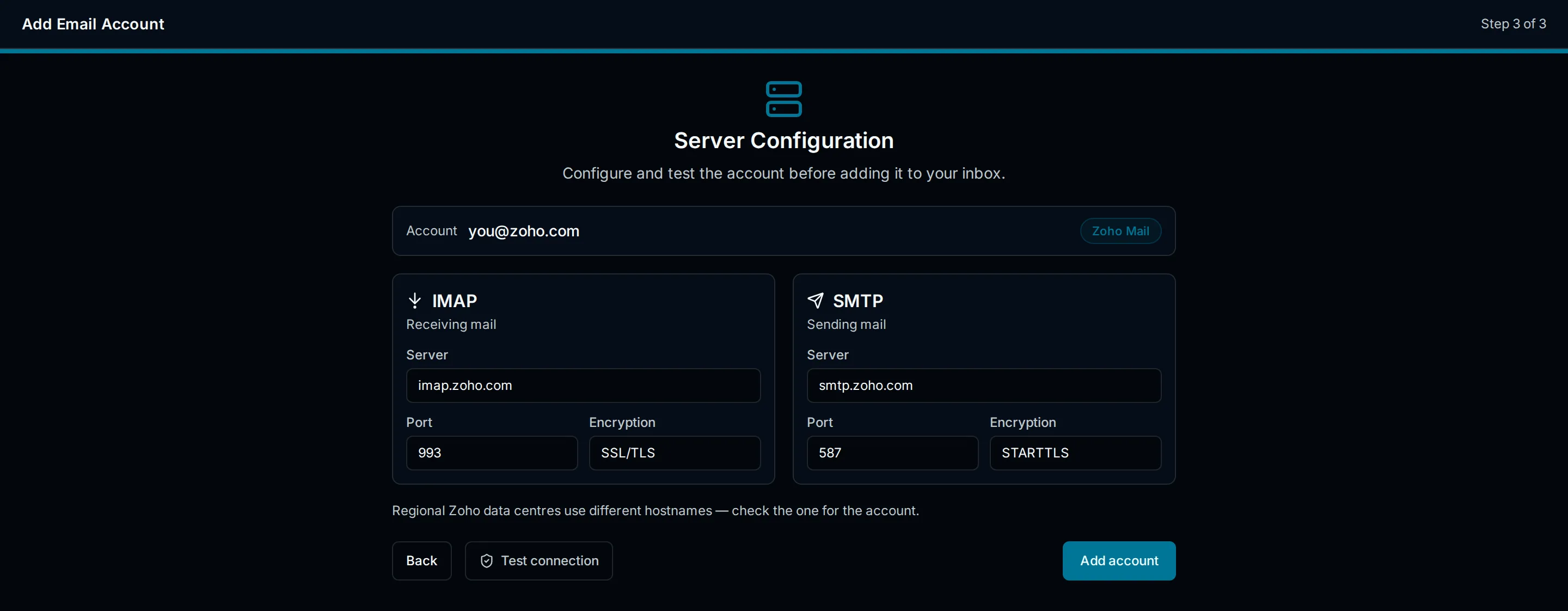
Drawn Zoho setup illustration. Use the current Custom Email flow and your account's server values; this image is not evidence of a dedicated Zoho preset.
5. Check receiving, folders, and sending
Send a harmless message from another mailbox to the Zoho address. Open it in PressedMail, then compare it with the same message in Zoho webmail. This establishes whether the incoming connection reaches the intended account.
Next, open a folder you already use. If a folder is missing in PressedMail, check whether Zoho exposes it to IMAP before assuming the message has disappeared. Zoho provides folder-visibility controls for external clients. Zoho's IMAP folder settings.
Reply to the test message and verify arrival at the other mailbox. Check the From address and where the sent message appears. Do not use a customer conversation for the first test.
Once the connection works, the tags and folders guide can help you organize daily work. Be careful with moves and deletions: an IMAP client interacts with the provider mailbox, not an isolated copy for practice.
If the connection fails
An immediate credential rejection calls for checking the username and permitted authentication method. A timeout points toward hostname resolution, network access, or an unavailable service. A working inbox with failed sending narrows the problem to outgoing submission.
Record the failing stage and the exact non-sensitive error. Avoid replacing several settings at once. If you change both hostnames, both ports, and the password, a later success will not tell you which correction mattered.
If only site-generated mail is failing, that is a different task. Connecting the Zoho inbox does not automatically configure WordPress SMTP. PressedMail uses a separate SMTP server configuration for those messages. Follow the WordPress SMTP guide and test that route independently.
When to keep using Zoho webmail
Zoho webmail is the simpler option when the account excludes IMAP or organization policy prevents the connection. It may also be preferable when your daily work depends on provider-specific tools beyond ordinary mailbox access.
PressedMail fits when you want a compatible mailbox beside WordPress work without moving its hosting. It does not convert Zoho's subscription, create a mailbox, or replace provider administration.
FAQ
Can Zoho Free work with PressedMail Free?
The WordPress plugin being free does not determine Zoho's access entitlement. Zoho's current free offering excludes IMAP. Confirm the actual account plan, including any older entitlement, before attempting the connection.
Which Zoho server hostname should I use?
Use Server Configuration Details inside the account. Account type and data center matter; do not copy another user's regional hostname.
Does a successful inbox mean SMTP is configured?
No. Incoming and outgoing connections need separate tests. Send a reply and verify it at the destination.
Do I need to move my domain's email hosting?
No. Connecting an existing compatible Zoho mailbox leaves Zoho as the host. A mail migration or DNS change is a separate project.
Manage your email inside WordPress
PressedMail Free adds an email client directly to your WordPress dashboard. Connect a compatible IMAP/SMTP mailbox, read and send mail, organize messages, and configure WordPress SMTP.




