

Connecting an IMAP mailbox to WordPress starts with the email provider's client settings. You need the incoming server, its secure connection details and the authentication method the account permits. To reply from the same interface, you also need working SMTP settings.
PressedMail Free can connect one compatible mailbox. A provider preset fills common values; Custom Email accepts manual settings. Neither option creates the mailbox or overrides the provider's access policy.
If you only need to understand why there are two server configurations, read IMAP versus SMTP. This guide follows the practical setup from a working mailbox to a verified incoming message and reply.
Collect the right settings
Sign into provider webmail and confirm that the mailbox opens. Then find the settings for desktop or third-party email clients.
The webmail URL, website URL and mail server hostname can all differ. A page such as a hosting control panel's webmail login is not an IMAP endpoint. Use the provider's documented hostname instead of adding “mail” to your domain and hoping it works.
Collect each item separately:
| Setting | What you need |
|---|---|
| Incoming server | The provider's IMAP hostname |
| Incoming connection | Port and encryption mode |
| Outgoing server | The provider's SMTP submission hostname |
| Outgoing connection | Port and encryption mode |
| Username | The exact account format required |
| Authentication | Password, eligible app password or a supported OAuth route |
Port numbers alone are insufficient. The encryption setting must match what the server expects. A provider may document more than one secure submission option; choose a documented combination rather than mixing one option's port with another's mode.
For a hosting account, the custom-domain mailbox guide explains how to identify the mailbox service behind the address.
Confirm that the account allows access
A successful webmail login proves the account is usable through that interface. Third-party access may have additional requirements.
Gmail currently needs an eligible Google app password in PressedMail. Microsoft's mailbox connection uses OAuth. A custom provider may accept a mailbox password or require a generated application credential.
Follow Gmail's IMAP setup or the Outlook connection walkthrough when one of those services hosts the account. Do not force a provider into a generic password workflow when its supported authentication path differs.
The WordPress server must also reach the provider. If the host blocks the outgoing connection, changing the mailbox password will not repair it. Give hosting support the destination hostname, port and error category, without sending the credential.
Install and open the connection form
Install PressedMail Free from WordPress.org and activate it. WordPress supports both directory installation and uploading a downloaded plugin ZIP; its plugin-management documentation explains those paths.
Open PressedMail settings, go to Email Connections and choose Add Account. Select the supported provider preset when it matches the mailbox. Otherwise, choose Custom Email.
Enter the account address and display name, then supply the required authentication details. A display name is how the account is presented; it does not change the server username.
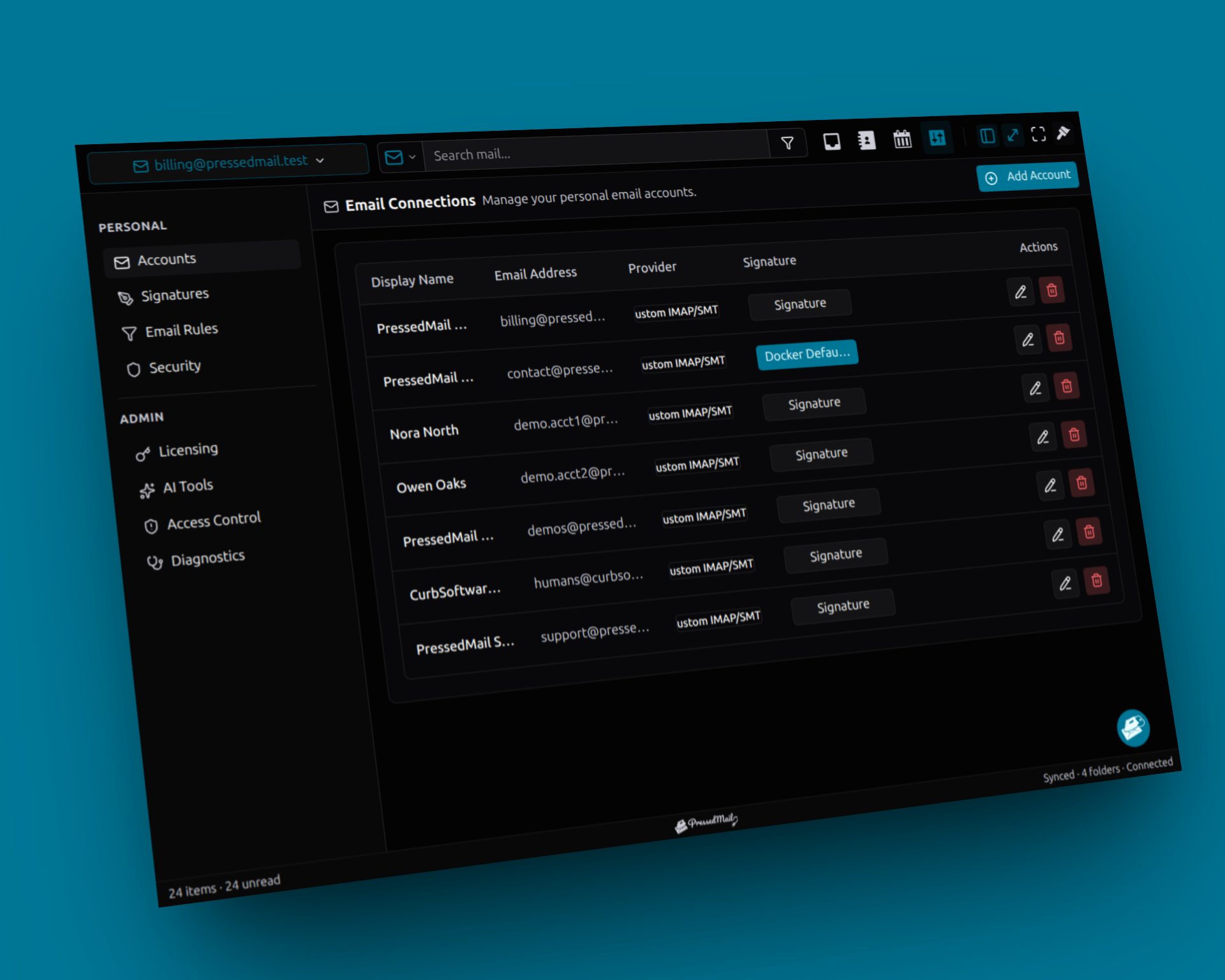
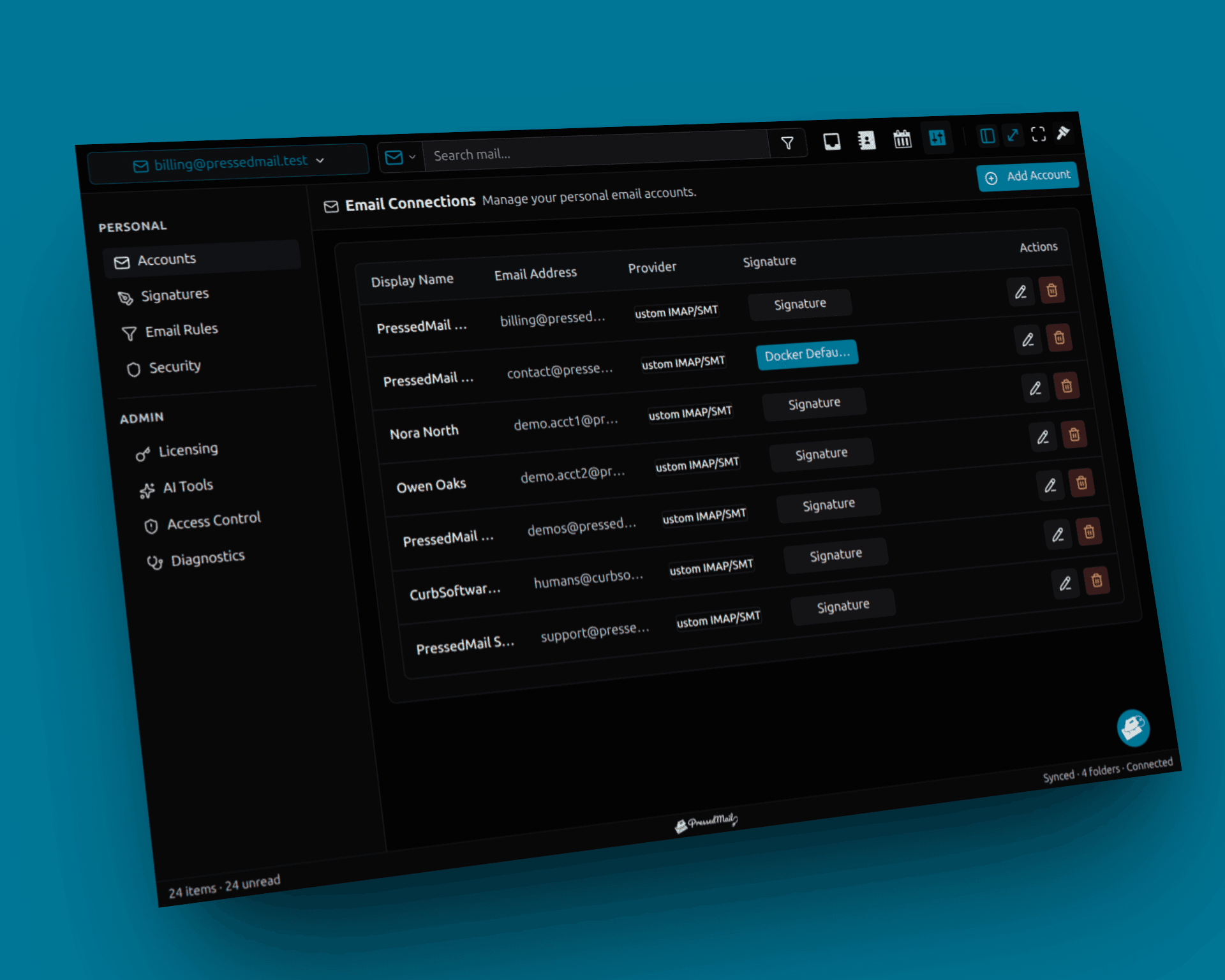
Screenshot composite of Email Connections with fictional accounts. Free supports one mailbox; the multiple entries shown here illustrate the account-management view.
Copy the incoming and outgoing settings carefully. Watch for an extra space at the beginning or end of a hostname or username. Keep the provider's secure settings intact.
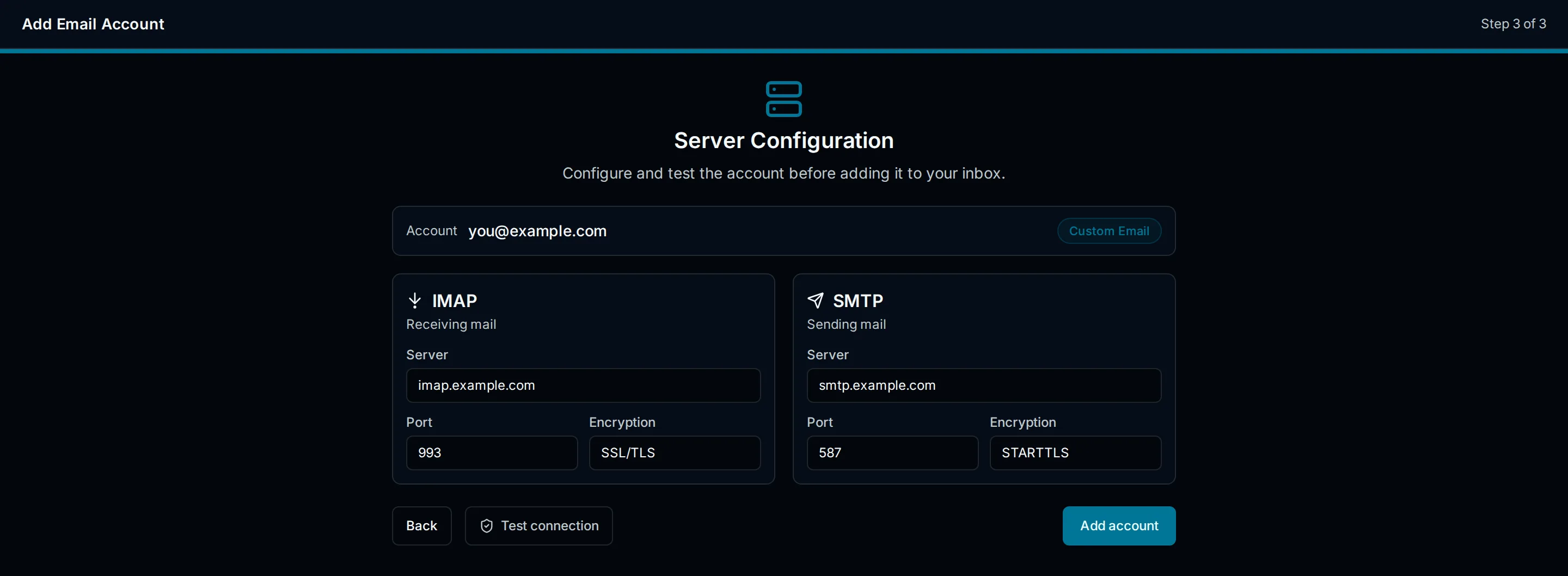
Illustration of the custom IMAP and SMTP fields. This explanatory image is not a capture of a successfully connected mailbox.
Test incoming and outgoing access
Run the available connection tests before depending on the account. Read each outcome separately.
An IMAP success indicates the incoming connection passed its check. An SMTP failure still needs attention before you can rely on replies. Conversely, an SMTP success does not establish that PressedMail can read mailbox folders.
Use the error to choose the next check:
- A hostname or connection failure points toward the destination, port or hosting network.
- A certificate or TLS failure calls for checking the documented hostname and encryption mode.
- An authentication failure calls for checking account identity, credential type and provider policy.
- A sender rejection may occur after authentication and concerns the address being used to send.
These are categories, not guaranteed wording from every server. Preserve the actual error when contacting support, but remove secrets and unrelated personal data.
Avoid disabling encryption or certificate checks as a routine fix. A connection that works only after removing those checks has not established a sound configuration.
Save and read a known message
After the checks pass, save the account and allow the first synchronization to finish. Open Inbox and find a harmless message whose subject and date you already checked in webmail.
If Inbox is empty, compare the actual folder at the provider. The message may be archived, filtered into another folder or placed in Spam. Initial synchronization may also take time.
Open the message and inspect its sender and body. The first-message tutorial covers the reading interface without adding more configuration.
IMAP works with server-side mailboxes and message state. Folder operations through a client can therefore affect what you see in another client. The IMAP specification defines those mailbox and message operations. Learn unfamiliar moves and deletions using nonessential test mail.
Send a controlled reply
Reply to an address you control outside the connected account. Keep the first message short and plain text. Check the selected sender and recipient before sending.
Observe the application's outcome, then inspect the external mailbox for the reply. Check Spam if it is absent from Inbox. This recipient check adds evidence that a connection test cannot provide by itself.
For a repeatable test record, use testing SMTP in WordPress. If receiving works but the reply fails, keep the functioning IMAP configuration and investigate SMTP.
The website's own notifications have a separate configuration. Connecting the mailbox does not automatically select it for WordPress password resets, forms or order emails.
When the provider refuses the connection
Some providers limit third-party access by plan, account type or organization policy. A correct password cannot override those restrictions.
Ask the mailbox administrator whether the required method is permitted. If it is prohibited, keep using provider webmail or another approved client. Do not change unrelated security settings merely to get a green test result.
If the failure began after a password or policy change, review that change with the provider. Generated app credentials and OAuth connections have their own lifecycle. Reconnecting repeatedly without understanding the rejection can make the incident harder to track.
Frequently asked questions
Can I use the same settings for IMAP and SMTP?
Only if the provider documents them that way. The services may use different hostnames, ports and permissions. Enter each set independently.
Is the username always my full email address?
Many providers use the full address, but the provider's instructions decide. A hosting account username or WordPress login name is not automatically the mailbox username.
Will connecting WordPress move the mailbox?
No. The provider continues to host it. PressedMail supplies another client interface and retains local metadata for its operation.
Why does the account work on my laptop but not in WordPress?
The network connection comes from a different machine. The WordPress host may have different outbound access, TLS capabilities or provider restrictions. Compare the actual error before changing working mailbox settings.
Can I connect more mailboxes in Free?
Free covers one mailbox. Additional mailbox requirements belong to the paid edition; they are not necessary for this initial setup.
Manage your email inside WordPress
PressedMail Free adds an email client directly to your WordPress dashboard. Connect a compatible IMAP/SMTP mailbox, read and send mail, organize messages, and configure WordPress SMTP.




