

If your hosting account already provides a working email mailbox, you can use PressedMail as another client for it inside WordPress. You need the mailbox's IMAP and SMTP settings, its own credentials, and permission for the WordPress server to connect.
For cPanel hosting, get those settings from Email Accounts → Connect Devices beside the exact mailbox. Use the recommended secure manual settings. Do not guess that the server is mail.yourdomain.com, and do not enter the hosting administrator's password as the mailbox password. cPanel's mail-client setup documentation.
This connects an existing mailbox. It does not create email hosting or replace the server behind cPanel. The hosting email overview explains those responsibilities if you are still working out where the mail lives.
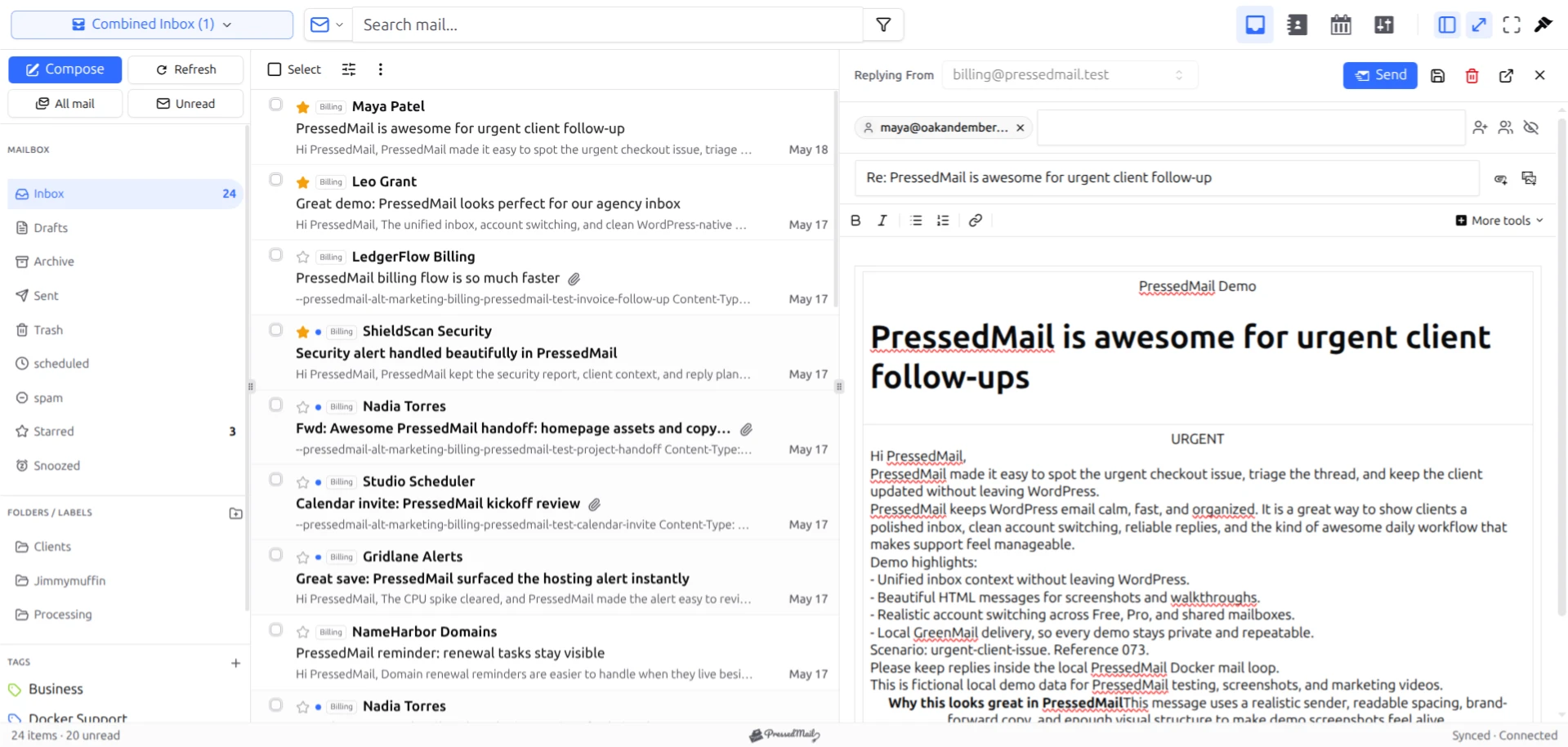
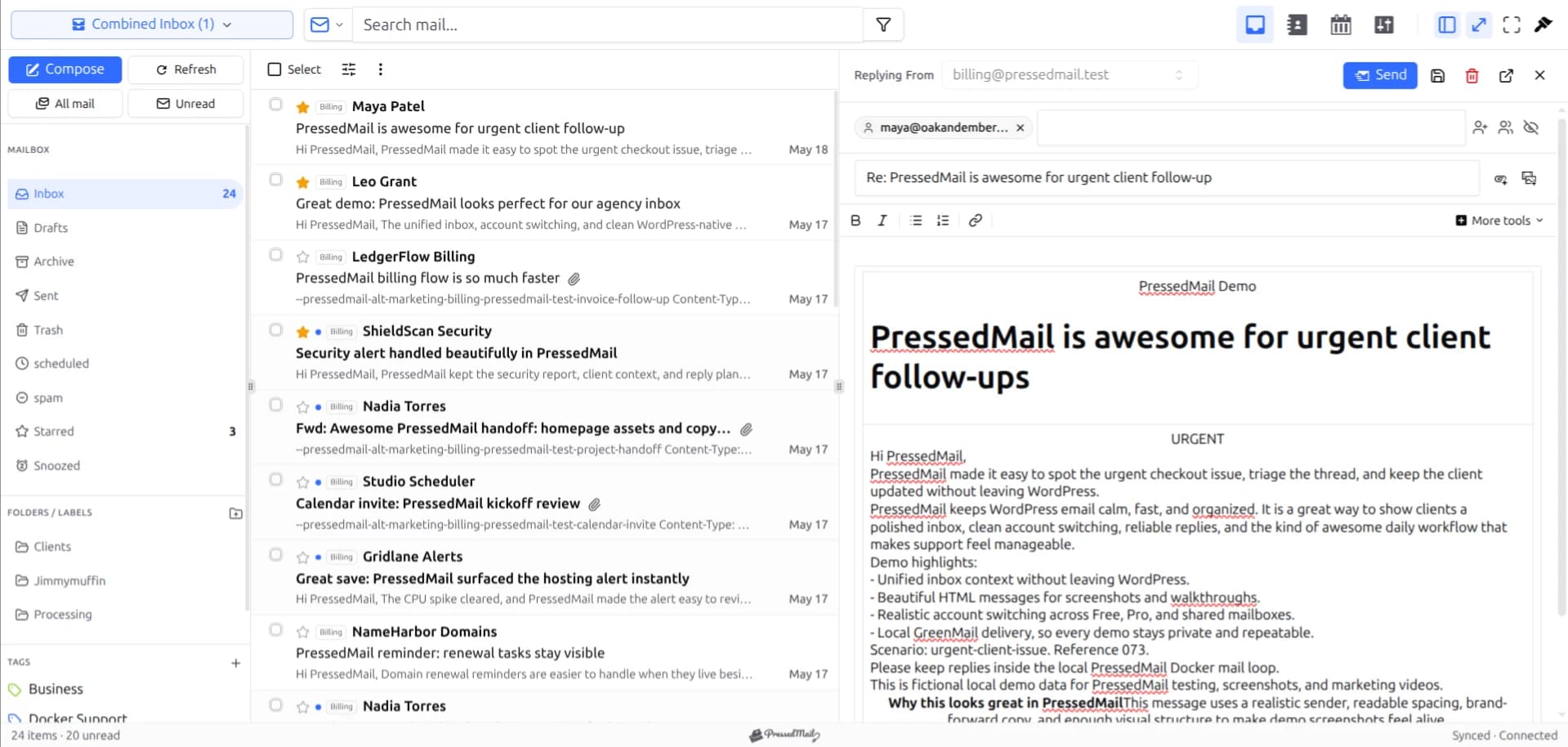
PressedMail screenshot with fictional email. It shows the client workspace rather than a specific hosting account.
1. Find the correct email account
Open cPanel's Email Accounts page and locate the full address you want to use. Check that it is a mailbox, not merely a forwarding address.
Use Check Email to open its webmail and confirm that you can read an existing message. Send a harmless message to the address from another mailbox and verify it arrives there. A mailbox that does not receive mail in the host's own webmail needs attention before WordPress is added.
cPanel lists account restrictions and storage use alongside mailbox management controls. If the account is restricted or over quota, investigate that with the host. cPanel Email Accounts reference.
Do not create a second mailbox with the same intended role just because the existing account is difficult to find. First identify where the address's incoming mail actually goes.
2. Copy secure manual settings
Beside the mailbox, open Connect Devices and find the manual configuration section. Copy the secure incoming and outgoing hostnames, ports, encryption modes, and username.
The hostname may be a domain-specific name or a hosting server name. Use what the provider supplies for the secure connection. Substituting a familiar-looking address can cause a certificate mismatch.
Keep a non-secret setup note with the mailbox address and server fields. Store the password through an appropriate credential process, not in the note or a screenshot.
The incoming service should be IMAP for this workflow. SMTP is the outgoing service. If the settings page also lists POP, do not copy that row into the IMAP fields. See IMAP versus SMTP for the protocol distinction.
3. Add the mailbox to PressedMail
Open PressedMail's email account settings and choose Custom Email. Enter the mailbox identity and the incoming fields from cPanel, then the SMTP fields.
Use the email account's own password. A cPanel administrative login may manage many accounts and is not the credential to distribute to an email client. If the mailbox password is unknown, arrange an authorized reset with its owner and account for other clients that will need the replacement.
Match encryption to the port. Do not select an insecure mode because a secure connection failed. The Custom IMAP documentation describes the PressedMail fields without assuming a particular hosting company.
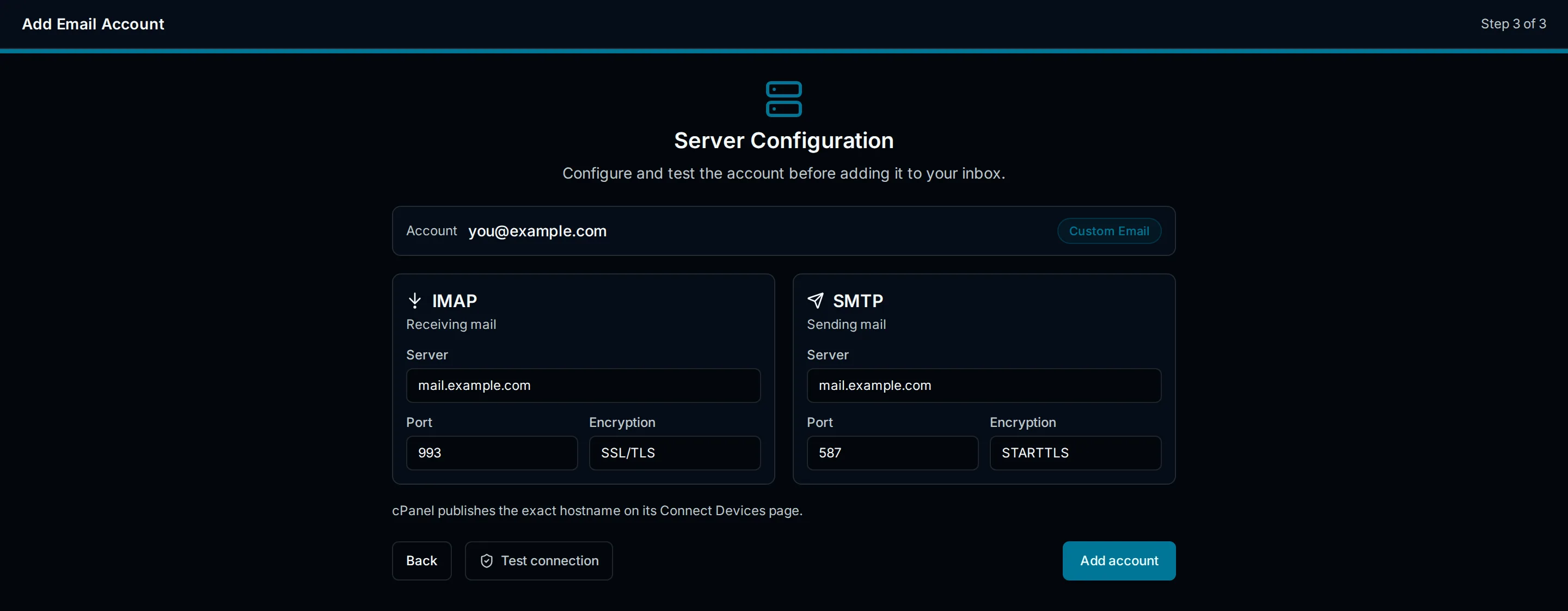
Drawn setup illustration. The current Custom Email form must use the values from your mailbox's Connect Devices page, not the sample values shown here.
4. Verify incoming mail
Save the connection and open the inbox. Find the test message you received earlier, then send a second message while checking the mailbox.
Compare the sender, subject, and body with webmail. Open a folder you already know contains messages. This helps distinguish a successful login to the correct account from a saved form or an accidental connection to another mailbox.
Do not begin by bulk-moving or deleting messages. PressedMail is interacting with the same provider mailbox used by other clients. A change can be visible outside WordPress.
If the connection times out, check the hostname and ask the WordPress host whether outbound access to that mail service and port is permitted. The website and mail server may belong to the same hosting company but still have network restrictions between them.
5. Verify an outgoing reply
Reply to the test message in PressedMail and inspect the destination mailbox. Confirm the reply arrived with the intended From address.
Check the sent-message behavior in both PressedMail and webmail. Avoid declaring the setup complete based only on a successful save or a sending notification.
If reading works but sending fails, investigate SMTP independently. Check its hostname, port, encryption, credentials, and any account restrictions. Preserve the working incoming settings while doing so.
If the destination rejects the message or files it as spam, the account may be connected correctly but have a delivery problem. The WordPress email delivery troubleshooting guide covers the next stage; changing IMAP settings will not fix a recipient's rejection.
Common hosting-specific problems
The mailbox receives nothing anywhere. Check webmail, quota, restrictions, and the domain's actual mail routing with the host. The presence of a cPanel account does not prove the domain currently delivers mail there.
The password stopped working after a reset. Update each authorized client that used the old mailbox credential. Do not repeatedly reset it without coordinating with the owner.
The secure hostname shows a certificate error. Return to the provider's recommended settings and contact the host if those values still fail. Do not turn certificate verification into an optional step.
Only WordPress-generated messages fail. A connected inbox does not automatically configure password resets or form notifications. PressedMail uses separate server configuration for WordPress SMTP. Follow the WordPress SMTP setup guide for that route.
PressedMail or Roundcube?
Roundcube, when provided by the host, is another client for the mailbox. PressedMail puts compatible email access beside the WordPress work you already do. Neither choice requires the other client to disappear.
Keep host webmail available as a useful independent check. If a message appears there but not in WordPress, you have narrowed the investigation. Our PressedMail versus Roundcube comparison covers the workflow tradeoffs.
PressedMail Free supports one compatible mailbox. It does not increase the host's storage allowance, remove sending limits, or administer the hosting account.
FAQ
Is my cPanel login the email password?
Use the specific mailbox's credentials. Do not assume the administrative account password belongs in an email client.
Should I use mail followed by my domain?
Only if the provider gives that hostname for the secure mail connection. Connect Devices is the account-specific source.
Will connecting PressedMail move my email?
No. It gives WordPress client access to the existing mailbox. A mail migration is a separate operation.
Can I still use webmail?
Yes, subject to the provider's account rules. Both clients can access the mailbox, so handle message changes as changes to shared mailbox state rather than separate copies.
Manage your email inside WordPress
PressedMail Free adds an email client directly to your WordPress dashboard. Connect a compatible IMAP/SMTP mailbox, read and send mail, organize messages, and configure WordPress SMTP.




