

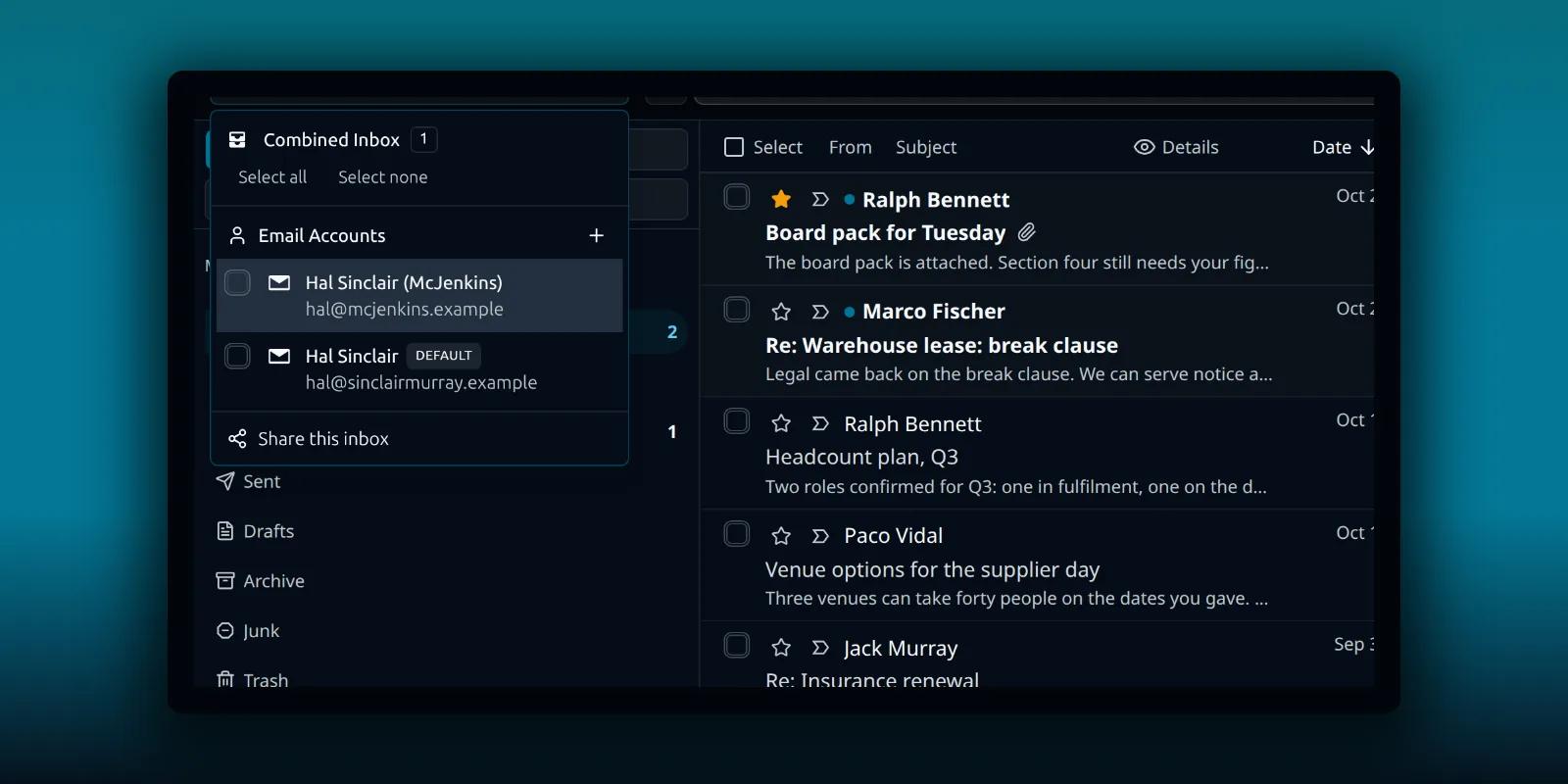
If you read more than one mailbox, switching between them costs time. The combined inbox is a paid feature that puts several accounts into one list while each message keeps its own account. This guide shows where to find it, how to choose which accounts it includes and what stays separate.
Free connects one mailbox per site, so it has nothing to combine. A paid plan adds more mailboxes and the combined inbox. The plan comparison lists what each plan adds.
Open the account selector
The account selector sits at the top left of the inbox. It shows the account you are looking at and opens a menu when you click it.
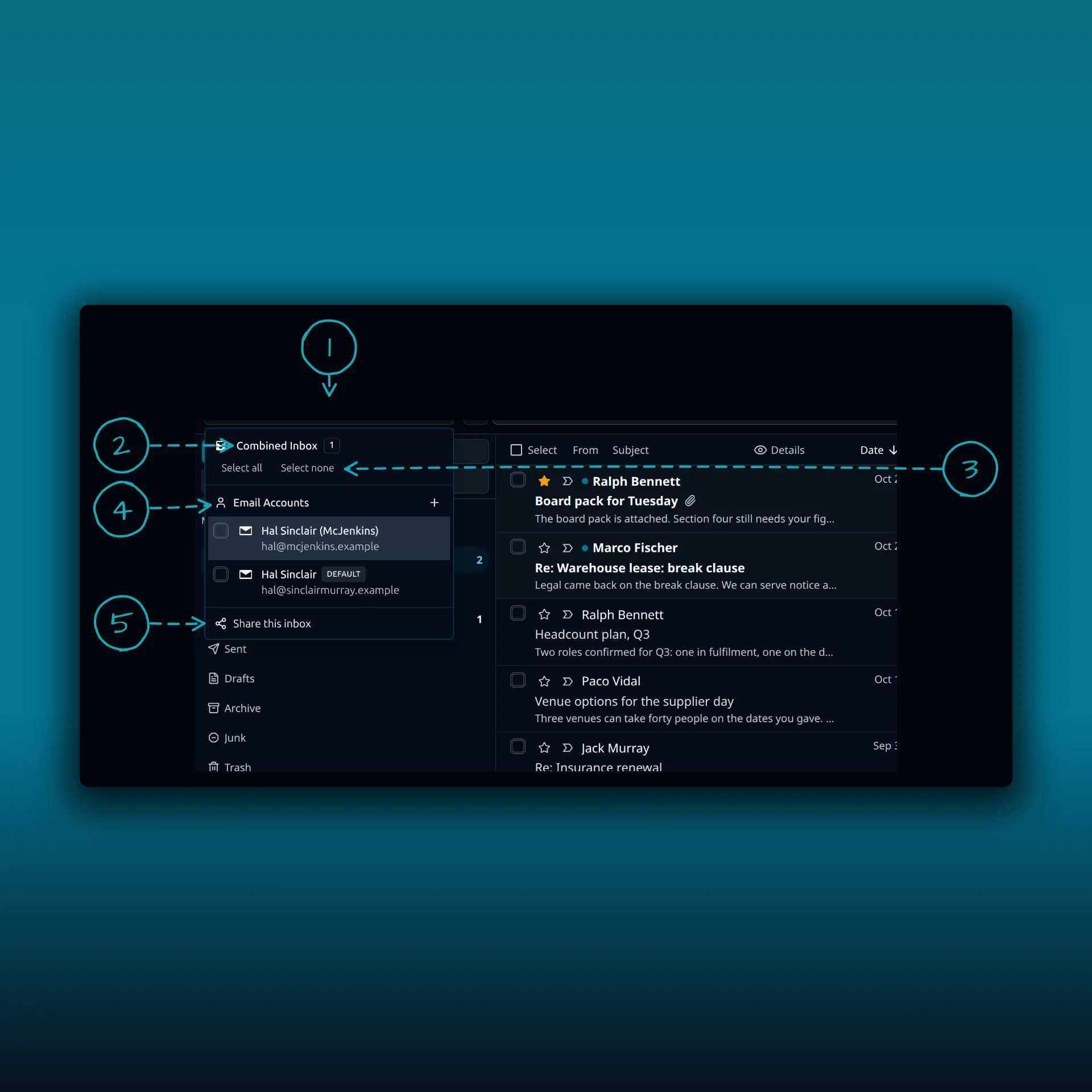
- The selector button, which names the current account.
- Combined Inbox. Choose it to merge the selected accounts into one list.
- Select all and Select none, to include or leave out every account at once.
- Email Accounts, with a checkbox beside each one. A plus button sits beside the heading.
- Share this inbox, for the sharing options on paid plans that include them.
The accounts in the picture are fictional, with demo addresses.
What the combined list does
In the combined inbox, messages from the accounts you ticked appear together, newest first, in the same list you use for one mailbox. Each message keeps its original account and sending identity, so check the From account field in the composer before you send a reply.
The folder pane still lists the folders and labels of one account at a time. Switch to a single account when you want that account’s provider folders, or when you are checking a connection problem. Narrowing to one account also makes a sync fault easier to see.
Choosing which accounts to include
Use Select all when you want everything in one place, and Select none to start again. Then tick the accounts you want. A work mailbox and a personal one do not have to live in the same list. You can include only the accounts you triage together and leave the rest.
Each mailbox connection belongs to the WordPress user who added it, so another person on the site sees their own accounts, not yours, unless you share one.
Which account is the default
The Accounts tab marks one account as the default, with a Default badge next to its name. The star on a row makes another account the default.
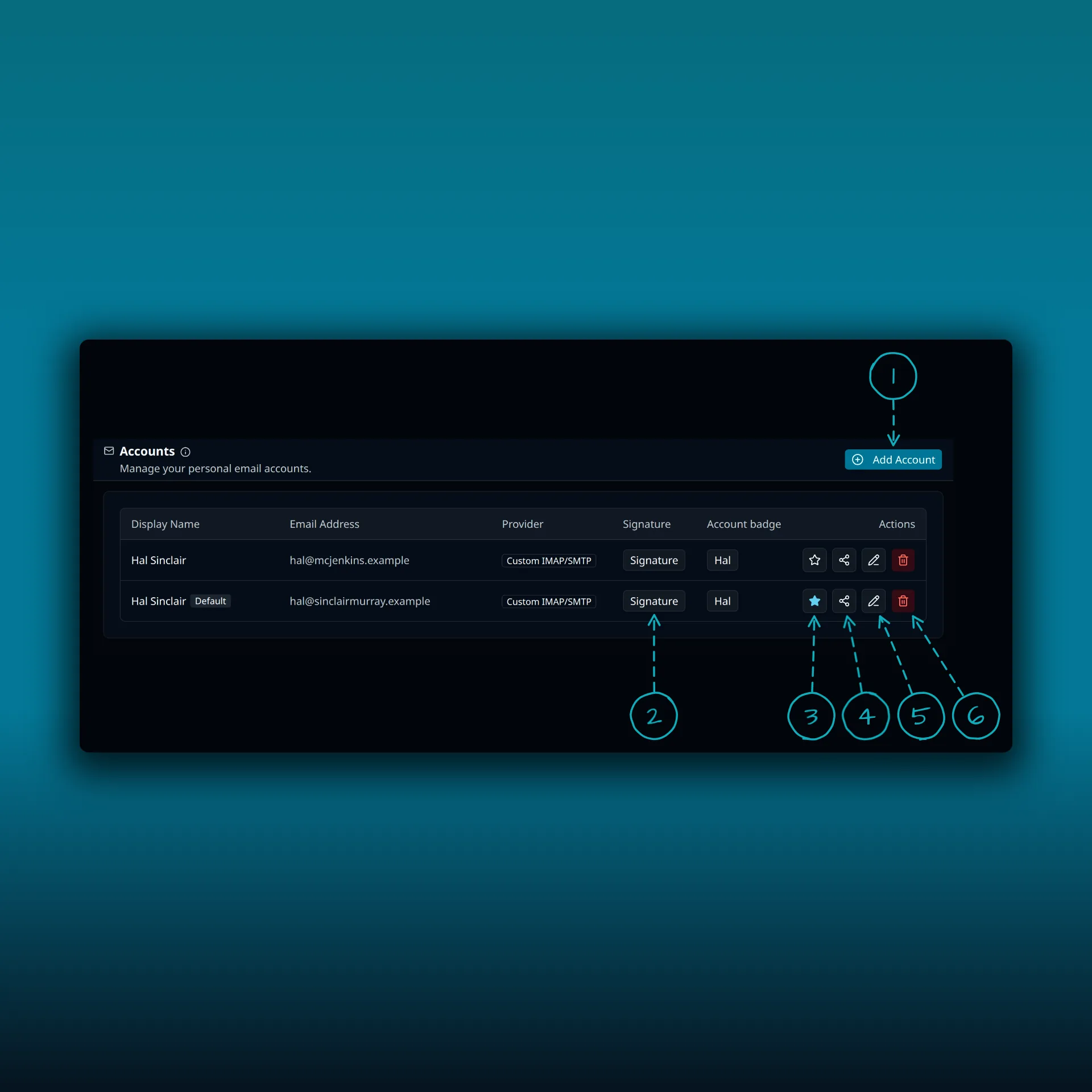
- Add Account. Starts the add account screen.
- Signature. Opens the signature for that account.
- The star. A filled star marks the default account.
- Share. Sharing a mailbox needs Ultimate or Lifetime.
- Edit.
- Delete.
Each account can have its own signature, which is why the Signature button sits on every row.
A practical routine
Start the day in the combined inbox and clear what needs a quick answer. When something needs the provider’s own folders, or a reply that must come from one specific address, switch to that account and work there. Use tags and rules to sort the mail that does not need your eyes. The guide to tags and folders covers that, and the guide to managing several business workflows shows a routine built around several accounts. Each mailbox can also have its own auto-reply and its own signature, so replies look right whichever account sends them.
What the combined inbox does not do
It does not merge your providers’ folders into one set, and it does not change where your mail is stored. Your provider still hosts each mailbox. The combined list is a view PressedMail builds over the accounts you ticked.
It does not send everything from one address. Each message keeps its own account and sending identity, so a reply goes where that message belongs unless you change the From account yourself.
It does not make site mail pass through your mailboxes either. WordPress’s own messages, such as password resets and form notifications, use the separate WordPress Email setting.
When something looks wrong
A message missing from the combined list usually means its account is unticked, its sync is behind or the account has a connection problem. Narrow to that account, refresh and look at the connection. The first-run walkthrough and the custom IMAP guide explain how to add a missing account.
Gmail labels can show the same message in several folders, as Google’s IMAP guide describes, and connecting the same mailbox twice can look like duplicates. Check the provider’s view and the Accounts tab before you remove anything, because removing an account deletes its local copy.
Frequently asked questions
Which account does a reply use?
Each message keeps its original account and sending identity. Check the From account field before you send.
Is the combined inbox in Free?
No. Free connects one mailbox, and the combined inbox needs a paid plan.
Can I leave an account out of the combined list?
Yes. Untick it in the account selector, or use Select none and tick only the ones you want.
Does connecting several mailboxes change how my site sends its own email?
No. Site mail uses the separate WordPress Email setting. See the WordPress SMTP guide.
Manage your email inside WordPress
PressedMail Free adds an email client directly to your WordPress dashboard. Connect a compatible IMAP/SMTP mailbox, read and send mail, organize messages, and configure WordPress SMTP.

