Use code "LIGHTHOUSE20" to save 20% on all plans forever. Get it now!

Install PressedMail and Send Your First Test Email

Install PressedMail, connect one mailbox, send a test message and confirm the reply, with a check after each step.

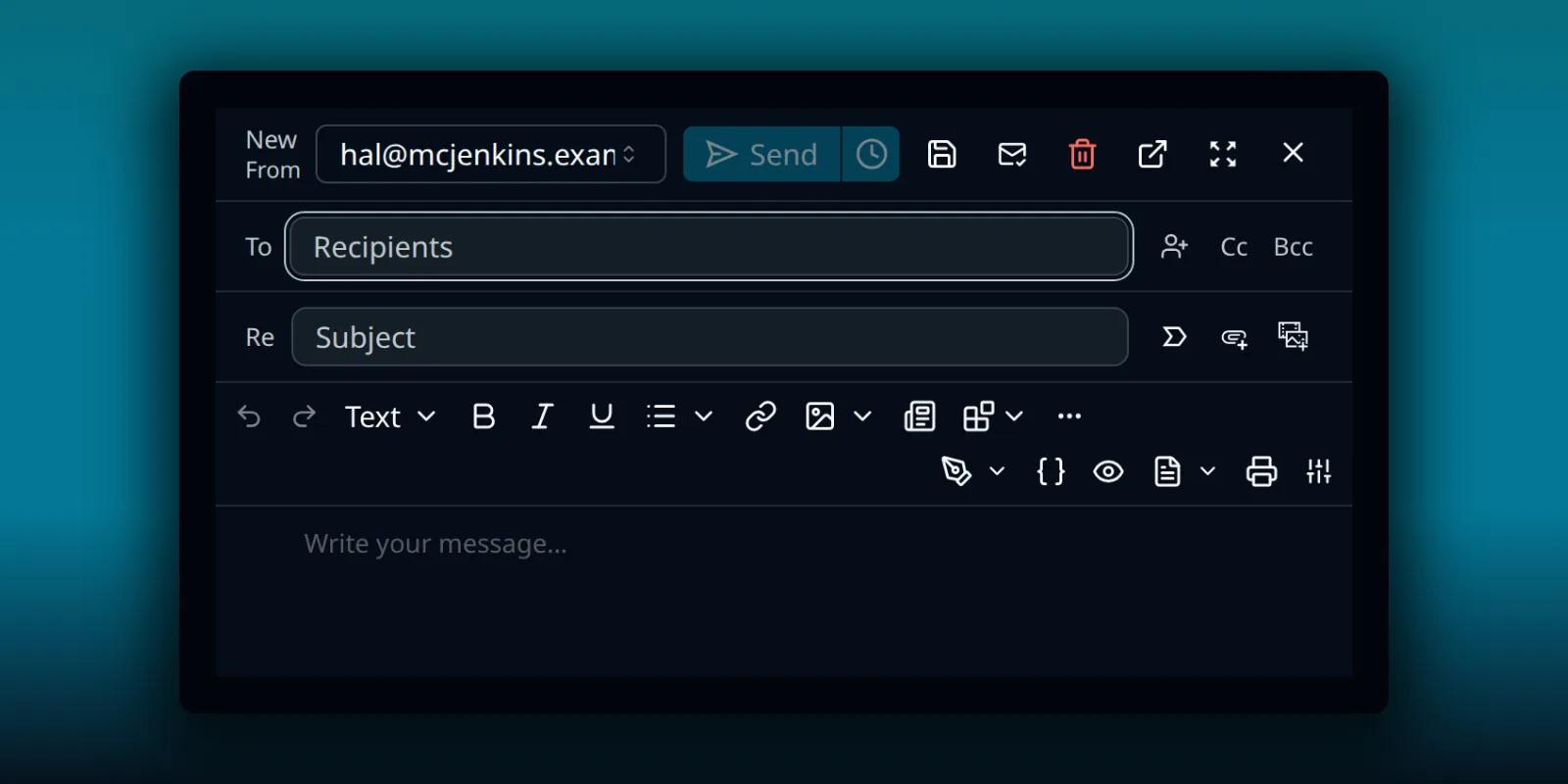
Cover image for Install PressedMail and Send Your First Test Email

This is the shortest path from nothing to a working mailbox: install the plugin, connect one address, send yourself a message and reply to it. Each step has a check, so you know where it stopped if something fails.

Check the site first

You need WordPress 6.6 or newer, PHP 8.2 or newer, HTTPS and permission to install plugins. Your WordPress server must also be able to reach your mail provider’s IMAP and SMTP servers. If you want the full list of requirements, see the server requirements checklist.

Sign in to your provider’s webmail first and find one recent message. You will look for it inside PressedMail later, so note its subject.

Install the plugin

  1. In WordPress, open Plugins, then Add Plugin.
  2. Search for PressedMail and confirm the listing is the one on WordPress.org.
  3. Choose Install Now, then Activate.
  4. Open PressedMail in the admin menu.

You can also download the Free ZIP from the directory and use Upload Plugin. WordPress describes both routes in its plugin management guide. A paid build installs the same way from the ZIP in your account.
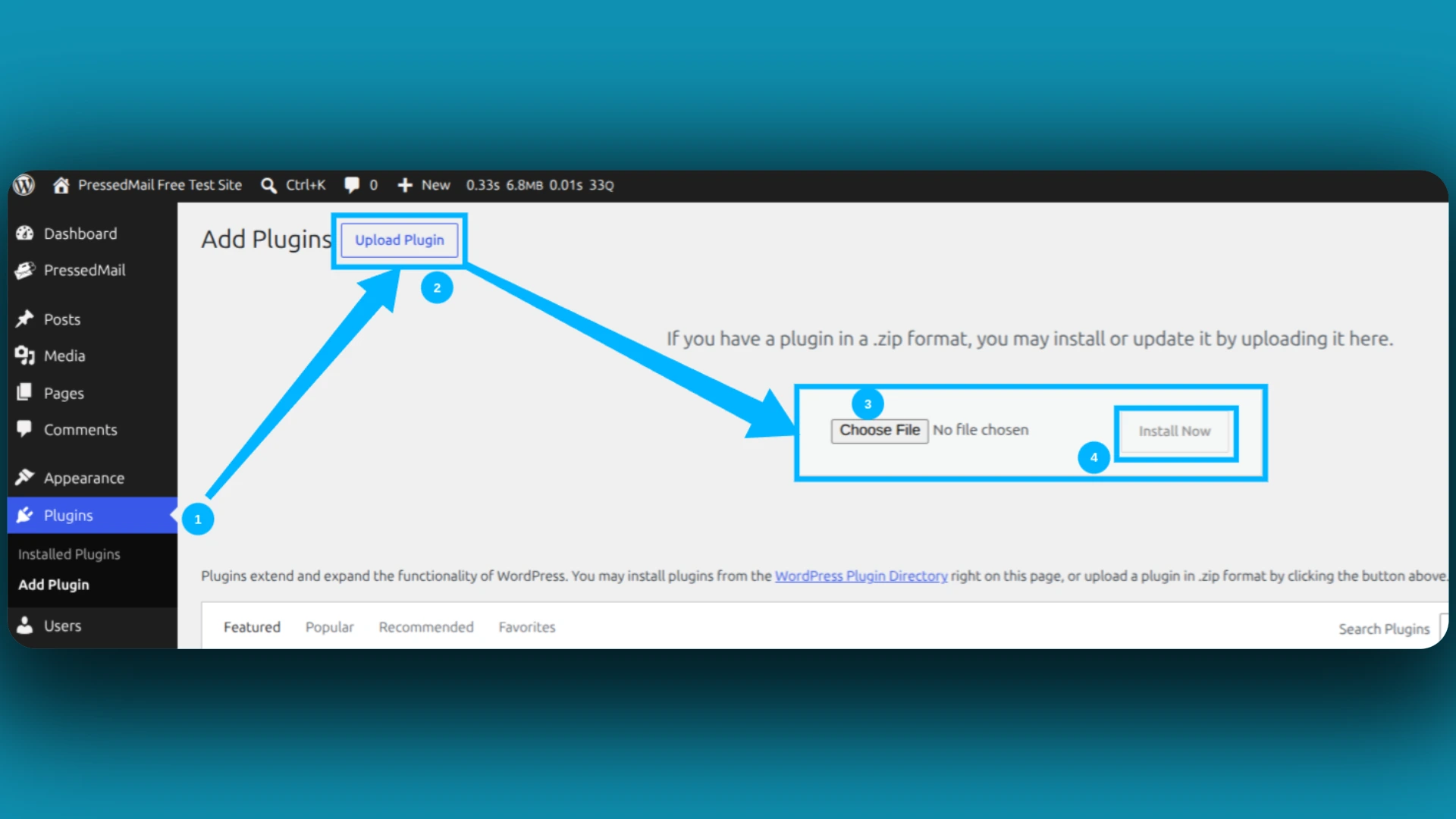
The WordPress Upload Plugin screen with the ZIP upload controls marked

An illustration of the Upload Plugin screen. It is not a capture of your site.

Check: PressedMail appears in the admin menu and opens without an error. If Site Health reports a database problem, stop and read the requirements checklist.

Connect one mailbox

Open the settings with the Settings icon, go to the Accounts tab and choose Add Account. A full-width screen walks you through three steps. The first is choosing who hosts the mailbox.
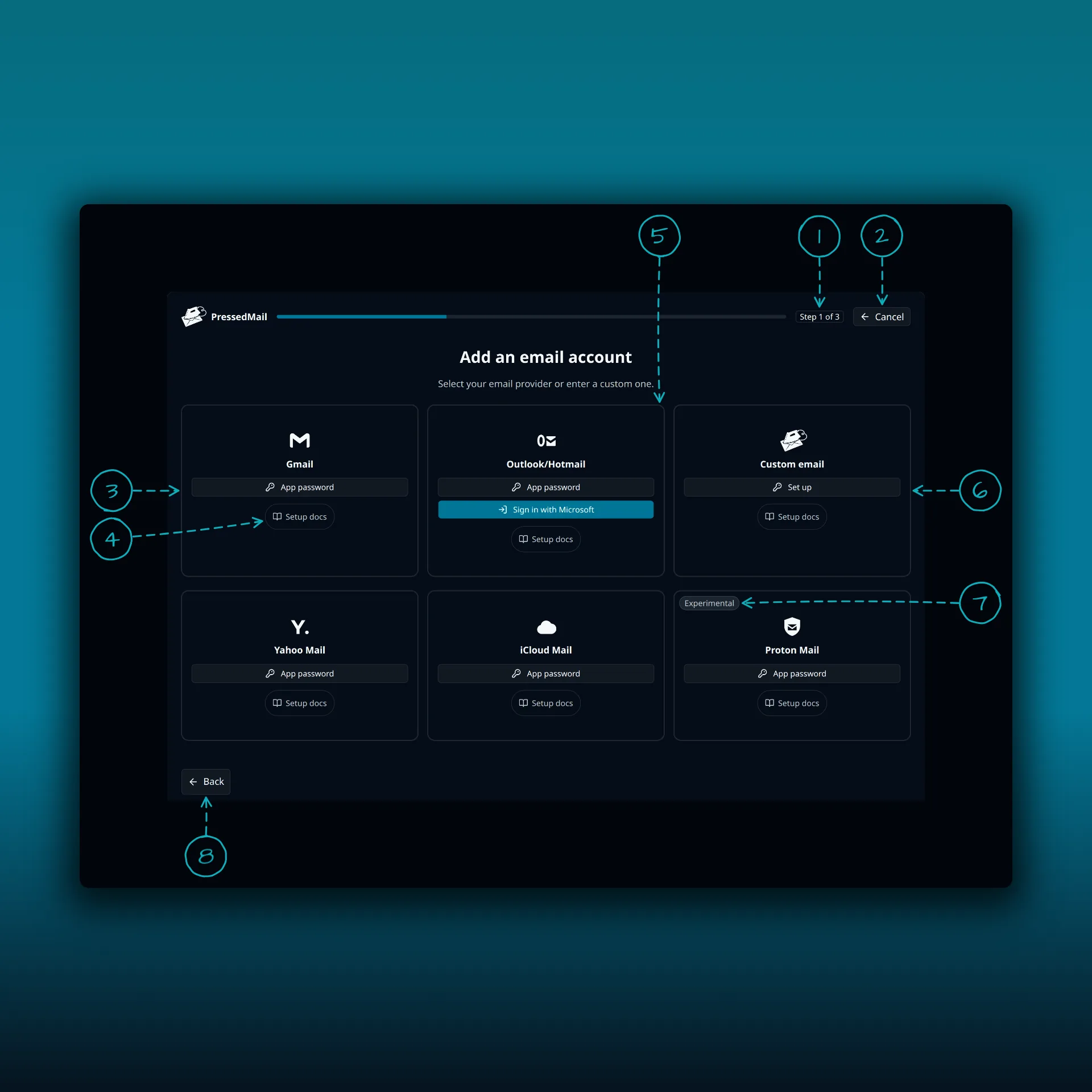
The Add an email account screen with six provider cards and eight areas numbered

  1. The progress bar. This is step 1 of 3.
  2. Cancel.
  3. Gmail, which connects with an app password.
  4. Setup docs. Every card has one, and it opens the provider’s guide.
  5. Outlook/Hotmail, with App password or Sign in with Microsoft.
  6. Custom email, for any provider that gives you IMAP and SMTP settings.
  7. The Experimental badge on the Proton Mail card.
  8. Back.

The picture comes from a paid build. Free lists Gmail, Outlook/Hotmail and Custom Email. Yahoo Mail, iCloud Mail and Proton Mail appear in paid builds, and a Free site can still reach any of them through Custom email.

Pick the card that matches who hosts your mail, not the app you read it in. Then follow the guide for your provider:

Run Test Connection before you save. Read the incoming and outgoing results separately, because they are two different connections. The IMAP and SMTP explanation shows why.

Check: the account saves and the inbox starts to sync.

Find the message you noted

Let the first sync finish, then open Inbox and look for the subject you noted. Open it and compare the sender and date with what you saw in webmail.

If it is missing, look in the folder where webmail showed it. An archived or filtered message does not appear in Inbox. If nothing at all appears after a few minutes, go to the delivery troubleshooting guide.

Send a test and reply to it

  1. Choose Compose.
  2. Pick the connected mailbox in the From field.
  3. Send a short plain-text message to a second address you control.
  4. Open that second address and confirm the message arrived. Check its spam folder if it did not.
  5. Reply from the second address.
  6. Wait for the reply to appear in PressedMail.

Both directions work if the message arrives and the reply comes back. The send and receive walkthrough goes into more detail on what each result proves.

What this does not set up

Connecting a mailbox does not change how WordPress sends its own messages. Password resets and form notifications use the separate WordPress Email setting. The WordPress SMTP guide covers that.

Frequently asked questions

Do I need to move my email to WordPress?

No. Your provider keeps hosting the mailbox. PressedMail connects to it over IMAP to read and SMTP to send, and keeps its own copy of the data it needs in your WordPress database.

How many mailboxes can I connect on Free?

One per site. A paid plan adds more and a combined inbox.

The test message arrived but the reply did not come back. What now?

Check that the second address really received the message and replied to the right address. Then check the connected mailbox’s folder list. A reply can land in a folder other than Inbox.

Manage your email inside WordPress

PressedMail Free adds an email client directly to your WordPress dashboard. Connect a compatible IMAP/SMTP mailbox, read and send mail, organize messages, and configure WordPress SMTP.


Download PressedMail Free →

Newsletter

Get useful PressedMail updates.

New releases, setup guidance, and practical ways to handle email in WordPress.

Occasional PressedMail email. Unsubscribe whenever you like.

Choose the plan that fits your WordPress sites.

Paid plans include unlimited accounts and users. Compare Premium and Ultimate features, then choose the site count you need.

Yearly plans are priced by number of sites. Lifetime is a one-time payment covering up to 100 sites.

Starter

For one site

$49/ year
1 Website
  • All current and future Premium features
  • Unlimited email accounts
  • Contacts, calendar, and scheduled email rules
  • Templates, blocks, and signup forms
  • AI tools and phishing detection
  • Layouts, themes, and workspace controls
  • Licensed updates and priority support
  • 10,000 PressedMail AI credits a yearLimited time
Most Popular

Premium

For multiple sites

$89/ year
10 Websites
  • All current and future Premium features
  • Unlimited email accounts
  • Contacts, calendar, and scheduled email rules
  • Templates, blocks, and signup forms
  • AI tools and phishing detection
  • Layouts, themes, and workspace controls
  • Licensed updates and priority support
  • 25,000 PressedMail AI credits a yearLimited time
All Features

Ultimate

For agencies

$169/ year
100 Websites
  • Everything in Premium, plus:
  • Campaigns and shared templates
  • Share inboxes, calendars and contact lists
  • White labelling with a brand theme
  • 50,000 PressedMail AI credits a yearLimited time

What customers say after bringing email into WordPress.

Using PressedMail in your own work? Submit a testimonial

I save hours & it’s easy to use

I have a lot of email accounts, and it’s annoying to manage them through different providers. I needed something better than what was out there, so I built it. I spent the better part of two years making PressedMail the plugin I wanted to use every day, and now I get to share it with everyone else. I added my accounts, automated the cleanup of over 3000 emails, and it’s saved me hours of work.

Robert H. AlexanderFounder - CurbSoftwareCreator of PressedMail

Helps get more clients

As a freelancer I need to manage several clients’ accounts. I installed PressedMail on WordPress on localhost and use it as my main email client. I manage everything for clients from PressedMail. And several clients use PressedMail now after I have set their WordPress instances up.

Gene Piki
  • Email Swiss Army Knife

    We use PressedMail as a value added service for clients and potential clients as a feature of our agency’s offering helping put us ahead of competition. We love the white-labelling feature, automation, and security controls. It also replaces several of the other plugins we used to use and it’s like a small CRM.

    Cyrus M. (InCurb Digital)

  • Fast inbox organization with phishing detection

    PressedMail helps us organize our inboxes fast. We especially like the phishing detection feature.

    John & Andrea

  • One source of truth for every client

    As a VA, I use PressedMail to keep each client’s inbox separate while managing everything from one app. It gives me a single source of truth without mixing client work together.

    Amber, K

  • Teaching and client work stay organized

    I balance teaching with social media marketing clients. PressedMail helps me keep both sides of my work organized in one place.

    J.A. Payo

FAQ

Common questions

Free version

Start with one inbox. Free.

One mailbox for one user, a rich-text composer, custom folders, unlimited email rules, one signature, two themes and one layout. Contacts, calendar, scheduling and AI require a paid plan.

1 account · 1 user · 2 themes · unlimited rules
Roadmap

See what is coming next.

Follow planned work, current progress, and recently completed features.

  1. Planned

    Calendar Sync with External Providers

    Planned. Today calendars and events live in WordPress and do not sync with any outside provider. Two-way sync with Google Calendar, Outlook, iCloud and CalDAV-compatible services is on the roadmap.

  2. Planned

    Dedicated Support

    A higher-touch support channel beyond the current paid Priority Email Support entitlement.

  3. Planned

    Activity Log

    A searchable audit trail of key actions across PressedMail accounts, with per-user and admin views, retention controls, and export.

Bring your working inbox into WordPress.

Compare Premium and Ultimate features, then choose a paid plan for the number of WordPress sites you manage.