

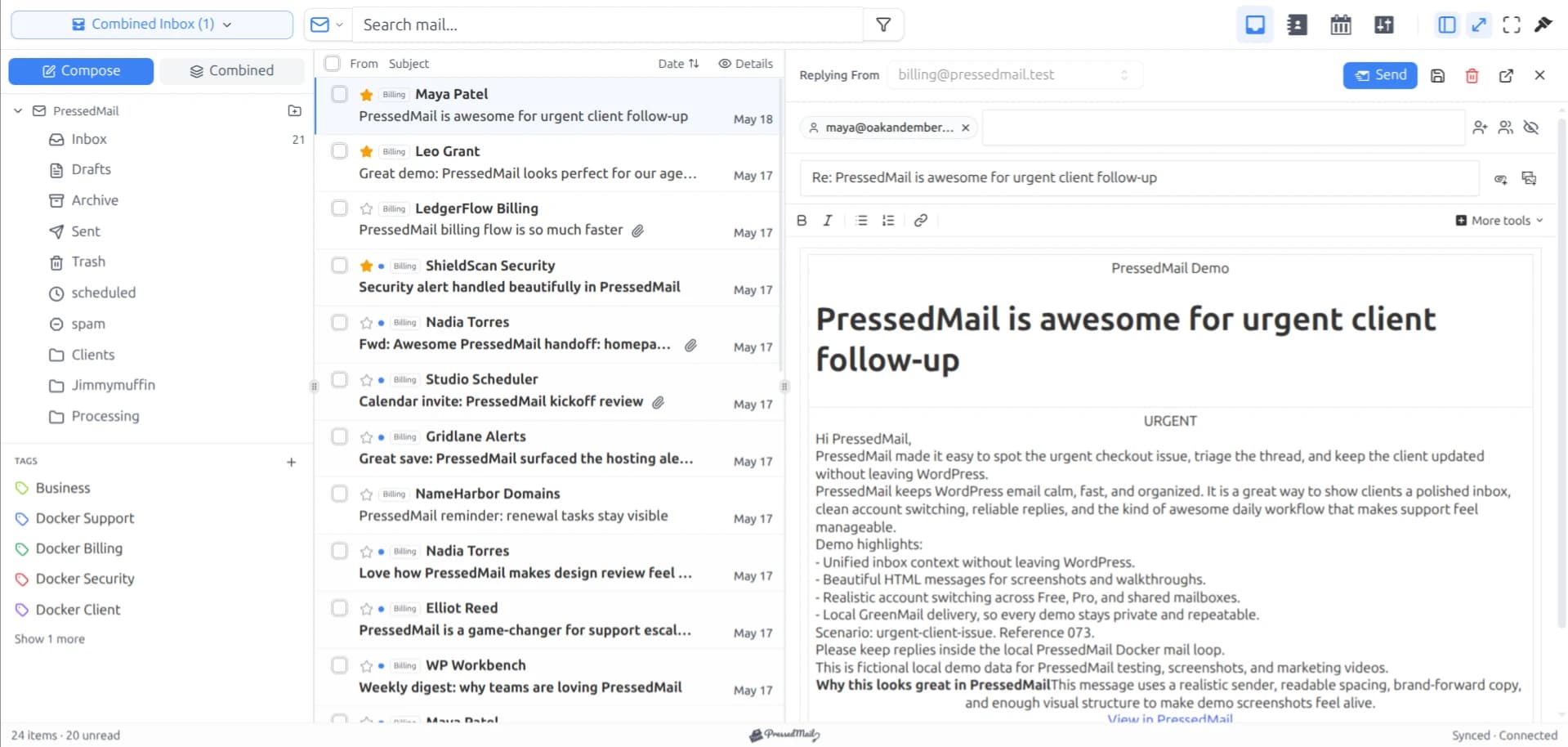
Use folders to decide where a message is filed and tags to group messages inside PressedMail. The distinction becomes useful when one message belongs to a client project but also needs a reply, or when invoices from several projects need to appear together.
PressedMail Free includes folder browsing and manual tags for its one connected mailbox. You can build a useful organization system without adding accounts or relying on automation.
The part to check before moving important mail is where each action is stored. Provider folders and PressedMail tags do not behave as interchangeable labels.
What folders and tags change
A provider folder is part of the connected mailbox's folder tree. Moving a message changes its filing location at the provider through the account connection. Other clients can reflect that change after synchronization.
A PressedMail tag belongs to PressedMail's own organization layer. It can group messages without moving them into one provider folder. Do not expect that tag to appear as an identical label in another email client. These distinctions follow the folder documentation.
Consider a fictional project with an invoice and a revision request. Both can have a project tag. The invoice can be filed with financial correspondence, while the revision request stays where you review unfinished work.
| Tool | Useful question | Example |
|---|---|---|
| Provider folder | Where should this message be filed? | Client correspondence |
| PressedMail tag | What local group does this message belong to? | Needs reply |
| Search | Which message am I looking for? | A known sender or subject |
Search is a retrieval tool, so leave detailed query behavior to searching email from WordPress. You do not need a new folder for every search you might perform.
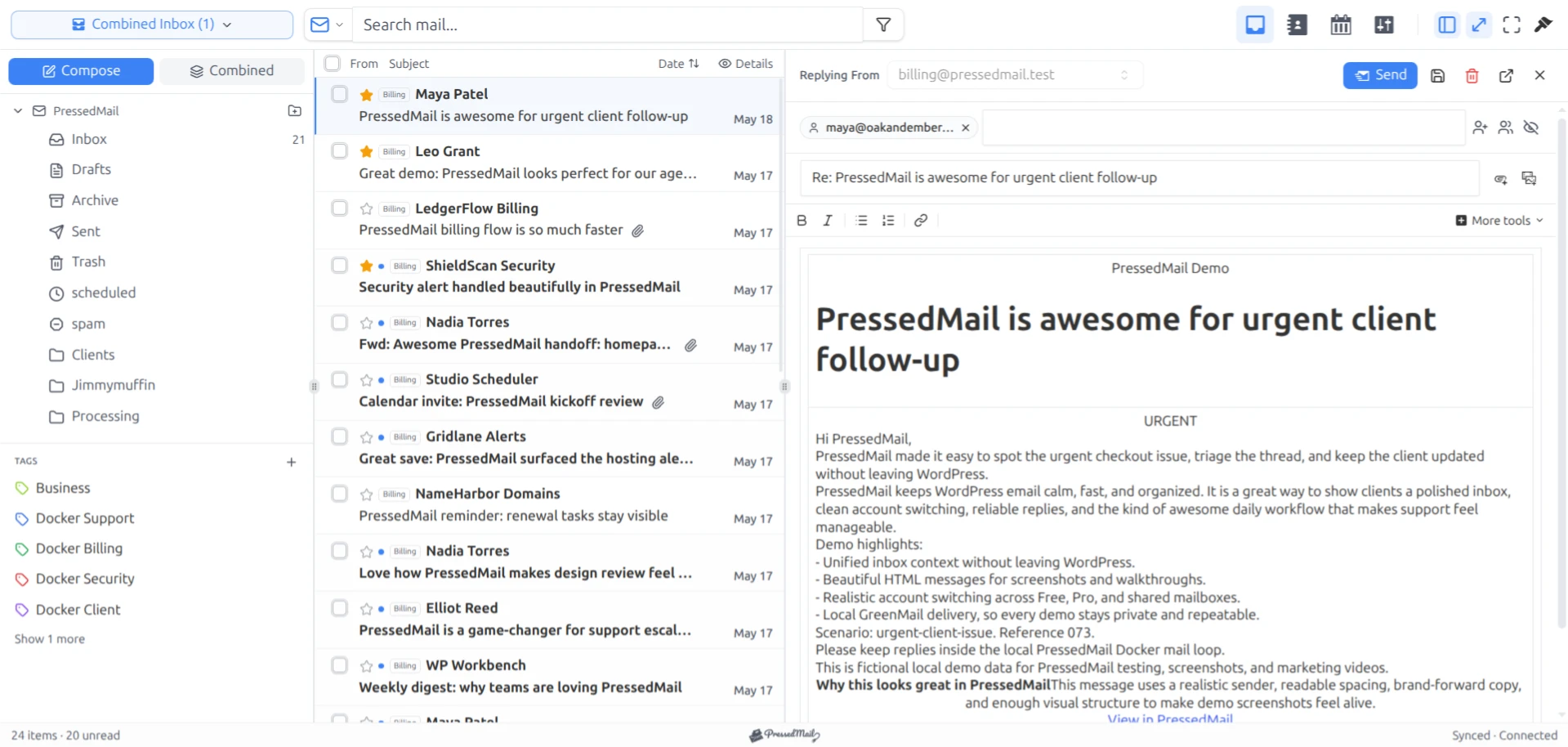
Screenshot of the paid PressedOut layout with fictional mail. Folder browsing and manual tags are available in Free too.
Start with one harmless message
Choose an ordinary message you can safely move, preferably a test message from another address you control. Note its subject, current account, and current folder. Keep the provider's webmail available as a second view.
Check that the connection has synchronized. If the message is absent from PressedMail but present at the provider, resolve that before treating a filing action as a test. The IMAP connection guide explains the account side.
Select an existing ordinary folder or create the destination through the supported folder controls. Use a clear name such as “Project reference.” Avoid using Trash or an unfamiliar system folder for the first experiment.
Move the test message, allow synchronization to complete, and open that folder in provider webmail. If the result differs, check the account and folder mapping rather than repeatedly moving or deleting the message.
Give the tag a job that the folder does not do
Apply a manual tag to the test message from the message toolbar. Then apply the same tag to another harmless message in a different folder.
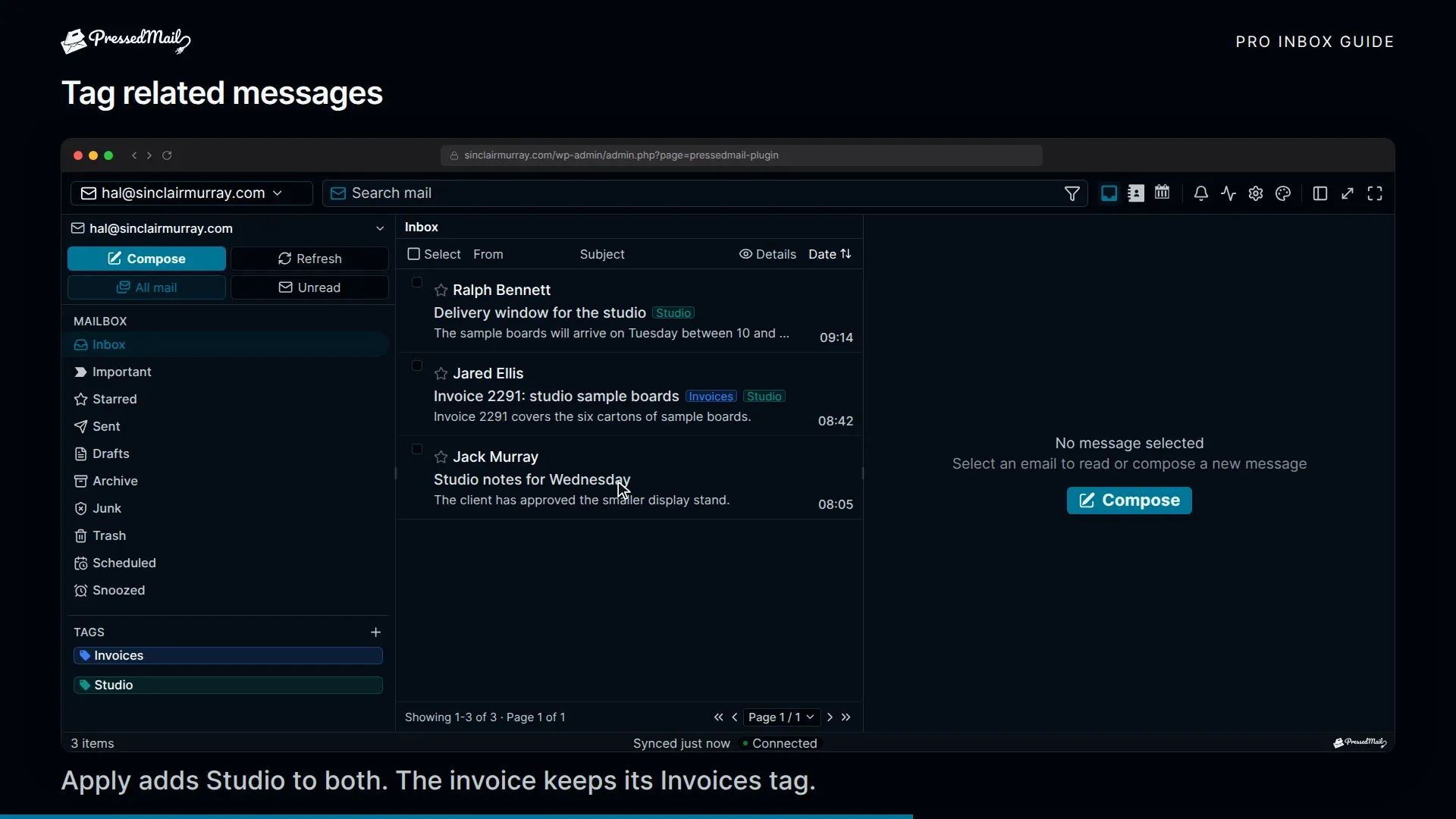
Use the tag view or supported tag filter to bring them together. The messages should still have their respective provider locations. Remove the tag from the test message when you are done; that is a change to its local classification, not a request to delete the email.
Good tags answer a question you ask repeatedly. “Needs reply” distinguishes unfinished correspondence. A project code can connect material filed in several places. A tag whose meaning changes each week becomes less useful as the archive grows.
Keep the number manageable. If you need several sentences to explain the difference between “Pending,” “Open,” and “Waiting,” choose one clearer state or define what action moves a message from one to another.
For a practical project example, see freelancer client email in WordPress.
Treat Archive, Trash, and Delete separately
Archive usually means retaining a message outside the inbox using the account's mapped archive destination. Trash is a deletion workflow that can have a provider retention period. Permanent deletion can remove the provider copy.
Those consequences make the current provider's folder mapping more useful than the button's icon. Check the account's Sent, Drafts, Archive, Junk, and Trash destinations when behavior is unexpected.
A Gmail account adds another distinction: Gmail uses labels and its own message-handling model. Google's label guidance explains that a message can have multiple labels. Do not generalize one provider's model to every IMAP account.
Before a large cleanup, try the intended action on a harmless message and confirm where it appears in the provider's interface. A filtered list can hide a moved message even though it still exists.
Automate a narrow filing decision
Once you have a folder that works manually, consider a rule for repetitive mail. Supplier receipts with a stable sender and a predictable subject can be easier to classify than varied customer requests.
Open Settings and Email Rules. Choose supported conditions, set a move-to-folder action, and inspect the preview before enabling it. The preview should contain only messages you are comfortable moving.
For example, matching a supplier address and a receipt subject is more selective than matching the word “invoice” anywhere in a conversation. Broad conditions can hide a customer asking why an invoice is wrong.
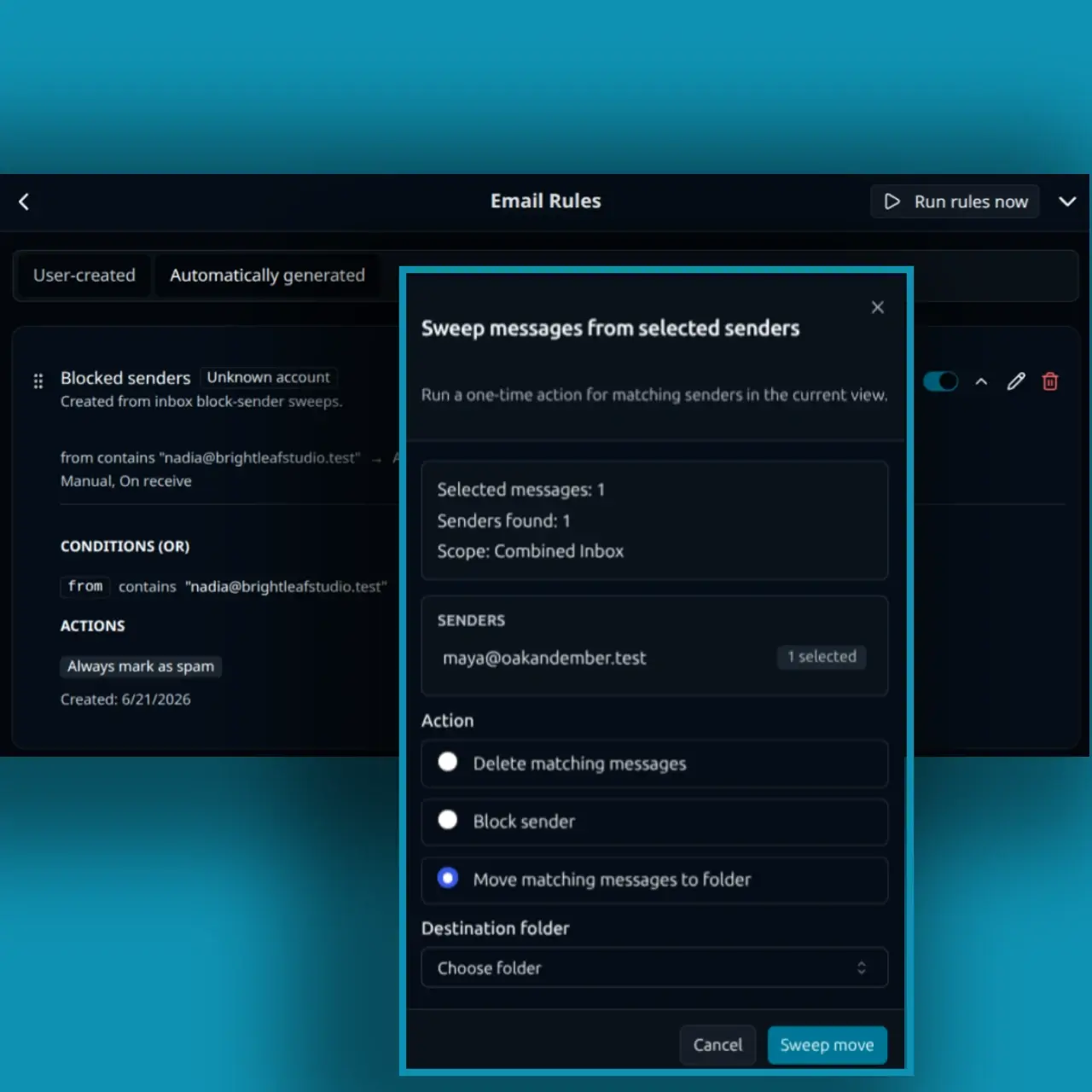
Screenshot composite of Email Rules and a sender sweep with a move-to-folder action selected. It shows configuration, not a completed background run.
Current rule documentation describes limits that affect this choice. Free uses basic fields and AND matching. The automatic matcher does not evaluate body conditions, and it does not execute the add-label action. Advanced conditions, OR logic, and other controls belong to paid plans.
Use manual tags for the example here. A tag action displayed in a rule interface is not enough reason to depend on automatic tagging. If an enabled rule does nothing, inspect the supported action, account scope, condition, and timing before adding more rules.
Keep destructive actions out of a first rule. If an ordinary move files the wrong message, disable the rule and move that message back. Permanent deletion gives you fewer recovery options.
Review the system after using it
After a few email sessions, inspect the places you now rely on. Are unfinished requests still visible? Did the project folder become a dumping ground? Are tags describing actions or repeating the folder names?
The goal is a recognizable working view. You can maintain that through a daily WordPress email routine without pursuing an empty inbox for its own sake.
If several types of business mail need different decisions, define those processes before adding rules. Managing multiple email workflows distinguishes enquiries, receipts, and site notifications while keeping the account model clear.
Provider-side rules may suit behavior that must run independently of PressedMail and appear consistently in other clients. Check the provider's supported actions and test them separately. Avoid creating competing rules in two systems until you understand which one acts first.
Common questions
Do PressedMail tags appear in provider webmail?
They are PressedMail's own organization layer. Use provider folders when you need a filing location reflected through the mailbox connection.
Does removing a tag delete the message?
No. Removing a manual tag removes that classification. Moving to Trash or permanently deleting a message is a separate action.
Why did my automatic tag rule not run?
The current deterministic rule matcher does not execute its add-label action. Use manual tagging or a separately supported feature, and check the current rule documentation before relying on automation.
Can Free use folders and tags?
Yes. Free includes these tools for its one mailbox. Combined account views and advanced automation require a paid plan.
Should I make a folder for every customer?
Only if you will use it. A small project structure plus a few local tags can be easier to maintain than hundreds of folders created in anticipation of future mail.
Manage your email inside WordPress
PressedMail Free adds an email client directly to your WordPress dashboard. Connect a compatible IMAP/SMTP mailbox, read and send mail, organize messages, and configure WordPress SMTP.




