

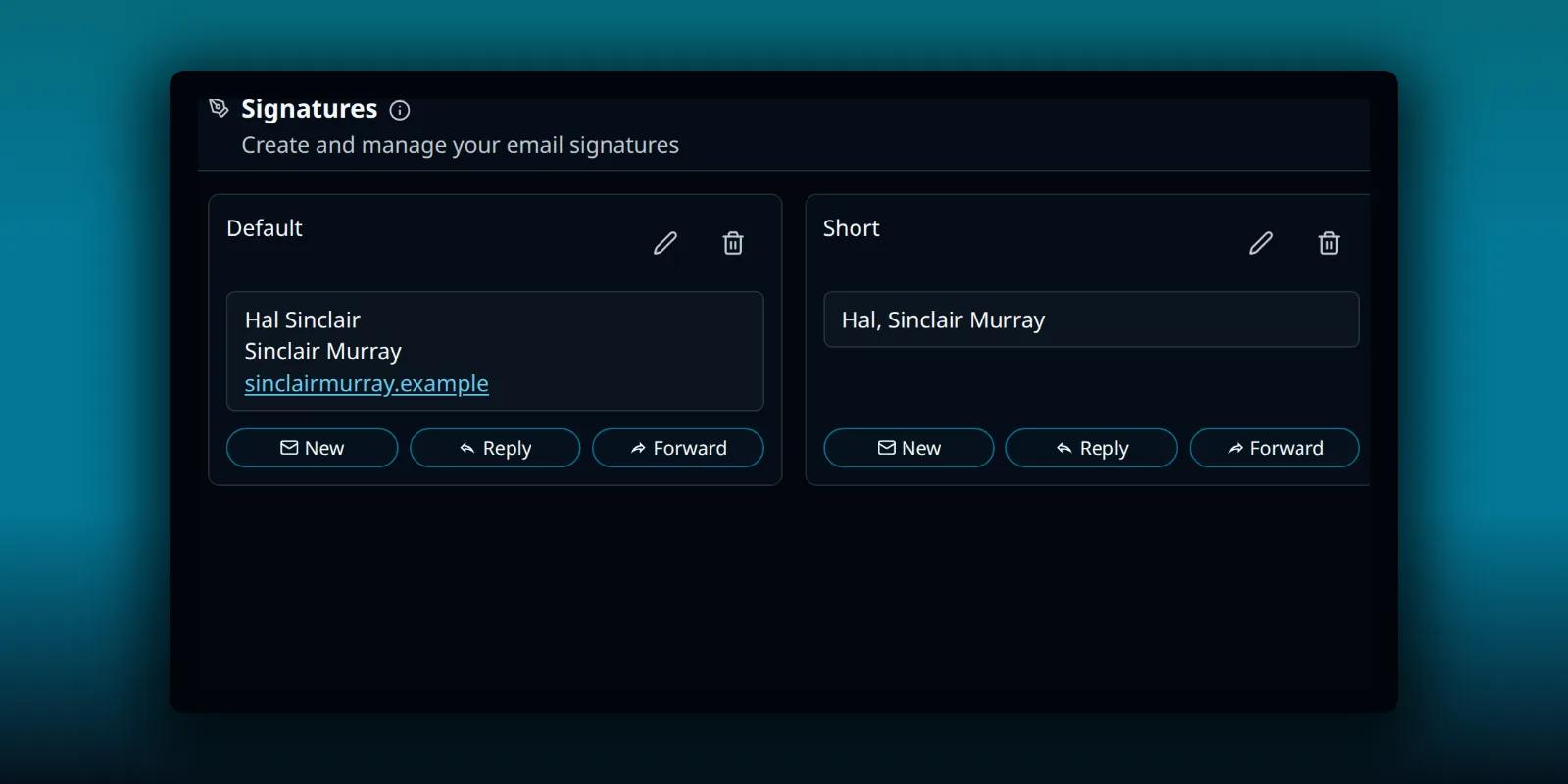
If you read mail for more than one address, one sign-off does not fit. A support mailbox needs a team name and a help link. A personal address needs a first name. PressedMail lets you write several signatures and attach one to each connected mailbox, so the right one goes out without you thinking about it.
This guide covers creating a signature, attaching it to an account, and the switches that decide whether it is added to new messages, replies and forwards.
Before you start
Signatures belong to the WordPress user who creates them. Another user on the same site keeps their own.
Free has one signature slot. Paid plans allow as many as you want, so one signature per mailbox needs a paid plan. On Free you can write one signature.
Create a signature
Open Settings and choose Signatures in the Personal group.
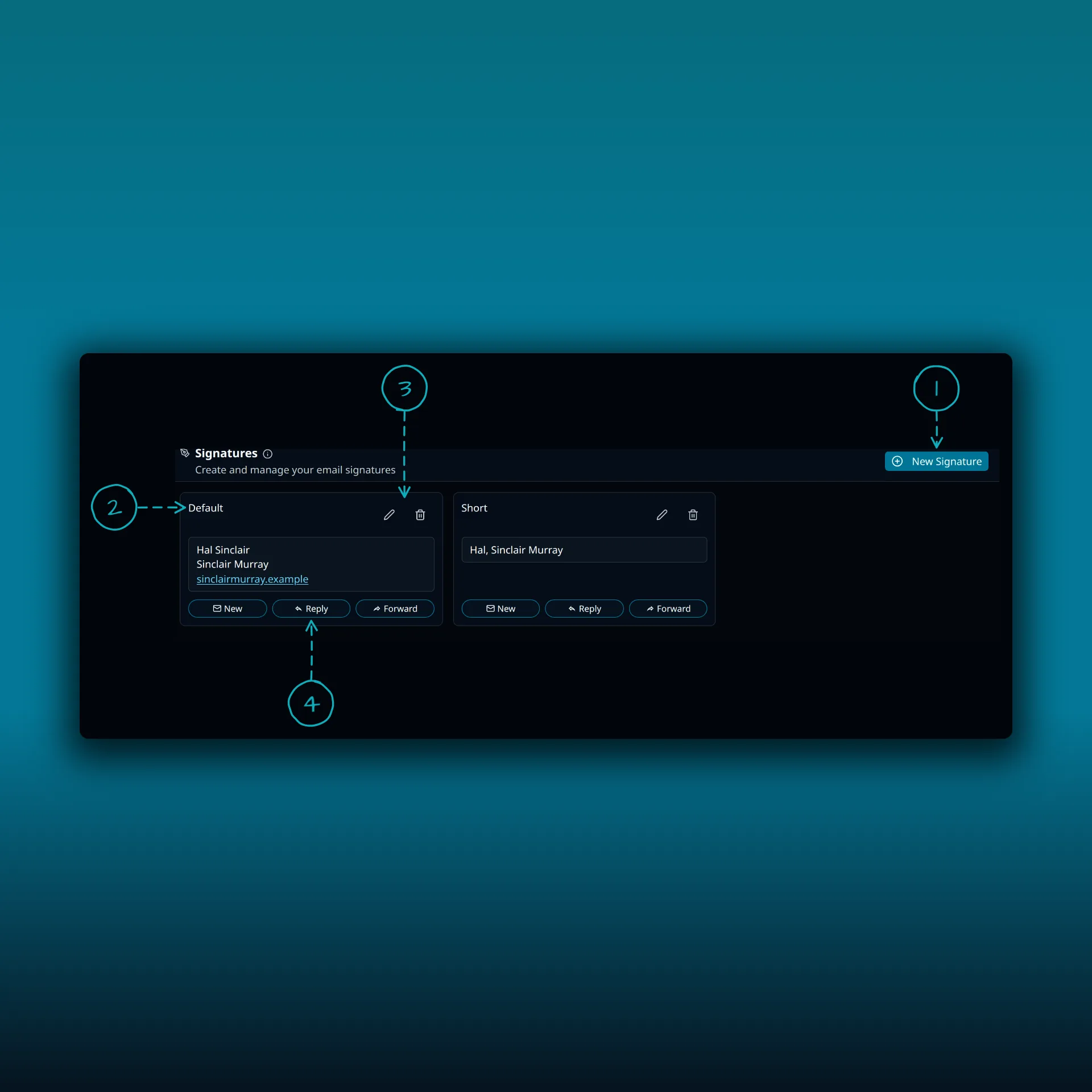
- New Signature, which opens the editor.
- The signature’s name. Name it after the mailbox or the job, such as Support or Short.
- Edit and delete for that signature.
- New, Reply and Forward. These badges show where the signature is used.
The box under each name previews what will be inserted.
Choose New Signature, type a name, and write the signature in the editor. It supports formatted text and links. Save it.
A good signature is short. Your name, a role or a team, and one way to reach you is enough. Long legal blocks and large logos make every reply heavier, and email clients render HTML differently. A tool like Can I email shows which formatting is safe across clients. Send yourself a test and open it in the clients your recipients use.
Attach it to a mailbox
Saving a signature does not send it anywhere. You attach it to an account. If the mailbox is not connected yet, the IMAP setup guide covers adding it.
- Open Settings and choose Accounts.
- Find the account and use the button in its Signature column.
- In the Select signature box, choose the signature for that address.
- Pick No signature if the account should send none.
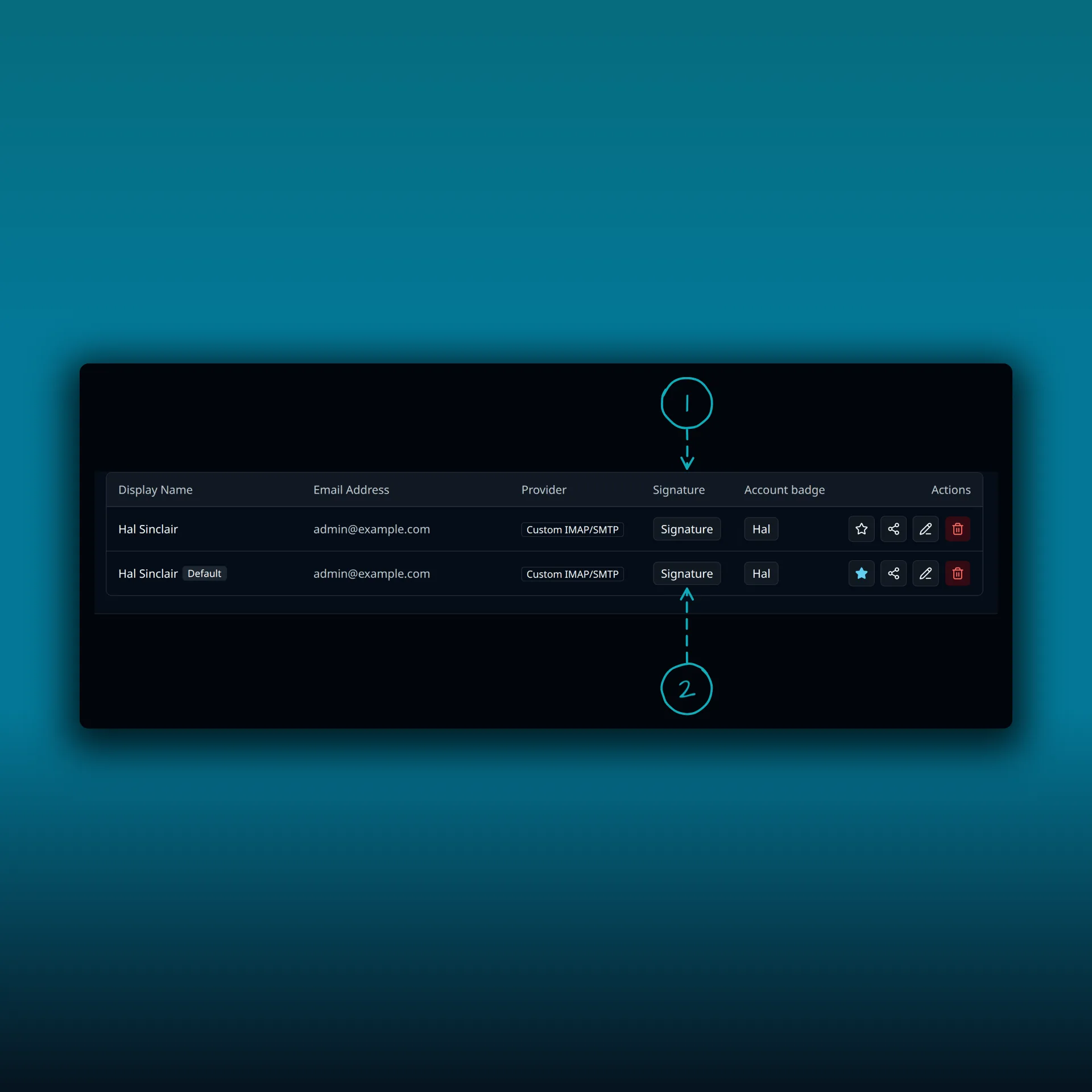
- The Signature column.
- The signature button in an account’s row. It shows the name of the attached signature, or just Signature when none is attached.
The button opens a box for that account.
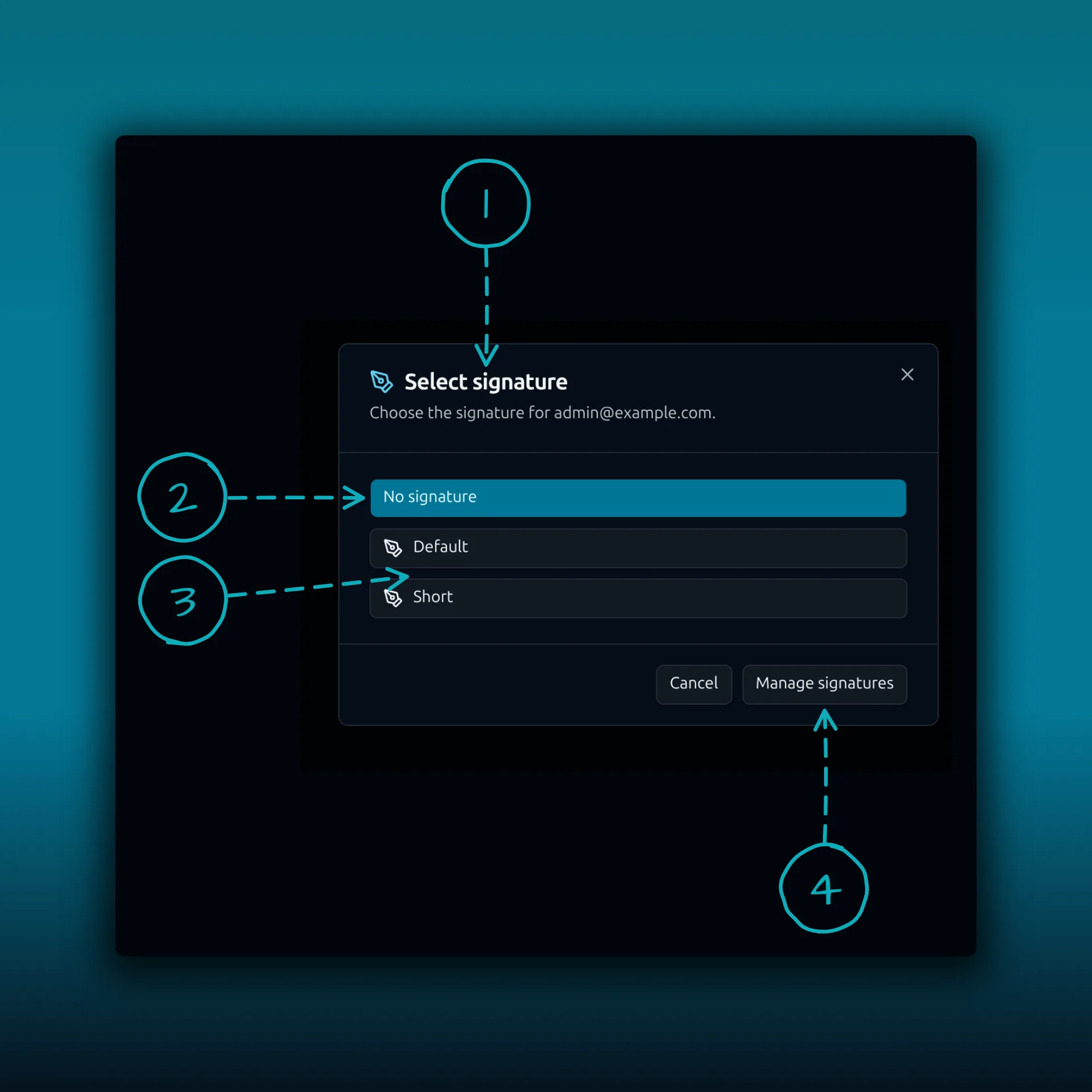
- The title. The line under it names the account you are choosing for.
- No signature. The account sends none automatically. It is highlighted when nothing is attached.
- Each saved signature. The attached one has a check mark.
- Manage signatures, which jumps to the Signatures tab.
An account has exactly one signature. Attaching a new one releases the old one. A signature attached to no account is not added on its own. You insert it by hand with the Signature button in the composer’s second toolbar row.
Decide when it is added
Each signature has three switches of its own. Open the signature with its pencil icon and look under Settings.
- New Messages controls whether it goes on a message you start from scratch.
- Replies controls whether it goes on replies.
- Forwards controls whether it goes on forwards.
Turn Replies off if you do not want a block at the bottom of every message in a long thread. The New, Reply and Forward badges on the signature’s card show the current state, and read “Used for replies” or “Not used for replies” to a screen reader, and the same for the other two.
Choose where it sits
Open Settings and choose Preferences. Signature placement has two options: At the end of the message, and Above the quoted original. Above the quoted original puts the signature right under your reply text, before the quoted thread. At the end of the message puts it after the quoted thread.
When a signature is missing
Check these in order.
- Was the signature saved by the same WordPress user who is sending? Signatures are per user.
- Is it attached to the account in the From field of the draft? An account with No signature adds nothing.
- Is the right switch on? A signature with Replies off will not appear in a reply.
If it appears twice, you have probably inserted it by hand as well. Look at the draft before you send instead of inserting it again.
The composer tour shows where the Signature button sits. The post on snooze and scheduled send covers the From account control beside it, and the combined inbox guide helps if you move between several mailboxes in a day.
Frequently asked questions
Can each mailbox have a different signature?
Yes, on a paid plan. Create one signature per mailbox and attach each in the Accounts tab.
Does Free include signatures?
Yes, one. Paid plans allow several.
Why does my reply not have a signature?
The Replies switch on that signature is probably off, or the account has no signature attached.
Can I put a signature above the quoted text?
Yes. Set Signature placement to Above the quoted original in Preferences.
Is a signature the same as a template?
No. A signature is a sign-off added to a message. Templates are a separate feature, and the plan comparison lists what each edition includes.
Manage your email inside WordPress
PressedMail Free adds an email client directly to your WordPress dashboard. Connect a compatible IMAP/SMTP mailbox, read and send mail, organize messages, and configure WordPress SMTP.

