

Most install problems come from the server, not the mailbox. This checklist lists what PressedMail needs from your WordPress site and where to confirm each item before you connect an address.
The short list
- WordPress 6.6 or newer.
- PHP 8.2 or newer.
- MySQL 5.7 or newer, or MariaDB 10.2 or newer, with named locks and the user metadata table on InnoDB.
- HTTPS on the site.
- Permission to install plugins.
- A server that can reach your mail provider’s IMAP and SMTP hosts.
- For a paid license, outbound HTTPS to curb.software.
The plugin’s readme states the same floor. WordPress publishes its own requirements, and PHP lists which versions are still supported. Running PressedMail’s minimum is not the same as running a supported PHP, so prefer a version PHP still patches.
The database is the one that surprises people
Two database details trip people up.
First, the database must support named locks. MySQL 5.7 and MariaDB 10.2 do. SQLite cannot finish mailbox setup, so a WordPress that runs on SQLite, such as a Playground-style test site, cannot connect a mailbox.
Second, the user metadata table must use InnoDB.
You do not have to inspect the database by hand. Open Tools, then Site Health, in WordPress. PressedMail adds a check called “PressedMail database requirements” that flags either problem.
You do not need the PHP IMAP extension
PressedMail bundles its own IMAP driver, Webklex. The native PHP IMAP extension is optional. If your host reports it as missing, that is a recommendation, not a failure.
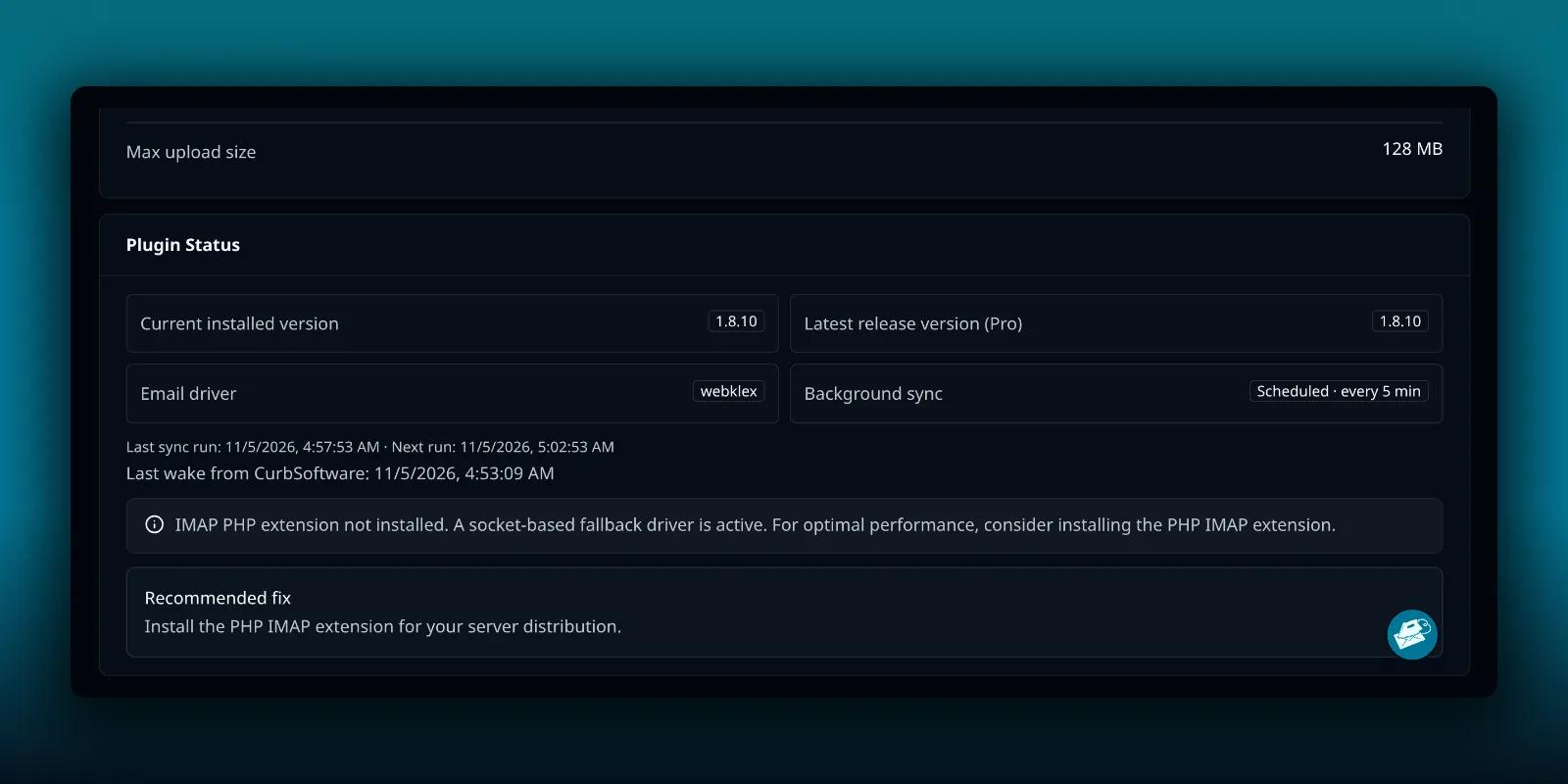
The Diagnostics page shows what PressedMail found on your server. It lists the PHP and WordPress versions, the email driver in use and whether the IMAP extension is present.
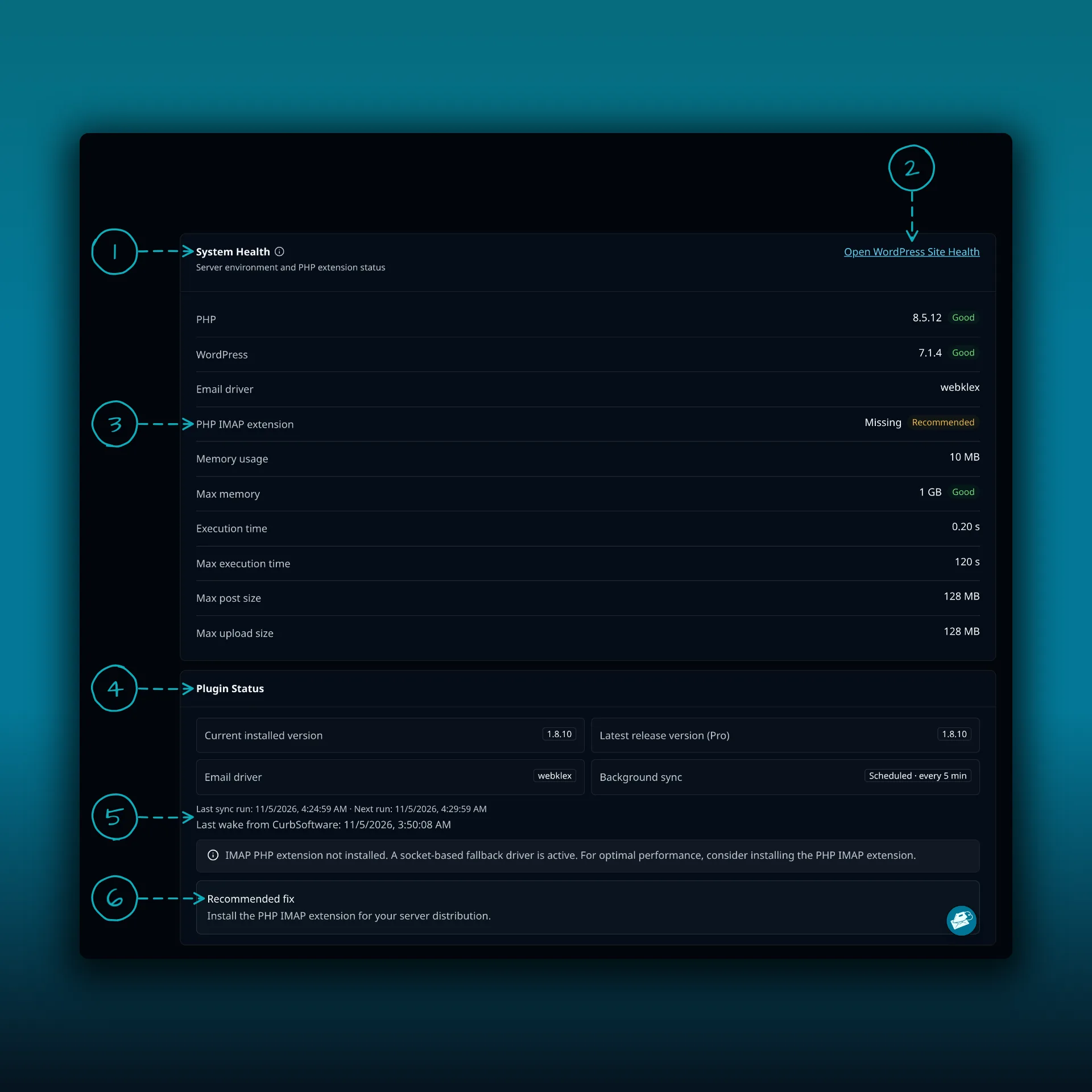
- System Health. The server environment and PHP extension status.
- Open WordPress Site Health, a link to WordPress’s own report.
- PHP IMAP extension. Marked Missing and Recommended on this test site. PressedMail then uses a socket-based driver.
- Plugin Status. The installed version, the latest release and the email driver.
- Last sync run. When the background sync last ran and when it runs next.
- Recommended fix. What PressedMail suggests for the problem it found.
The test site in the picture has no IMAP extension and works normally.
Where to find Diagnostics
Diagnostics sits in the Admin group of the settings, below the personal tabs. You need an administrator account to see it.
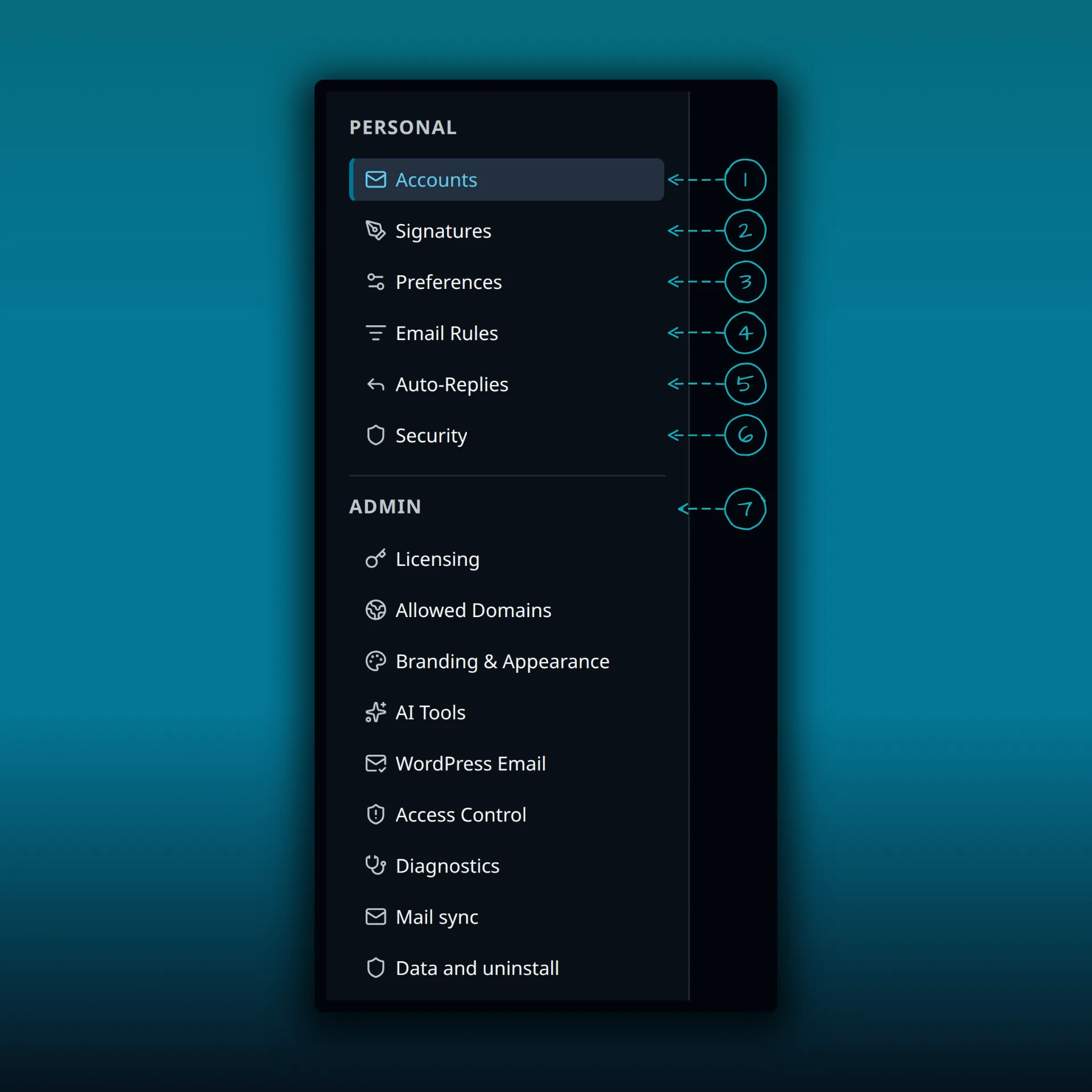
- Accounts.
- Signatures.
- Preferences.
- Email Rules.
- Auto-Replies.
- Security.
- The Admin heading. Everything under it configures the whole site, including Diagnostics, WordPress Email, Mail sync and Data and uninstall.
Check the network path
PressedMail connects from your web server, not from your browser. A working webmail tab proves nothing about that connection.
If a host blocks outgoing connections to mail ports, no setting in the plugin can fix it. Ask your host whether outgoing IMAP (usually port 993) and SMTP (usually port 587 or 465) are allowed. Give them the provider’s hostname and the port, and keep your password out of the message.
Test Connection in the add-account screen then tells you which side failed. The IMAP and SMTP explainer describes the difference, and the delivery troubleshooting guide picks up where a failed test leaves off.
Run the checks in order
- Open Plugins and confirm the WordPress version in Dashboard, Updates. It must be 6.6 or newer.
- Open Tools, then Site Health, then Info, and read the PHP and database versions.
- Look for the “PressedMail database requirements” check under Site Health’s Status tab.
- Open PressedMail, then Settings, Diagnostics, and read the System Health rows.
- Connect the mailbox and run Test Connection. This is the only check that tests the network path.
Stop at the first failure and fix it before you go on. A later step rarely works around an earlier one.
Questions to put to your host
If a check fails and the cause is the server, a short, specific message gets a faster answer:
- Which PHP version does this site run, and can it be raised to 8.2 or later?
- Is the database MySQL 5.7 or later, or MariaDB 10.2 or later, and does it support named locks?
- Is the WordPress user metadata table on InnoDB?
- Are outgoing connections to our mail provider’s IMAP and SMTP ports allowed from the web server?
Include the provider’s hostname and the port you need. Never include the mailbox password.
Optional: WordPress abilities
On WordPress 6.9 and later, PressedMail’s mail actions register as WordPress abilities for MCP Adapter agents and WP-CLI, with the same permission checks. You do not need this to read mail.
Frequently asked questions
Does PressedMail work on a shared host?
It can, as long as the host meets the versions above, uses a database with named locks and lets the server connect to your provider. Shared hosts that block outgoing mail ports are the usual exception.
My host runs PHP 8.1. What now?
PressedMail needs 8.2 or newer. Ask the host to upgrade, or change the PHP version in its control panel if it offers the choice.
Do paid plans need anything extra?
A paid license needs outbound HTTPS to curb.software so the site can check it. Otherwise the requirements are the same.
Where do I go once the checklist passes?
Follow the first-run walkthrough, then pick your provider’s guide such as the custom IMAP guide.
Manage your email inside WordPress
PressedMail Free adds an email client directly to your WordPress dashboard. Connect a compatible IMAP/SMTP mailbox, read and send mail, organize messages, and configure WordPress SMTP.

