

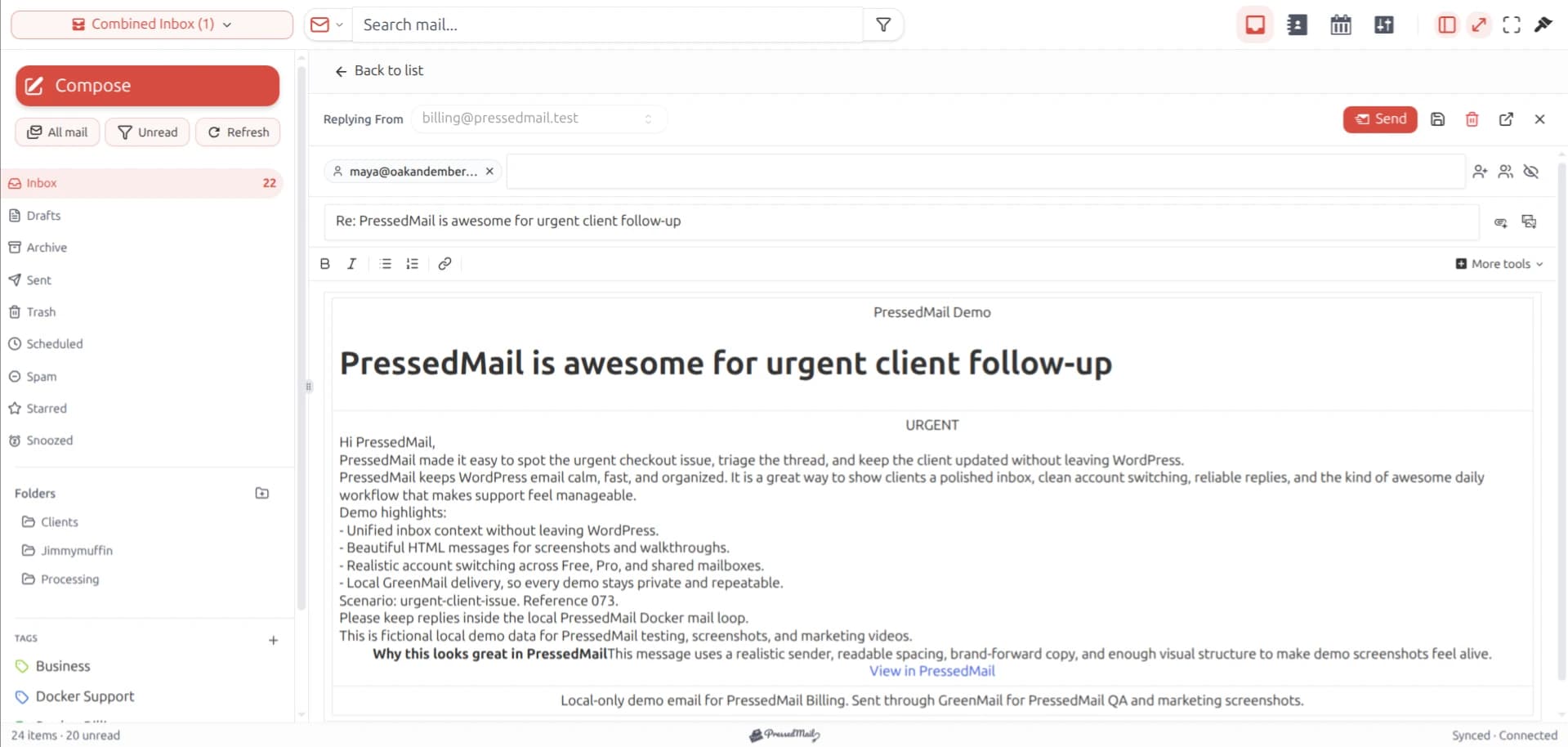
A working inbox proves you can reach incoming mail. It does not prove that replies can leave the WordPress server. To verify both directions, use a connected mailbox and a second email address you control, then complete a short conversation between them.
PressedMail Free supports this single-mailbox workflow: receive a message, open it, reply and compose a new message from WordPress. Keep the first test plain text. Attachments, scheduling and complex signatures add variables before you know whether the basic connection works.
If you have not opened a message yet, start with reading email inside WordPress. The steps below begin with an account already added.
Prepare a conversation you can recognize
Choose an external test address that you can inspect yourself. An address at another provider is useful because it checks a path beyond the sending account's own interface.
Use a subject such as “WordPress mailbox check 09:30.” Include a short sentence in the body. Avoid personal information, live reset links or customer order details. Record the time so you can distinguish this test from an earlier attempt.
Decide which address should send the reply. With one Free mailbox, that is the connected account. Do not start by testing an alias or a From address the provider has not authorized.
Before sending anything, confirm that both incoming and outgoing connection checks succeed. The generic mailbox setup guide explains the required settings.
Receive the first message
From the external test address, send your message to the connected mailbox. Open PressedMail in WordPress, allow synchronization and inspect Inbox.
If the message appears, open it and check the subject, sender and date. This establishes that the message you sent is visible through the WordPress mailbox interface. A different message with the same subject is not enough.
If it does not appear, look in provider webmail. When webmail also lacks the message, the problem is upstream of the WordPress view. When webmail has it but PressedMail does not, check the selected folder and synchronization state.
The IMAP specification defines access to server-side mailboxes, while the SMTP specification defines mail transfer.
Do not fix an incoming-mail problem by changing the site's system SMTP route. IMAP and SMTP do different jobs: one exposes mailbox contents and the other submits outgoing email.
Send a reply from WordPress
Open Reply on the test message. Inspect the recipient before typing. A reply normally targets the message's reply address, which can differ from the visible sender when a Reply-To header is present.
Write a short answer and send it. Record the result shown by the application. If sending fails, retain the error category and stop before retrying many times.
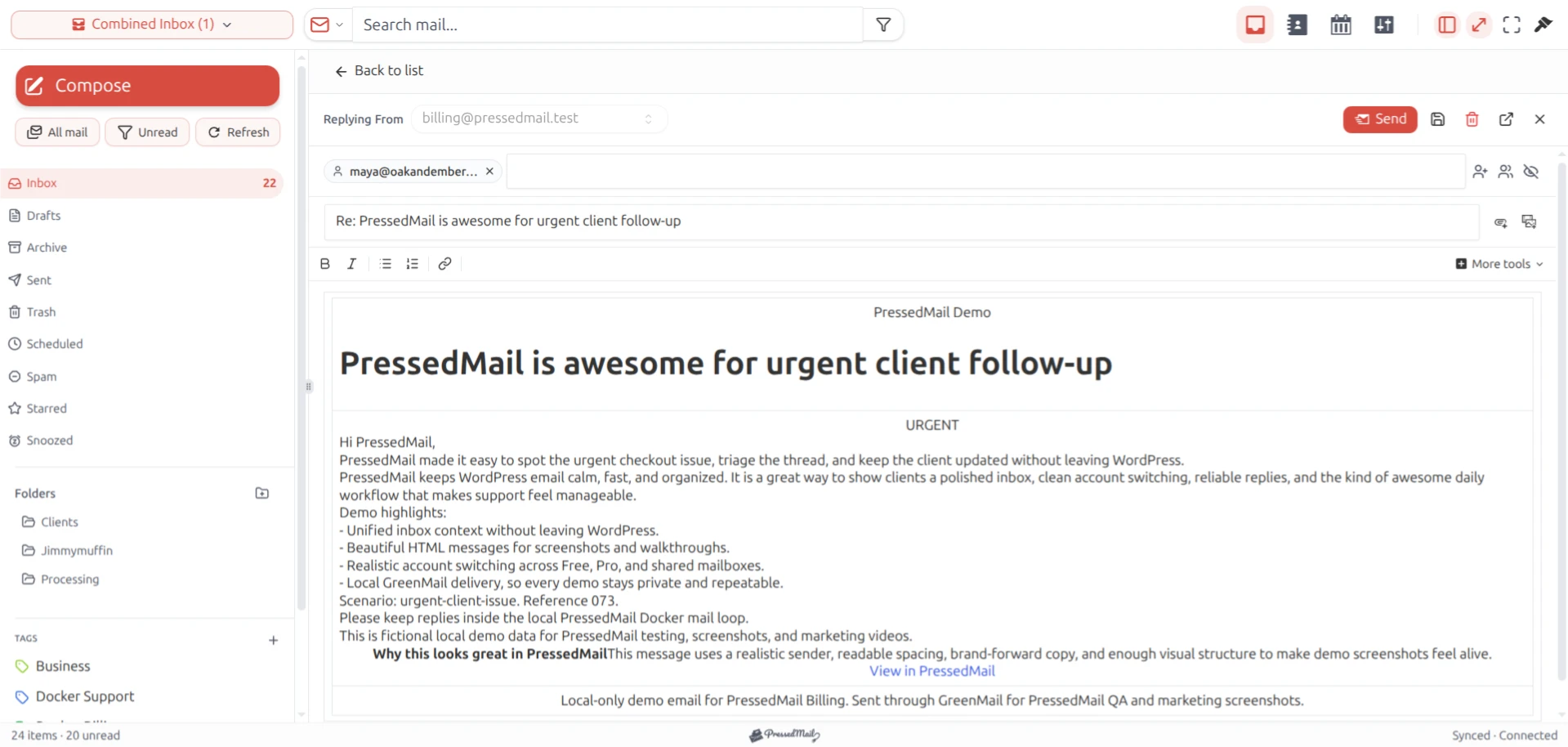
PressedMail screenshot of a reply composer in the PressedG layout, using fictional email. The layout name does not establish a Gmail connection or Free feature availability.
Now open the external test mailbox and look for the reply. Check Spam if it is absent from Inbox. Seeing a successful send result in WordPress and seeing the message at the recipient are separate observations.
A failed reply with a working inbox often points to outgoing settings, sender authorization or a provider restriction. Check the SMTP hostname, port, security mode and authentication method associated with the mailbox. Do not change the already working IMAP settings unless evidence points there.
Start a new message
A reply and a new message exercise slightly different choices in the interface. After the reply reaches the test address, compose a new message from WordPress.
Enter the test recipient explicitly, give it a new subject and send another short plain-text body. Verify receipt again. Check the displayed From address at the recipient, especially if the mailbox supports more than one identity.
This second test catches mistakes concealed by a conversation's existing recipients. It also gives you a clean baseline before adding signatures or attachments.
Use SMTP testing in WordPress for a more formal record of connection checks and recipient outcomes. That article also separates mailbox tests from the route used by site notifications.
Check where sent messages appear
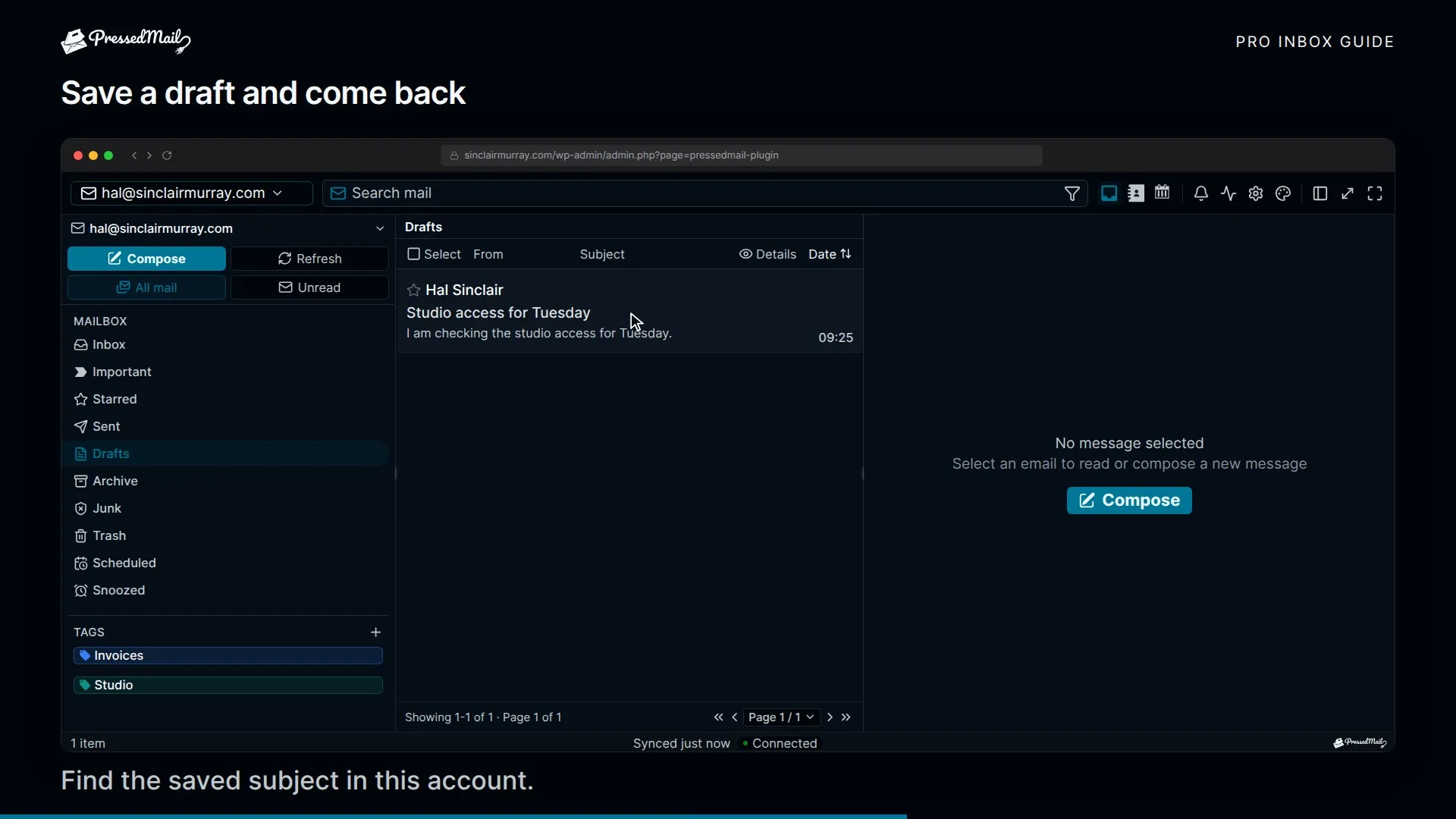
Look for the outgoing messages in the account's Sent view and compare it with provider webmail. Folder naming and message grouping vary across providers. A client can map a provider's special folder to a familiar name without changing where the mailbox is hosted.
A missing Sent copy and a failed delivery are different problems. If the recipient received the message, investigate Sent-folder behavior separately. Conversely, finding an item in Sent should not replace checking the recipient during this first setup.
Gmail can expose labels as folders, so one message can appear in more than one view. Other providers use more conventional folder structures. Avoid moving or deleting copies during the first test until you understand that account's behavior.
Animated example of a PressedMail message workflow. This is explanatory animation, not a recording of the test described here.
Add complexity one piece at a time
Once plain-text messages work in both directions, try one small, harmless attachment. Confirm that the recipient can open the intended file. Provider size restrictions still apply; the WordPress interface does not remove them.
Then set up the signature you intend to use and repeat a short test. Free supports one signature. Advanced composing and scheduled workflows require a paid edition, so they are unnecessary for proving ordinary email works.
Keep these tests distinct. If you add an attachment, change the From address and alter the signature in the same attempt, a failure leaves several possible causes.
For day-to-day handling after setup, managing email without leaving WordPress covers the working routine. Start with the basic conversation rather than building rules before you have verified delivery.
Mailbox replies and site notifications are separate
The message you composed belongs to the connected mailbox workflow. Password resets, WooCommerce emails and contact-form notifications originate elsewhere in WordPress.
PressedMail also provides WordPress SMTP settings, but that site-wide outgoing server is configured separately. Connecting an inbox does not automatically make it the route for every notification. Follow sending WordPress email through SMTP if that is also part of your goal.
This separation is useful during troubleshooting. A working mailbox reply does not establish that a form has the right recipient, that an order reached its email-triggering state or that the site-wide mail server is enabled.
Frequently asked questions
Why can I receive but not send?
Incoming access and outgoing submission use separate connections. Check the outgoing error and SMTP configuration, then confirm that the provider permits the chosen sender.
Does the green send result prove the other person received it?
It reports the result known to the application. Confirming receipt requires evidence from the receiving mailbox or its provider. Inbox placement and a human reading the message are further separate events.
Can I keep my phone email app connected?
Yes. PressedMail connects to the existing mailbox. Other clients can continue using it subject to the provider's access and connection limits.
Do I need Pro for this conversation?
No. One-mailbox reading, basic composing and replies are Free workflows. Paid features are not required for the round trip described here.
Manage your email inside WordPress
PressedMail Free adds an email client directly to your WordPress dashboard. Connect a compatible IMAP/SMTP mailbox, read and send mail, organize messages, and configure WordPress SMTP.




