

A useful SMTP test answers three questions: can WordPress use the configured server, does a simple message reach a controlled recipient, and does the site's actual notification work through that route?
A green connection or send indicator answers only part of that sequence. A form can still fail before attempting mail, or supply headers different from the generic test.
Use one external recipient you control and record the result of each check. WordPress's success-hook documentation distinguishes successful processing from recipient receipt.
Prepare the test
Identify the route you intend to test. PressedMail's administrator SMTP server handles WordPress site mail; an inbox account's reply workflow is separate.
Record the current server, sender identity and active routing plugin. Avoid leaving two plugins competing to configure the same WordPress path.
Use a safe recipient and a recognizable test subject. Do not send to a customer list or use a live password-reset link as a screenshot fixture.
If you are configuring the route for the first time, follow WordPress SMTP setup first. If a known notification is missing, quick triage helps decide whether transport is the right place to test.
Test from the WordPress environment
A successful connection from a laptop does not prove the web host can reach the same server. Run the test through the WordPress installation whose notifications you are investigating.
In PressedMail's WordPress Email settings, configure the outgoing server with the provider's documented host, port, encryption and authentication. Save the intended configuration and confirm its enabled state.
The test panel accepts a Test recipient email and provides Send Test Email. This submits real mail. Use the controlled address and click once, then wait for the result before repeating.
The product's test uses the configured WordPress routing callbacks with the selected server. It does not establish that an unrelated plugin's API sender uses the same path.
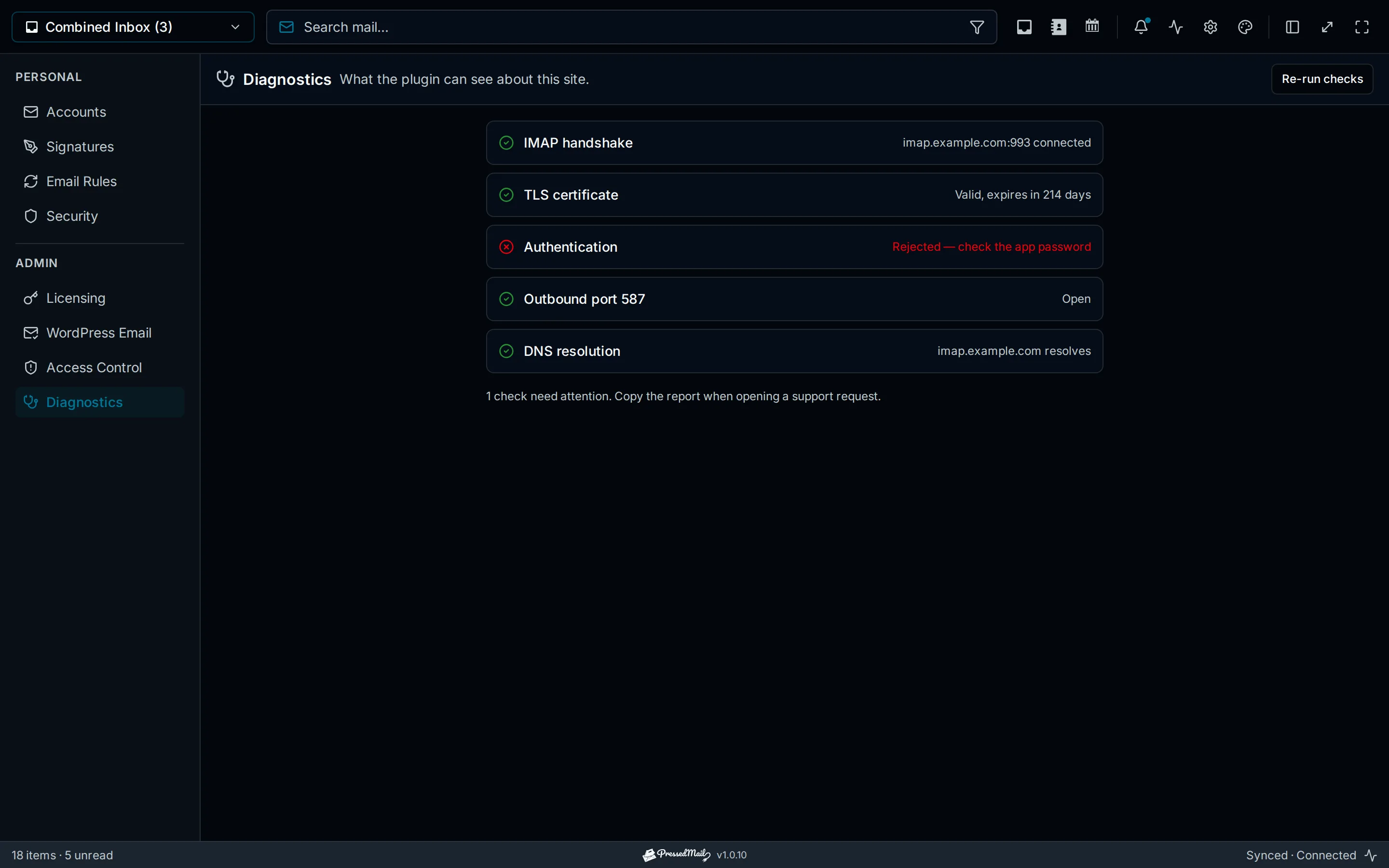
Illustrated diagnostic results showing an authentication failure. This image explains an error category and is not the result of your test.
Interpret a failed result
Read the actual error and decide which stage it concerns.
A failure to connect can concern the hostname, port or network access. A TLS error can concern the secure connection configuration. An authentication failure can concern the credential or account policy. A sender rejection can occur even after authentication succeeds.
Check the setting implicated by the error, change one relevant value and repeat the same test. Do not disable encryption as a routine shortcut or substitute an unrelated account password.
For a managed provider, the required access may be prohibited by policy. Ask its administrator to review the specific failure rather than asking for blanket security changes.
The full delivery investigation covers escalation when the WordPress result cannot identify the next system's behavior.
Confirm the message at the recipient
When the application reports success, open the external mailbox. Find the exact test by subject and time.
Check Spam or quarantine if it is absent from Inbox. Record where the message appeared. A test in Spam establishes recipient receipt but leaves a placement problem to investigate.
If the receiving account is managed by an organization, an administrator may need to inspect a provider trace or quarantine that you cannot access.
Do not translate application success into “delivered to Inbox” without that evidence. Checking whether mail was sent provides precise language for each result.
Repeat with the real notification
The generic test establishes a baseline. Now trigger the actual safe notification you need.
For a form, submit fictional data and inspect its configured recipient. For a shop, use an approved test-order flow. For a reset, use a test account and keep the reset URL private.
Compare the actual sender and Reply-To information at the recipient. A form may supply a different From identity, and a Force From setting can change what the route uses.
If the test email works but the notification does not, check application generation and headers before replacing the SMTP account. The contact-form guide and WooCommerce guide follow those cases.
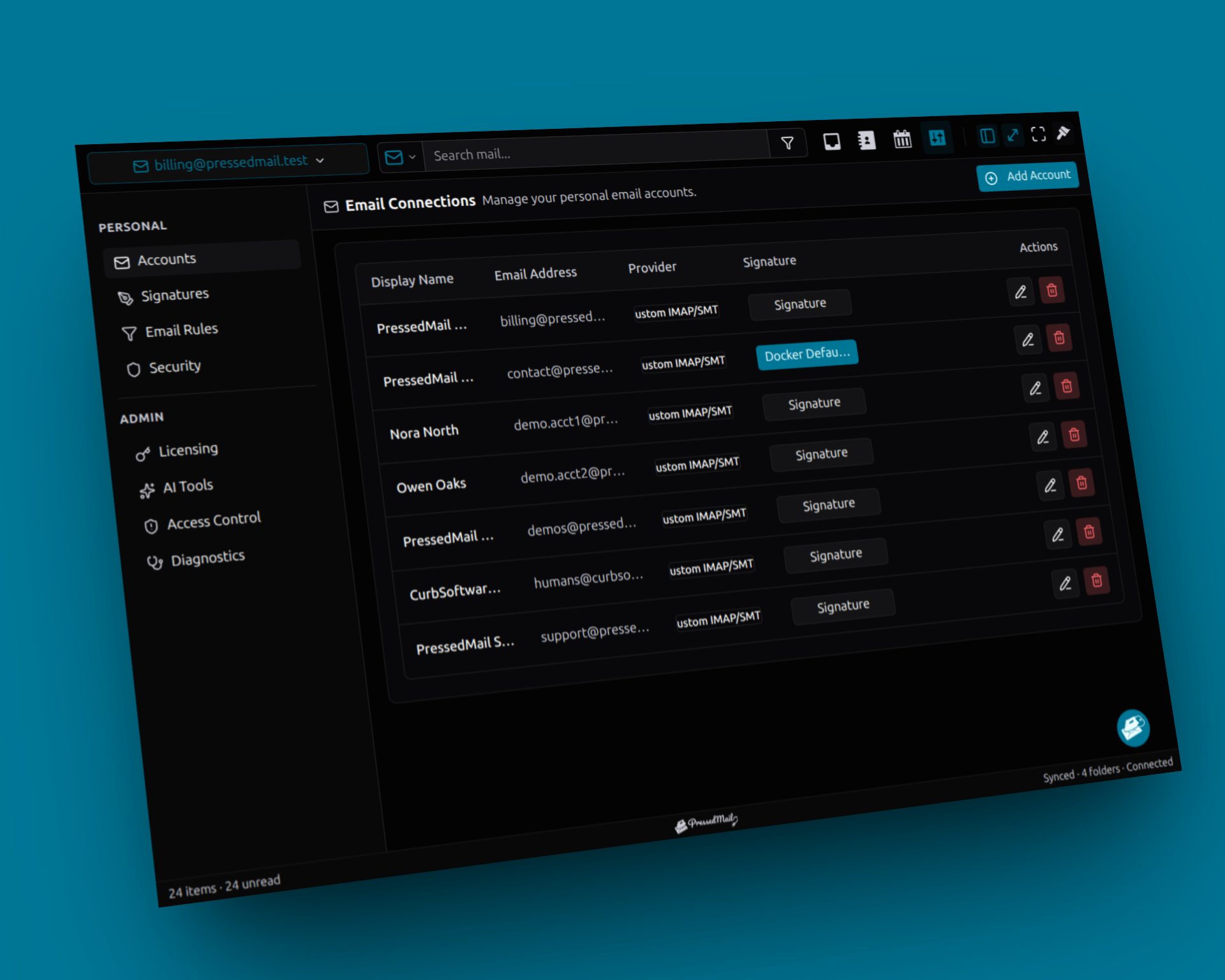
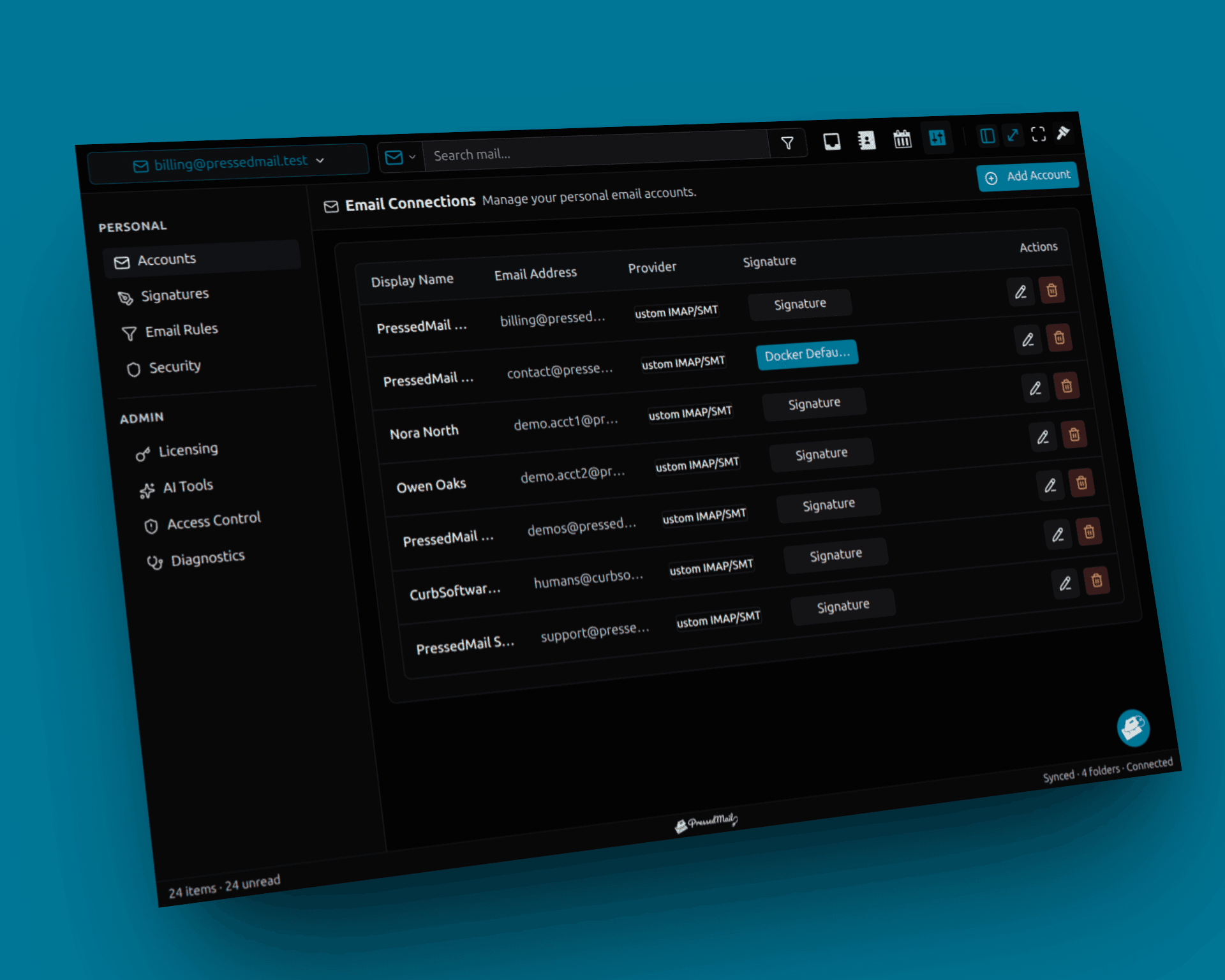
Screenshot composite of fictional mailbox connections. These inbox accounts are separate from the site-wide SMTP server being tested.
Keep a compact result table
Record observed results, not assumed ones:
| Check | Application or route result | Recipient result |
|---|---|---|
| Simple test message | The reported success or error | Inbox, Spam, absent or not checked |
| Actual notification | Whether the event and send were observed | The matching recipient outcome |
| Retest after one change | The new result and changed setting | The new recipient outcome |
Add the time and relevant software versions to your notes. This gives support a reproducible case without requiring a long narrative of every button clicked.
If the provider supplies a useful identifier, retain it privately for correlation. Do not publish raw headers or secrets when a short sanitized error explains the failure.
Know what the log contributes
PressedMail records metadata such as recipient summary, subject, connection and result for its observed WordPress mail events. It does not archive full bodies or establish human reading.
A missing row may reflect logging state, coverage or retention. Verify those before claiming that no send occurred.
The WordPress logging guide explains its current off, 30-, 60- and 90-day retention options. Preserve evidence for an active incident before clearing history.
Finish the test cleanly
Restore any temporary test-recipient or sender changes that should not become the site's normal configuration. Confirm which route remains enabled.
Stop repetitive test sends after the necessary evidence is collected. If a temporary script or hook generated the message, remove its automatic trigger.
For a successful result, keep the tested configuration and the notification types checked. For a failure, document the last confirmed stage and the next operator needed.
PressedMail Free supplies the one-server WordPress SMTP workflow and metadata log. It can help establish the evidence, but the recipient provider still decides how it handles the message.
Frequently asked questions
Is a successful SMTP connection sufficient?
No. Send a controlled message, inspect the recipient and test the real notification.
Why does the form fail after a successful test?
Its trigger, headers, recipient or sending integration may differ from the generic test.
Should I test at another provider?
An external account you control is useful because it checks beyond the sender's own interface. It is still only evidence for that particular recipient and message.
How many times should I retry?
Repeat after a relevant change or when another attempt resolves an identified uncertainty. Repeated identical failures rarely add useful evidence.
Does a message in Spam mean SMTP failed?
It establishes that the recipient mailbox received the message in that folder. Investigate spam placement separately.
Manage your email inside WordPress
PressedMail Free adds an email client directly to your WordPress dashboard. Connect a compatible IMAP/SMTP mailbox, read and send mail, organize messages, and configure WordPress SMTP.




