

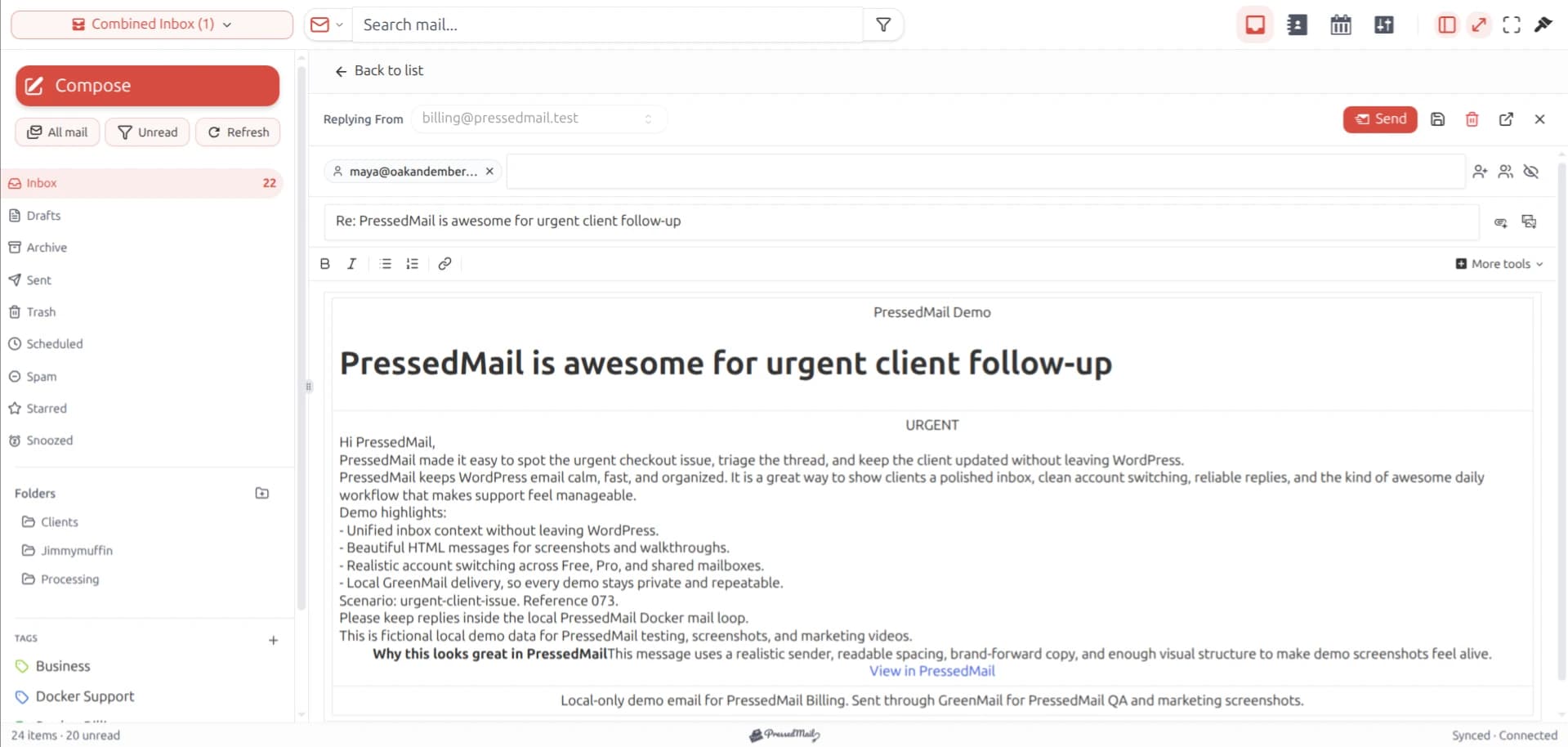
A contact form can accept a submission while its email notification fails. Check both the form's mail settings and the route that carries the notification.
For forms using WordPress's mail path, a configured SMTP server can handle outgoing submission. Use an authorized site address in From, and place the visitor's validated email address in Reply-To when the form supports it.
That lets the website send under its own identity while your reply goes to the visitor. It avoids treating an arbitrary visitor address as an identity your SMTP account is authorized to use.
Identify how the form sends
Check the form plugin and its active integrations. Some use wp_mail; others send through a provider API or a built-in external service.
A site-wide SMTP setting affects the supported WordPress mail path. It cannot be assumed to control a separate API sender.
For the application layer, WordPress wp_mail explained describes how notifications reach the configured transport. If the submission itself fails, resolve the form problem before changing the mail server.
Use a test submission with fictional details and a recipient mailbox you control. Keep real enquiries and visitor information out of screenshots.
Understand To, From and Reply-To
These fields have separate jobs.
| Field | Purpose | Example role |
|---|---|---|
| To | Where the notification goes | The business inbox receiving enquiries |
| From | The sender identity presented by the site | An address the SMTP provider authorizes |
| Reply-To | Where a reply should be addressed | The validated visitor email field |
The addresses used in a real configuration must belong to the actual workflow. Do not copy example.com addresses into a production form.
A visitor typing an address does not grant your sending account permission to impersonate it. Using the site's authorized sender keeps the notification consistent with the provider's rules.
The Contact Form 7 mail guide documents its Mail tab, mail-tags and header configuration. Use its current field mappings rather than inventing a header string from unvalidated input.
Configure the form notification
Open the form's notification settings and verify the destination. A misspelled business recipient can make a correct SMTP route appear broken.
Choose an authorized From address and a recognizable sender name. Set Reply-To from the form's validated email field if supported.
In Contact Form 7, mail-tags connect submitted fields to notification values. Check that the tag you use exists in the actual form. A copied example field name may not match your form's configuration.
Keep the notification body limited to information the business needs. Do not place passwords, access tokens or unnecessary personal information into a form email.
Other form plugins use different screens, but the distinction among recipient, sender and reply address remains useful.
Configure one WordPress sending route
Identify any existing SMTP plugin or provider integration before adding another.
In PressedMail, the administrator WordPress Email area configures a separate outgoing SMTP server. It is not automatically supplied by the inbox connection.
Enter the provider's host, port, secure connection mode, authentication and sender. Free supports one server. Use WordPress SMTP setup for the detailed steps.
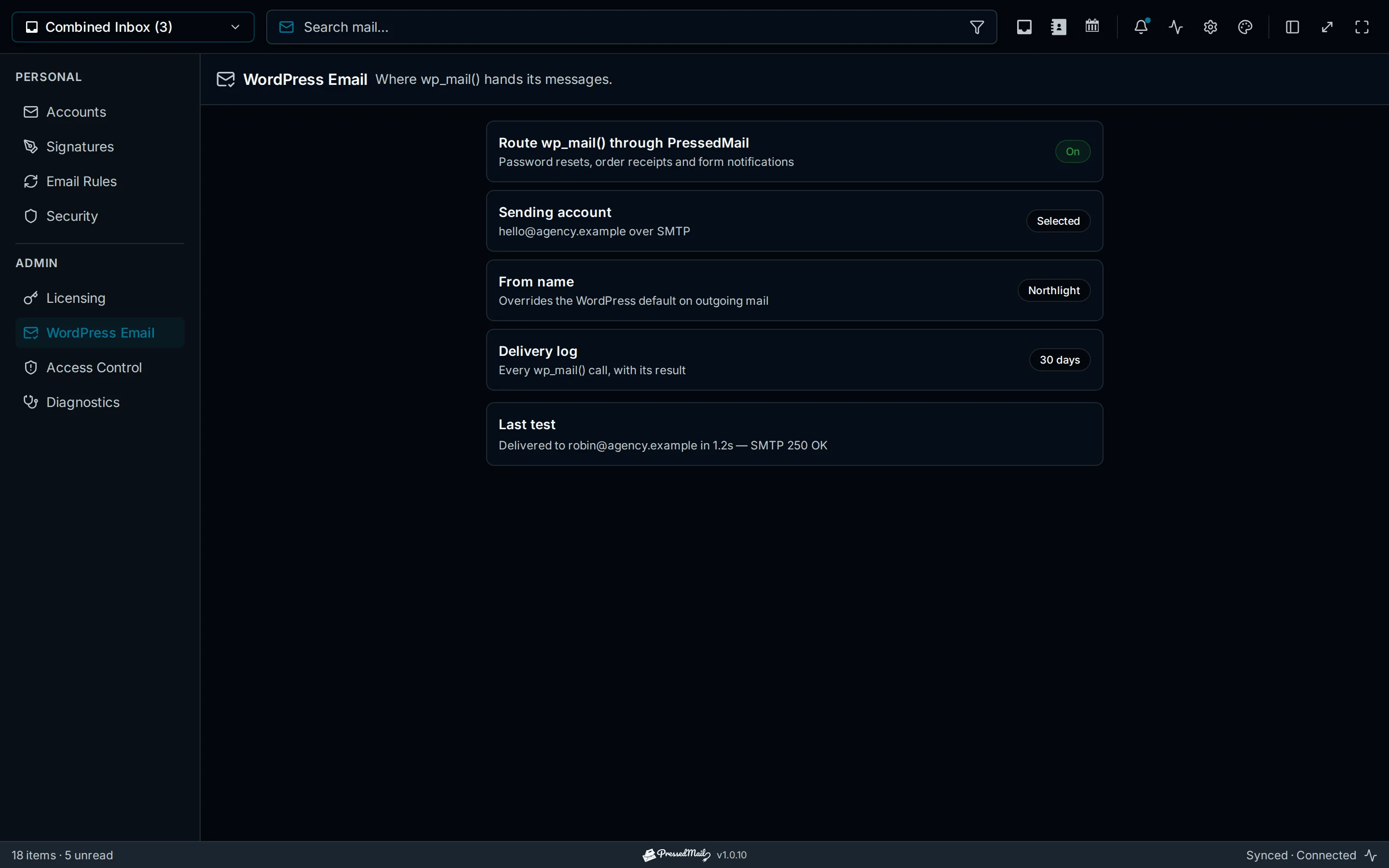
Illustration of WordPress email routing. Its controls and test results are examples, not a capture of this form's notification.
Consider the Force From setting carefully. An override can make the configured sender apply across messages from several plugins. Verify the received form notification after saving rather than assuming its displayed sender matches the form screen.
Send a generic test first
Use the server's test-email control with an external address you control. Check the application result and recipient receipt.
If that fails, investigate the SMTP error before submitting the form repeatedly. The SMTP testing guide separates connectivity, authentication and recipient checks.
If the test arrives, you have a baseline for that route. The form can still differ because it supplies its own destination, sender and message content.
Submit the actual form
Fill out the form using fictional details. Use another controlled address as the visitor so you can verify Reply-To behavior.
Submit once, note the time and observe the form's response. Then inspect the business test mailbox and the relevant WordPress mail record.
Find the matching notification. Check its sender and recipient, then choose Reply and confirm that the reply addresses the test visitor. You do not need to send that reply to inspect the destination.
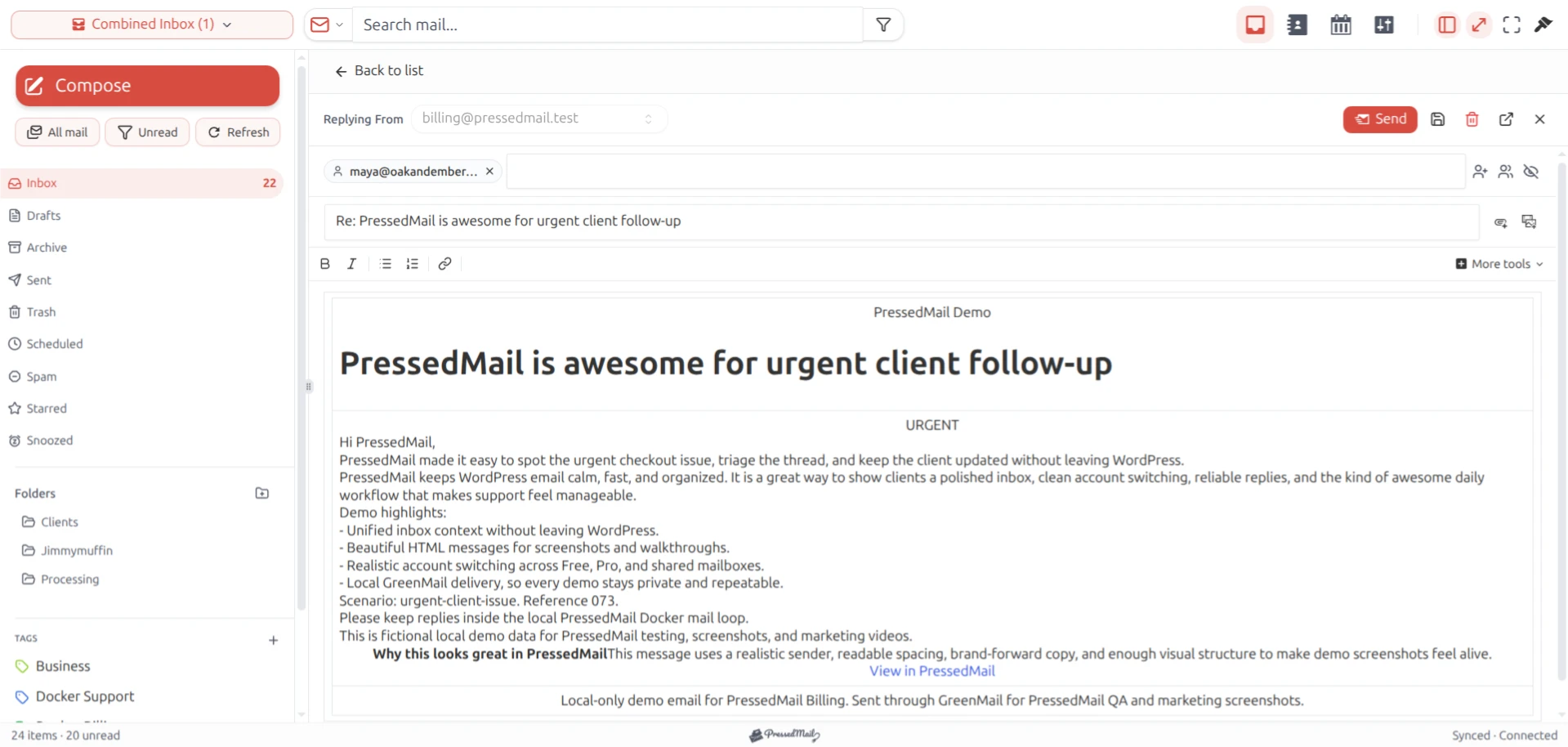
PressedMail screenshot of a reply composer using fictional mail. It shows the conversation interface rather than proof that a form submission succeeded.
If the generic test arrived but this notification did not, compare the form's settings and the actual log outcome. Checking whether WordPress mail was sent explains what a successful or absent record establishes.
Diagnose the remaining gap
A form success notice can indicate that the submission was accepted. It may not establish final email receipt.
A missing notification may result from a disabled email action, invalid recipient, incorrect mail-tag, sender rejection or a separate integration path. Follow the observation rather than treating every symptom as a password problem.
When the route reports failure, inspect the error. When it reports success, inspect recipient folders and any available bounce or provider evidence.
If the message reaches Spam, use spam-placement troubleshooting. If no send attempt appears, use WordPress email triage to inspect the application stage.
Keep a way to recover enquiries
Some form products store submissions; others require a separate feature or integration. Check your actual plugin's behavior rather than assuming that every submitted enquiry is saved.
An entry record can help recover a request while notification delivery is being repaired. It is separate from PressedMail's metadata log, which does not archive the message body.
Store and share visitor information according to the site's access and retention needs. A screenshot intended to diagnose a sender error rarely needs the whole enquiry.
Where PressedMail fits
PressedMail can provide the WordPress SMTP route and an inbox for answering the notification once it arrives. Free supports that one-mailbox workflow and a separate one-server site-mail configuration.
The form plugin still owns field validation, submission handling, notification generation and any entry storage. PressedMail does not automatically add those form features.
If the form already uses a suitable external sender, keep its path clear and avoid adding a competing route merely to follow a tutorial.
Frequently asked questions
Why does the form say success when no email arrives?
The form response and recipient delivery are different stages. Check whether the notification was attempted and what the sending route reported.
Should the visitor's address be From?
Use an address your provider authorizes as From. Put the validated visitor address in Reply-To where supported.
Will SMTP change a form using its own API?
Not necessarily. An independent API integration may bypass the WordPress route.
Why can the generic test work while the form fails?
The form can supply different headers or recipients, or fail before sending. Test its actual notification after establishing the baseline.
Does the email log save the submitted enquiry?
PressedMail's WordPress log stores metadata, not bodies. Check the form product's own entry-storage behavior if you need submission records.
Manage your email inside WordPress
PressedMail Free adds an email client directly to your WordPress dashboard. Connect a compatible IMAP/SMTP mailbox, read and send mail, organize messages, and configure WordPress SMTP.




