

WooCommerce email depends on two things before a customer can receive it: the store must generate the expected notification, and the configured sending route must carry it successfully.
SMTP changes the sending route. It does not fix a disabled email type, an incorrect recipient or an order event that never occurred.
WooCommerce normally uses WordPress's mail function, as its email troubleshooting documentation explains. PressedMail can supply a separately configured WordPress SMTP server, including a one-server setup in Free.
Choose a controlled order test
Use a test store or an approved test-order process. Do not change a real customer's order state merely to generate an email for troubleshooting.
Identify the exact message you expect: an administrator notification and a customer notification are different tests. Record their intended recipients and the order event that should generate each.
Use fictional customer details and addresses you control. An order email can contain personal information, addresses and payment-related context, so keep screenshots and support excerpts limited to safe test data.
If you do not yet know whether the failure concerns generation or transport, start with WordPress email triage.
Check the email type first
Open WooCommerce Settings and its Emails section. Review the relevant notification's enabled state and configured recipient.
Then verify that the test order reached the event required for that notification. A pending or otherwise unchanged order is not proof that the expected email should already exist.
WooCommerce's documentation specifically calls out disabled notifications and order-state problems as possible causes of missing mail. Use the documented behavior for your installed WooCommerce version and the selected email type.
A store extension can add its own messages or sending integration. Check that extension's configuration if the missing notification belongs to it rather than to the standard WooCommerce flow.
Configure the WordPress SMTP server
Before adding a route, identify any existing SMTP plugin or provider integration. Keep one intended owner of the common WordPress path.
In PressedMail, open administrator WordPress Email settings and add the outgoing mail server. This server is separate from the inbox account used to read mail.
Enter the provider's SMTP hostname, secure connection settings, authentication details and authorized sender. Free supports one server. Follow WordPress SMTP setup for the full configuration.
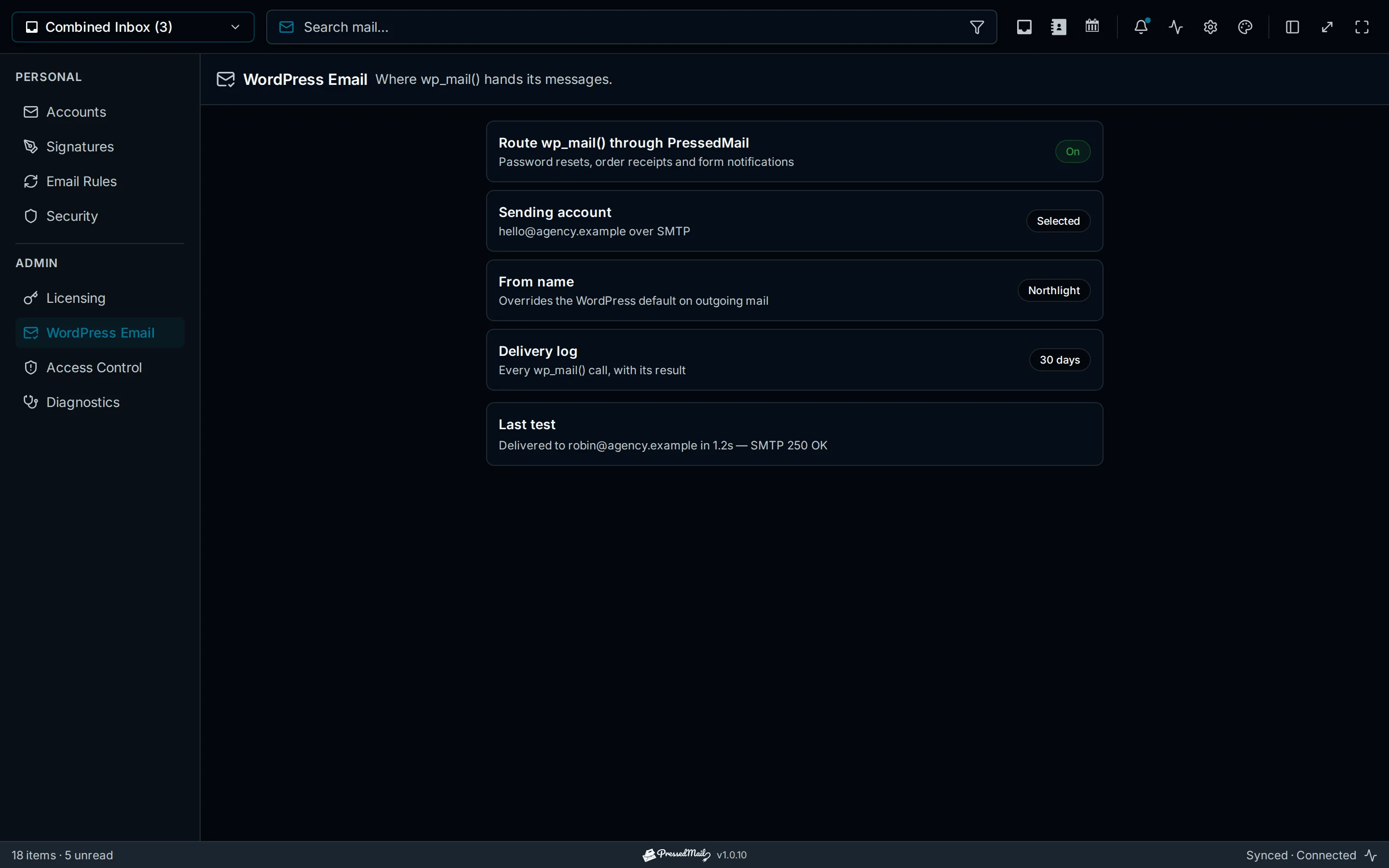
Illustration of WordPress email routing. Its settings and results are examples, not evidence from a WooCommerce checkout.
Use a From address the sending provider permits. If you apply a forced sender, consider how it affects both customer and administrator notifications.
Mailbox OAuth and the site-wide SMTP credential form are separate capabilities. Do not assume that connecting a Microsoft mailbox automatically configures an OAuth sender for every store message.
Establish a simple sending baseline
Send a plain test message through the configured server to an external address you control.
Read the route's result and inspect the recipient mailbox. Check Spam if the message is absent from Inbox. A successful application result alone does not establish receipt.
If this test fails, investigate the SMTP error before repeating order actions. The SMTP testing guide separates connection, authentication and recipient checks.
A working baseline means the configured route can carry that test. It does not yet prove that the actual WooCommerce message has the right trigger, sender or recipient.
Trigger the expected order notification once
Run the approved test-order flow and record the time. Observe whether the expected event occurred.
Inspect WooCommerce's available event evidence and the WordPress mail result. Current WooCommerce documentation describes transactional-email records under its logs; available screens depend on the installed version.
Compare the expected message type and test order with the evidence. Do not match on a generic “order” subject alone when several attempts may exist.
Then inspect both intended test mailboxes. An administrator receiving a notification does not establish that the customer address received its separate message.
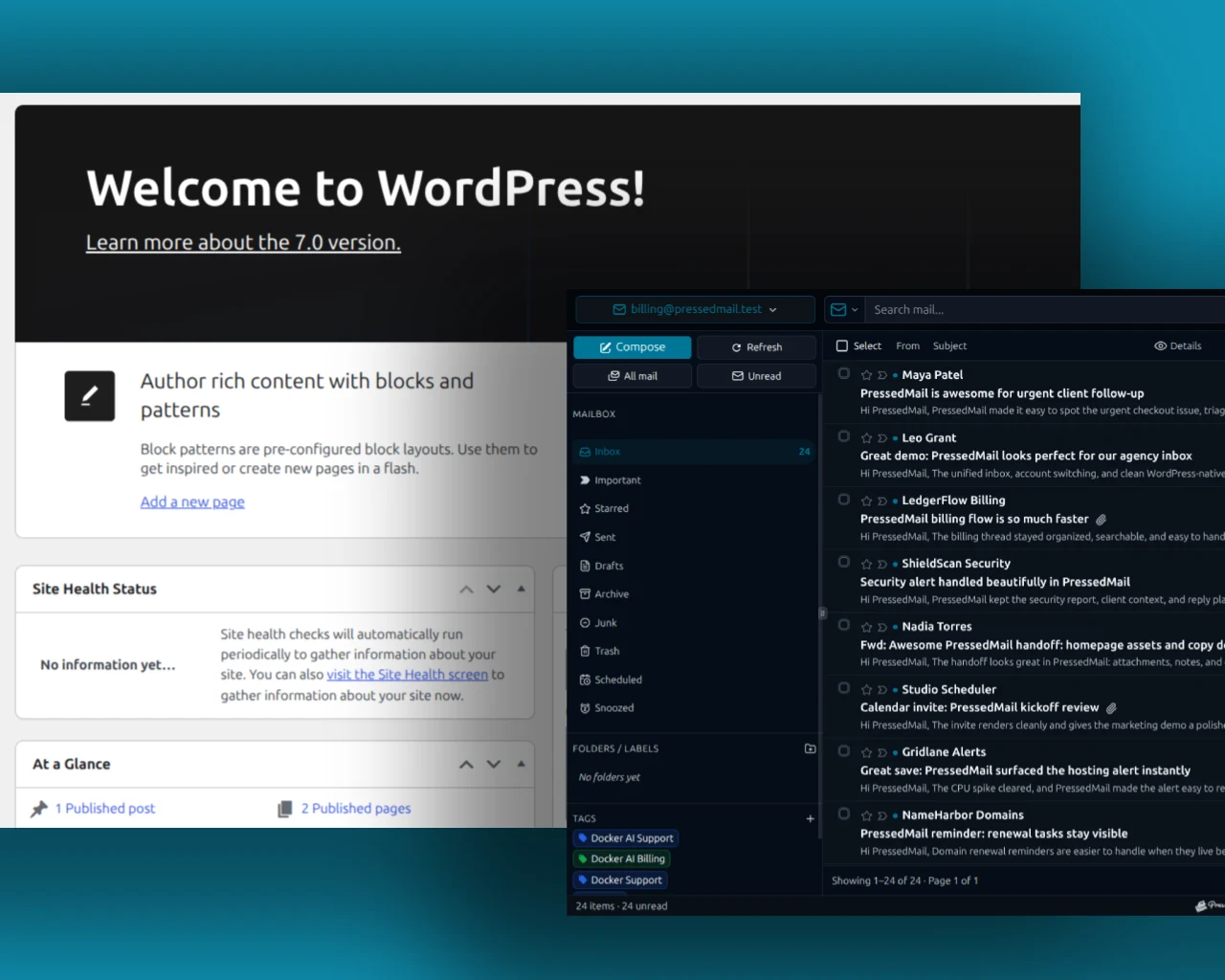
Composite of WordPress administration and PressedMail. It shows the site-and-mailbox arrangement, not a completed order or delivery test.
If the generic test works but order mail does not
Return to the differences between the messages.
Check whether the email type is enabled, whether the relevant event occurred and whether its recipient is valid. Compare the actual From identity with the generic test.
A transport that permits one sender can reject another. A plugin can also skip a message because a required condition is absent. Neither situation is repaired by repeatedly replacing an already working SMTP credential.
If WooCommerce recorded an attempted send and the WordPress route failed, inspect the associated error. If the route reported success but the recipient lacks the message, move to recipient-side evidence.
Checking whether WordPress email was sent gives precise terms for these outcomes.
Preserve evidence without archiving private orders
PressedMail's WordPress log retains metadata such as time, recipient summary, subject, server and result. It excludes bodies, raw headers and attachments.
That record can help correlate a notification, but its subject and recipient details may still be sensitive. Share a sanitized excerpt rather than a table of unrelated customer messages.
Choose retention before an incident requires older evidence. Off stops new logging, and retention cleanup also clears existing records when logging is off. Preserve needed records before selecting it.
The logging guide covers current controls and retention behavior.
Match the provider to the store
A mailbox provider's limits and intended use still apply when SMTP carries store notifications. Verify that the selected service suits the store's actual sending needs.
A dedicated transactional provider or another established SMTP route may be appropriate. If the store already has a verified setup, investigate the missing notification before replacing that service.
PressedMail Free fits a site that wants one SMTP server, metadata visibility and a one-mailbox client in WordPress. It does not create WooCommerce templates, repair payment callbacks or guarantee Inbox placement.
If messages arrive in Spam, follow spam-placement troubleshooting. If the evidence stops between systems, use the full delivery guide.
Frequently asked questions
Why does the SMTP test arrive but an order email does not?
The order message can have a different trigger, recipient or sender. Verify its generation and compare its actual sending evidence.
Do administrator and customer emails use the same recipient?
They are separate notification contexts. Check the intended destination for each email type.
Does a created order always mean the expected email should exist?
No. Email behavior depends on the relevant event and configuration. Check the order state and selected notification's documented trigger.
Will SMTP change the email template?
Changing the transport does not by itself redesign the WooCommerce message. Template and notification settings remain separate.
Can I verify this with a real customer order?
Prefer controlled test data and an approved test-order process. Do not alter customer records simply to produce troubleshooting evidence.
Manage your email inside WordPress
PressedMail Free adds an email client directly to your WordPress dashboard. Connect a compatible IMAP/SMTP mailbox, read and send mail, organize messages, and configure WordPress SMTP.




