

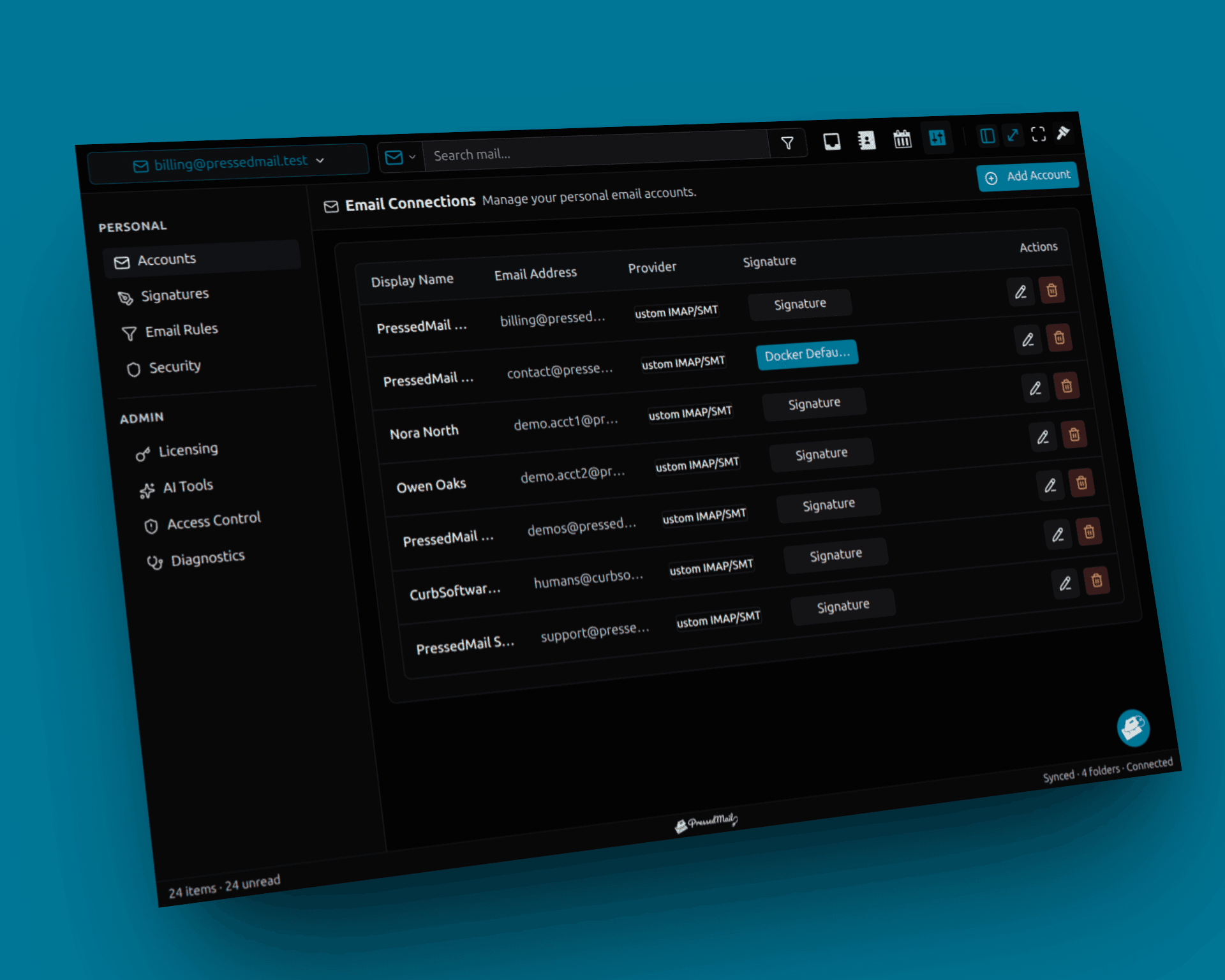
A WordPress email log gives you a record to inspect when the next notification goes missing. Set it up before you need the evidence, choose a retention period and verify that a controlled message produces the expected entry.
PressedMail includes a WordPress mail metadata log in Free and Pro. It records sending outcomes and limited message information. It does not store message bodies, raw headers or attachments.
The phrase “delivery log” describes the troubleshooting surface. It should not be read as a guarantee that the recipient received the message.
Know what the log observes
WordPress exposes sending outcomes through hooks such as wp_mail_succeeded and wp_mail_failed. Those events concern the application's mail operation.
PressedMail records the outcomes available to its WordPress mail logger. A plugin using an independent external API can have a separate record and status model.
The inbox is another surface. Messages received by a connected mailbox are not the same as site notifications sent through WordPress. Keep the SMTP route and mailbox view distinct when looking for evidence.
Before adding another logging tool, identify the current route and the evidence it already provides. Two logs can be useful, but only if you understand what each one observes.
Choose retention deliberately
Open PressedMail's administrator WordPress Email settings and choose a log-retention value.
Current choices are off, 30, 60 or 90 days. Off stops new logging; the retention cleanup also clears existing records when logging is off. Preserve needed evidence before choosing it.
Choose the shortest period that supports the site's investigation needs. A store that handles delayed customer queries may need a different period from a small site whose owner checks notifications daily.
The separate Clear log action removes history immediately after confirmation. Choosing Off also results in removal when retention cleanup runs, so neither option should be used to preserve an investigation record.
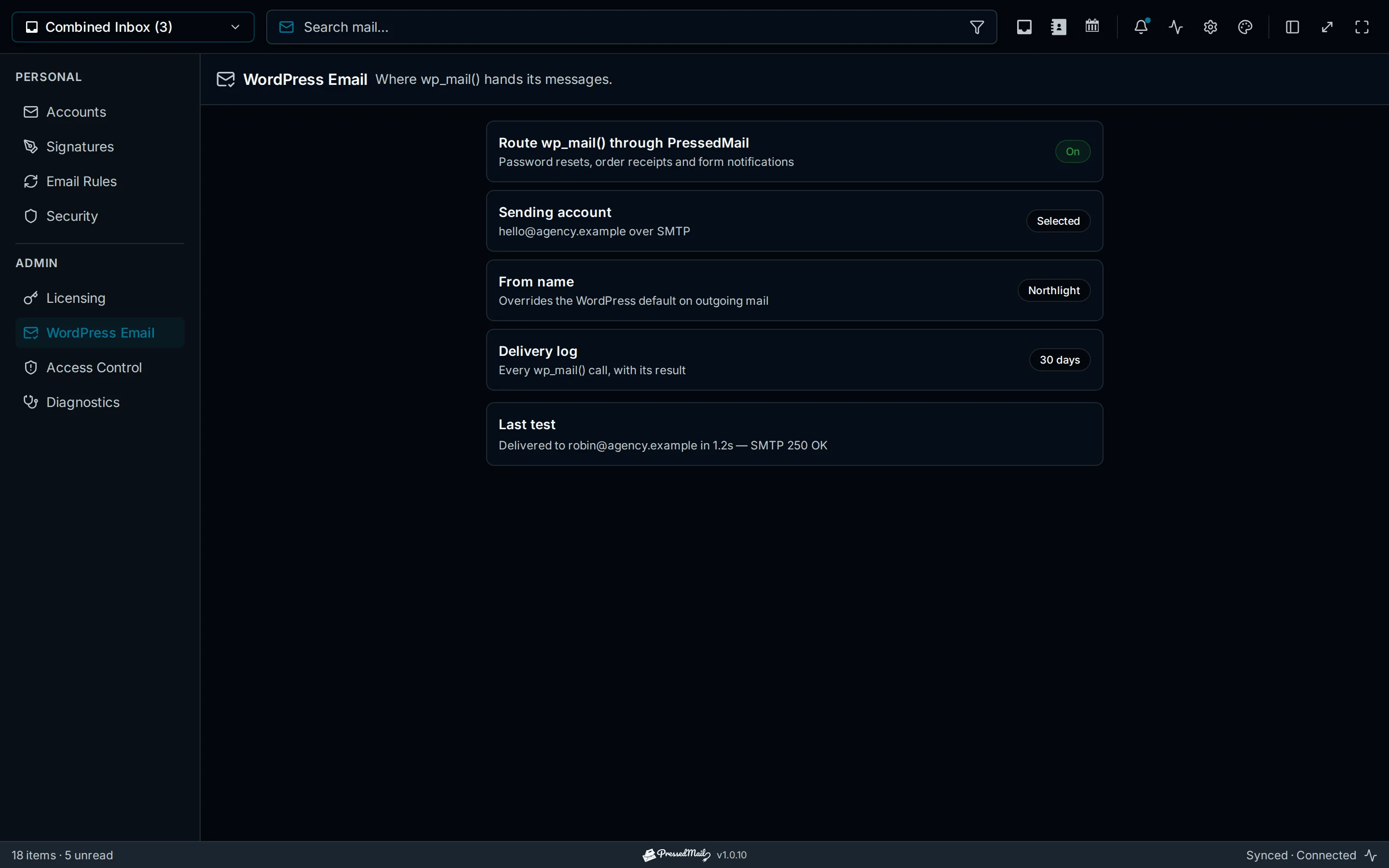
Illustration of WordPress email settings. Retention values and results in this artwork are examples; use the current controls for your configuration.
Metadata deserves attention even when bodies are excluded. Subjects can contain names, order references or other personal details. Recipient information can also identify a person.
Choose who should review the log and what may be shared with support. Do not treat the absence of message bodies as proof that the table contains no sensitive information.
Generate one controlled record
Use a test recipient and a harmless message. The simplest starting point is the configured server's test-send control, followed by the real notification type you need to monitor.
After sending, open the delivery log and refresh it. Locate the entry by time and recipient, then compare the subject.
Read the Result column and any available failure detail. If the record says sent, check the receiving mailbox separately. The message-status guide explains what each stage proves.
A successful test establishes that this path produced a record now. It does not establish complete historical coverage or prove that every plugin uses the same route.
The SMTP test procedure helps you repeat this with consistent evidence.
Understand the current fields
The table shows When, To, Subject, Server and Result. Its underlying metadata also retains the effective sender and available error details.
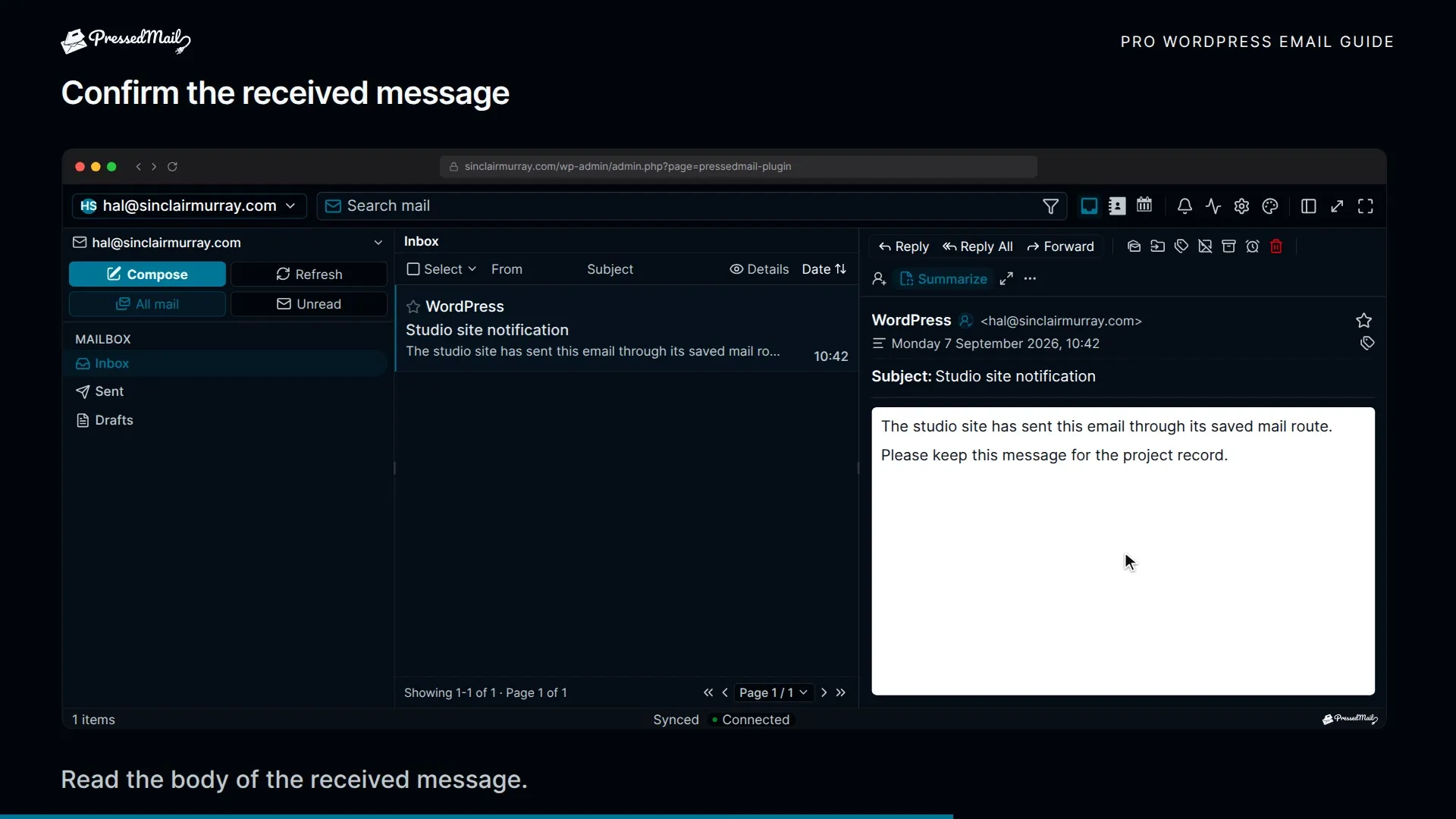
The recipient summary keeps the first address and a count. It does not create a full address-list archive for every recipient. Subjects are limited in length.
Server information identifies the resolved sending connection when available. If a failure occurs before a connection can be resolved, the record may lack that server information. An empty server field therefore needs context.
The sent and failed outcomes describe the observed operation. A sent row should not be reported as confirmed Inbox placement or a human opening the message.
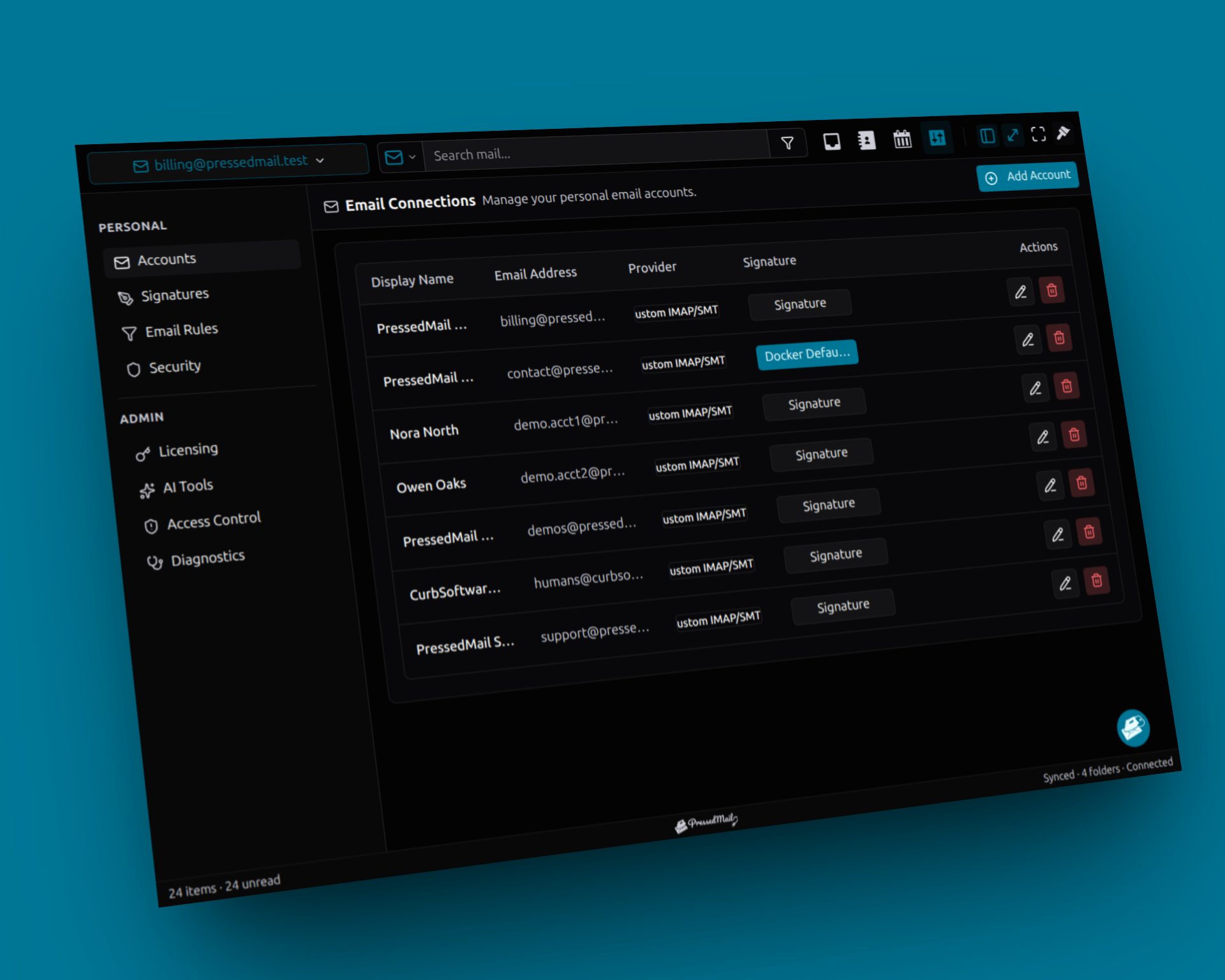
Screenshot composite of fictional inbox accounts. These accounts illustrate mailbox management; WordPress mail records belong to the separate site-wide sending configuration.
Investigate an empty table
First check retention. If logging is off, enable an appropriate period before creating another controlled test.
Then verify that the message actually used the observed WordPress route. A provider API integration may have its own log. The originating application may also have skipped the notification before sending.
Check timing and pagination if the site sends many messages. The relevant row may not be the newest one. Older entries may already have left the configured retention window.
PressedMail excludes its own copies of incoming-mail notifications from the WordPress mail log. Those copies should not be used as a test of ordinary notification coverage.
If no entry appears for a message expected to use the route, follow WordPress email triage and inspect the originating application.
Clear history only when you mean to remove it
The Clear log action deletes recorded attempts and asks for confirmation. Preserve any evidence needed for an active investigation before using it.
A cleared history does not repair the sending configuration. It removes the records you could have used to compare failures and successful retests.
Retention provides routine cleanup. Manual clearing should be a deliberate data-management action, not the first step in troubleshooting a failed notification.
If you need a support excerpt, copy only the relevant metadata and sanitized error rather than distributing a screenshot of unrelated entries.
Compare other evidence sources
Host mail logs can show activity below WordPress. Provider traces can show what the sending or receiving service observed. Application logs can establish whether an order or form event occurred.
These sources complement one another. A WordPress result may identify a failed send while a provider record explains its rejection. An application record may show that a notification was disabled before transport.
The full delivery investigation follows those boundaries. Logging everything twice without knowing the boundaries does not make the diagnosis clearer.
PressedMail's Free route combines one outgoing server with metadata visibility. You can also use its one-mailbox client to handle incoming replies, but that inbox does not replace the site-mail log.
Frequently asked questions
Are message bodies stored?
No. PressedMail's WordPress log excludes message bodies, raw headers and attachments.
Is metadata harmless?
No. Subjects and recipient information can contain personal data. Restrict access and choose retention accordingly.
Does zero mean keep history forever?
No. Zero stops new logging, and retention cleanup clears existing records while it is off. The other retention choices are 30, 60 and 90 days.
Can the log recover old messages?
It records observed events while active. It cannot recreate bodies or send attempts from before the relevant evidence existed.
Will clearing the log fix sending?
No. It removes history. Diagnose the configuration and provider response separately.
Manage your email inside WordPress
PressedMail Free adds an email client directly to your WordPress dashboard. Connect a compatible IMAP/SMTP mailbox, read and send mail, organize messages, and configure WordPress SMTP.




