

A support address needs more than one pair of hands. Sharing a PressedMail mailbox lets several people read and answer it from their own WordPress logins. Nobody gets the mailbox password, and you can take access away without changing anything at your mail provider.
Sharing needs an Ultimate or Lifetime licence. Starter and Premium sites do not show it, and neither does the free plugin. This guide shows how to share a mailbox, what each role can do, and how the same idea works for calendars, contact lists and templates.
Who you can share with
You can share with other people on the same WordPress site who can open PressedMail. An administrator decides who that is in the site access settings. There is no invitation email. Once you add someone, the item appears for them the next time PressedMail loads.
Share a mailbox
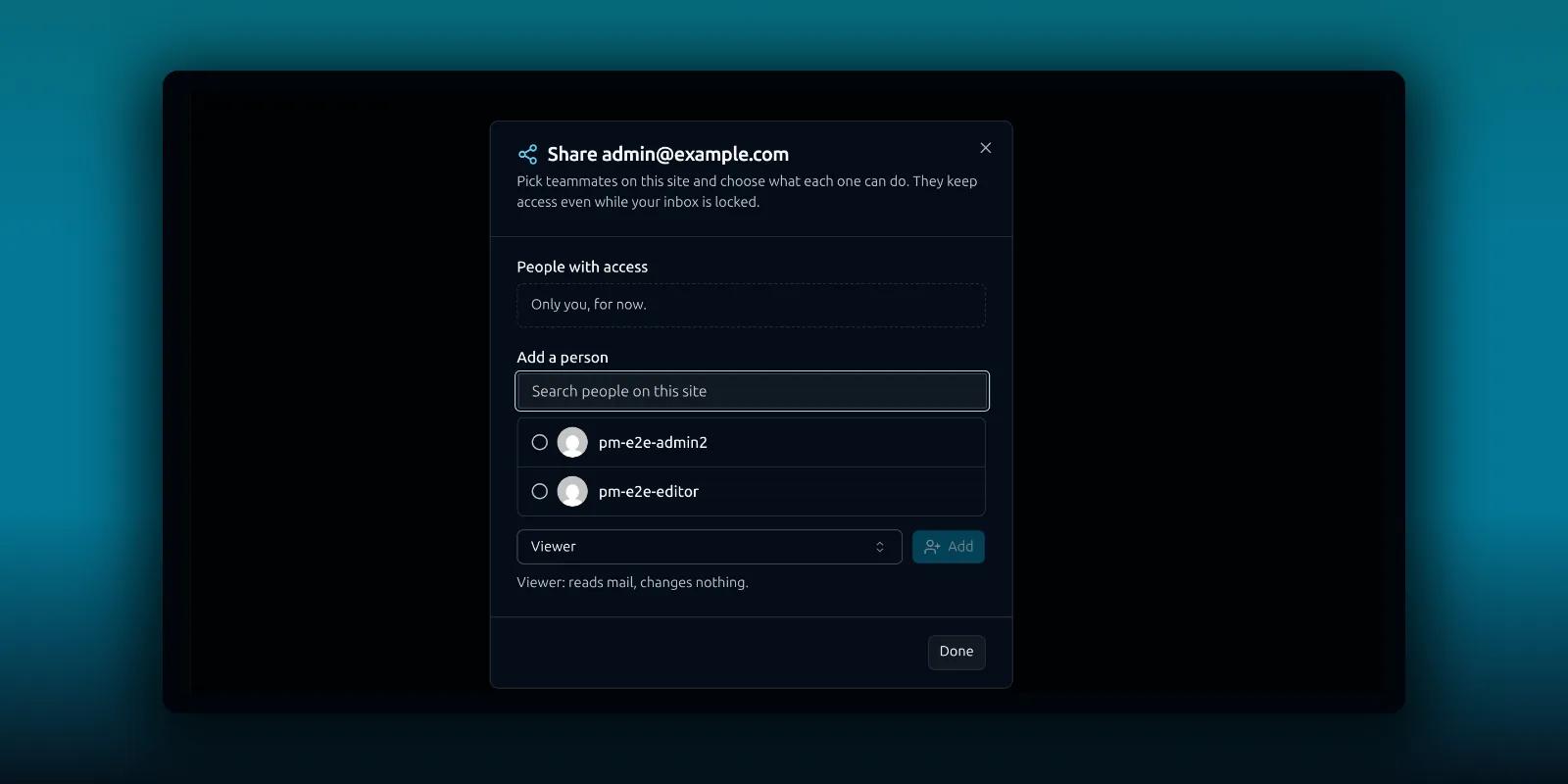
Open Settings, choose Accounts and find the mailbox. The share button sits in the row’s actions. You can also choose Share this inbox from the account menu at the top of the workspace.
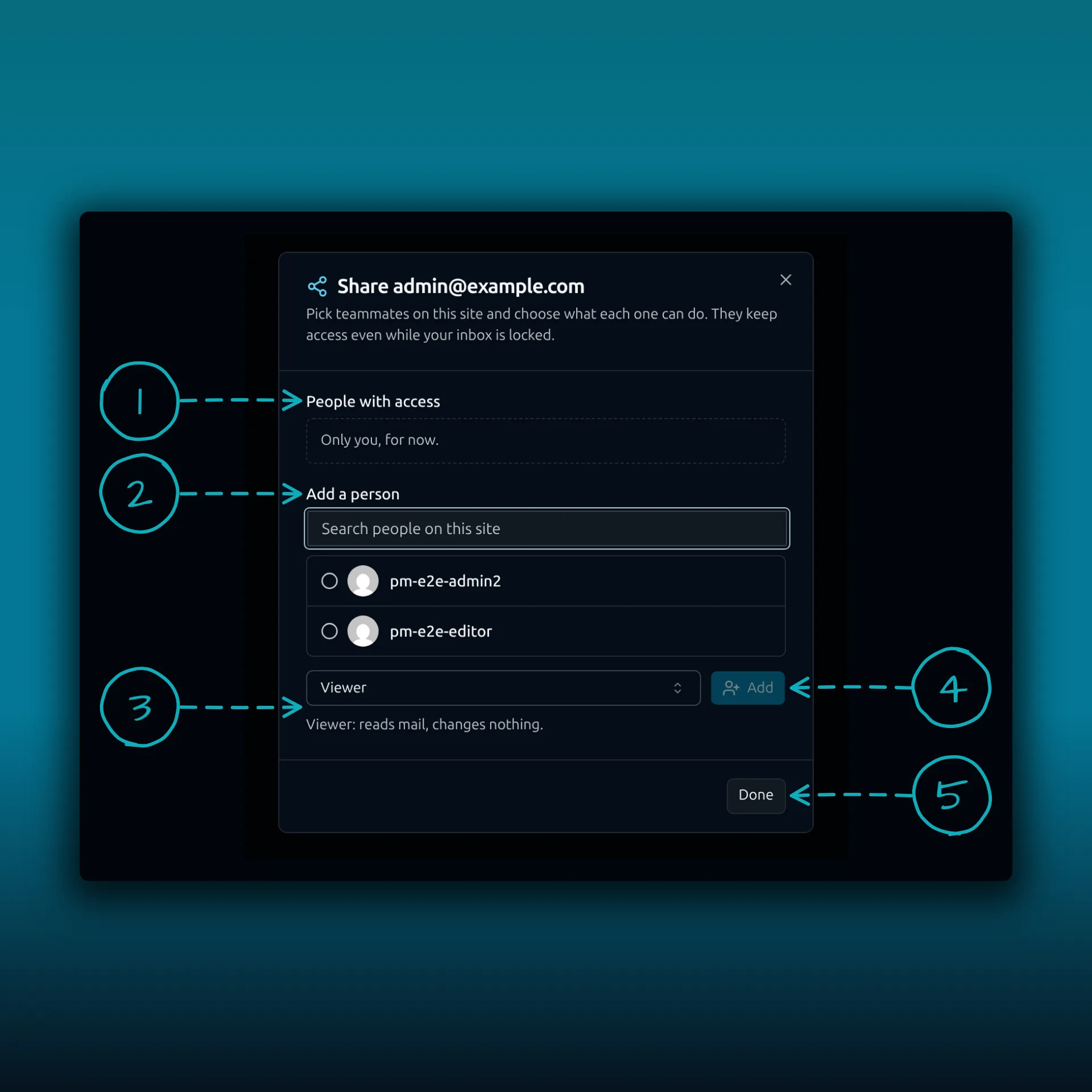
- People with access. It lists who already has access. A new share says “Only you, for now.”
- Add a person. Search people on this site.
- The role menu, with a short description under it. Viewer reads mail and changes nothing.
- Add.
- Done.
The picture shows the dialog for one mailbox on a demo site.
The steps are the same each time.
- Search for the person under Add a person.
- Pick their role.
- Press Add.
What each role can do
A mailbox has three roles.
- A Viewer reads mail and changes nothing.
- A Responder reads, replies, sends as this address, and files or trashes mail.
- A Manager does everything a Responder can, plus deletes mail for good from Trash and adds teammates. Only the owner can add, change or remove a Manager.
Teammates find the mailbox under Shared with me, marked Shared by and your name. They work through your connection on the server and never see your password or your sign-in token. The folders and the connection’s credentials stay yours to change.
A silent animation of sharing a mailbox by role, about 15 seconds. The owner connects the mailbox once. People on the same WordPress site get a role: a Viewer reads and changes nothing, a Responder reads, replies, sends as the address and files or trashes mail, and a Manager can also delete mail for good from Trash and add teammates. Nobody sees the password.
Start people on Viewer or Responder. Give Manager to someone you would trust with permanent deletion.
Share a calendar, a list or a template
The same Share action sits in the menu next to a calendar, a contact list, a template or a saved block.
- A calendar has two roles. The calendar guide covers events. A Viewer sees every event. An Editor can also add, change and delete events. Invitations, updates and cancellations for its events still go out from you.
- A contact list has two roles. A Viewer sees the list’s members and can send to the list. An Editor can also add people, change a member’s name, company, phone, job title and website, and remove members. An Editor cannot change a member’s email address.
- A template or a saved block is shared as Viewer only. Teammates can use it in their own email and save their own copy. Only you can change the original, and only things you made yourself can be shared.
Teammates see the card details of the people on a shared list, and nothing else from your address book. Your notes, tags, custom fields and message history for those contacts stay private. Removing someone from a shared list never deletes your contact. A send to a shared list follows the same rules as your own lists, and one send reaches at most 100 unique people across every list you pick. The contacts guide explains who a list send reaches.
Locks are personal
The PressedMail lock, covered in the lock guide, belongs to each person and is off until someone turns it on. Turning on yours does not lock teammates out of what you shared, and each of them can set a lock of their own. To cut someone off, remove them from the share.
Change or remove access
Open the same Share dialog. Change a person’s role or remove them. It takes effect on their very next request. Anyone can leave something shared with them by choosing Leave in its menu.
If someone leaves the WordPress site, their shares are removed, and adding them back does not restore that access. If your Ultimate licence lapses or the site moves to a lower plan, teammates lose access and everything stays with its owner. The shares are kept, so they return when Ultimate does.
What is stored and what is not
Shares are stored in your WordPress database. Nothing about who shares what leaves the site. Grants, role changes and removals are recorded in the site’s security audit log, and WordPress’s personal data export and erasure tools include share records.
When avatars are on in Settings, Discussion, the share dialog loads each person’s avatar from Gravatar. The image address carries a hash of the person’s email address, and Gravatar sees the viewer’s IP address. Automattic’s privacy policy covers what Gravatar does with it. With avatars off, PressedMail shows initials and requests nothing.
When it does not work as expected
If a teammate cannot see a shared mailbox, check three things. They need access to PressedMail on the site, your licence has to be Ultimate or Lifetime, and they have to be added in the Share dialog. A role that seems too weak is a role you can change in the same place. Mail they send through a shared mailbox goes out through your connection, so if sending fails, the post on a passing test with failing sends and the delivery troubleshooting guide apply to your connection.
If you run mailboxes for clients, the agency guide puts sharing in context, and the white label guide shows how to put the client’s brand on the workspace.
Which plan do I need?
Sharing needs Ultimate or Lifetime. The plan comparison shows what each plan adds.
Frequently asked questions
Do teammates need my mailbox password?
No. They work through your connection on the server and never see your password or token.
Can a Responder delete mail forever?
No. A Responder can file or trash mail. Permanent deletion from Trash belongs to a Manager.
Will teammates get an email when I share something?
No. The item shows up for them the next time PressedMail loads.
Can I share with someone who is not a user on my site?
No. You can only share with people on the same WordPress site who can open PressedMail.
What happens to shares if I downgrade?
Teammates lose access and everything stays with its owner. The shares are kept, so they come back when Ultimate does.
Manage your email inside WordPress
PressedMail Free adds an email client directly to your WordPress dashboard. Connect a compatible IMAP/SMTP mailbox, read and send mail, organize messages, and configure WordPress SMTP.

