

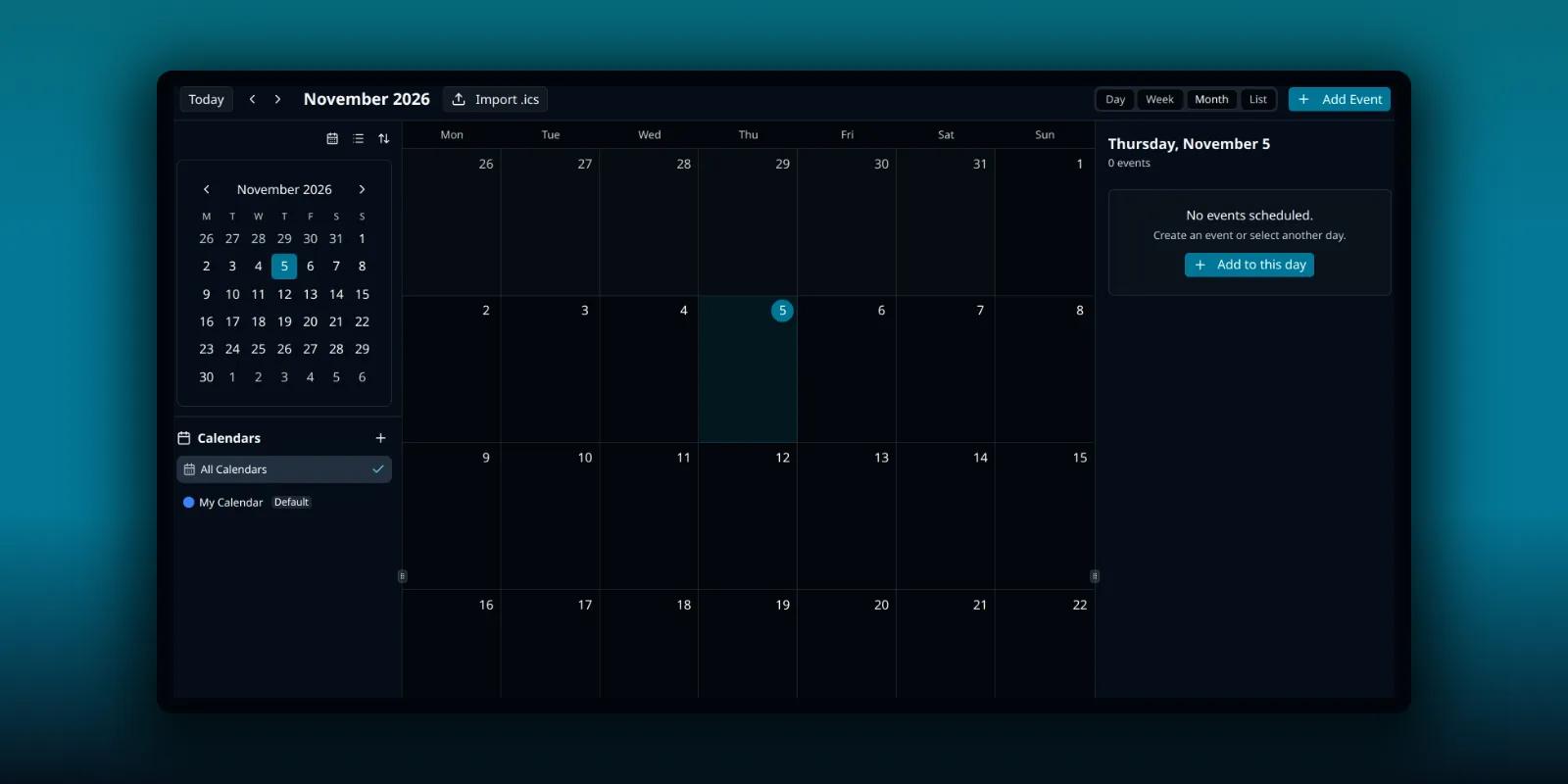
PressedMail has a calendar of its own. You can add events, repeat them, invite people by email and bring in a calendar file from another program. The calendar is a paid feature, and one fact shapes how you use it: it lives in WordPress and does not sync with anything.
Connecting a Gmail or Microsoft mailbox does not connect Google Calendar or Outlook Calendar. A change you make in one of those places will not show up here, and the other way round. If you want events from another calendar, you import them as a file.
Open the calendar
Open Calendar from the workspace header, or from the Calendar tab on a phone. Choose from Day, Week, Month and List views. There is no year view.
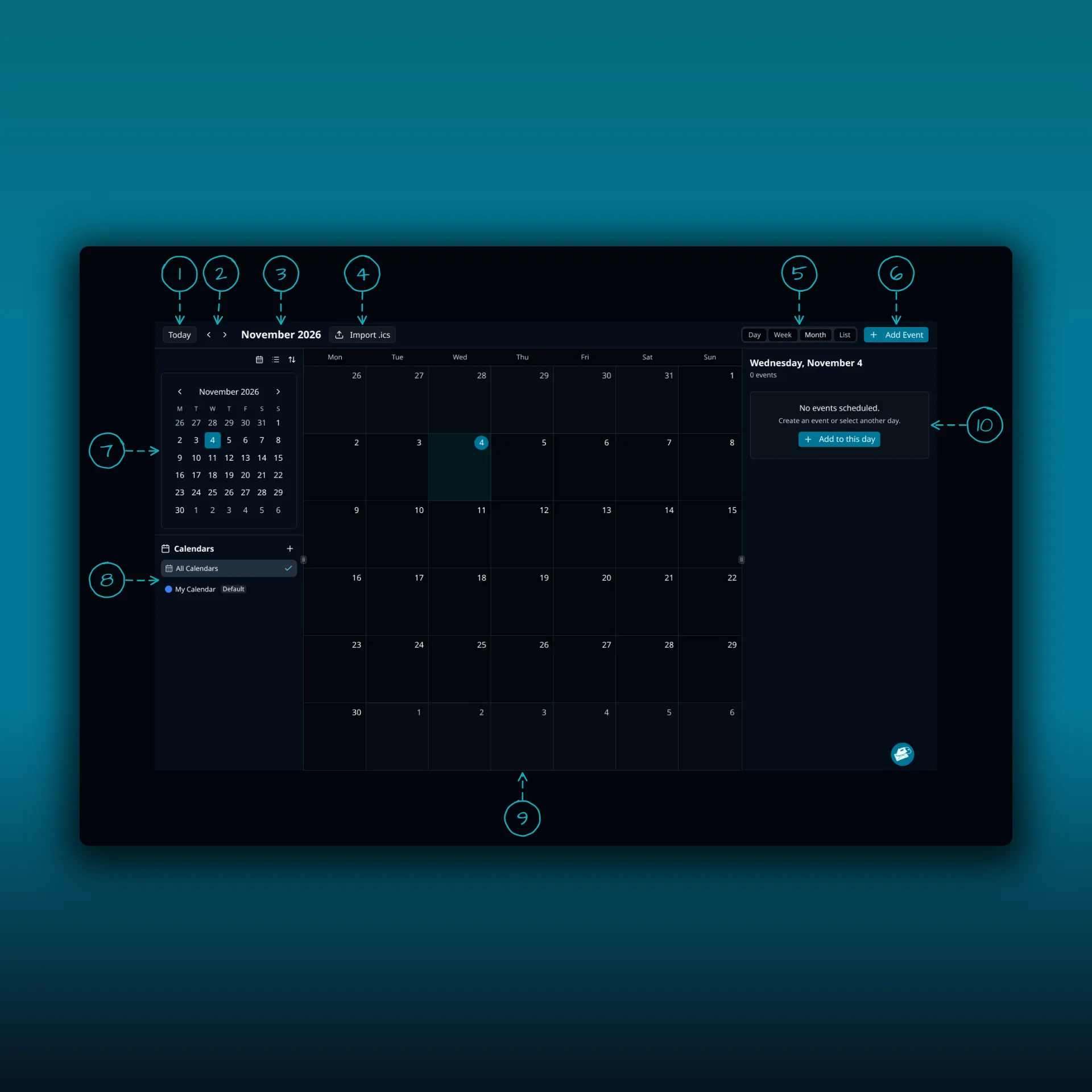
- Today. Jumps back to the current date.
- The previous and next arrows. They move one month at a time.
- The month and year you are looking at.
- Import .ics. Brings events in from a calendar file.
- The view buttons: Day, Week, Month and List.
- Add Event. Opens the new event form.
- The small month calendar on the left. Click a day to select it.
- Calendars. The plus button adds a calendar. Each calendar has a color, and the default one carries a Default badge.
- The month grid.
- The panel for the selected day. It lists that day’s events, or says “No events scheduled.” with an Add to this day button.
You can keep several calendars with separate colors and choose a default for new events.
Create an event
Press Add Event, or use Add to this day. The form opens.
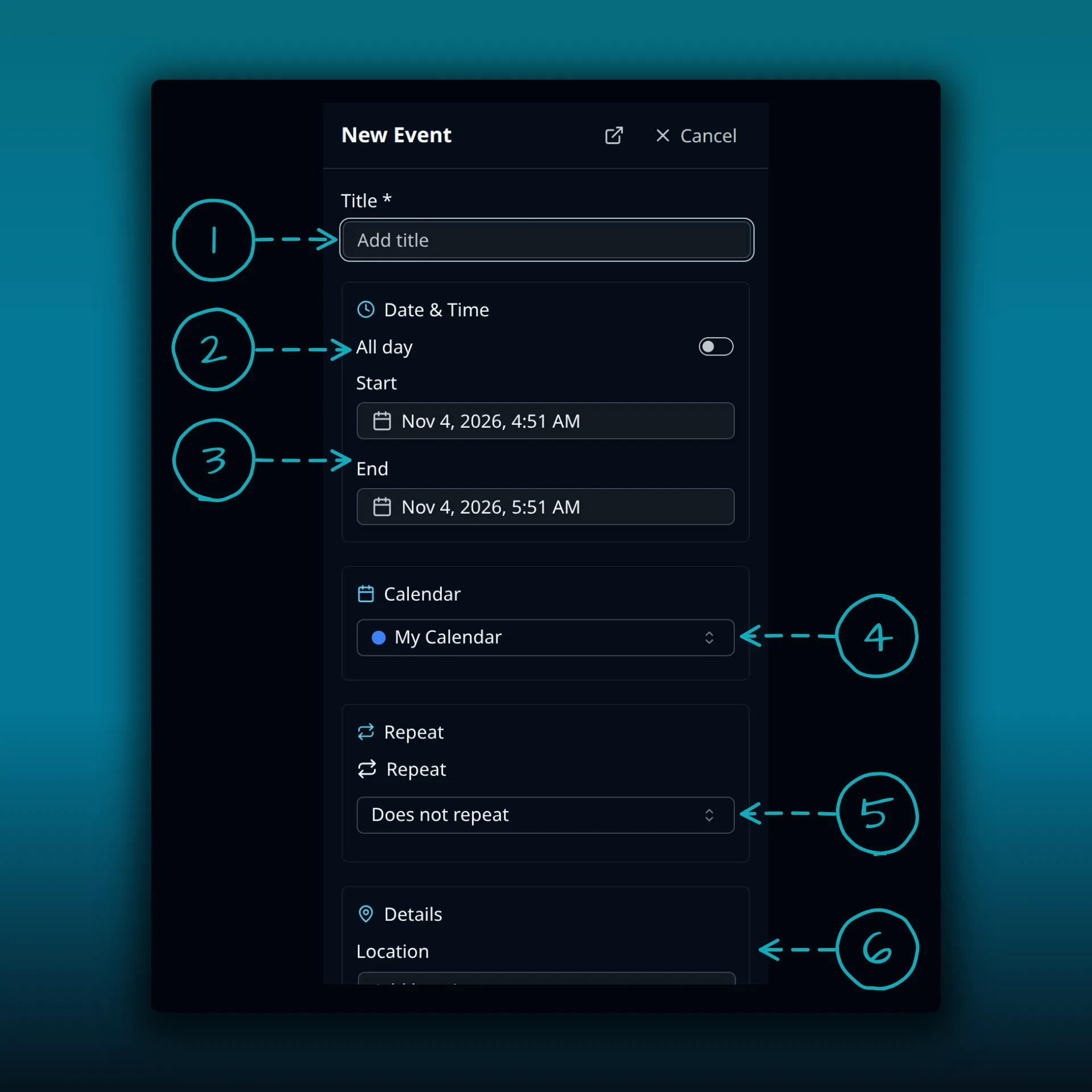
- Title. The only required field.
- All day. Switch it on for an event with no start time.
- Start and End. Each has a date and a time.
- Calendar. Pick which of your calendars gets the event.
- Repeat. The default is “Does not repeat”.
- Details. Location comes first, with more fields below it.
You can also set a timezone, add notes, guests and reminders, and choose whether to send email invitations. Save the event, then open it in the calendar to check the details. The end time has to come after the start time, or the form will not save.
Creating an event from a message’s details does not keep a link back to the original conversation.
Repeat an event
Choose a repeat pattern in the Repeat field. Repeating events support the usual recurrence settings: how often, the interval, the weekdays, the days of the month, a count and an end date. After you save or import a repeating series, look at the next occurrence. Check it again around a daylight-saving change, because that is where a time can shift.
Invitations and replies
If Send email invitations to guests is selected, PressedMail sends calendar invitations by email. Changes to the event can prompt you to notify the guests. Sending an invitation needs a working outgoing mailbox connection. If your mailbox cannot send, start with the delivery troubleshooting guide.
An invitation is still an email, so a successful send does not prove every guest received it.
Incoming invitation banners offer Add to calendar. That saves the event in your local calendar. It is not an accept, a decline or a tentative reply. PressedMail has no RSVP controls, and an attendee’s reply does not update attendance on your event.
Import an ICS file
Use Import .ics in the calendar toolbar. Pick a destination calendar and look at the event preview before you save. The parser accepts standard ICS data, the format defined in RFC 5545, including the Windows and Exchange timezone names it supports.
There are size limits. An uploaded calendar file can be up to 10 MiB, and a calendar file attached to a message up to 1 MiB. A larger file has to be reduced or imported with another tool. Export from your old calendar as an ICS file first, and keep a copy of the original.
After the import, check the events that matter most. Look at the times, the repeating series and anything that appears twice. Do not import the same file again to fix a problem before you have looked at what the first import did.
When events are missing or odd
Check four things in order: the selected calendar, the date range you are viewing, the timezone, and the import result. Do not expect a change made in Google Calendar or Outlook to appear. Provider sync is not part of this calendar.
If a guest says they got nothing, look at the mailbox the invitation left through, and at the guest’s spam folder. The post on checking whether WordPress email was sent shows how to confirm a send.
Sharing a calendar
On Ultimate and Lifetime you can share a calendar with teammates as a Viewer or an Editor. An Editor can add, change and delete events. Invitations and cancellations still go out from the calendar’s owner. The sharing guide covers roles for every kind of item. If you also keep contacts, the contacts guide shows how to import them.
Which plan do I need?
The calendar needs a paid plan. Free does not include it. The plan comparison lists what each plan adds.
Frequently asked questions
Does the PressedMail calendar sync with Google Calendar or Outlook?
No. It is local to WordPress. Export from the other calendar as an ICS file and import it.
Can I accept or decline an invitation?
No. Add to calendar saves the event locally. PressedMail has no accept, decline or tentative controls.
How big can an ICS file be?
An uploaded file can be up to 10 MiB, and a file attached to a message up to 1 MiB.
Is there a year view?
No. Use Day, Week, Month or List.
Will an imported event update when the original changes?
No. An import saves a copy in your calendar. Later changes in the source calendar do not reach it.
Manage your email inside WordPress
PressedMail Free adds an email client directly to your WordPress dashboard. Connect a compatible IMAP/SMTP mailbox, read and send mail, organize messages, and configure WordPress SMTP.

