

A passing Test Connection is good news, but it is not a delivered message. Plenty of mail that connects cleanly still fails when you press Send. This post sorts the likely causes from the cheapest to check to the most awkward, and tells you what to do about the message you were sending.
What the test proves
On the Server settings step of a custom account, PressedMail asks for an IMAP server on the left and an SMTP server on the right. The Test connection button checks those settings before the account is added to your inbox.
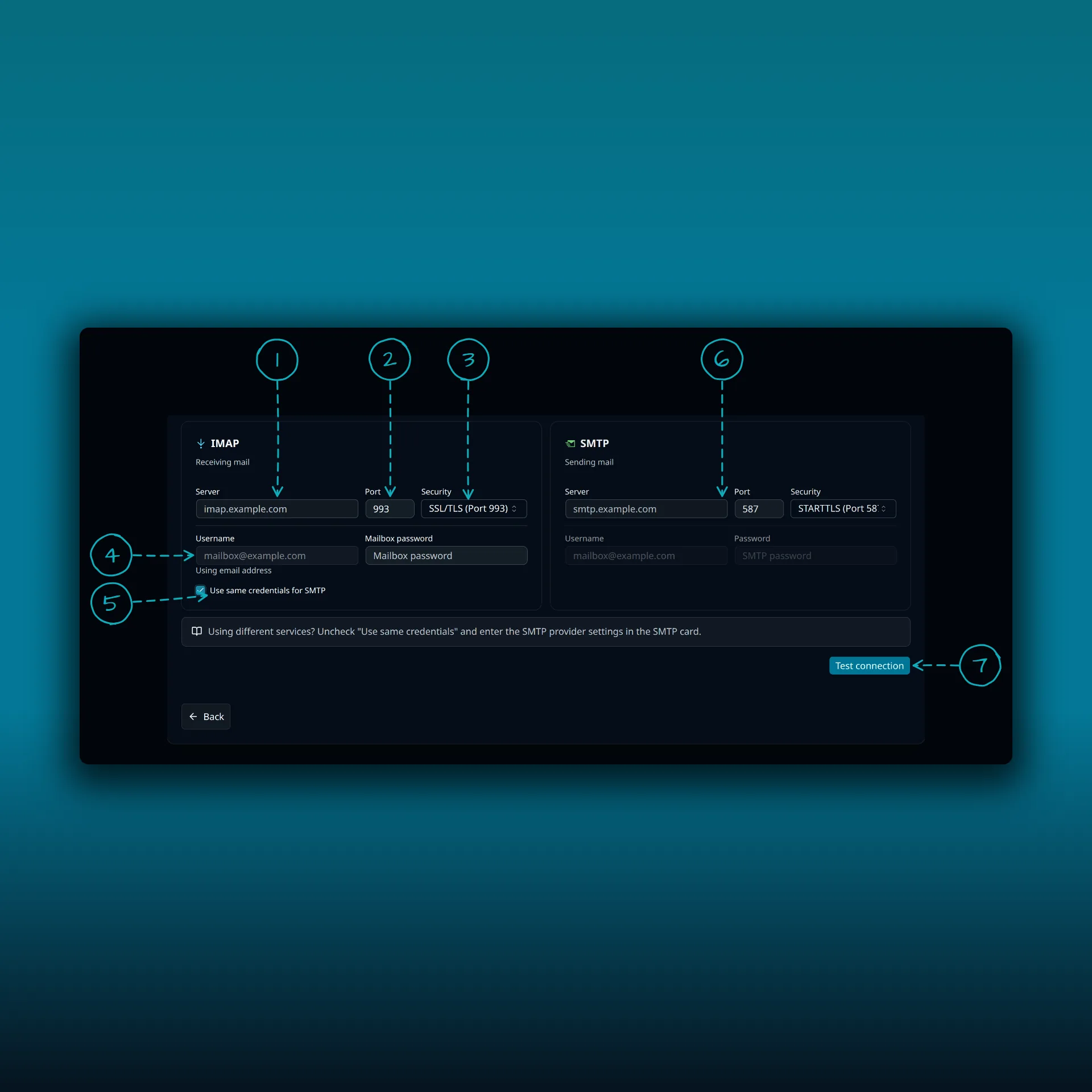
- IMAP server. Incoming mail.
- IMAP port.
- IMAP security.
- Username and mailbox password.
- Use same credentials for SMTP. Untick it when sending uses a different login.
- SMTP server, port and security. Outgoing mail has its own settings.
- Test connection.
The values are placeholders on example.com.
A passing test says the connection settings and the login worked at that moment. A real send adds things the test never touched: the sender address on the message, its recipients, its size and the provider’s sending limits. A mailbox can read mail over IMAP while its SMTP side is blocked, so a working inbox proves nothing about sending. The IMAP and SMTP explainer covers why the two are separate.
Start with the message you were sending
Before you change any setting, save the draft and copy the error text. Do not retry yet.
If the failure looked like a timeout, the provider may have accepted the message even though the answer never reached PressedMail. Open the provider’s Sent folder, either in PressedMail or in webmail, and ask the recipient whether it arrived. A second send can create a duplicate if the first one went through.
The checks, in order
Work down the list and stop when something changes.
- The From address. Send from the mailbox you connected, with the address the provider allows. Many providers reject a message whose From address is not one of the account’s own. The From account selector in the composer shows which mailbox is sending.
- The SMTP settings. Compare the host, port and security with the provider’s own documentation. Port 465 normally pairs with SSL/TLS and port 587 with STARTTLS. Those pairings come from the standards: RFC 6409 defines 587 as the message submission port, and RFC 8314 recommends TLS from the first byte, which is what port 465 does. A secure setting that does not match the port is a common cause of a send that hangs.
- The login. If you ticked Use same credentials for SMTP, the IMAP username and password are used for sending too. Some providers use a different login for sending, and some require an app password. Untick the box and enter the SMTP login separately if the provider says so.
- Attachments. Providers cap the size of a message. Try the same message without the attachment, or with a smaller one.
- Sending limits. New or busy accounts hit hourly and daily caps. A provider may refuse mail for a while after a burst. Wait, then try a single short message.
- The recipient. Send a short plain-text message to a second address you control. If that works and the original does not, the content or the recipient is the problem, not the connection.
The delivery troubleshooting guide gives the same order for mail WordPress itself sends, and the first-run walkthrough shows a clean send and reply to compare against.
Read the error before you guess
Failures fall into categories, and the category tells you where to look.
| What the error says | Check next |
|---|---|
| Hostname or connection failure | The SMTP host, the port and whether the server can reach the provider |
| Certificate or TLS failure | The security setting and the port pairing |
| Authentication failure | The username, the password and whether an app password is required |
| The sender or recipient was rejected | The From address and the provider’s policy |
These are categories, not exact wording. Every server phrases them differently. Keep the actual message when you ask for help, and remove passwords and unrelated personal data first.
When it is not the mailbox at all
PressedMail has a second sending path that has nothing to do with your mailbox. Password resets, form notifications and shop receipts go through WordPress’s own mail, set up under Settings, WordPress Email. If those fail while your inbox sends fine, the cause is on that side.
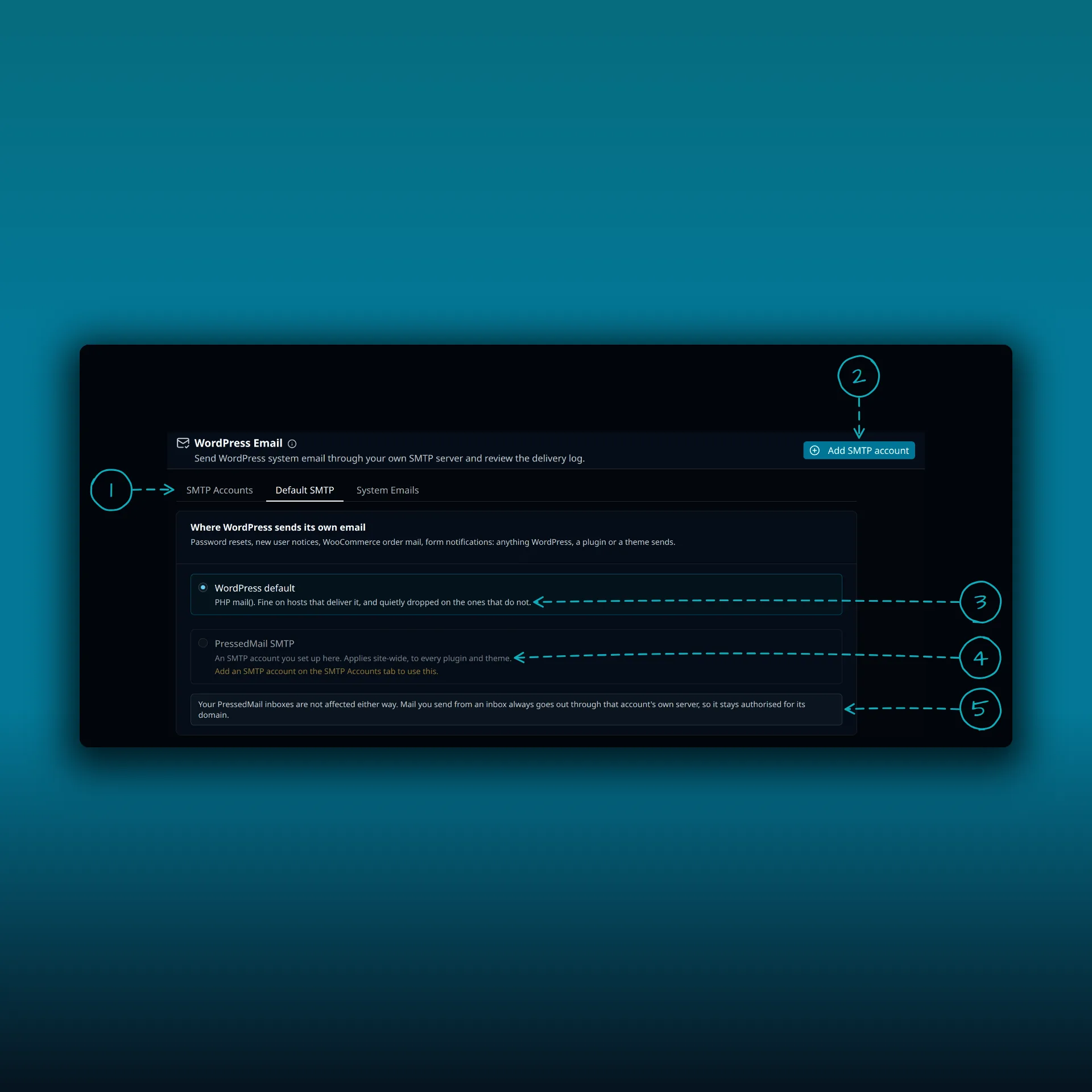
- The tabs. Pro shows SMTP Accounts, Default SMTP and System Emails. Free shows System Emails and Mail servers.
- Add SMTP account. The Free button reads Add mail server.
- WordPress default, which sends through PHP mail().
- PressedMail SMTP, which sends through the SMTP account you set up.
- A note that your PressedMail inboxes are not affected either way.
The screenshot is from a paid build.
The WordPress SMTP guide shows the setup and the SMTP testing guide shows how to test it.
When to ask for help
Ask your provider or host when the error names a policy, a limit or a blocked port. Give them the time of the failure, the SMTP host and port you used and the error with secrets removed. If you suspect the server blocks outgoing mail ports, say so. No setting in PressedMail can change that.
Frequently asked questions
Test Connection passed. Why did the send fail?
The test checks the connection settings. A send also depends on the From address, the recipients, the message size and the provider’s limits.
Can I receive mail while sending is blocked?
Yes. IMAP and SMTP are separate connections, so reading can work while SMTP is blocked.
Should I retry right away?
Not after a timeout. Check the Sent folder and the recipient first, because the provider may have accepted the first send.
Does this affect my site’s password reset emails?
Not directly. They use the WordPress Email setting, not your mailbox.
Manage your email inside WordPress
PressedMail Free adds an email client directly to your WordPress dashboard. Connect a compatible IMAP/SMTP mailbox, read and send mail, organize messages, and configure WordPress SMTP.

