

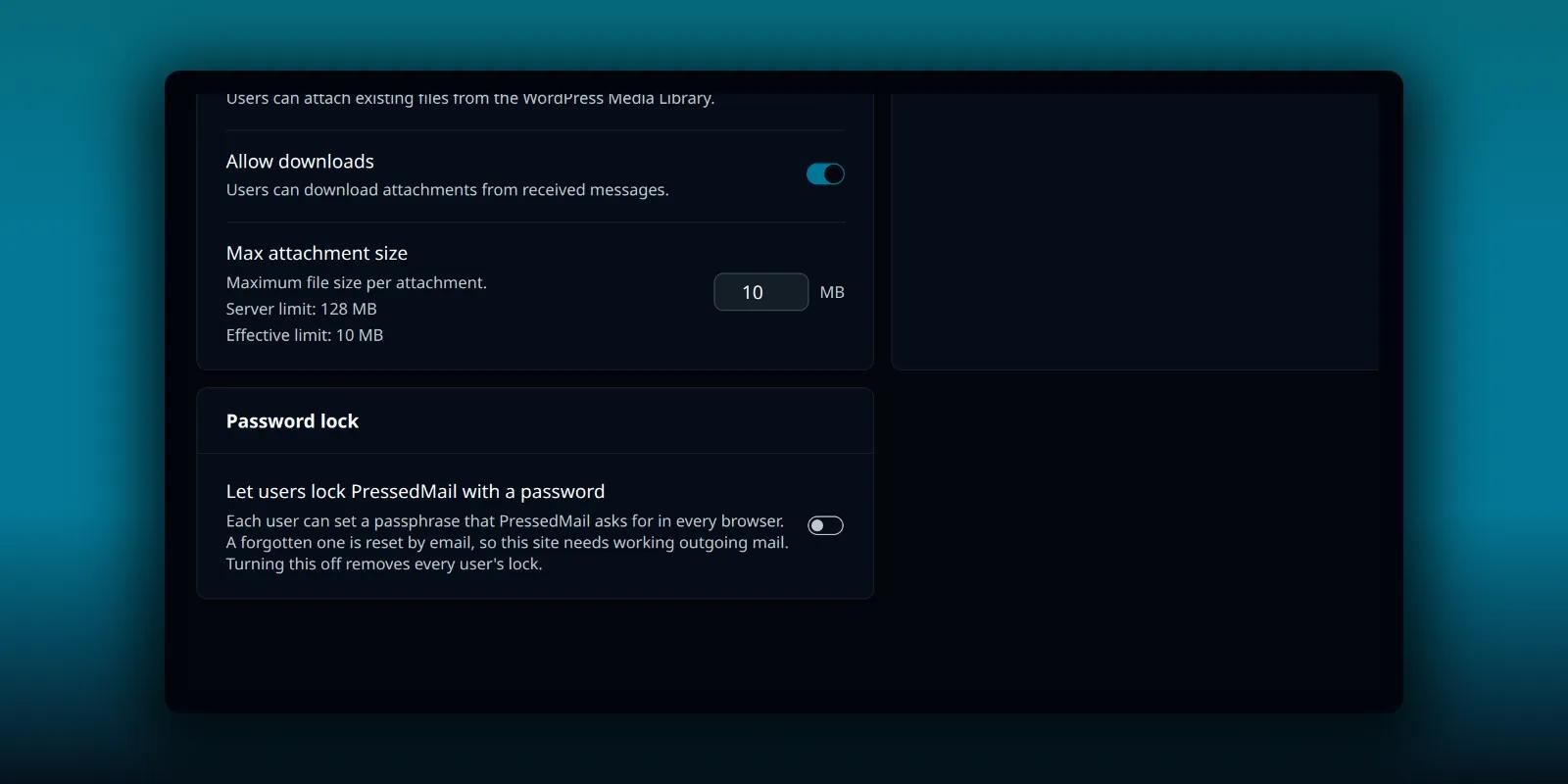
A mailbox inside WordPress is only as private as the login in front of it. If someone walks up to your unlocked laptop, or an administrator switches into your account, they can read your mail. The PressedMail Lock adds a passphrase check before anyone can open the mailbox. Impersonation protection separately blocks a detected user-switching session.
Both are in every build, Free and paid. This guide covers turning the lock on, how unlocking works, what to do if you forget the passphrase, and what the lock does not stop.
Who turns it on
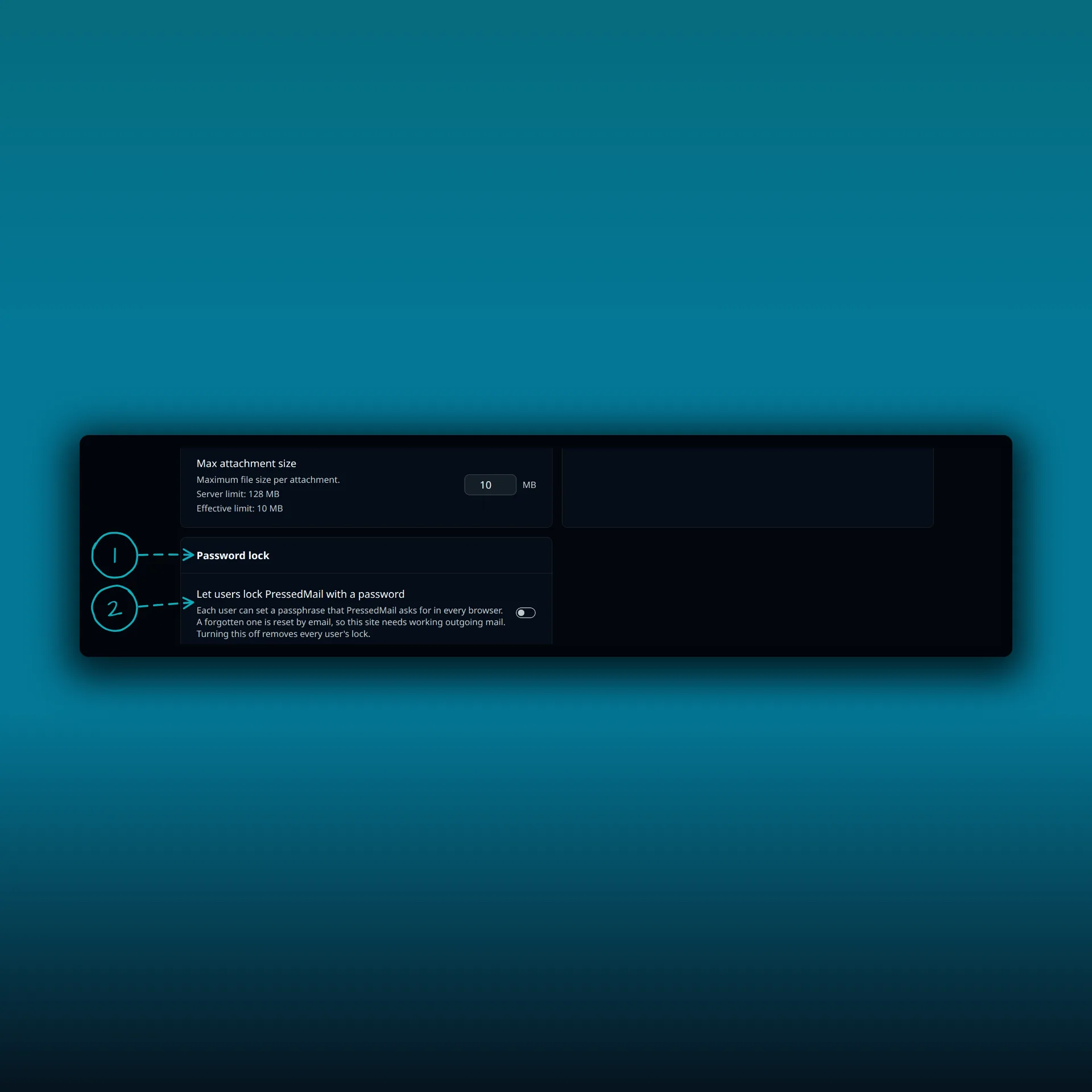
An administrator decides whether the lock is offered. The setting is “Let users lock PressedMail with a password” under Settings, Access Control. It is off on a new site. Turning it off again removes every user’s lock and hides the lock settings.
- Password lock.
- Let users lock PressedMail with a password. The switch is off on a new site. The note under it says each user can set a passphrase PressedMail asks for in every browser, that a forgotten one is reset by email so the site needs working outgoing mail, and that turning the switch off removes every user’s lock.
A forgotten passphrase is reset by email, so the site also needs WordPress email going out through a working SMTP server before anyone can set one. That is configured in Settings, WordPress Email. If WordPress mail does not leave your server yet, start with the WordPress SMTP guide.
Turn the lock on
Once the administrator offers it, open your security settings and turn it on with a passphrase of at least eight characters. Your WordPress password is refused as a passphrase. From then on, PressedMail answers with a “locked” response until this browser is unlocked.
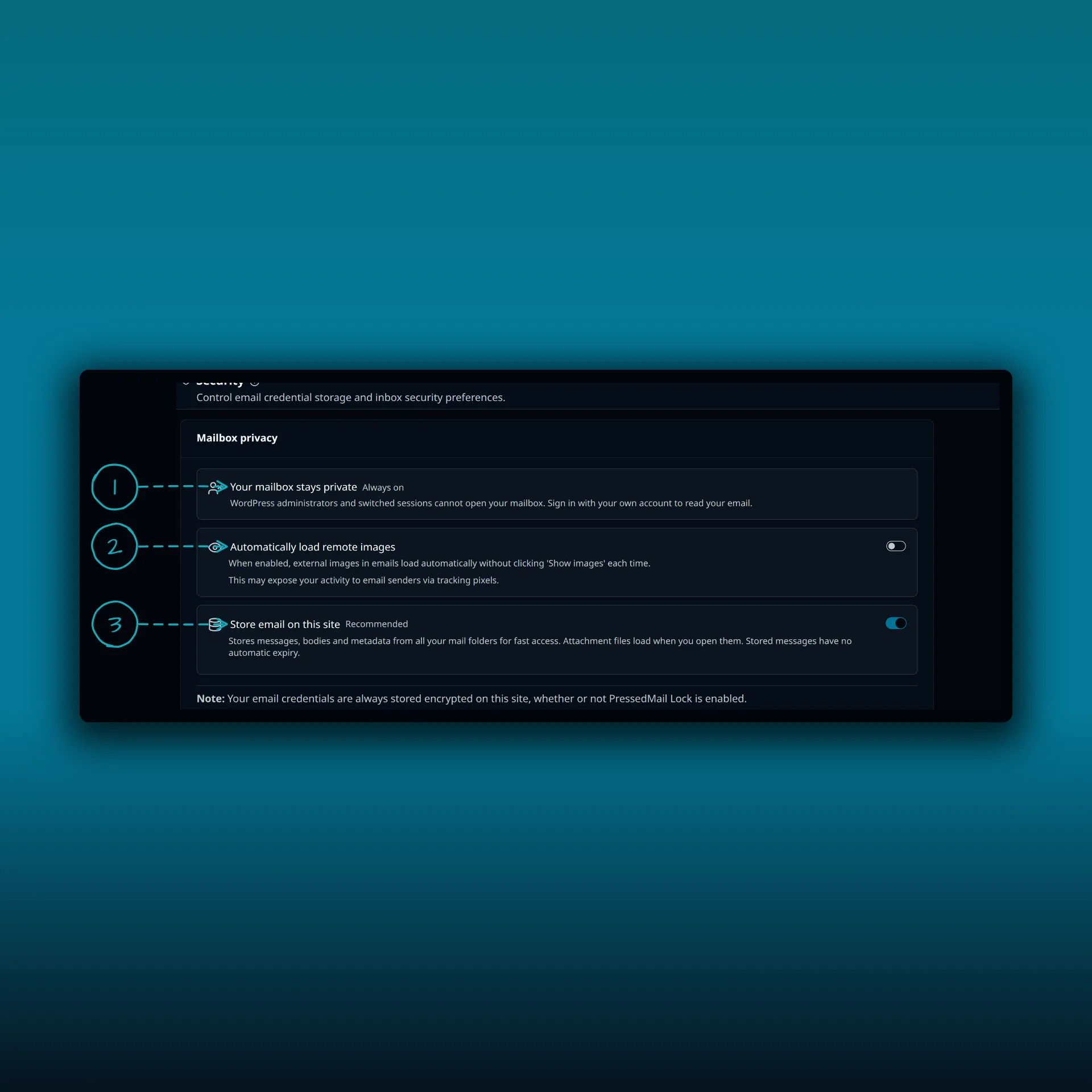
- Your mailbox stays private. This is always on. WordPress administrators and switched sessions cannot open your mailbox.
- Automatically load remote images.
- Store email on this site.
On this site the administrator has not offered the lock, so the page shows mailbox privacy only. When the lock is offered, its settings are part of your security settings.
Pick an inactivity timeout while you are there. The choices are never, 15 minutes, 30 minutes, 1 hour or 4 hours. If you change it later, the new value applies to every session at once, because expiry is checked when the mailbox is used.
Unlocking is per browser
Unlocking one machine does not unlock the rest. PressedMail sets its own random cookie and stores a hash of that value against your user record. A different browser has a different cookie, so it has no unlock. Logging out drops the cookie, which locks the mailbox again.
PressedMail stores a password hash and the unlock timestamps. It does not store the passphrase, the raw cookie value or anything from your WordPress session. Up to twenty unlocks are kept, and ordinary use slides the expiry on the current one.
Lock again
- Lock now locks this browser.
- Lock all sessions locks every browser at once. It needs no passphrase, because locking is always the safe direction.
- Change passphrase needs the current one, ends every unlock, and then unlocks only the browser you are sitting at.
- Turn off needs the passphrase.
If you forget the passphrase
On the lock screen, choose Forgot your passphrase. Confirm your WordPress password and pick one of your own connected email addresses. PressedMail emails a link there. Open it within 30 minutes, in a browser where you are signed in to WordPress as yourself. The lock then switches off, and you can set a new passphrase. The link works once.
Nothing in PressedMail is encrypted under the passphrase, so a reset loses no mail. A switched-in session can never request or use a reset link.
Guessing is slow
Five failed attempts start a lockout. It grows with each further failure, from 60 seconds up to a 15-minute ceiling. It is stored against your user, not the request, so trying from somewhere else does not reset it. After a lockout ends, the next failure starts a fresh count, so one later typo is one try. Wrong WordPress passwords on the forgot screen keep a count of their own, which means a passphrase lockout never blocks the way out.
Background work keeps running
The lock guards interactive access, not the server. Mailbox sync, scheduled sends and rules run in a trusted context for the mailbox owner. Your mailbox keeps filling while you are locked out of looking at it, and unlocking shows mail that is already there. The post on late snoozes and scheduled sends explains how background tasks run.
Impersonation protection
Some people use the User Switching plugin to act as another user. PressedMail detects that, through the plugin’s own helper and through the switch actions on the request. When it sees one, mail access for that user is refused.
The setting lives on your user record, and a missing value reads as protected, so a new user is covered without doing anything. Turning protection off is an explicit choice. Even then, the security settings stay out of reach of a switched session, so nobody can switch in and flip the toggle from underneath you.
Neither feature protects against an administrator who directly controls the server, the database or the plugin code. They close the easy routes, and they do not replace the care you take with administrator access.
Locks and shared mailboxes
On Ultimate you can share a mailbox, a calendar or a contact list. Each person answers to their own lock, and nobody else’s. If you lock your browser, the teammates you shared with keep working. A teammate with a lock of their own unlocks it before they can open your shared mailbox. To cut someone off, remove them from the share. The sharing guide covers that.
Where this fits
The lock is one layer. Remote images, links and attachments have their own controls, covered in the post on securing email display inside WordPress. Your mail credentials are stored encrypted on the site whether or not the lock is on, and the guide to where PressedMail keeps your mail explains how.
Frequently asked questions
Is the lock only in the paid plans?
No. The lock and impersonation protection are in Free and in every paid edition.
Does unlocking on my laptop unlock my phone?
No. Unlocking is per browser. Each one needs the passphrase.
What if I forget the passphrase?
Use Forgot your passphrase on the lock screen. PressedMail emails a one-time link, valid for 30 minutes, to one of your connected addresses.
Will locking stop mail from arriving?
No. Sync, scheduled sends and rules keep running while the mailbox is locked.
Can an administrator read my mail with the lock on?
Not through PressedMail. The Security page says WordPress administrators and switched sessions cannot open your mailbox, and the lock adds a passphrase on top. An administrator with direct control of the server, database or plugin code is outside what the plugin can protect against.
Manage your email inside WordPress
PressedMail Free adds an email client directly to your WordPress dashboard. Connect a compatible IMAP/SMTP mailbox, read and send mail, organize messages, and configure WordPress SMTP.

