

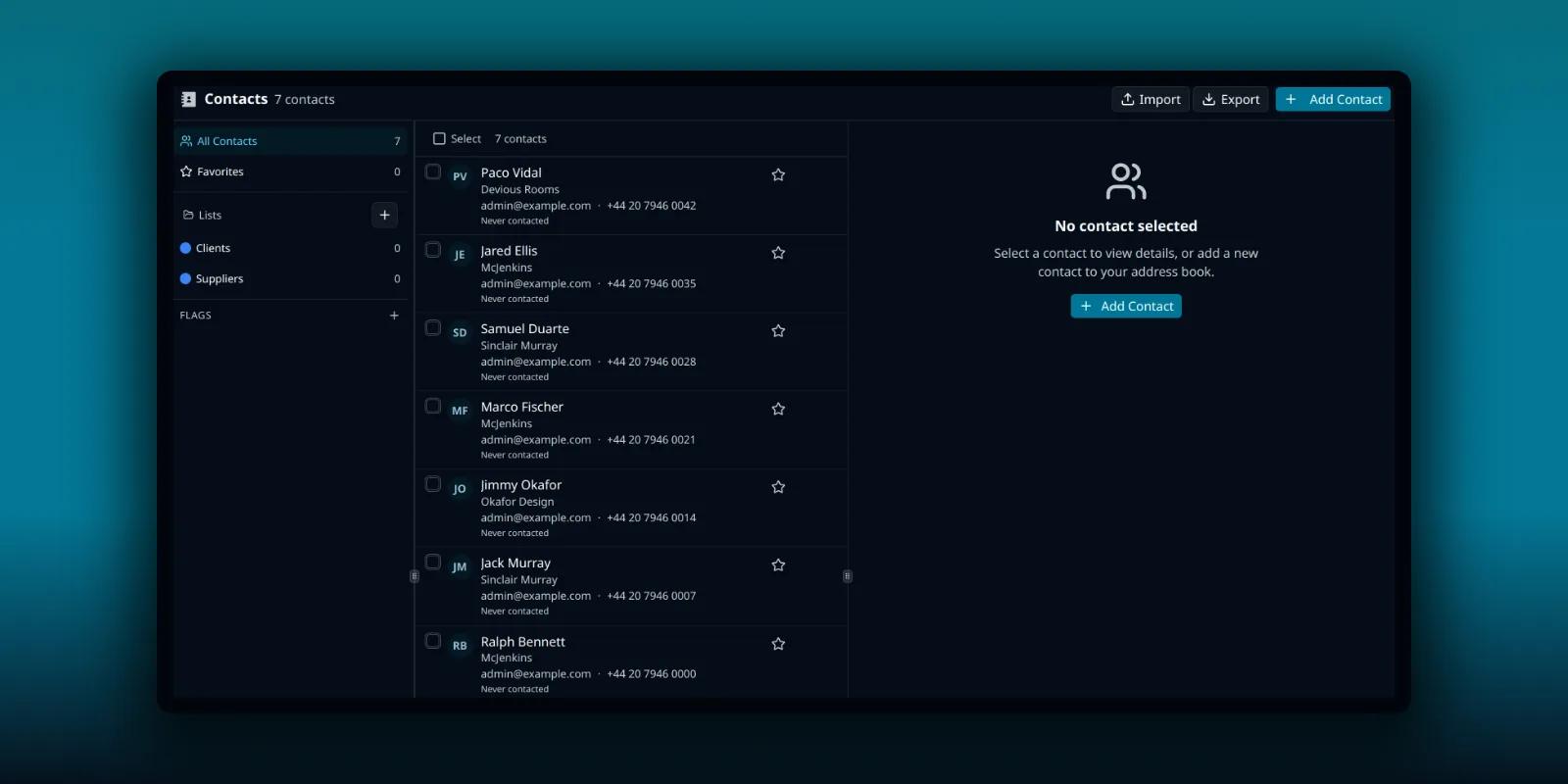
PressedMail keeps an address book inside WordPress. You can add people one at a time, bring in a file from another program, group them into lists and send to a list. This guide covers each step and the rules about who a list send actually reaches, which is where most mistakes happen.
Contacts are a paid feature. They are stored in your WordPress database. They do not sync with Google Contacts, a Microsoft address book or any other provider. Connecting a mailbox does not bring its contacts across, so an import file is how you move them.
Open Contacts
Contacts is the second icon in the workspace header. On a phone, use the Contacts tab. The screen has a left column that groups your contacts, the list itself, and a pane on the right that shows one contact or the add form.
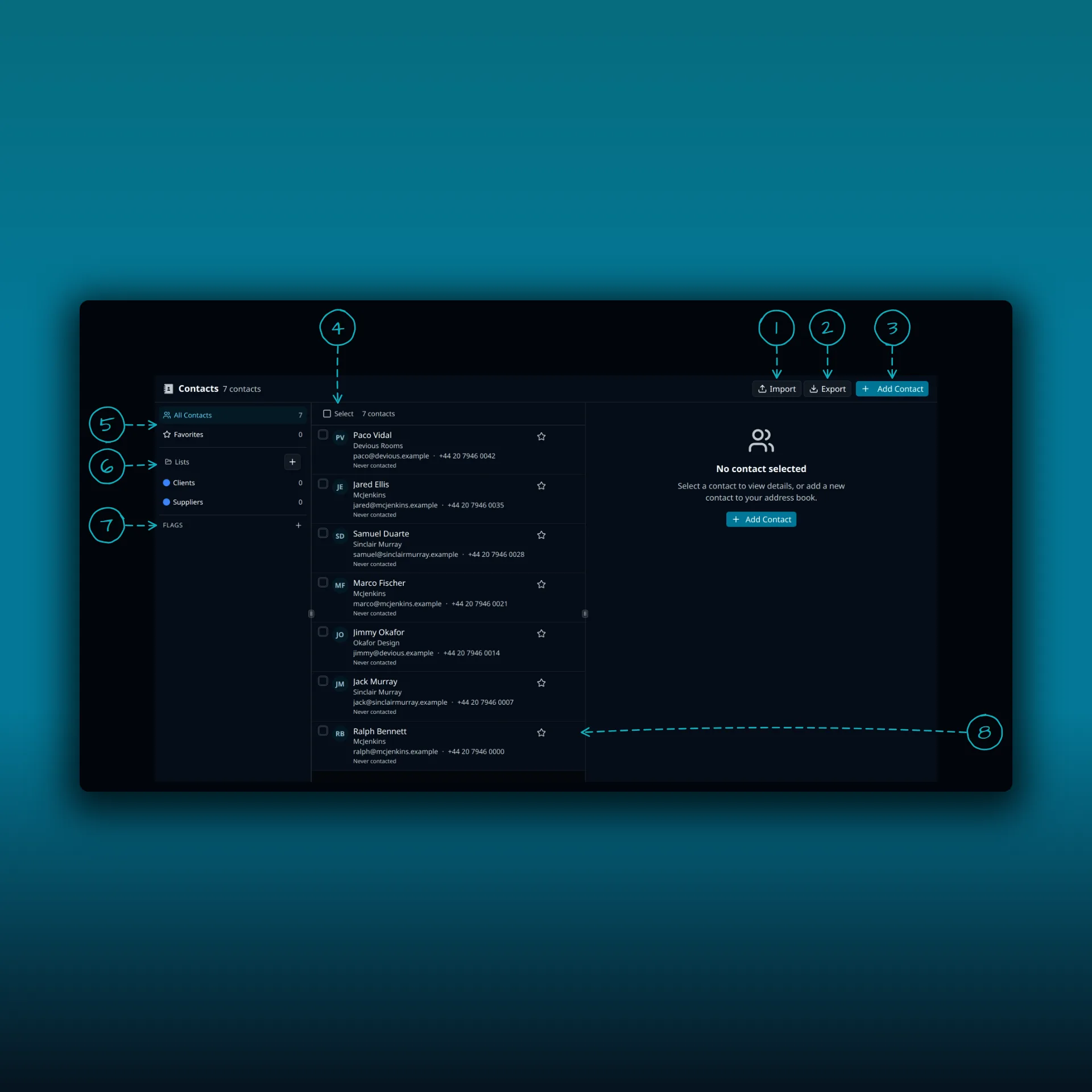
- Import. Brings contacts in from a file.
- Export. Saves your contacts to a file.
- Add Contact. Opens the add form in the right pane.
- Select contacts. Turns on selection so you can tick several rows.
- All Contacts and Favorites. The number on each is how many contacts it holds.
- Lists. The plus button beside the heading creates a new list.
- Flags. The plus button adds a flag, a short label you can put on any contact.
- The buttons at the right end of a row: add to favorites, send email and more actions.
Add one contact
Press Add Contact. Email is the only required field. First name, last name, company, job title, phone and website follow, and Additional Information expands to show more. In the form you can pick the lists the contact should join and set a flag.
You can also start from an open message. Use the contact action on the message and PressedMail starts the form from the sender’s details. Check them before you save, because opening a message does not create a contact by itself.
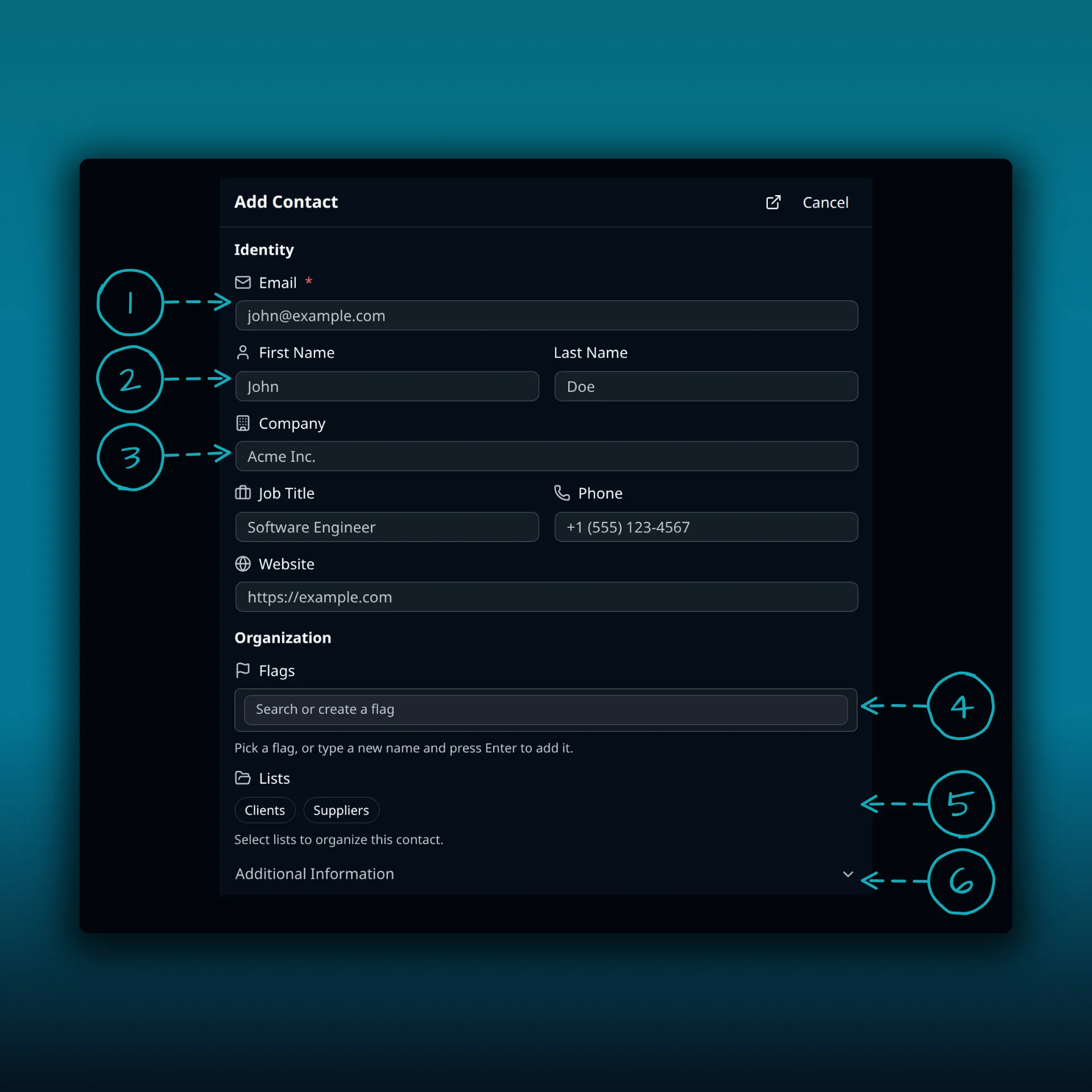
- Email. The only required field.
- First Name and Last Name.
- Company. Job Title, Phone and Website follow it.
- Flags. Pick a flag, or type a new name and press Enter to add it.
- Lists. Tick the lists the contact should join.
- Additional Information, which expands to show more fields.
A flag is a label such as “vip” or “prospect”. Pick one in the Flags field or type a new name. The Flags list below your lists filters the address book by flag.
Import an address book
Export the source address book as CSV or vCard first (vCard is defined in RFC 6350), and keep a copy of the original file. Then use Import.
- Open the import action and choose the format that matches your file.
- Select the file and import it.
- Review the imported names and addresses before you use them as recipients.
The importer does not show the preview that the calendar importer has. Check the file before you import. If its columns are unfamiliar, start with a small sample, then import the full file. Do not import the full file over and over to fix mistakes.
Export contacts
Choose Export and pick CSV or vCard. You can export selected contacts, a list, or a broader selection. Confirm the scope before you download. The file holds personal data, so keep it where only the right people can open it, especially when you are moving a client’s contacts from one site to another.
Build lists
A list groups contacts by project, client or team. A contact can belong to more than one list. Use the plus button beside Lists to create one, then add contacts from the add form or from a contact’s details.
Open a contact and the right pane shows Details and Activity. Details lists the contact information, the lists the contact belongs to and the metadata, including when you last contacted them and their status.
Who a list send reaches
This is the part to understand before you send. On each list, a contact is Subscribed, Pending or Unsubscribed. With a list selected, the contact card shows that state, and the toolbar has buttons for All, Subscribed, Pending and Unsubscribed members.
A list send reaches members who are Subscribed and can be mailed. Subscribed alone is not enough.
- Subscribed members get the send, with two conditions. The contact’s status in its details cannot be unsubscribed, bounced or pending, and the address has to be valid. A status of inactive is still mailed.
- Pending members signed up with double opt-in and have not confirmed yet. They are skipped until they do.
- Unsubscribed members opted out. They stay on the list but are skipped, and adding them back to the list does not undo the opt-out.
The sidebar shows each list’s member count, or something like 3/5 when some members are not subscribed. Hover it for “3 subscribed of 5 members”. That is the list state only, so a bounced contact still counts as subscribed. For the number that will really be mailed, add the list as a recipient in the composer. It shows how many will be mailed.
Fill a list from your site
A signup form on your website adds visitors to the one list you pick. With Campaigns, which need an Ultimate licence, the form can ask people to confirm by email first. On Ultimate and Lifetime you can also share a list with other people on the site, as a Viewer or an Editor. The post on sharing with your team covers roles.
What to check afterwards
Open a few imported contacts and compare them with the source file. Check that the lists look right and that nobody who opted out is subscribed. Events you invite contacts to live in the calendar, which is also local to WordPress. Then see how recipient suggestions look in the composer. Paid recipient suggestions can use your contacts while you write. Verify the address, not only the display name, before you send. The post on using several mailboxes in one inbox shows how the From account is chosen.
Which plan do I need?
Contacts need a paid plan. Free does not include them. The plan comparison lists what each plan adds.
Frequently asked questions
Do my Gmail or Outlook contacts appear automatically?
No. Contacts are local to WordPress and do not sync with a provider. Export from the provider and import the file.
Which file formats can I import and export?
CSV and vCard.
Will an unsubscribed contact get a list send?
No. They stay on the list but are skipped. Adding them back to the list does not change that.
Why is the number in the sidebar higher than the number mailed?
The sidebar counts the list state only. A bounced contact still counts as subscribed there. The composer shows the number that will really be mailed.
Can a teammate edit my list?
On Ultimate and Lifetime, you can share a list. An Editor can add people and change some of their details, but cannot change a member’s email address.
Manage your email inside WordPress
PressedMail Free adds an email client directly to your WordPress dashboard. Connect a compatible IMAP/SMTP mailbox, read and send mail, organize messages, and configure WordPress SMTP.

