

A WordPress site often has more people on it than should have a mailbox in the dashboard. Editors, authors and subscribers all have accounts, and PressedMail sits inside the same admin. So who gets to open it?
Two tabs in Access Control answer that. The Roles tab lets you allow whole WordPress roles. The Users tab sets one person at a time and wins over the role. Both are for administrators, and both live in builds that more than one person can use.
Start with roles
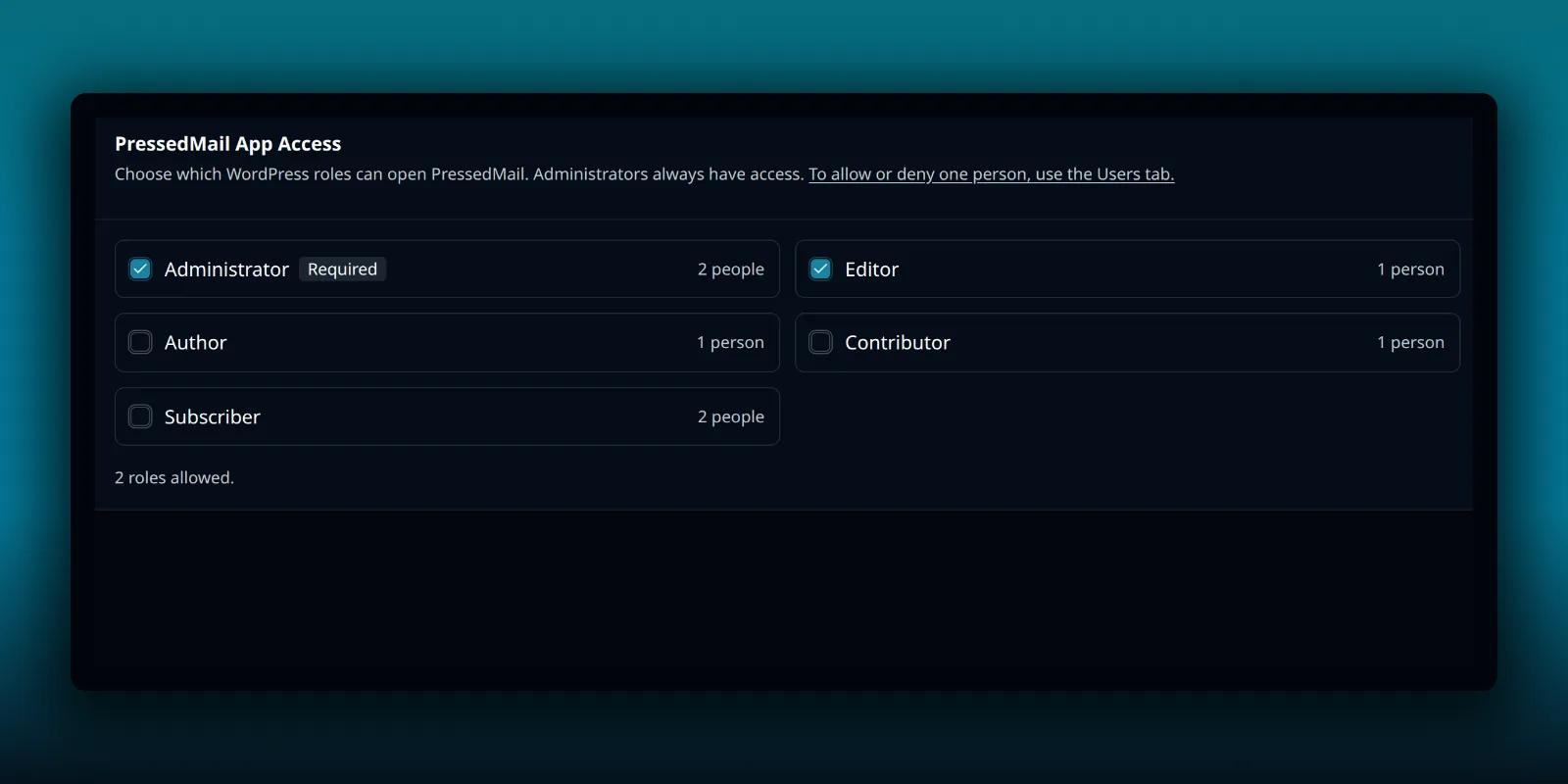
Open PressedMail, then Settings, then Access Control, then Roles. The card is called PressedMail App Access, and the line under it reads: choose which WordPress roles can open PressedMail, and administrators always have access.
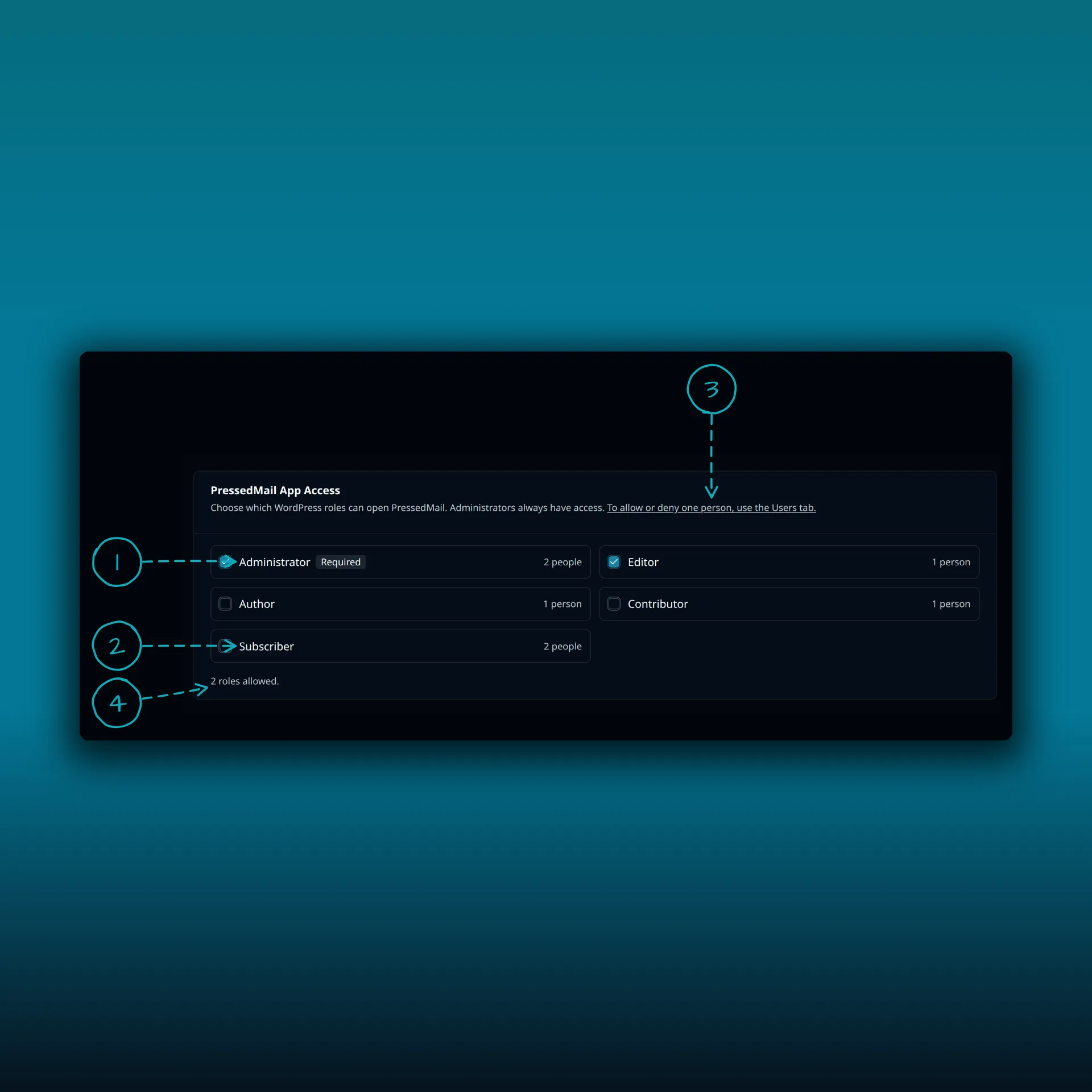
- Administrator, marked Required. It is always allowed, so you cannot turn it off.
- A role that is turned off. Each role shows how many people it holds, and Subscriber here holds two.
- A link to the Users tab, for allowing or denying one person.
- A summary of how many roles are allowed.
Tick the roles whose people should be able to open PressedMail. On this demo site two roles are allowed, Administrator and Editor, and the rest are not.
A role can also carry a note: its people cannot read this site, so it lets no one in. PressedMail needs the person to have the WordPress read capability, and a role without it cannot open the app no matter how you tick it. The WordPress handbook on roles and capabilities explains how capabilities attach to roles.
Then make exceptions by person
The Users tab is titled Who can open PressedMail. Each person has three choices:
- Allow lets them in whatever their role says.
- Deny keeps them out whatever their role says.
- Inherit follows their role. This is the starting point for everyone.
The tab says it directly. Allow or Deny beats a person’s role, and Inherit follows it. Administrators always have access.
Under each name, the tab tells you why that person can or cannot open PressedMail: Administrator, Allowed for this user, Denied for this user, a Role line naming the role that lets them in, Role not allowed, No role on this site, or Needs a role with read access. You can search by name or email, filter by role, and filter by Can open, No access or Any access. A filter at the top shows who is Allowed by name, Denied by name or following their role.
The Users tab lists real people and their addresses. That is why this guide shows the Roles tab only, and does not include a screenshot of the Users tab.
A common pattern follows from the rules. To let one author in without opening the whole Author role, leave the role off and set that author to Allow. To keep one editor out while the Editor role stays on, set that editor to Deny.
What happens to someone who loses access
When a change would take access away from someone, PressedMail asks first. The warning names how many people could lose access. It counts everyone in the roles you turned off, then reminds you that anyone with another way in, such as another role or an Allow, keeps access. You see this before anything is saved.
The confirmation lists what stops while a person has no access:
- Mailbox sync and scheduled emails wait, then go out late once you allow access again.
- Rules, auto-replies, API keys, webhooks and bulk actions stop.
- Anything they share is hidden.
- Notifications they miss are not kept. The notifications guide explains what the bell does for people who do have access.
Nothing in that list deletes their mail. It describes work that pauses or stops. If you restore access, sync and scheduled sends resume, and the sends go out late. The guide to snoozing and scheduling explains how timed sends behave when they run behind.
Who sees these tabs
Only administrators can open Roles and Users. The routes behind them check the same permission, so a person who can edit some other settings but is not an administrator would not see them.
A Free build has one seat, so there is nobody to choose between. The mailbox belongs to its owner, and the Roles and Users tabs are not part of that build. They appear on paid builds where more than one person can use PressedMail. The plan guide lists what each edition adds.
How this fits with other controls
App access is the door to PressedMail. It does not choose which mailboxes someone sees once they are inside. Sharing a mailbox with a teammate is a different action, covered in the sharing guide.
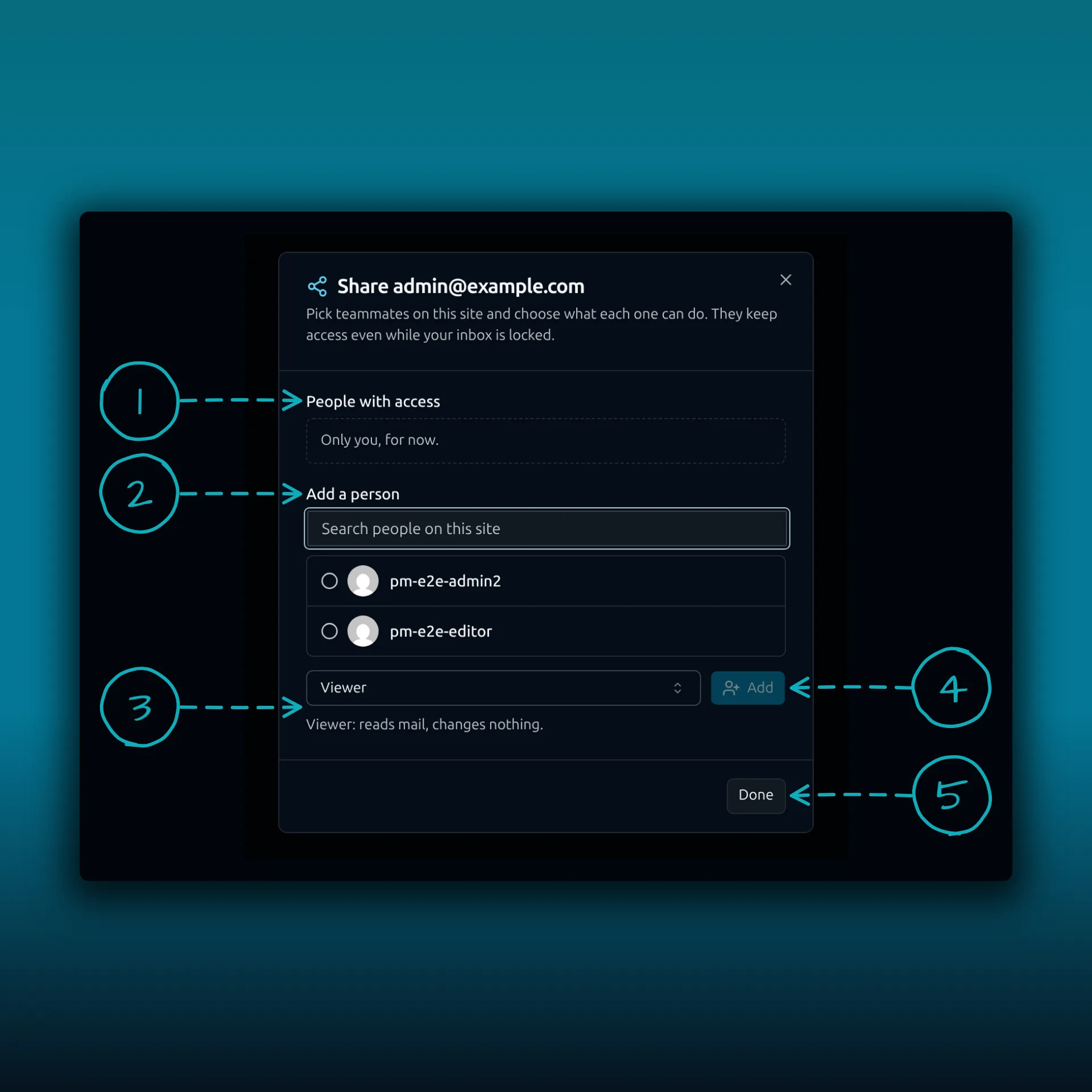
- People with access. It lists who already has access.
- Add a person. You can only search people on this site who can open PressedMail.
- The role menu, Viewer, Responder or Manager.
- Add.
- Done.
The Share dialog lists people on this site who can open PressedMail, so app access comes first. A person who loses app access has everything they shared hidden, as the list above says.
To control which mail domains people may connect, see limiting mailboxes to your own domains. For a second check in front of each person’s own mailbox, the passphrase lock guide covers the lock. Agencies who give several people access to client mailboxes will find the agency guide useful.
Frequently asked questions
Can I turn off access for administrators?
No. Administrators always have access, and the Administrator role is marked Required.
Which wins, a role or a person’s own setting?
The person’s own setting. Allow or Deny beats the role, and Inherit follows it.
Does removing access delete someone’s mailbox?
No. Sync, scheduled sends, rules and similar work pause or stop, and what they shared is hidden. Restoring access brings the work back.
Why does a role say it lets no one in?
Its people cannot read this site. PressedMail needs a role with read access, so such a role cannot open the app.
Why do I not see the Roles and Users tabs?
You need to be an administrator, and the build needs more than one seat. Free has one seat.
Manage your email inside WordPress
PressedMail Free adds an email client directly to your WordPress dashboard. Connect a compatible IMAP/SMTP mailbox, read and send mail, organize messages, and configure WordPress SMTP.

