

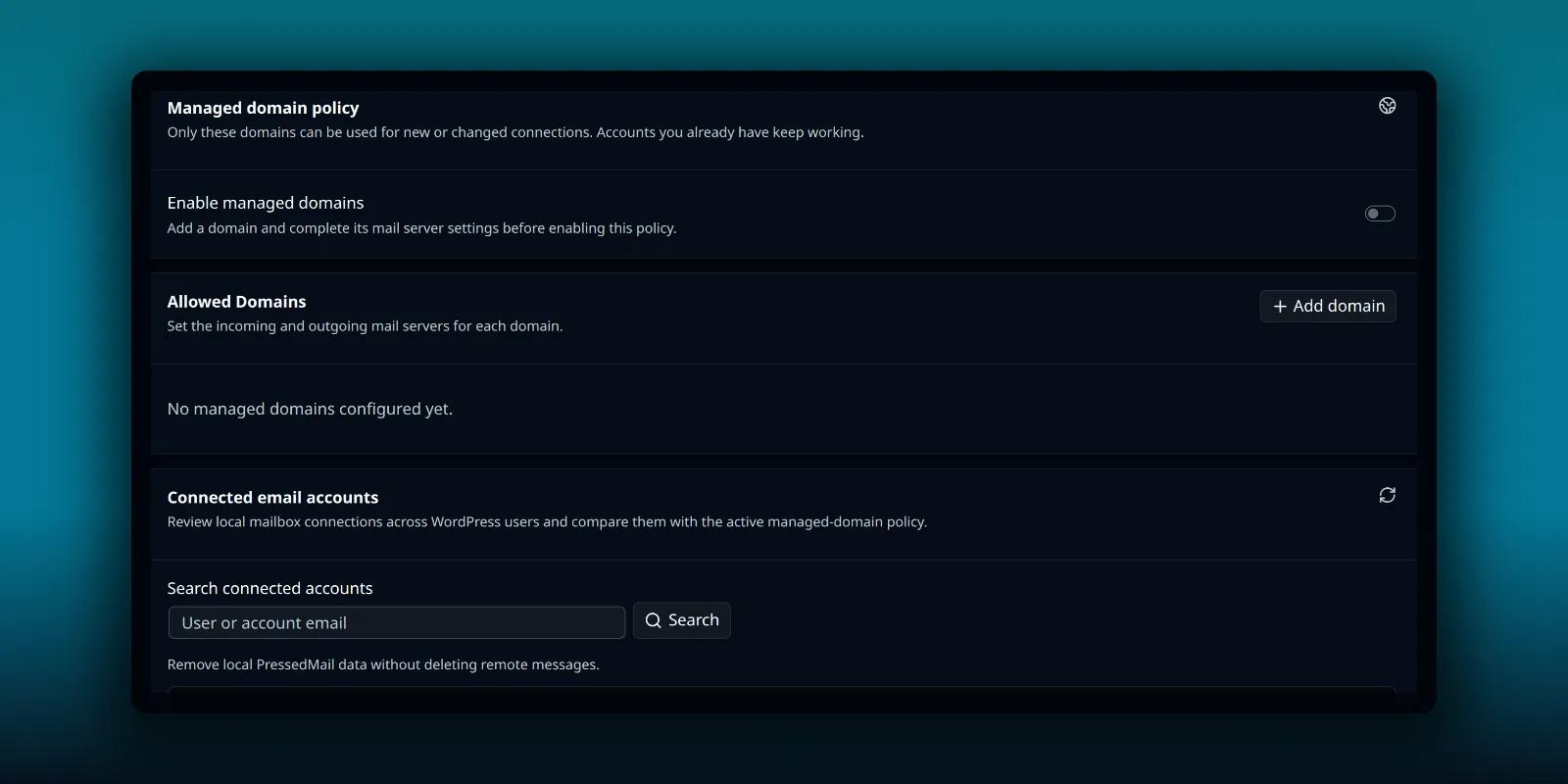
By default, anyone who can open PressedMail on your site can connect any mailbox they like. That is fine for one person. On a team site or a client site it is often the wrong rule. You may want everyone to use the company domain, with the mail servers you chose, and nothing else.
Allowed Domains is the setting for that. It is on the paid builds and only administrators see it. You list the domains people may use, set the incoming and outgoing servers for each one, and switch the policy on.
What the policy gates
The tab’s own description says it best: only these domains can be used for new or changed connections, and accounts you already have keep working.
That second half matters. Turning the policy on does not disconnect anyone. It decides what can be connected from that moment. Accounts that were already there keep syncing and sending until you act on them, and the connected accounts check below shows which ones do not match.
While the policy is on, a person cannot change an account over to a connection outside it.
Add a domain
Open PressedMail, then Settings, then Allowed Domains. The tab sits under Admin.
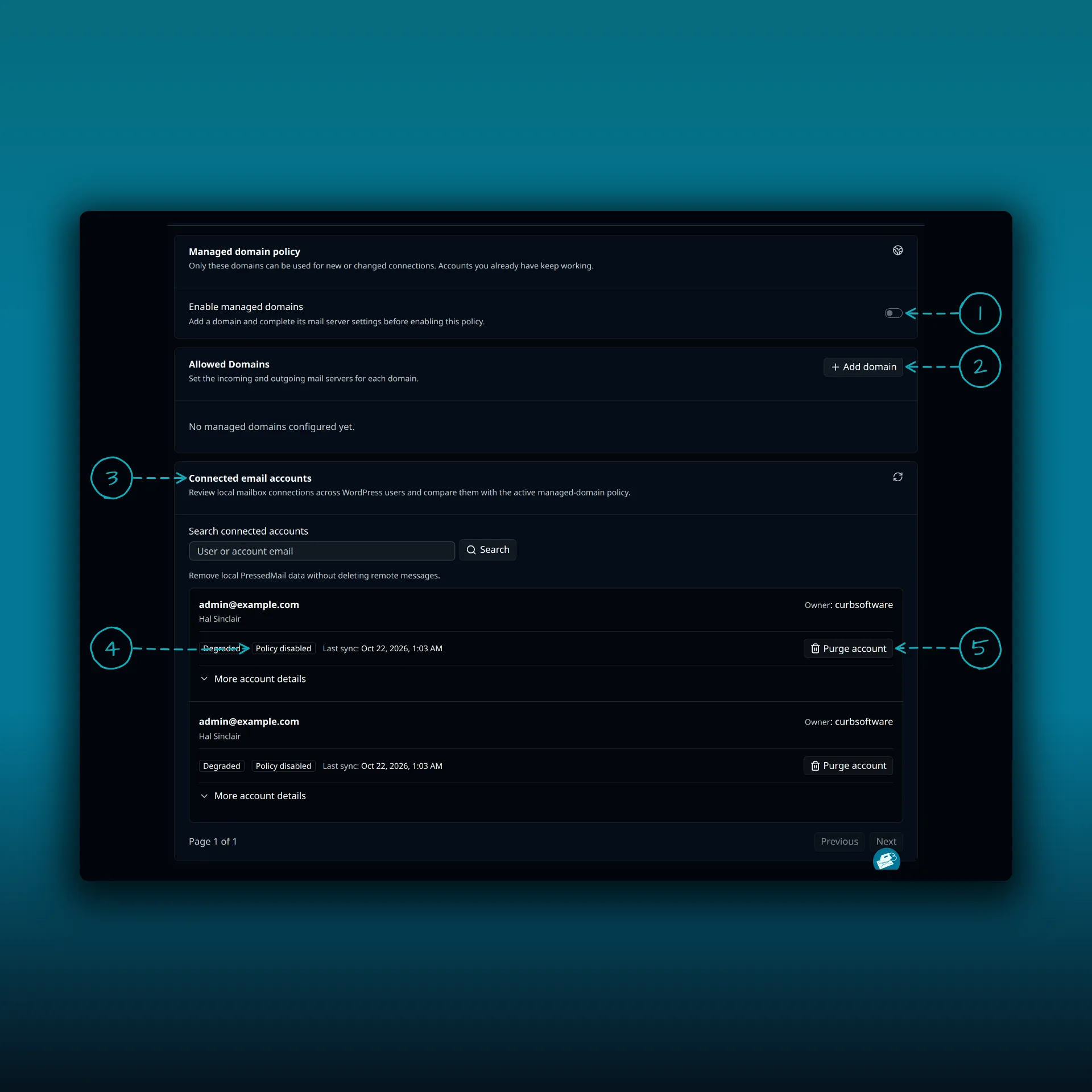
- Enable managed domains. The note beside it says to add a domain and finish its mail server settings first.
- Add domain. Each domain gets its own row.
- Connected email accounts. A check of the mailboxes people have already connected.
- The status badges on an account: a connection status, here Degraded, and a compliance status, here Policy disabled because the policy is off on this demo site.
- Purge account, which removes local data for that account.
For each domain you fill in:
- The email domain, such as your company’s domain. It must be a valid domain, and each one can appear only once.
- The credential mode. One shared password means a single password covers incoming and outgoing mail. Separate IMAP and SMTP passwords means people enter two.
- The IMAP settings: host, port, connection security and username format.
- The SMTP settings, with the same four fields.
The host accepts a DNS name or an IP address. The port must be between 1 and 65535. Connection security is SSL/TLS, STARTTLS or None, and you should pick one of the first two. RFC 8314 explains why plain, unencrypted mail connections are discouraged. The username format is either the full email address or the part before the at sign, depending on what your mail host expects.
Each domain row shows Configured, Needs attention or Not configured. The switch will not turn on until at least one complete domain exists. A policy that is off can keep half-finished rows as drafts, so you can build it up over several visits.
What your users see
People connect a mailbox in a step titled Connect your email. It says to enter the mailbox details supplied by the site administrator. They type the part before the at sign, pick one of your domains from a menu and add a sender name. Then they enter one mailbox password or two, depending on the credential mode, and press Test connection and Save account.
They never type a server name or a port. Those come from the policy, which is the point. Without a policy, a person sees the Server settings step below and fills in every field themselves.
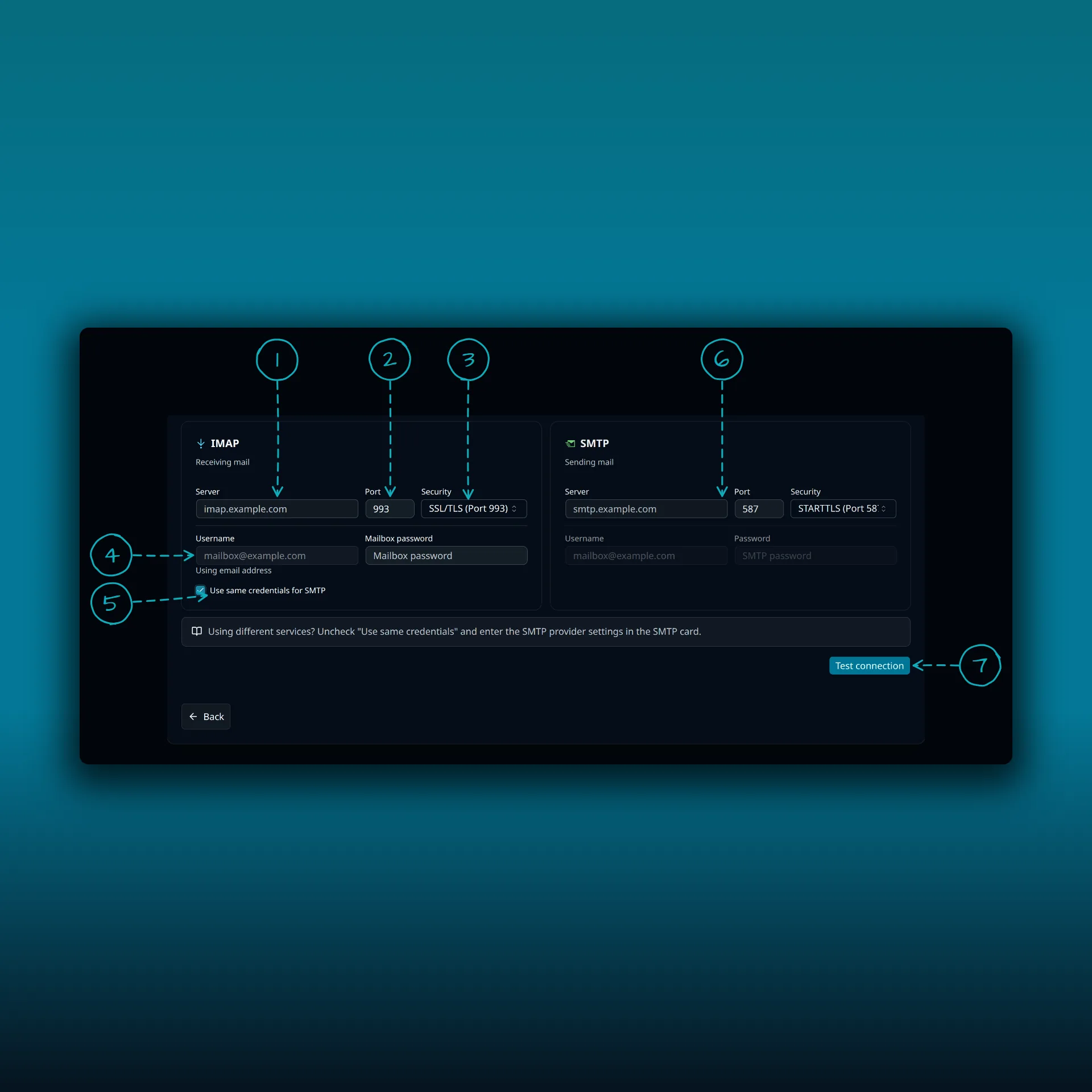
- IMAP server. The incoming host name your provider gives you.
- IMAP port. The form starts at 993.
- IMAP security. The form starts at SSL/TLS on port 993.
- Username and mailbox password.
- Use same credentials for SMTP.
- SMTP server, port and security. The form starts at port 587 with STARTTLS.
- Test connection.
The managed domain policy fills in the host, port, security and username format for them.
A person cannot point a mailbox at a different server and cannot connect a personal address that is not on your list. The IMAP account guide walks through those fields.
Check what is already connected
The Connected email accounts card lists mailbox connections across all WordPress users. You can search by user or account email. Each row shows the owner, a connection status, a compliance status and the last sync time.
Connection status is Healthy, Degraded, Failing or Disabled. Compliance is Compliant, Out of policy, Policy disabled or Policy invalid. An out-of-policy account carries a reason, either that its domain is not allowed or that its server settings differ from the policy.
Be clear about what an out-of-policy account means. It keeps syncing and sending. The policy gates new connections and does not cut off old ones. You have two ways to deal with it. Add the account’s domain to the policy, and it stays. Or remove the account, and its local PressedMail data is deleted.
Purge account is the removal. The card says it removes local PressedMail data without deleting remote messages, so the mailbox at the provider is untouched. A purge asks for a preview and a confirmation first. Take a backup before you purge anything, because PressedMail cannot restore what it deleted. This guide did not run a purge on the demo site.
Before you turn it on
Add one domain with correct settings, and test it by connecting a mailbox of your own. Look at the connected accounts card to see which existing connections would be out of policy. Tell people what is changing, so a rejected connection is not a surprise.
The agency guide shows a setup where this kind of control matters. Deciding who may open PressedMail at all is a separate setting, covered in the guide to roles and users. Where the saved passwords end up is covered in where PressedMail keeps your mail.
Frequently asked questions
Does turning on the policy disconnect existing mailboxes?
No. Accounts you already have keep working. The policy only decides what can be connected or changed from then on.
Can people still choose their own mail server?
Not while the policy is on. The servers for each domain come from your settings, and a person cannot switch an account to a connection outside the policy.
Is Allowed Domains in the Free plugin?
No. It is on the paid builds, and only administrators can open it.
Does purging an account delete mail at my provider?
No. It removes the local PressedMail data for that account. Remote messages stay where they are.
Can I save a domain before it is complete?
Yes, while the policy is off. The switch needs at least one complete domain before it will turn on.
Manage your email inside WordPress
PressedMail Free adds an email client directly to your WordPress dashboard. Connect a compatible IMAP/SMTP mailbox, read and send mail, organize messages, and configure WordPress SMTP.

