

A mailbox inside WordPress is only useful if you hear about the mail that matters and nothing else. PressedMail keeps a notification feed behind the bell in the header, and a handful of settings decide what lands there, what makes a noise and what waits.
This guide walks through the bell, the two preference cards behind it, and the difference between pausing and muting.
The bell and its toolbar
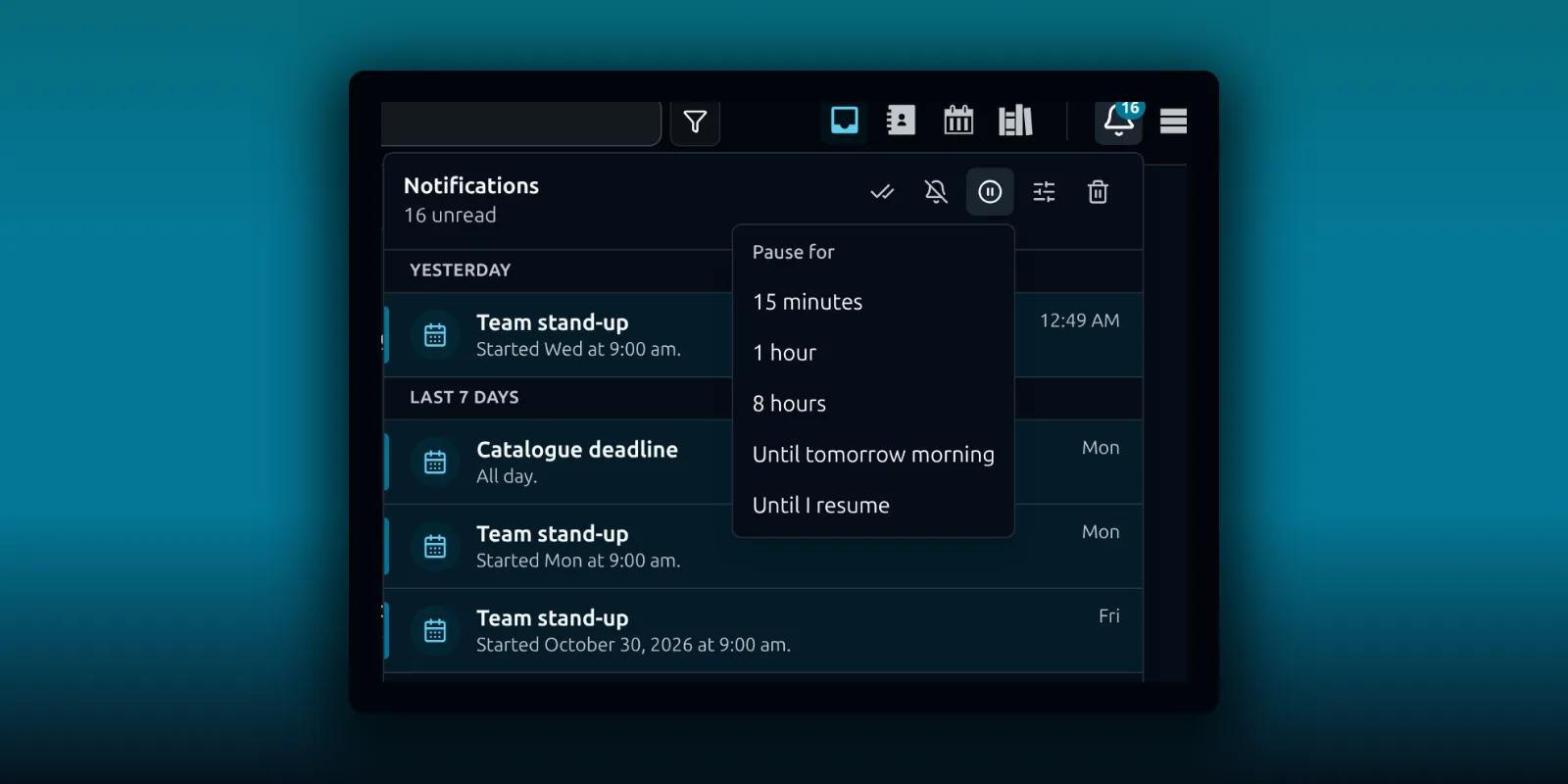
Click the bell in the header. The number on it is your unread count. The panel lists new mail and calendar reminders, grouped by day. A row that cannot be dismissed carries a note that says Stays until fixed. Those are warnings that only their cause can clear, so Clear all leaves them alone.
Along the top of the panel is a row of buttons. Open the pause button and its menu drops down.
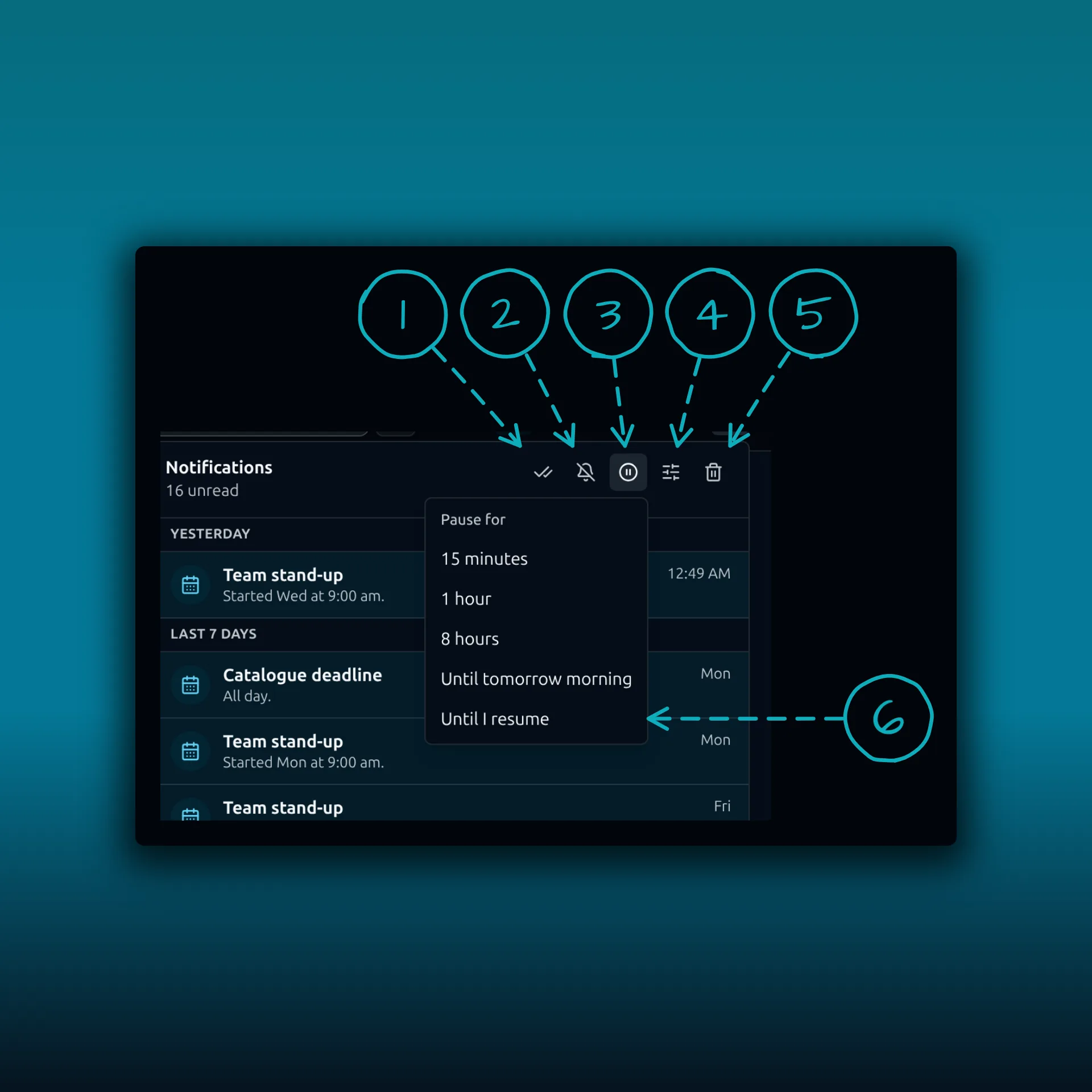
- Mark all as read. A toast offers Undo for a moment.
- Mute sound and pop-ups.
- Pause notifications.
- Alert settings. It takes you to the preferences described below.
- Clear all. It asks first, because it permanently deletes your feed.
- Until I resume, the last length in the pause menu.
The panel shows how many are unread, and it adds a small chip when you are paused or muted. If your alert settings hide some rows, a toggle appears that says how many, and one click shows them too.
Mute is for noise, pause is for a stretch of time
Mute silences the sound and the desktop pop-up until you switch it off. The list and the badge carry on, so you still see what arrived. Every edition has it.
Pause needs an end. The menu offers 15 minutes, 1 hour, 8 hours, Until tomorrow morning and Until I resume. While you are paused, the sound, the pop-ups and the badge wait until the pause ends. On paid builds the email copy of a notification waits too. The panel and the Notifications card both show when it ends, and a Resume button lifts it early.
Alert behavior: which mail counts
Open PressedMail, then Settings, then Preferences, then Notifications. The first card is Alert behavior. It says which new messages raise an in-app alert and how much they reveal.
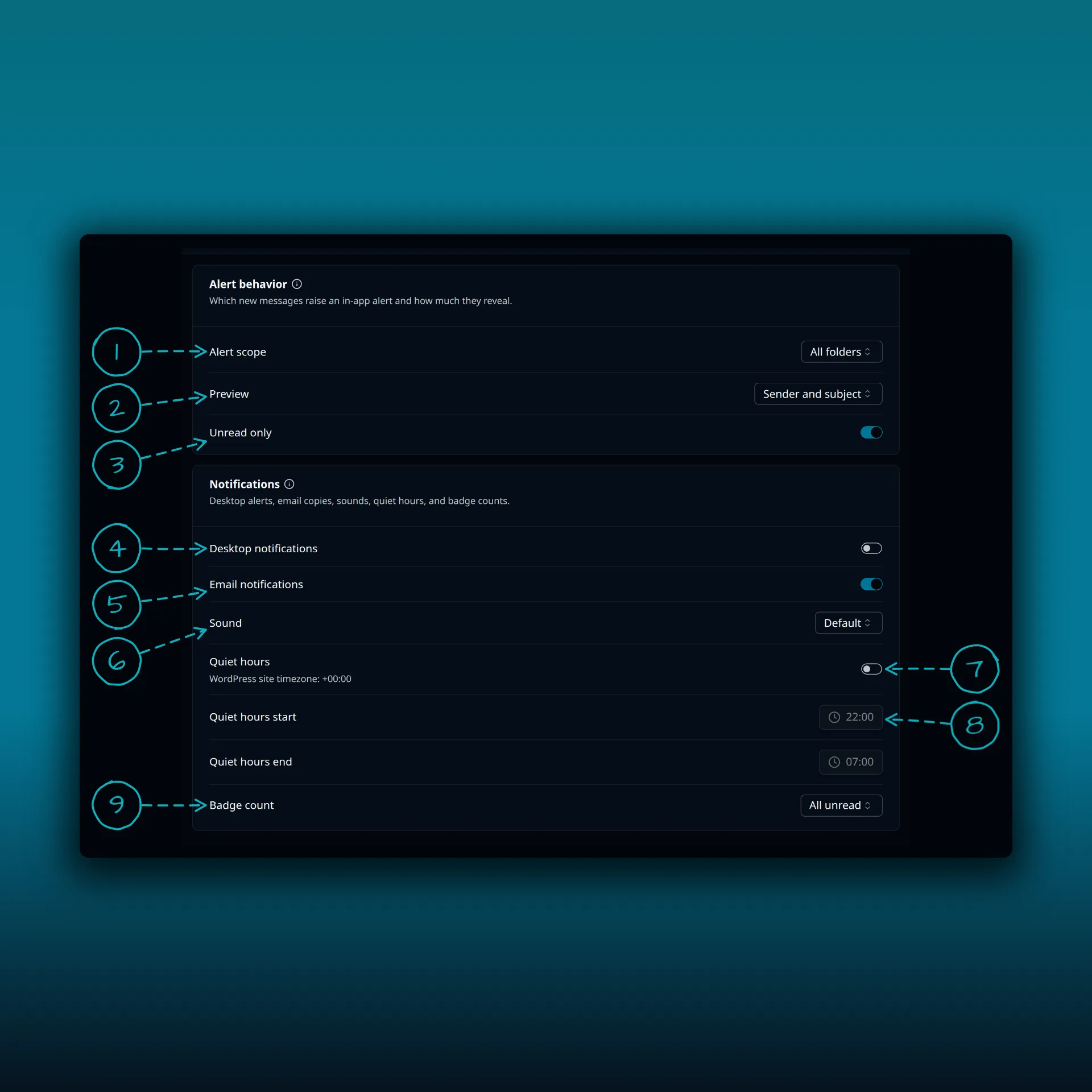
- Alert scope. All folders, Inbox only or Priority mail only. Priority means mail marked important.
- Preview. Sender and subject, Sender only or No preview. It decides how much an alert reveals.
- Unread only. On by default. Mail you have already read does not raise an alert.
- Desktop notifications.
- Email notifications, on paid builds.
- Sound.
- Quiet hours, with the site timezone shown under it.
- The start of the quiet window. The end sits on the next row.
- Badge count.
The Notifications card
Desktop notifications are off by default. When you switch them on, your browser asks for permission if you have not answered before. The browser keeps its own permission for each site, so a block there overrides the switch here. The MDN guide to the Notifications API explains how that permission works.
Sound has three settings, Default, Subtle and None. It starts on None.
Email notifications are a paid feature, and on by default. PressedMail sends a short email with the subject New email from the sender to the address on your WordPress profile. The copy follows your alert scope. It is skipped for automated and list mail, and skipped when your profile address is one that PressedMail reads itself, since the copy would land in the same inbox it came from. A person who has lost access to PressedMail gets none. A pause or quiet hours hold the copy back instead of sending it late.
The Free build has no email copy and no switch for it.
Quiet hours
Quiet hours mute interruptions during a window you choose. The default window runs from 22:00 to 07:00. The times use the WordPress site timezone, shown under the switch, and not the clock on your computer. A window that crosses midnight works as you would expect.
Inside the window, new mail raises no sound and no pop-up, and paid email copies wait. The panel keeps collecting, so the history is complete when you look in the morning.
Badge count
Badge count sets what the number on the bell means. All unread counts every unread message. Inbox unread counts only the inbox. Hidden removes the number. It starts on All unread.
A calm setup to start from
If notifications feel noisy, try this order. Set Alert scope to Inbox only. Leave Unread only on. Choose Sender only for Preview if you read on a shared screen. Turn on quiet hours for the night. Keep Sound on None until you want it. Then use pause for the afternoon you need to focus, and leave mute for days when you want the list without the noise.
The Activity panel is a different thing. It lists background jobs such as syncs and bulk actions. The tour of popovers and panels shows both side by side. For keys that move through the list, see the keyboard shortcuts guide. If the inbox itself is slow to show new mail, the sync frequency guide is the place to look, and the roles guide explains why a person who loses access misses their notifications. The plan guide lists what the paid builds add.
Frequently asked questions
Why do I get no desktop pop-ups?
Desktop notifications start off. Switch them on, allow them when the browser asks, and check that quiet hours, a pause or mute is not active.
What is the difference between mute and pause?
Mute silences sound and pop-ups until you turn it off, and the badge keeps counting. Pause holds back sound, pop-ups and the badge until it ends, and on paid builds email copies too.
Do quiet hours hide notifications from the panel?
No. They hold back the interruptions. The panel keeps collecting mail.
Can I get an email when new mail arrives?
On paid builds, yes. Email notifications send a copy to your WordPress profile address. Free has no such copy.
Which timezone do quiet hours use?
The WordPress site timezone, shown under the Quiet hours switch.
Manage your email inside WordPress
PressedMail Free adds an email client directly to your WordPress dashboard. Connect a compatible IMAP/SMTP mailbox, read and send mail, organize messages, and configure WordPress SMTP.

