

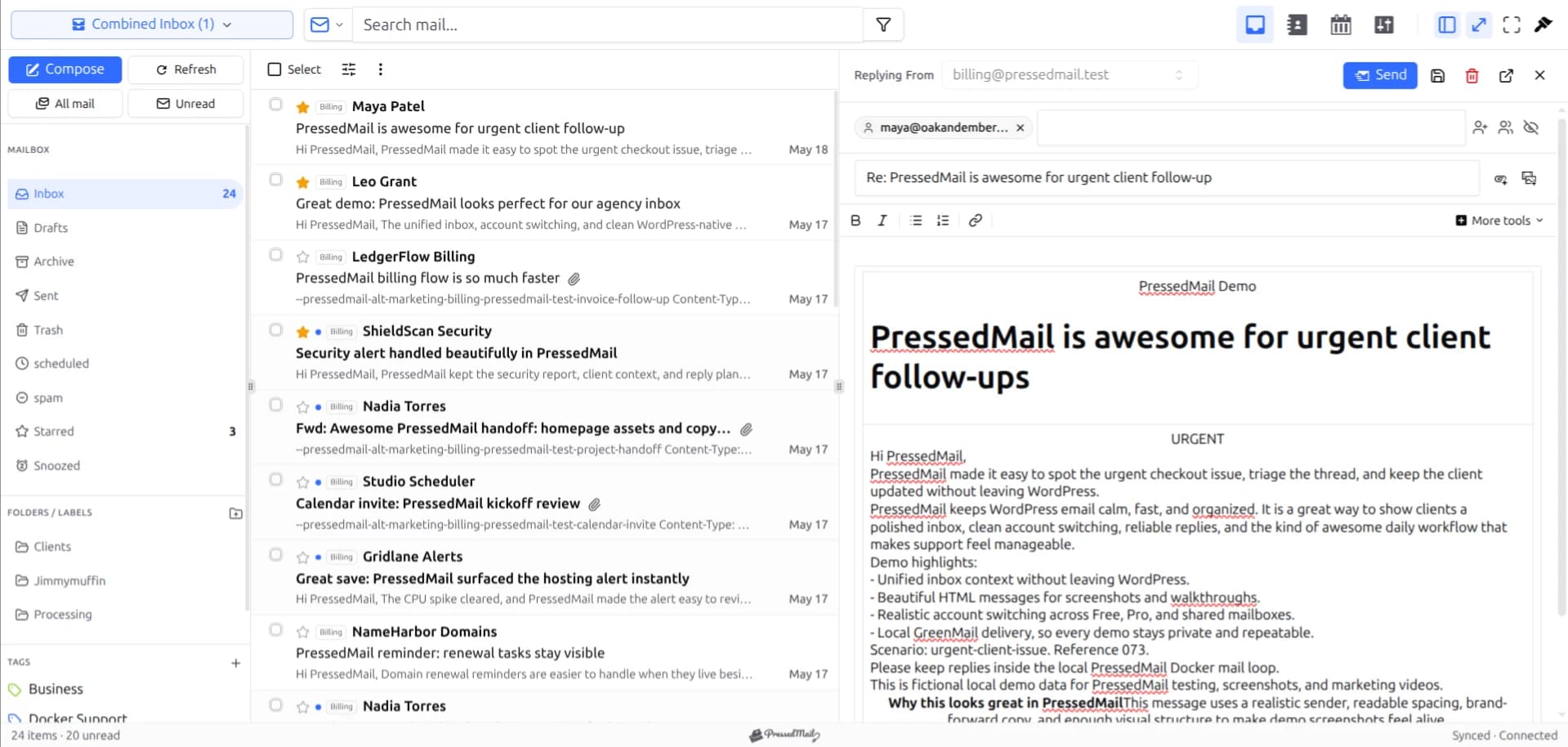
A small business can use WordPress as a place to read and answer email while keeping its existing mailbox provider. PressedMail adds the email interface to the dashboard. The provider still hosts the address, receives incoming mail, and supplies the services the client connects to.
That arrangement is useful when the person answering enquiries already works in WordPress. It also creates an operating responsibility: someone must maintain the website, manage access, and know how to reach the mailbox when the website is unavailable.
Start with one business mailbox and one named owner. PressedMail Free supports that setup. Add complexity only when you can point to the business requirement it serves.
Separate the three parts of the system
Your business email address might be hosted by a specialist provider, a business suite, or the same company that hosts the website. PressedMail connects to compatible mail services; it does not replace the provider.
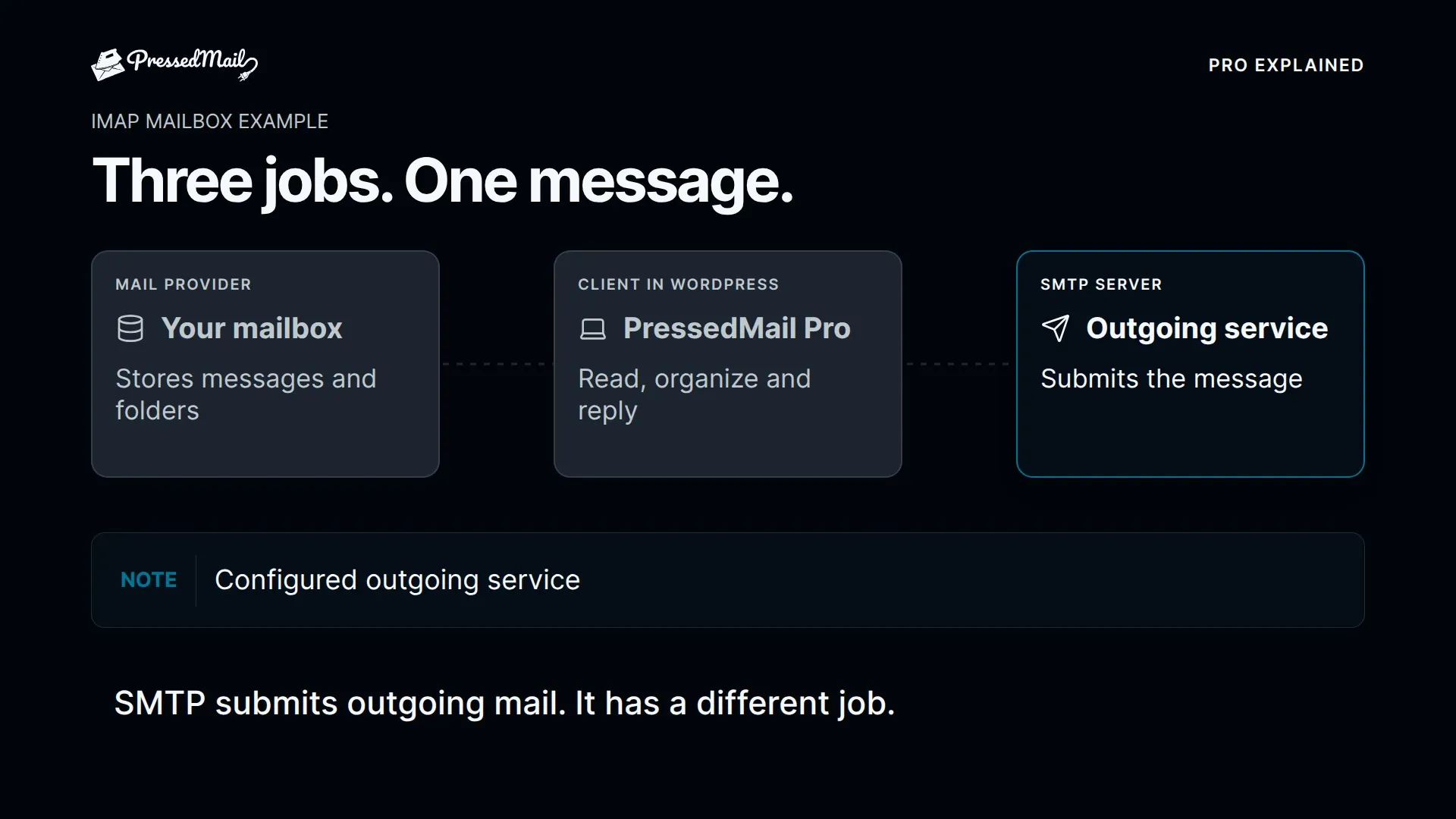
WordPress hosts the application and determines who can enter its administrative environment. PressedMail supplies the mailbox interface. Keeping these roles separate helps you identify which company or administrator to contact when something fails.
The guide to using WordPress as an email client explains that setup in more detail. Connecting a mailbox does not require moving your domain's incoming mail to the WordPress server.
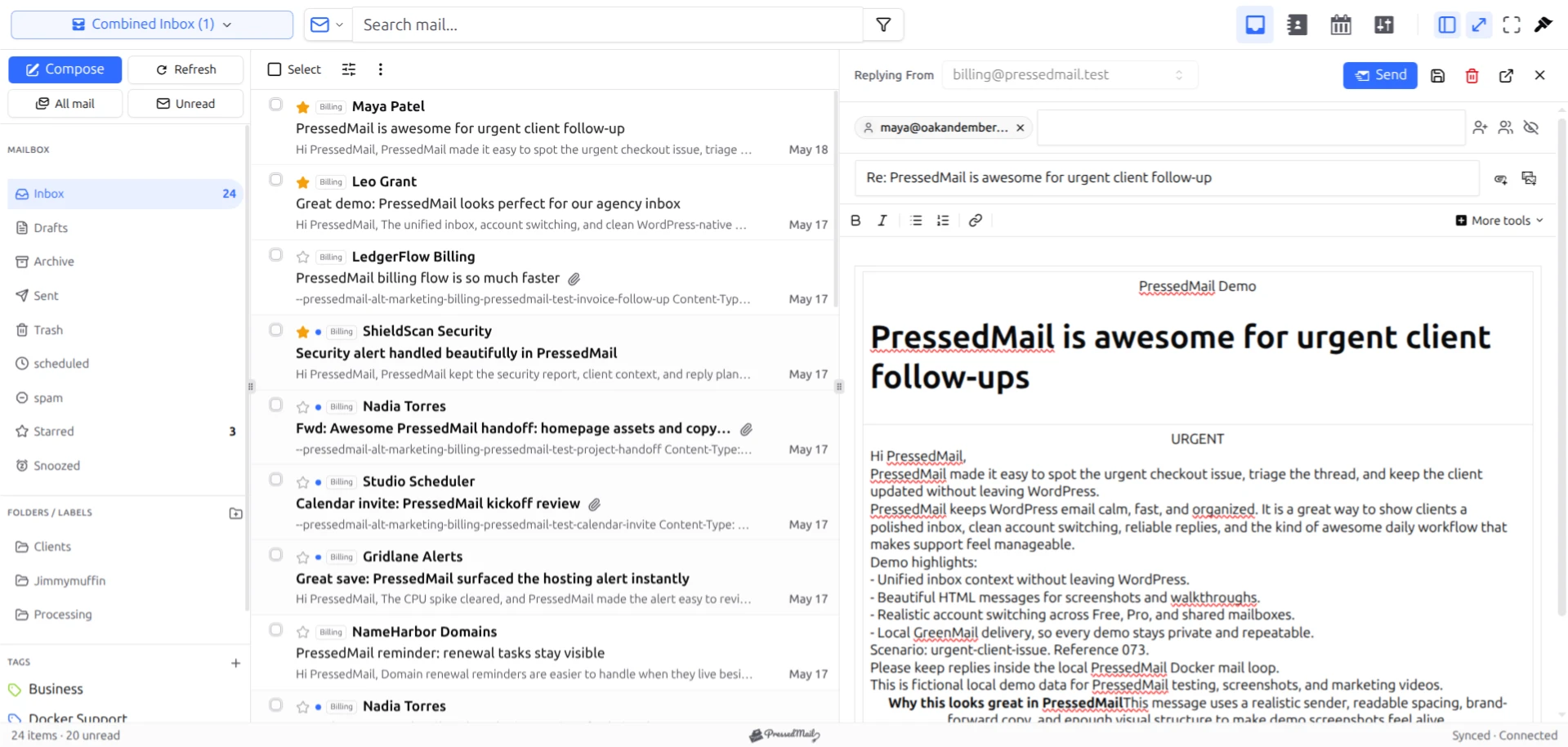
Screenshot of a PressedMail message list and reply composer with fictional business correspondence.
Before setup, write down the mailbox provider, the business owner responsible for it, the fallback webmail address, and the person maintaining WordPress. Store passwords in your normal credential-management system, separate from general project notes.
Choose a mailbox that matches the work
For a business whose owner handles all enquiries, one existing address may be enough. Several types of correspondence can share that mailbox without becoming separate accounts: sales questions, supplier messages, invoices, and website notifications.
Aliases and connected mailboxes are different. A provider might deliver several addresses into one mailbox, while a separate mailbox has its own access and storage. Check the provider's configuration before buying a plan based on an assumed account count.
If you use your own domain, collect the server details from the provider. Do not guess the IMAP or SMTP hostname from the website's URL. The custom-domain email guide covers the information you need.
The incoming connection reads mail through IMAP. The outgoing connection submits replies through SMTP. Both need to work before you depend on the inbox for business correspondence.
Connect and verify the basic routine
Install PressedMail Free from the WordPress plugin directory and open its account setup. Enter the settings for your compatible mailbox using the provider's supported authentication method. Account policy can restrict third-party access even when the address works in webmail.
Send a harmless message from another address you control to the business mailbox. Confirm it appears after synchronization, open it, and reply. At the receiving address, check the sender name, address, subject, and body.
This small test catches problems that are easy to miss in a settings screen. The name might be wrong. Incoming mail might work while outgoing authentication fails. The reply might use an address the provider does not permit.
Use the send-and-receive walkthrough if either direction is unclear. Keep the provider's webmail accessible while you resolve the issue.
Give incoming work an owner
A mailbox that everyone assumes someone else checks will accumulate unanswered requests, regardless of the interface. Decide who checks enquiries and who covers that work during an absence.
Start with a modest filing system. A folder for completed reference mail and a manual tag for messages needing an answer can be enough. Folders and tags have different behavior: provider folders belong to the mailbox, while PressedMail tags are its own organization layer.
Do not treat a tag with an employee's name as a message assignment system. This setup does not establish shared inbox ownership, collision detection, or response-time enforcement. If several staff must coordinate replies, evaluate the actual coordination requirement before choosing software.
Similarly, individual WordPress accounts should reflect real responsibilities. Avoid sharing one administrator login across the business. WordPress's security hardening guide explains the surrounding site-maintenance and access concerns.
Configure website notifications separately
A customer's email reply and a notification generated by the website take different paths. The reply arrives at the mailbox provider. A password reset or form notification commonly begins inside WordPress through wp_mail.
PressedMail includes WordPress SMTP routing, but that uses a separate SMTP server configuration. Connecting the inbox does not automatically configure system email. Free provides one WordPress SMTP server; Pro adds multiple server connections and sender routing.
Before changing that route, identify any existing SMTP or email API plugin. Decide which component will own WordPress mail sending. Two active plugins changing the same mailer can produce confusing results.
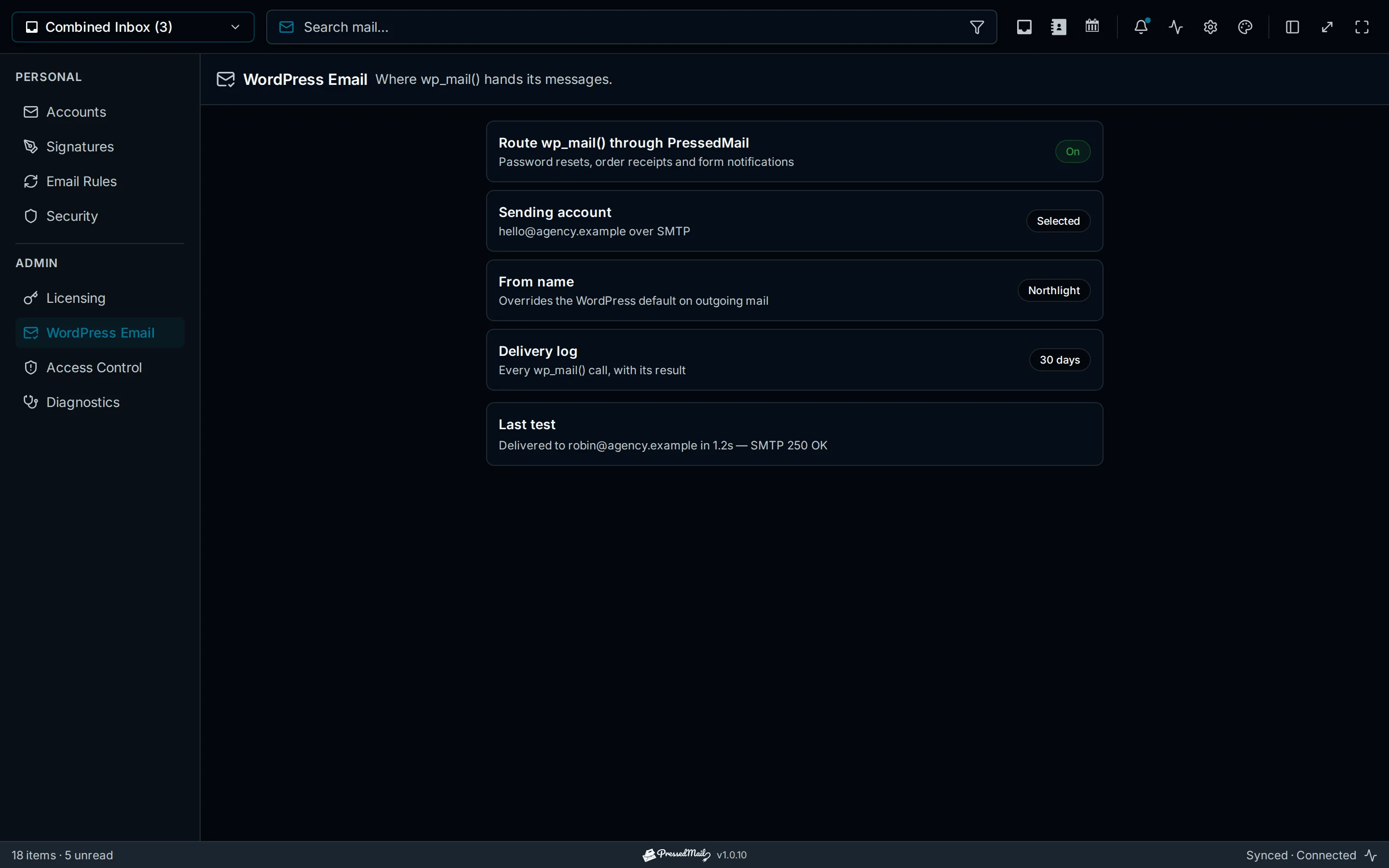
Illustration of WordPress email settings. The pictured result and retention values are examples, not records of a delivery test.
Use sending WordPress email through SMTP for the setup. If the business already has a working sender, the keep-or-replace checklist helps you evaluate a change without deleting the working configuration first.
Test the website's relevant notification types with addresses you control. A contact-form test and a password-reset test exercise different triggers. A store may also need a controlled order-notification test.
Know what the logs can tell you
A log can help identify the sender, recipient information, subject, timing, and reported outcome. PressedMail's WordPress mail log records metadata, not the full message body or attachments. Metadata can still contain personal information, so access and retention deserve attention.
A reported success is not proof that the reader saw the message in their inbox. Check the receiving mailbox and spam folder during setup. Use the delivery log guide to distinguish the observations.
Treat failed notifications as an operating issue with an owner. Otherwise, a sending configuration can break while the person reading the inbox continues to receive ordinary customer mail and assumes everything is working.
Plan for maintenance and interruptions
Keep an independent way to open the provider's mailbox. If WordPress is temporarily unavailable, that access may still work, provided the provider itself is healthy. Email hosting and website hosting can share an outage, so understand the services you bought.
Record who renews the mailbox, who updates WordPress and its plugins, and who can restore the site. Include the email connection when planning backups and access reviews. A backup can contain sensitive configuration and message data.
If a staff member leaves, review their WordPress access and any provider credentials they could use. Changing a folder name or removing a tag does not revoke access.
When another arrangement makes more sense
Provider webmail may be sufficient if the owner rarely opens WordPress. A desktop client can suit people working mostly in documents or needing its particular offline features. A dedicated helpdesk fits requirements such as assigning conversations and tracking response commitments.
PressedMail's fit is practical access to a mailbox beside WordPress work. Free starts with one mailbox, basic composing, folders, tags, and WordPress SMTP configuration. Multiple mailbox views, contacts, calendar, and advanced automation are paid additions.
Common questions
Does PressedMail replace our email hosting?
No. Your compatible provider continues to host the mailbox. PressedMail gives you an interface within WordPress.
Can all employees use one WordPress login?
Use individual accounts and check the actual access model for each permitted role. A shared login makes it harder to manage access and remove it when responsibilities change.
Will incoming mail stop if the website is down?
A separate healthy mail provider can continue receiving mail while WordPress is unavailable. You will need another client or provider webmail to read it until the website returns.
Are website notifications and customer replies the same workflow?
No. They may reach the same business address, but their sending and receiving paths differ. Configure and test both before relying on them.
Manage your email inside WordPress
PressedMail Free adds an email client directly to your WordPress dashboard. Connect a compatible IMAP/SMTP mailbox, read and send mail, organize messages, and configure WordPress SMTP.




