

You may be able to replace your SMTP plugin with PressedMail's WordPress SMTP configuration. The decision depends on whether it supports the provider, sender behavior, and notification paths your site needs.
You can also keep the existing sender and use PressedMail only for the inbox. That is a reasonable choice when the current SMTP or API integration supplies a capability you rely on.
Do not delete a working sender first. Inventory it, test the proposed replacement in a controlled context, and keep a clear way back until the site's relevant messages work.
Check what the existing plugin is doing
“SMTP plugin” can describe several arrangements. Your current integration might configure a normal SMTP server, use a provider API, choose different senders, retain logs, or handle failures in a particular way.
Record the plugin, provider, authorized From identity, authentication method, and integrations that depend on it. Include any provider-specific feature you need. A generic connection form does not establish support for every capability of an existing mailer.
Also identify messages that bypass WordPress's normal mail function. A plugin using its own provider API can continue to use that path even after you change WordPress SMTP.
The SMTP-plugin and email-client comparison explains the architecture. This checklist assumes you already have a sending arrangement and want to decide whether to change it.
Understand the PressedMail configuration you would use
PressedMail's WordPress Email settings are site-wide and administrator-only. They store SMTP server configuration separately from your inbox accounts.
That server has its own host, port, security mode, authentication details, and From settings. Free supports one WordPress SMTP server. Pro adds multiple server connections and sender-based routing.
Connecting a mailbox for reading and replies does not automatically configure this route. Even if both configurations use the same provider, they remain separate settings that need separate checks.
PressedMail does not provide automatic failover. If your existing integration depends on that capability, evaluate the requirement before replacing it.
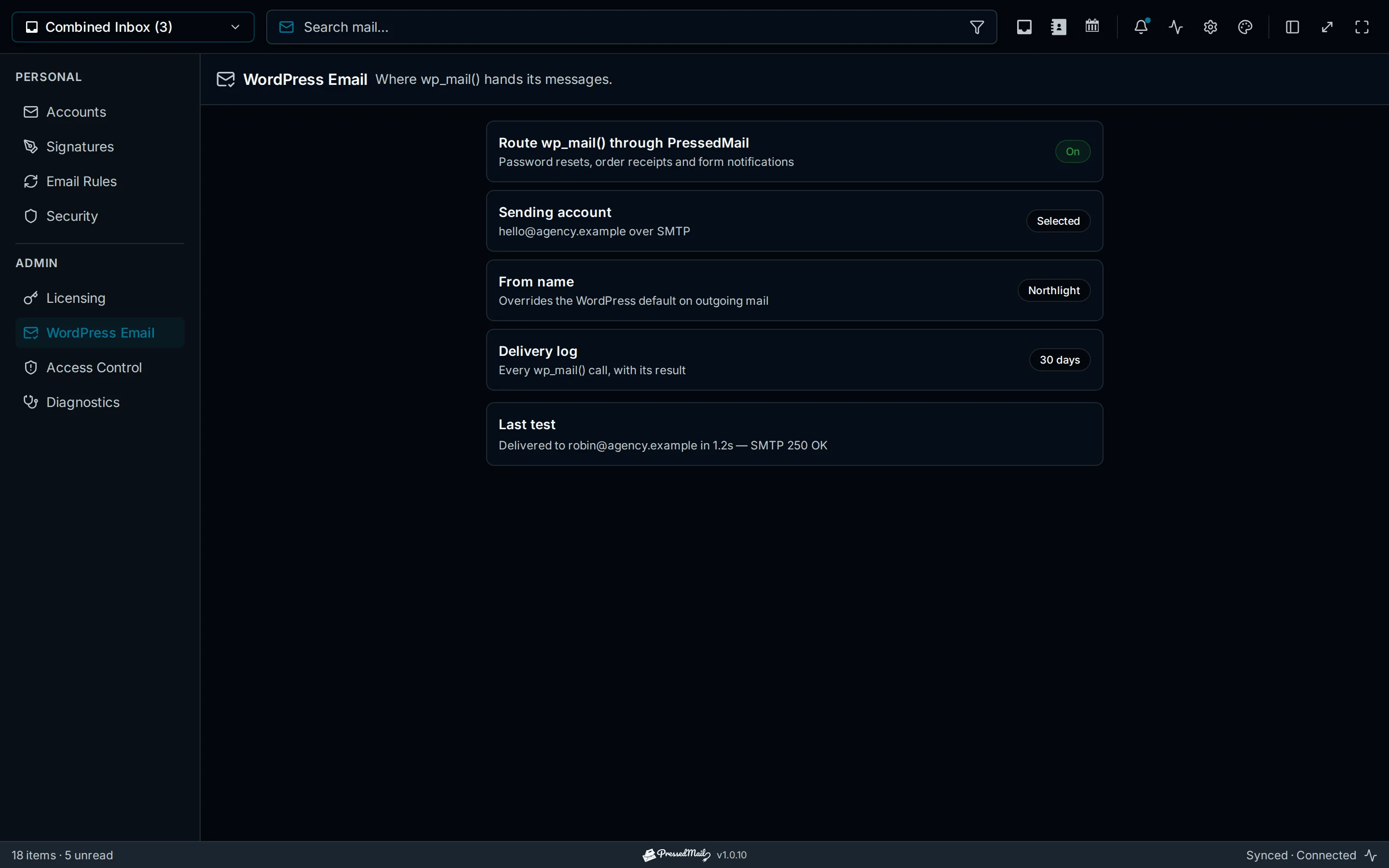
Illustration of WordPress email configuration. The pictured results and retention values are examples, not evidence that a route passed a test.
Make a keep-or-replace decision before changing the site
Use the following questions to identify the work the replacement must do.
| Requirement | What must be established |
|---|---|
| Provider access | The SMTP server accepts the supported authentication |
| Sender identity | The provider permits the intended From address |
| WordPress coverage | Relevant notifications use the route being changed |
| Multiple senders | The intended edition supports the required routing |
| Diagnostics | Available log metadata is sufficient for the operating need |
| Recovery | You can restore the previous configuration if a required test fails |
If a required capability is absent, keep the existing sender for that job. A paid upgrade should not be treated as a cure for unsupported provider authentication or a feature the product does not offer.
If the requirements fit, proceed with a controlled test.
Preserve the working configuration
Before changing transport ownership, keep a secure record of the existing settings and recovery procedure. Use the provider's and plugin's supported export or credential-management process where available.
Keep passwords, tokens, reset links, and private recipient details out of screenshots or public notes. A log export can contain personal information even when it excludes message bodies.
Decide what constitutes failure in advance. A missing password reset, rejected form notification, wrong sender, or required attachment absent at the recipient should stop the switch until understood.
Choose a test context and recipients you control. For a production transition, plan around the site's operating needs so a diagnostic action does not trigger unexpected customer mail.
Verify the inbox without confusing it with site sending
If you also intend to use PressedMail as an email client, test receiving and replying through its mailbox connection. Confirm the reply at an address you control.
This establishes the inbox workflow. It does not prove that a password reset or store notification uses the intended WordPress SMTP route.
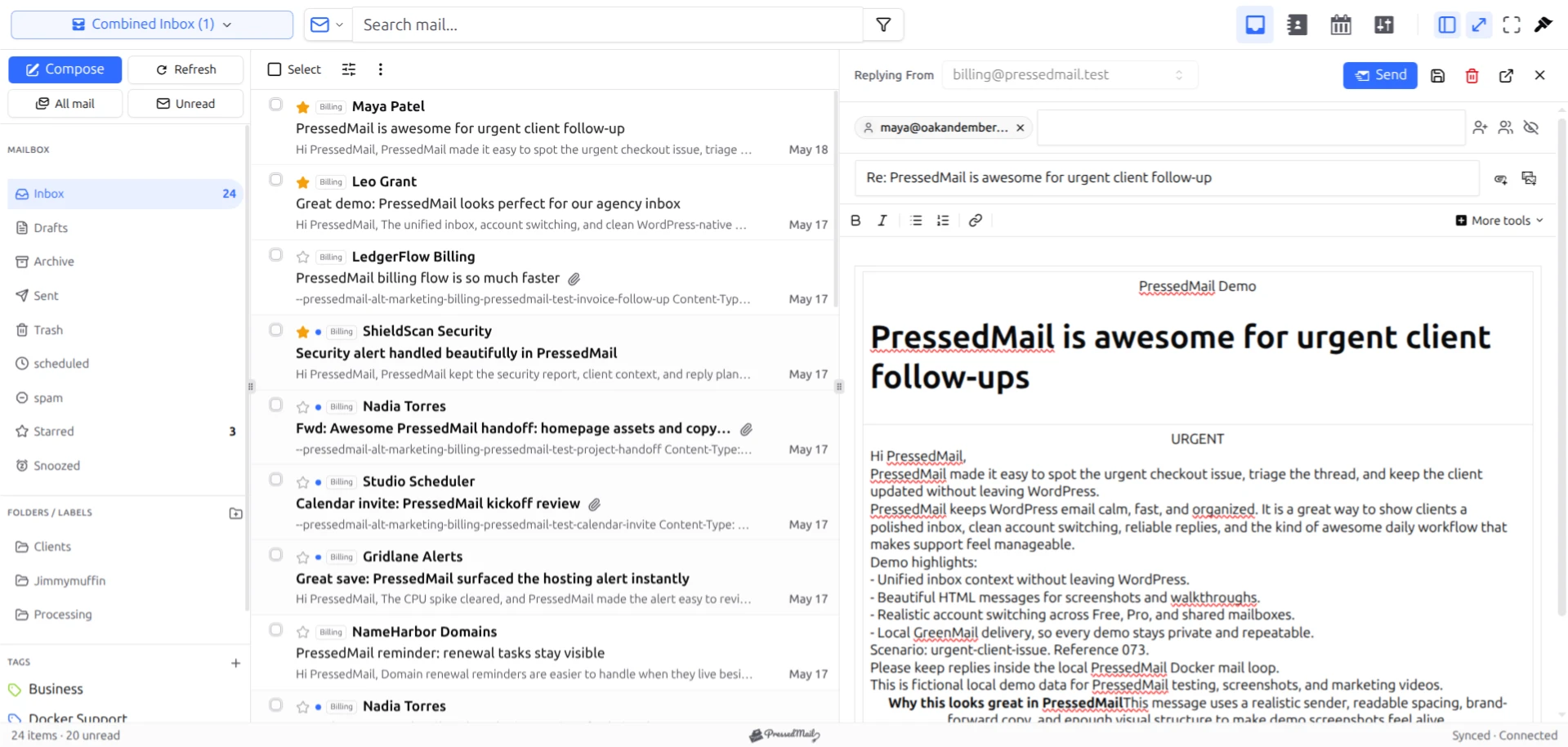
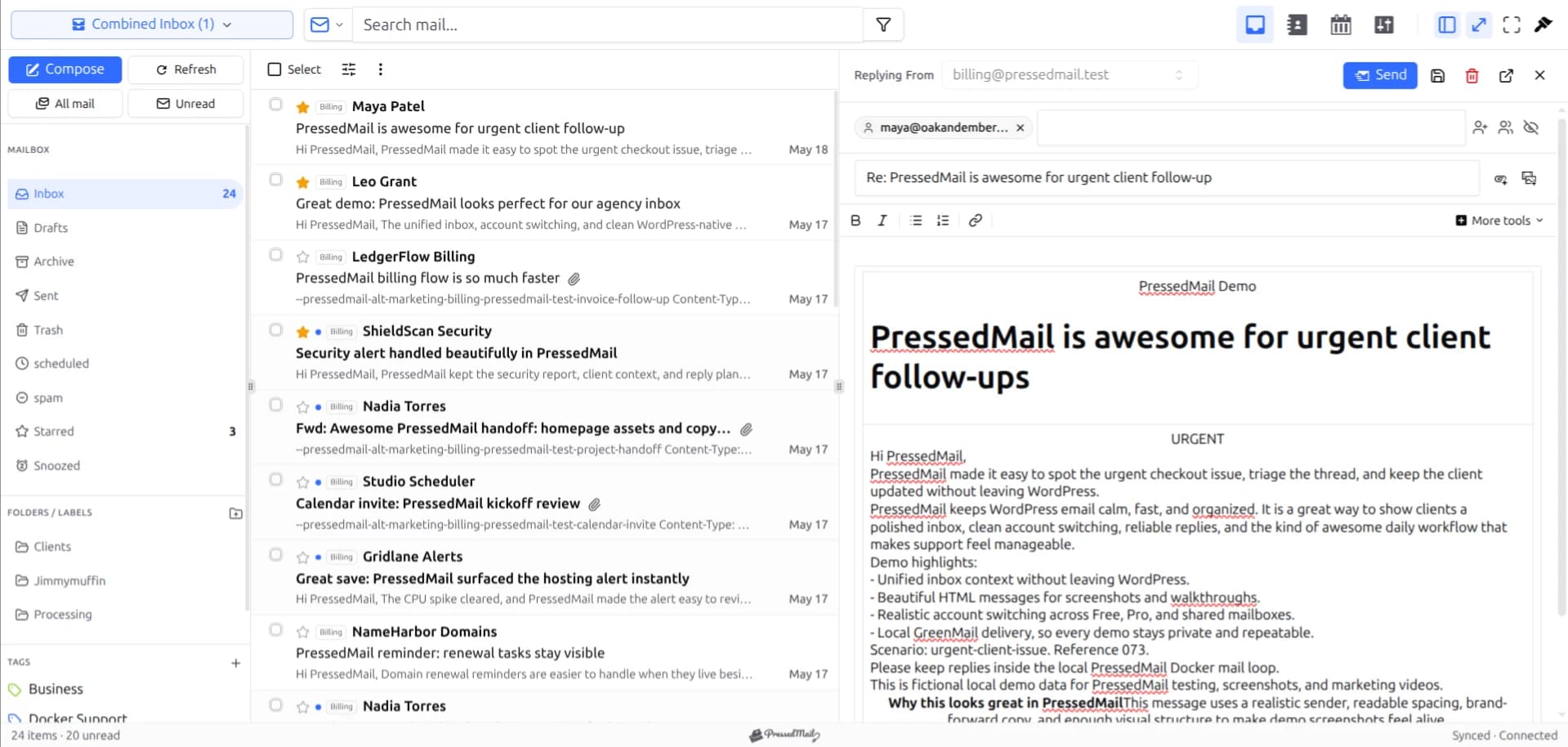
Screenshot with fictional email in the PressedM layout. A composer reply and a website notification use separate configurations.
Keeping the checks separate makes failures easier to diagnose. An incoming mailbox can work while its outgoing connection fails. A composer reply can work while a site's SMTP settings are disabled or invalid.
For the site-specific setup, follow sending WordPress email through SMTP. Use the actual provider values rather than copying example settings from an illustration.
Give one component ownership of WordPress sending
When ready to test the change, disable the previous integration's competing WordPress mail override and enable the intended PressedMail SMTP configuration. Preserve the old configuration for recovery.
Do not assume that two enabled plugins touching the same mailer will negotiate which one should win. Their hooks, sender changes, and execution order can make the effective configuration difficult to predict.
If the existing plugin is supposed to remain the sender, keep PressedMail's WordPress SMTP runtime disabled and use its inbox separately. If another plugin sends through an independent API, document that separate path and test it as such.
WordPress's wp_mail reference describes the mail function and hooks behind many notifications. Its scope does not include every independent mail API a plugin could call.
Check the From behavior explicitly
Configure the From email and name that the provider authorizes. Then decide whether the Force From option should override senders set by other plugins.
Forcing the address can be useful when the provider requires one identity. It can also change a sender that a store or another plugin deliberately supplied. With forcing off, a deliberate sender can remain while the generated WordPress default is replaced.
Send a test representing each meaningful sender. Inspect the message at the recipient and, when needed, its headers. A correct display name alone does not prove that the address is what you intended.
On Pro, check both the default connection and any sender-specific routes you configure. Test the actual addresses that should select each server rather than assuming one successful default test covers them all.
Test the website's actual triggers
Start with the SMTP connection test, then exercise the notification types that matter to the site.
A small business site might need a controlled password-reset message and a contact-form submission. A store may also need a test order notification using its approved test process. A membership site may have its own access or renewal messages.
Use a recognizable subject or test record so you can match the trigger to the log and the received message. Avoid generating several indistinguishable copies while diagnosing a failure.
The SMTP testing guide explains the observations to collect. A successful submission should be followed by checking the receiving mailbox and spam folder.
If one trigger bypasses the intended route, investigate that integration. Repeatedly changing SMTP credentials will not repair a plugin that is using a different provider API.
Read the logs within their limits
PressedMail logs metadata, including limited recipient information and the subject, rather than full bodies, raw headers, or attachments. Current retention choices are 30, 60, or 90 days. Zero stops new logging, and scheduled retention cleanup clears existing rows while logging is off. Preserve any needed diagnostic evidence before choosing zero.
A success record is not proof of recipient inbox placement or reading. WordPress also distinguishes successful processing from receipt. Use the mail delivery log guide to understand what each record can establish.
If mail is missing, inspect the route, provider response, recipient address, and filtering. The delivery troubleshooting guide gives a broader sequence when the first checks do not identify the issue.
Restore the previous route when a required check fails
Disable the new route, restore the old sending configuration, and repeat the known baseline tests. Verify recovery instead of assuming that reactivating a plugin completed it.
Keep the failed test details so you can investigate without leaving business mail on an unproven path. A clear error, trigger, sender, and timestamp are more useful than “email stopped working.”
Remove the old plugin only after the replacement meets the requirements and you have handled any retained data according to your operating policy. There is no need to remove it as part of the first evaluation.
Common questions
Should I delete the SMTP plugin before installing PressedMail?
No. Preserve the working configuration while evaluating the inbox and the proposed site-mail route. Avoid competing active overrides during the transport test.
Can I use PressedMail only for reading and replies?
Yes. Keep the established integration responsible for WordPress system email and leave PressedMail's site SMTP runtime disabled.
Does a successful reply prove site notifications work?
No. The composer and WordPress SMTP use separate configuration. Test the actual website triggers.
What if a plugin sends through its own API?
That path may bypass wp_mail. Inspect and test the integration separately; changing WordPress SMTP does not automatically replace it.
Does Pro add automatic fallback?
The current configuration does not provide active automatic fallback. Pro's multiple connections and sender routing should not be described as failover.
Manage your email inside WordPress
PressedMail Free adds an email client directly to your WordPress dashboard. Connect a compatible IMAP/SMTP mailbox, read and send mail, organize messages, and configure WordPress SMTP.




