

A hosting email account can be available inside WordPress without moving it away from the host. PressedMail connects to a compatible mailbox through IMAP for reading and mailbox actions, and SMTP for outgoing messages.
You need a real mailbox, its secure connection settings, and the right credentials. A hosting package that can send website notifications does not necessarily include a mailbox, and a forwarding address is not necessarily an account you can sign into.
Start by opening the mailbox in the host's own webmail. If that works, gather the provider's client settings and add the account to PressedMail. If the host uses cPanel, the cPanel connection tutorial gives the specific route through Connect Devices.
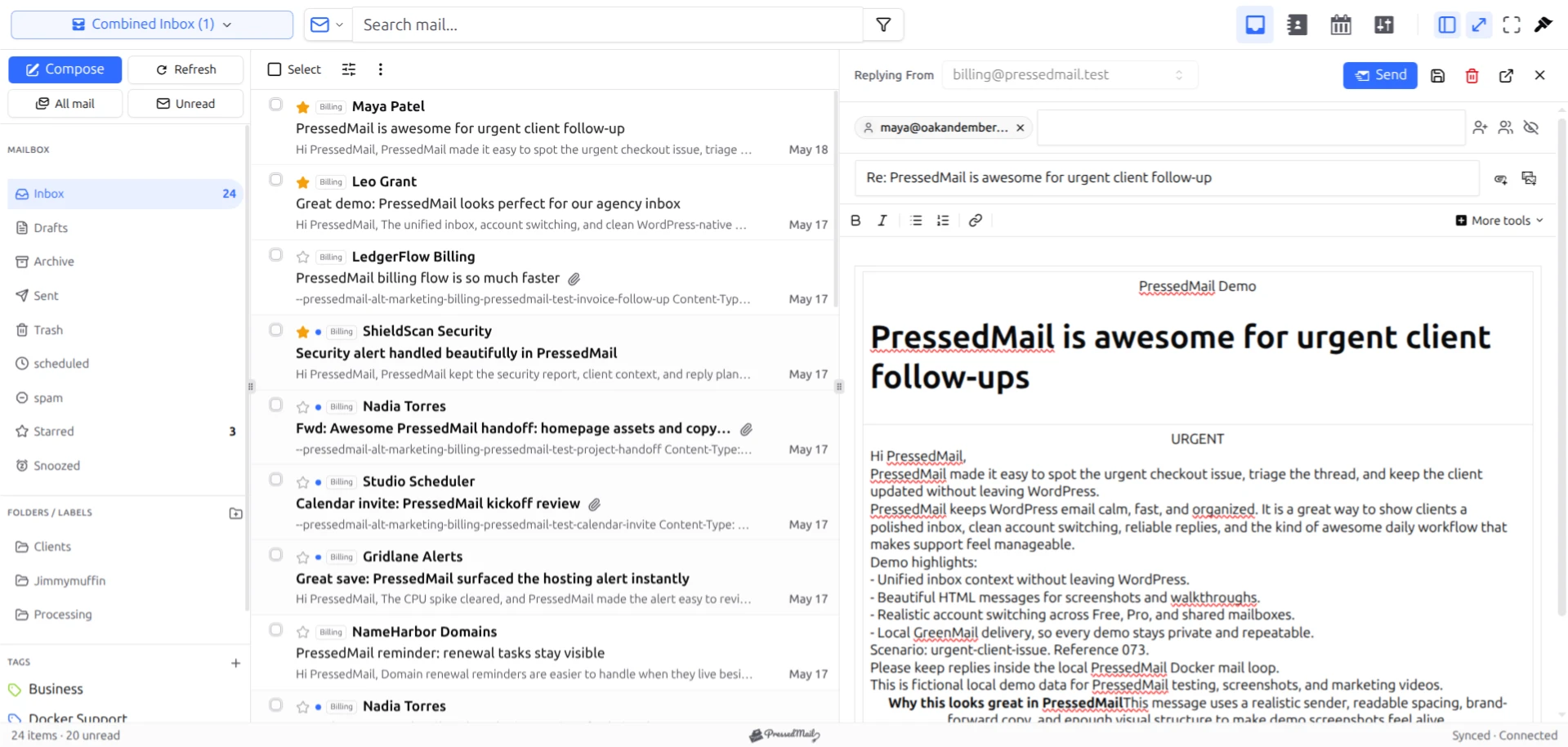
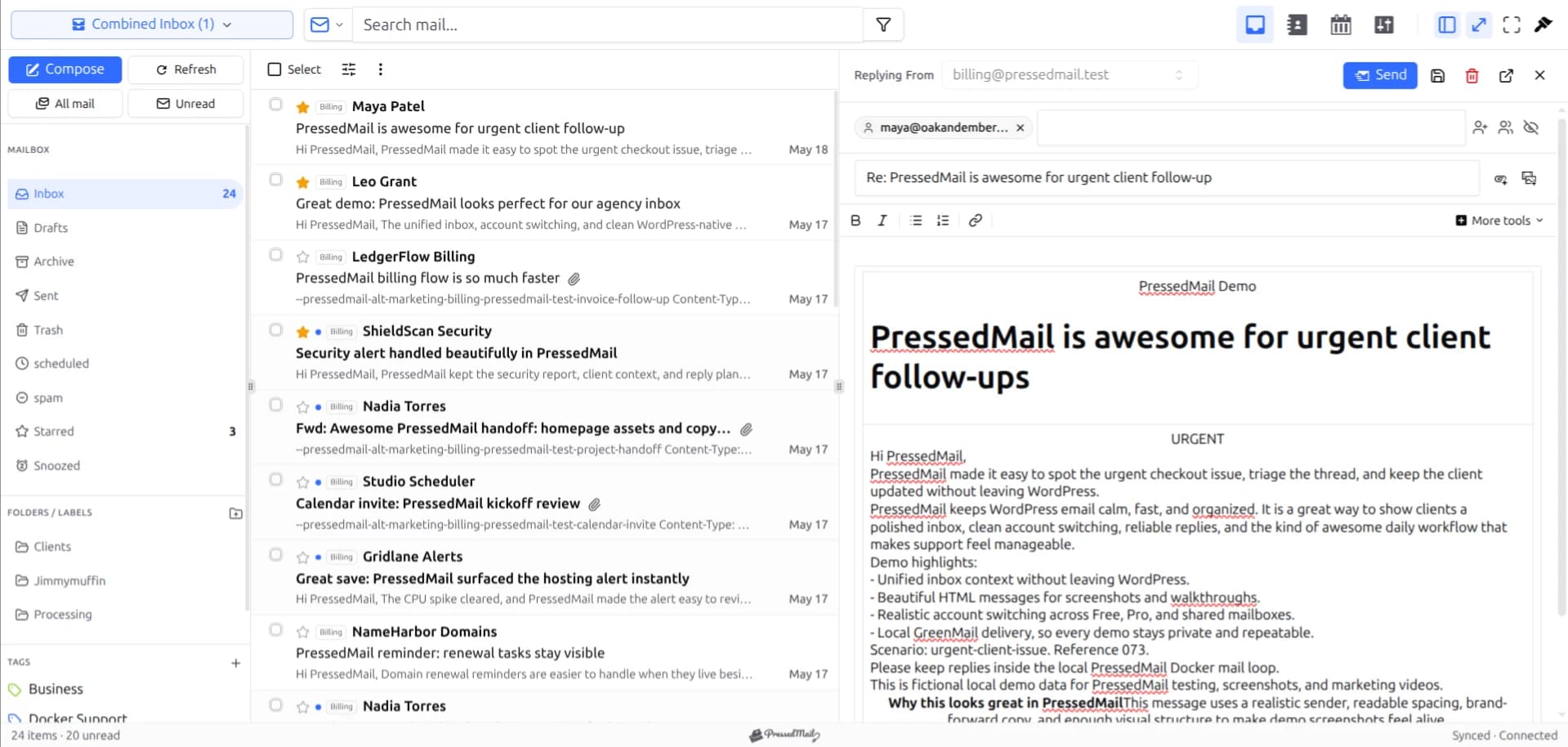
PressedMail screenshot showing the email workspace. The sample messages do not establish a particular hosting provider's compatibility.
What the hosting company provides
The email host stores the mailbox and accepts messages for its address. It may also provide a webmail application, storage limits, spam filtering, and an outgoing submission service.
PressedMail is another client for that mailbox. It does not replace those hosting functions or increase the account's storage allowance.
WordPress itself is a separate system. It may be hosted by the same company, but that does not mean every email address associated with the domain lives on that server. A business can host its website with one company and use Google Workspace or another service for mail.
If ownership is unclear, use the custom-domain mailbox guide before entering settings. It is easier to identify the correct provider once than to troubleshoot a connection to the wrong one.
1. Confirm the account exists and works
Open the hosting control panel and find the full email address. Establish whether it is a mailbox, a forwarding rule, or an alias attached to another account.
For cPanel, Email Accounts lists mailboxes and provides access to their webmail, restrictions, storage use, and management settings. The host controls which features are available. cPanel Email Accounts documentation.
Send a harmless message to the address from an external mailbox, then check it in webmail. Reply and verify receipt. This gives you a baseline outside WordPress.
If either direction already fails, investigate with the host before adding another client. A full mailbox, account restriction, or incorrect domain delivery route will not be repaired by installing PressedMail.
2. Get the secure client settings
Ask the host for the mailbox's IMAP and SMTP configuration, including hostnames, ports, encryption modes, username, and permitted authentication method.
For cPanel, open Email Accounts, find the account, and select Connect Devices. Use the recommended secure manual settings on that page. cPanel's mail-client setup reference.
Other panels may use different labels. The important point is that the settings belong to the actual mailbox and provider. Do not copy a random hosting tutorial's server name or assume mail.example.com is correct.
Keep credentials separate from ordinary setup notes. Do not share the hosting administrator's login with someone who only needs access to a mailbox.
3. Add the account in PressedMail
Choose Custom Email in PressedMail's account connection settings for a compatible password-based hosting mailbox. Enter the incoming and outgoing values separately.
Use the full username given by the host and the mailbox's credential. If the host requires an authentication flow the form does not support, stop and choose a supported client instead of weakening the account's security.
Match the encryption mode to the specified port. A secure connection error should be investigated, not bypassed by choosing unencrypted access.
The Custom IMAP documentation explains the product fields. Our IMAP account tutorial walks through the general account setup.
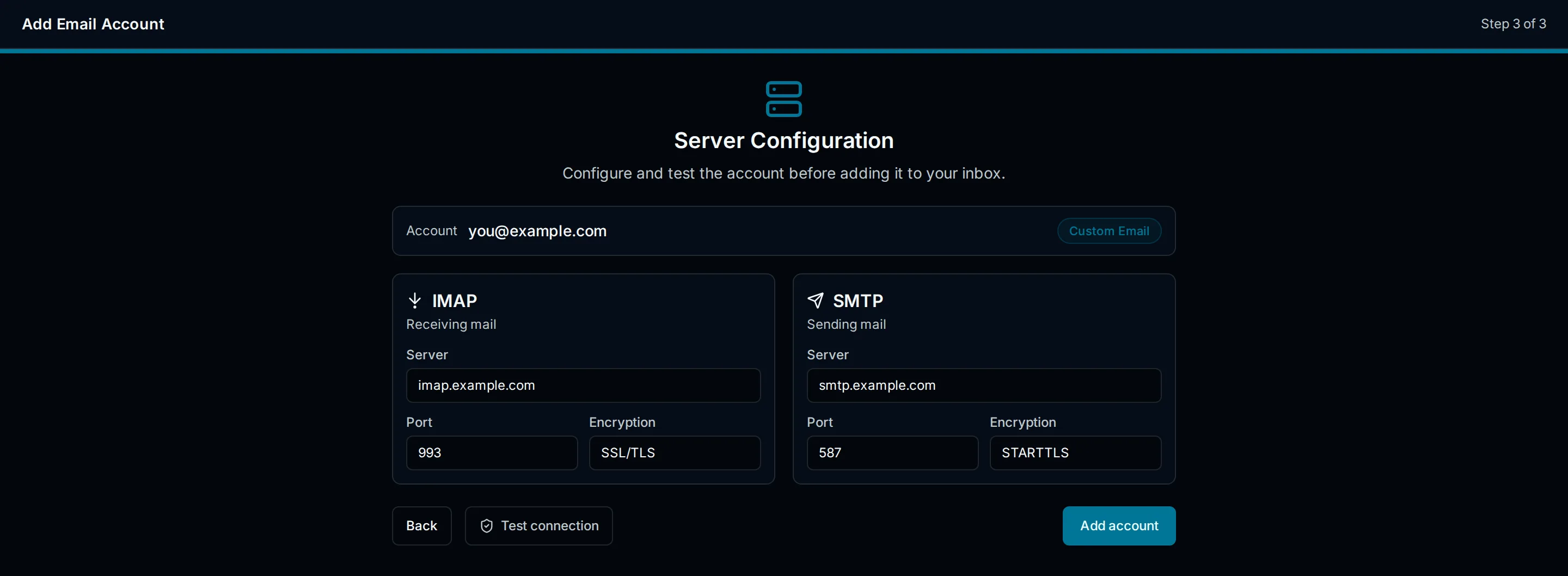
Drawn connection illustration. Use the provider's actual secure values rather than the sample hostnames in the image.
4. Verify the WordPress connection
Open the inbox and locate the external test message. Compare its sender, subject, and body with webmail. Then open an existing folder you recognize.
Reply from PressedMail and check the receiving mailbox. Confirm the expected From address and inspect where the sent message appears.
These checks exercise different parts of the connection. IMAP access can work while SMTP fails, and an outgoing submission can succeed before a recipient rejects or filters the message. The IMAP versus SMTP guide explains that division.
Avoid bulk message changes while establishing the connection. Both clients may be acting on the same mailbox state. Keep the host's webmail available as a second view during troubleshooting.
When the website and mail share a server
It can be tempting to use localhost or an unencrypted connection because the website and email came with the same hosting package. Do not assume that is the provider's supported arrangement.
The services may run on different hosts, and the secure certificate may require a particular hostname. Use the recommended settings and ask hosting support about network access if the connection times out.
Give support the destination service, port, timestamp, and non-sensitive error. That is more useful than “the plugin does not work,” and it does not require exposing the password.
A successful connection today also does not remove the need to maintain WordPress. Anyone with broad control over the site or server may affect its mailbox access. Limit administrative access and keep the site updated.
Inbox mail and website notifications are separate
Reading a hosting mailbox is not the same task as delivering a password reset or contact form notification.
PressedMail keeps WordPress SMTP server configuration separate from inbox connections. Adding the mailbox therefore does not automatically configure every message generated by the site. If system mail is the problem, use WordPress SMTP setup and test an actual notification.
The host's mailbox submission service may suit a small amount of site mail, subject to its rules. A transactional provider may be more appropriate for automated messages. Decide that independently of where a person reads their inbox.
Keep webmail as an alternative
You can continue using the host's webmail when it is available. It is useful when WordPress is under maintenance and as an independent check when a message appears missing.
PressedMail makes sense when the mailbox belongs beside everyday WordPress work. If all you need is a browser inbox and you rarely open wp-admin, the host's webmail may already do the job. Our WordPress email client versus webmail comparison covers that choice.
PressedMail Free supports one compatible mailbox. The host still controls account eligibility, storage, sending limits, and service availability.
FAQ
Does every hosting plan include email?
No. Check the actual package. Website hosting, outbound notification delivery, forwarding, and a sign-in-capable mailbox are different offerings.
Can I connect a forwarding address?
A forwarder may have no stored mailbox or independent login. Identify the destination mailbox and connect that account if permitted.
Will installing PressedMail fix a full mailbox?
No. Review storage with the host and the mailbox owner. Do not delete mail simply to complete a connection test.
Can I keep using my phone's email app?
Yes, where the provider permits the additional client. Remember that mailbox actions can affect what the other clients see. Test ordinary reading and replying before changing folder or deletion behavior.
Manage your email inside WordPress
PressedMail Free adds an email client directly to your WordPress dashboard. Connect a compatible IMAP/SMTP mailbox, read and send mail, organize messages, and configure WordPress SMTP.




