

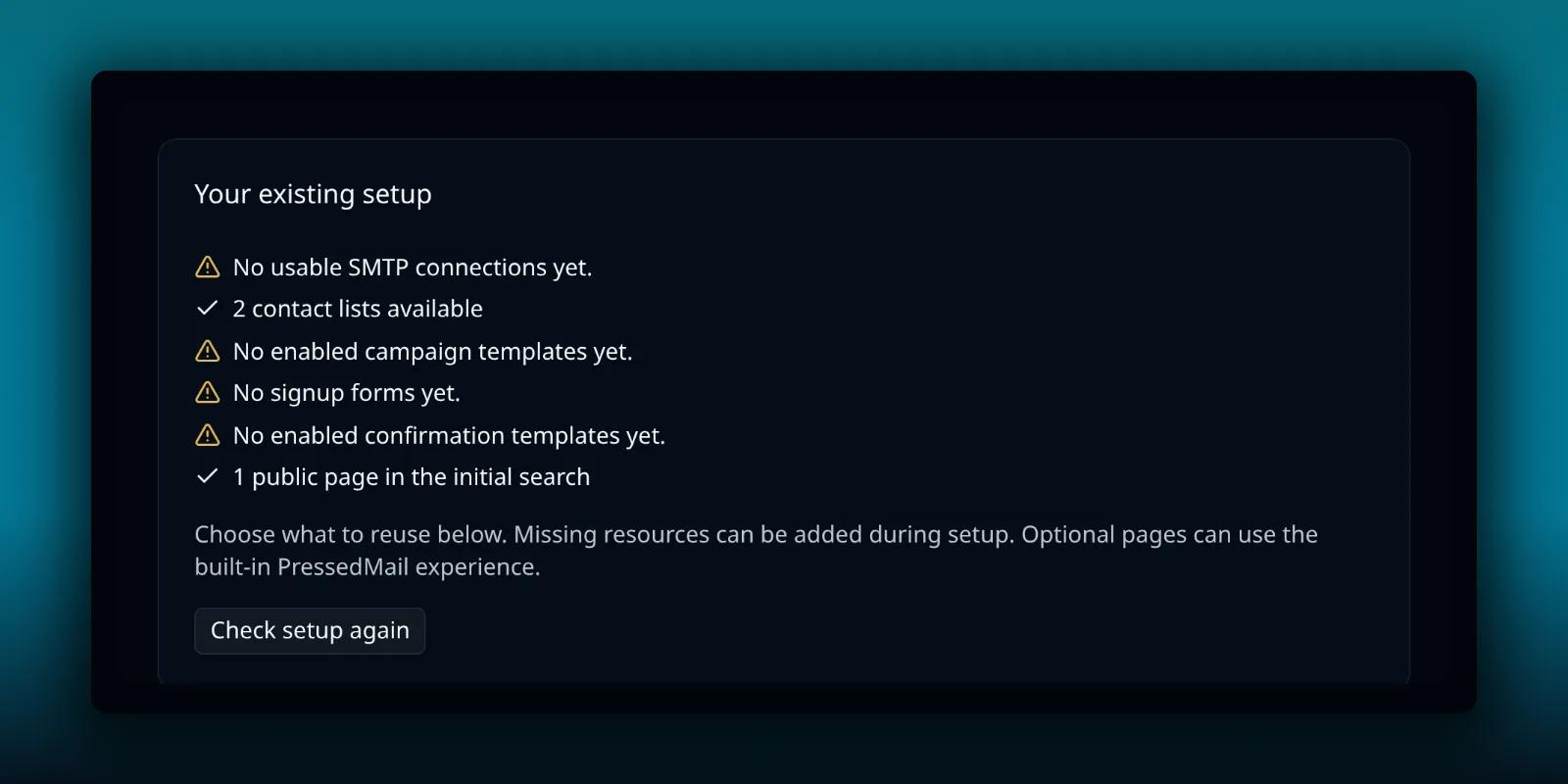
A campaign sends one saved email to everyone subscribed to a contact list. PressedMail Ultimate has a wizard for it that checks what you already have, then walks you through the pieces one at a time. This guide follows that wizard from the first screen to the last.
Campaigns are for administrators on Ultimate. A paid build without Ultimate keeps ordinary templates and list email, which work separately.
Open Campaign setup
Open the Templates menu in the header and choose Campaign setup. Its description reads: set up a new campaign step by step. The row above it, Campaigns, opens the campaigns you have already saved.
The first screen is called Check your setup.
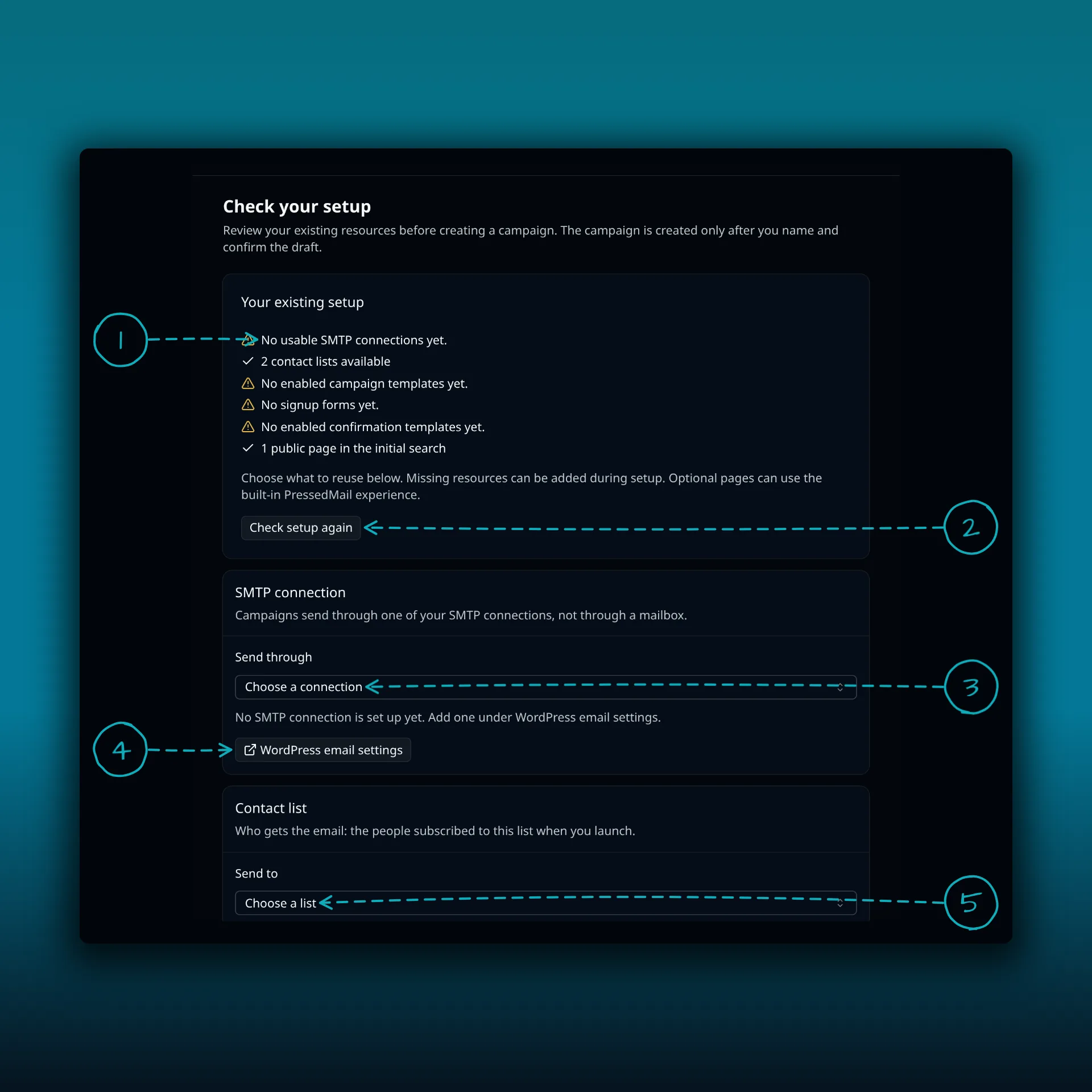
- The readiness list. A warning mark means something is missing, a tick means it is fine.
- Check setup again. Run it after you add something in another tab.
- Send through. The SMTP connection the campaign uses.
- WordPress email settings, a button that opens the place to add a connection.
- Send to. The contact list that receives the email.
The list reads your saved SMTP connections, your contact lists, your campaign templates, your signup forms, your confirmation templates and a first search of your public pages. This demo site has two lists and no connection, no template and no form, so most rows warn. Missing pieces are not a dead end. You can add them during setup. No campaign exists yet at this point. The wizard creates one only after you name it and confirm the draft.
The five steps
The wizard has five steps, shown at the top with a counter such as Step 1 of 5.
Campaign details
Give the campaign a name of up to 191 characters. Then choose the sending connection. Campaigns send through one of your SMTP connections. A mailbox cannot send them. If you have not set one up, the SMTP guide covers it.
You can send a test through the connection. PressedMail sends it only after you type a test recipient and select Send Test Email, and it does not start the campaign.
Audience and signup
Choose the contact list. The screen says who gets the email: the people subscribed to this list when you launch. The contacts guide explains how lists and subscription states work.
You can attach a signup form if visitors should join through your site. Attaching a form changes its destination to the selected list, so pick a list you own. A form already attached to another campaign does not appear. A new form starts switched off, and Enable signup form checks the form and the list before it turns the form on. The signup form guide shows how to build one.
Confirmation comes next. When subscribers join through a campaign form you can require an email confirmation, or subscribe them immediately. The review screen labels these Email confirmation required and Subscribe immediately. The double opt-in guide explains what each means for your list.
Email and unsubscribe
Pick the email template the campaign sends. A card shows its subject and the connection it will go from, and you can preview it or edit the template without leaving the wizard.
The template must contain the unsubscribe link field. The screen says a campaign will not send without one, and it tells you plainly when the field is missing. The template guide shows how fields work.
You also choose the unsubscribe page and, when confirmation is on, the confirmation page. Each can be the PressedMail built-in page or one of your own WordPress pages.
A campaign takes its own copy of the email when it launches. Editing the reusable template afterwards does not change a launch that already happened.
Tracking and delivery
Open and click tracking are options for Ultimate. The review shows each one as Enabled, Disabled or Unavailable. They are off unless you turn them on. The tracking guide explains what they count and what they leave out.
Sending rate sets how many emails go out per minute. It accepts 1 to 600 and starts at 60. Choose a rate your mail provider allows. Large mailbox providers publish rules for bulk senders, and Google’s sender guidelines are a good example of what to read. A running campaign can only be slowed down. If you want a faster pace, pause it first.
Review and launch
The last step groups what you set into Campaign, Audience, Email and Delivery. It shows the subscriber count and how many confirmations are pending, or says the count is unavailable. At the bottom it reads either Ready to launch or Campaign not ready, with links back to anything that blocks you.
Select Open campaign to land in the campaign editor. Activation and launch live there, so nothing sends because you reached the end of the wizard.
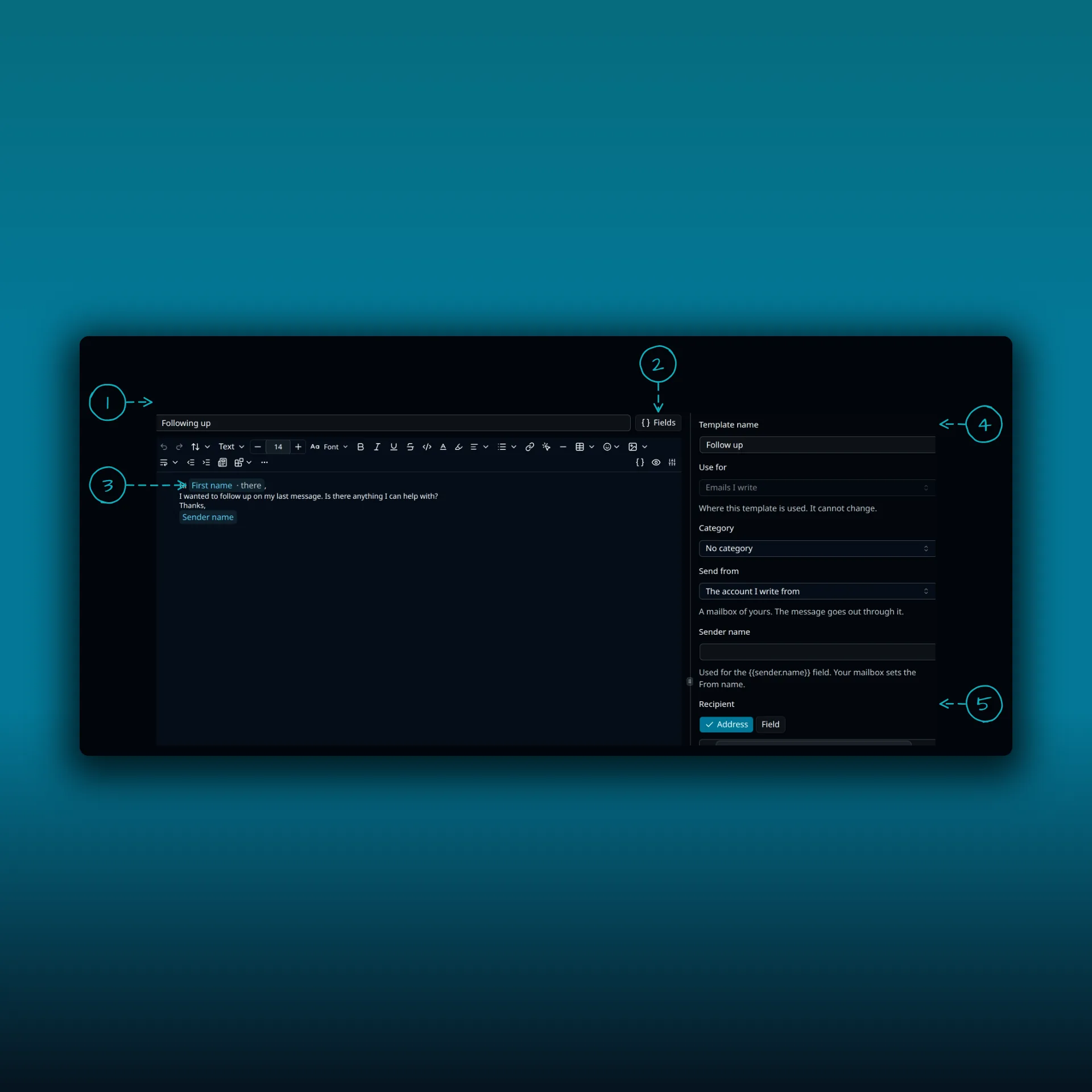
The template editor is where you add the unsubscribe field the wizard asks for.
Save and come back
Save and exit keeps an unfinished draft. When you reopen it, the wizard resumes at the first step that still has something missing. Continue saves your changes as you go. Cancel leaves without creating a campaign if nothing has been saved yet.
After you launch
Select a campaign and open Analytics to pick a date range. The counts show what the selected campaign did in that range. SMTP acceptance records the hand-off to your outgoing server. It does not prove an email reached an inbox. Bounce rate needs verified feedback from a supported delivery-report source, so it can read as unavailable until you set that up.
Think about consent before you launch. The list should hold people who agreed to hear from you, and the roundup guide shows a first campaign built around your latest posts.
Frequently asked questions
Which plan includes campaigns?
Campaigns are part of Ultimate and are available to administrators.
Can a campaign send through my own mailbox?
No. Campaigns send through an SMTP connection you have set up.
Why will my campaign not launch?
The review lists what blocks it. The usual causes are no sending connection, no list, no email, or a template with no unsubscribe field.
What happens if I leave the wizard halfway?
Save and exit keeps the draft. Reopening resumes at the first missing step.
Is open and click tracking on by default?
No. Both are switched off until you enable them, and Unavailable means tracking is not possible for that campaign.
Manage your email inside WordPress
PressedMail Free adds an email client directly to your WordPress dashboard. Connect a compatible IMAP/SMTP mailbox, read and send mail, organize messages, and configure WordPress SMTP.

