

When a stranger types an address into a form, you cannot be sure they own it. Double opt-in solves that. The person gets an email with a link, and they are only added to your mailing once they open it and confirm. The other half of the story is the way out: an unsubscribe link that works and stays working.
This guide explains how PressedMail handles both. Double opt-in is part of Campaigns, which need an Ultimate licence. Unsubscribe links are part of every list send on a paid plan.
What double opt-in does
A plain signup form adds a person to your contact list straight away. With double opt-in, a new signup waits as Pending and is not mailed. PressedMail sends a confirmation email. The person opens the link and presses Confirm subscription. Only then do they become Subscribed.
The confirmation goes out through the campaign’s SMTP connection. The signup form guide shows how to build the form this attaches to.
Set it up
In the campaign, attach your signup form, turn on Ask people to confirm by email, and choose a Confirmation email template that has the confirm link. The template guide covers building the template.
Forms are built in the Templates library, under Forms (item 5 below).
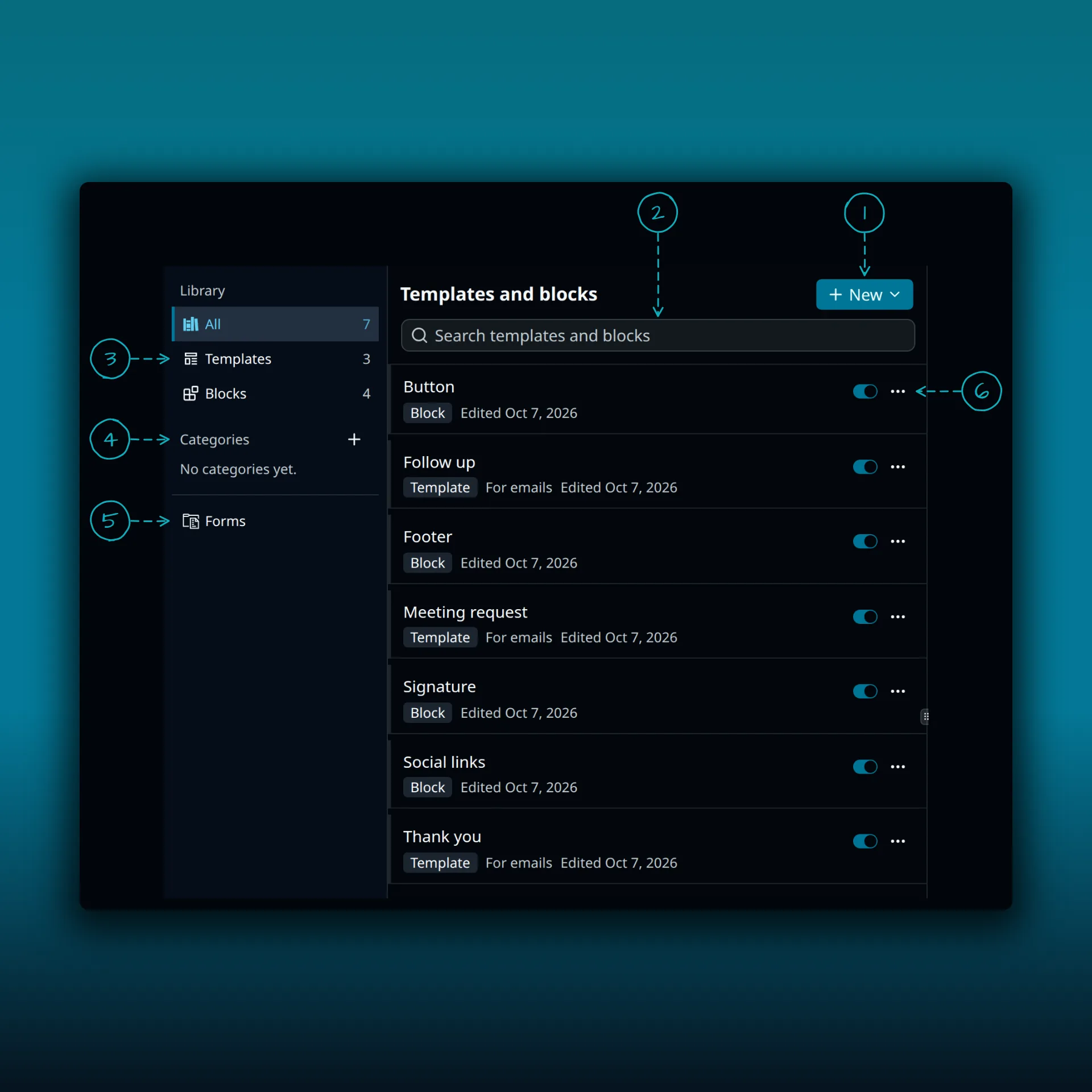
- New.
- Search templates and blocks.
- The library filters: All, Templates and Blocks.
- Categories.
- Forms. Opens your signup forms.
- The switch and the three-dot menu on a row.
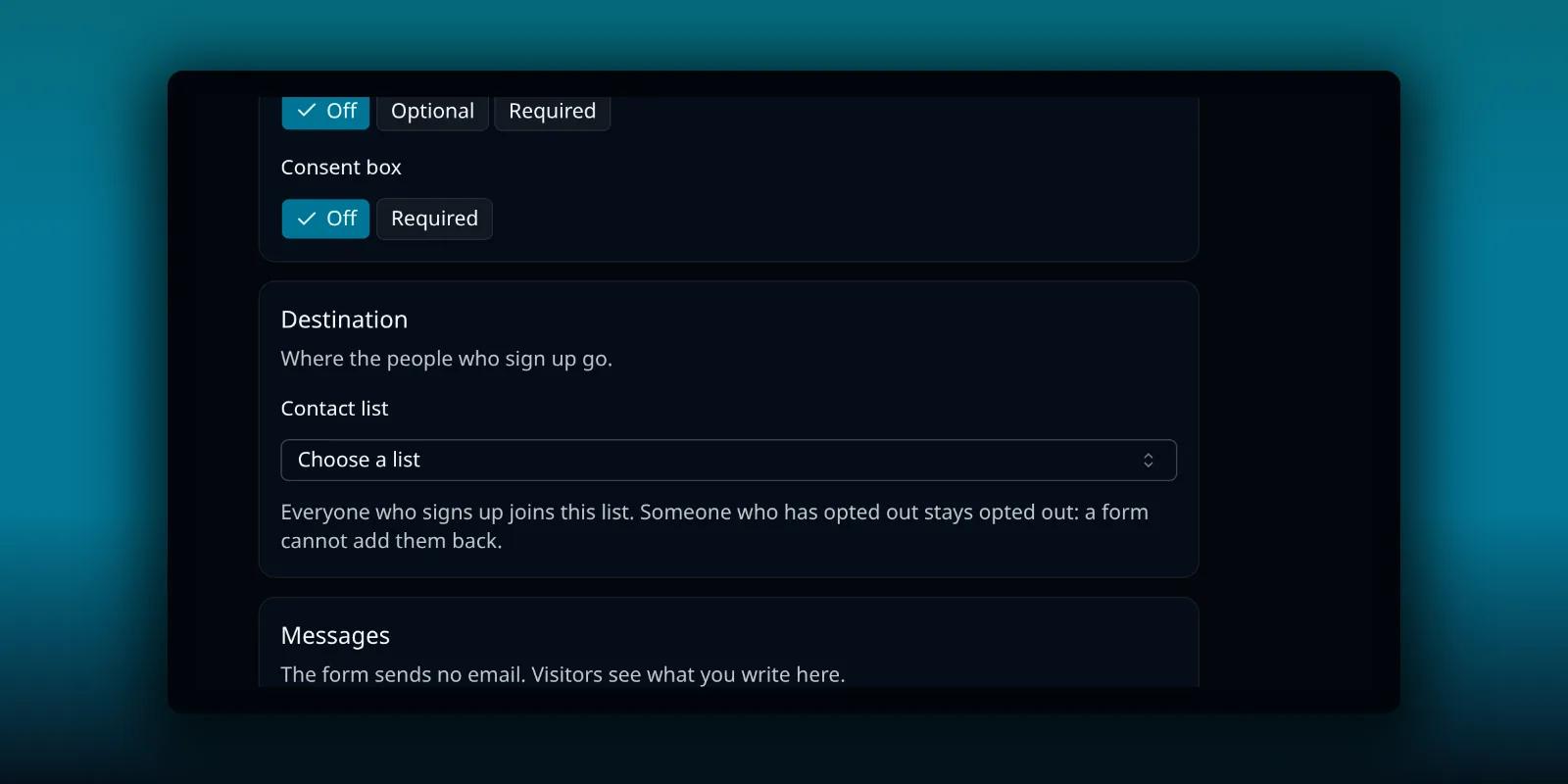
The form editor has one section that matters here. The Destination section of a form carries a reminder that matters here: someone who has opted out stays opted out, and a form cannot add them back.
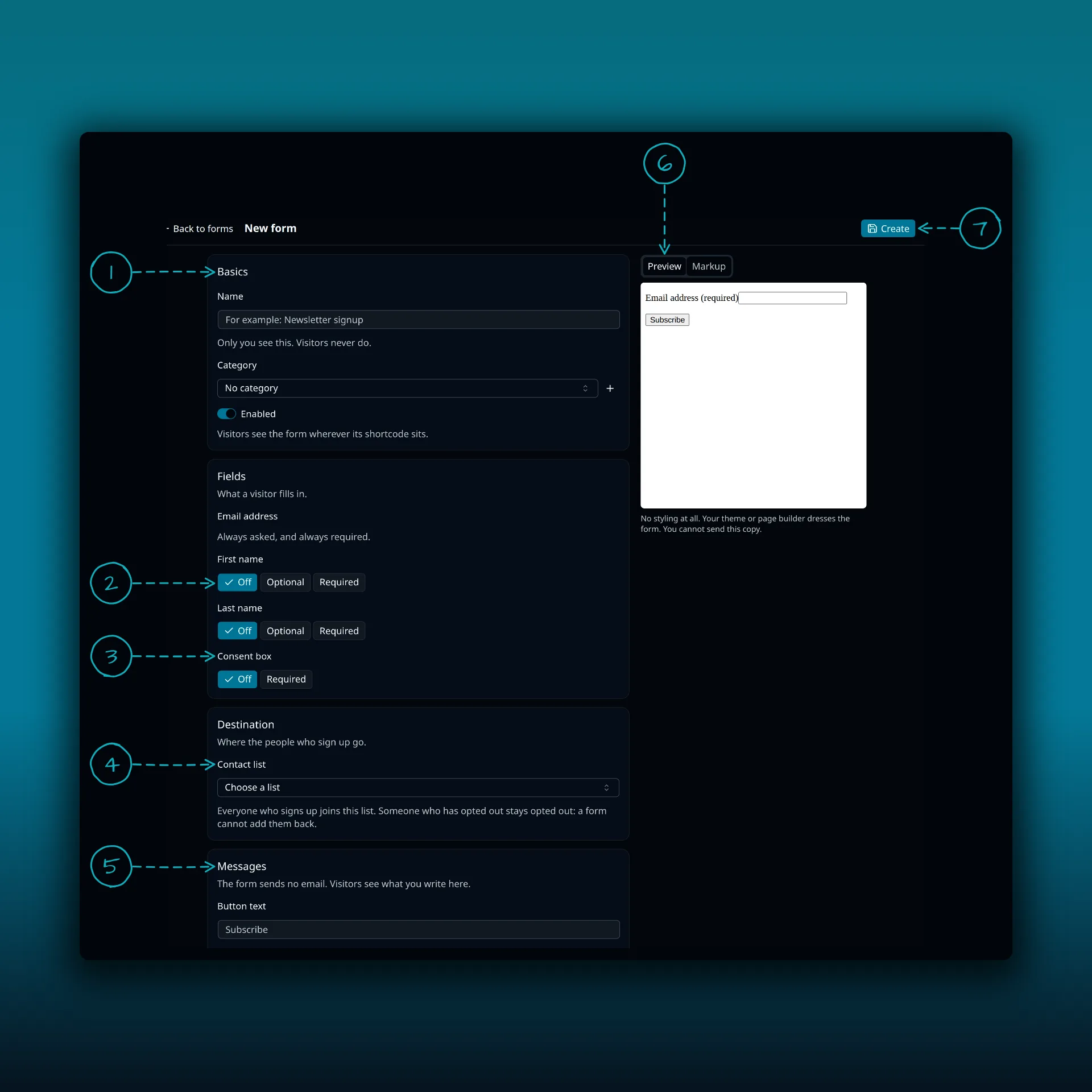
- Basics. A name only you see, an optional category and the Enabled switch.
- First name and last name. Each can be Off, Optional or Required.
- Consent box. Off or Required.
- Contact list. The list everyone who signs up joins. Someone who has opted out stays opted out.
- Messages. The button text and what happens after someone signs up.
- The Preview tab, with Markup beside it.
- Create.
A form has to exist before a campaign can attach it. The signup form guide walks through each section.
The rules around a confirmation
- The link works for seven days from when the email is sent.
- A signup that has not confirmed stays Pending and is not mailed.
- One address gets at most one confirmation email per campaign per day, and three in 30 days. Nobody can use your form to flood someone else’s inbox.
- Opening the link changes nothing by itself. The person presses a button to confirm.
When the form closes
If the campaign cannot send confirmation emails at all, the form closes and takes no signups. That covers a campaign that is paused or not active. It covers an SMTP connection that is missing, failing or cannot log in. It covers a confirmation email that is missing, switched off or has no confirm link. And it covers an Ultimate licence that is not active. The campaign says which.
The form never drops confirmation on its own. If you want to take signups without confirmation, choose Use without campaign under Destination in the form. People then join the list at once, with no confirmation email.
A provider that refuses some recipients does not close the form. If the refusals keep coming, the campaign shows “Confirmation emails keep being refused. Check your provider’s log and the signup addresses.” For a failing connection, the delivery troubleshooting guide helps.
Unsubscribe links
Every Full contact list email and every campaign email carries a signed unsubscribe link in its headers. Some mail apps show it as an unsubscribe button. The header is the standard List-Unsubscribe header that RFC 2369 describes for mailing lists. A template can also put a personal unsubscribe link in the body of a Full contact list email, with the Unsubscribe link block.
An ordinary email with a list in To, Cc or Bcc carries neither. If you add a list that way, the members get that one email privately as Bcc recipients, with no unsubscribe link. Use a Full contact list email for anything that people might want to opt out of. The roundup guide shows one.
What happens when someone clicks
Opening an unsubscribe link changes nothing by itself. The reader presses a button to confirm. That way a link scanner at the recipient’s mail provider cannot opt people out by accident.
An opt-out sticks
Unsubscribed and unconfirmed contacts are skipped on every later list send, even if your licence lapses. An unsubscribe survives these things.
- A new signup on a form without double opt-in.
- Adding the contact back to the list.
- Importing the address again.
Someone who unsubscribed from a list email can rejoin only through Campaigns. A signup form attached to a campaign that asks people to confirm mails them a confirmation link, and using it subscribes them again. Without Campaigns, the contact stays opted out of that list.
Deleting the contact clears the opt-out, because it deletes the contact’s unsubscribe records. The same address added again is then a new contact with nothing on record. Keep that in mind before you tidy an address book. The contacts guide explains who a list send reaches.
Use your own pages in a campaign
By default the confirm and unsubscribe links open a plain page that the plugin provides. In a campaign you can pick your own Confirm page and Unsubscribe page instead. The unsubscribe page needs the [pressedmail_unsubscribe] shortcode, and the confirm page needs [pressedmail_confirm_subscription]. If a page is not published or lacks its shortcode, the campaign tells you and asks you to fix the page. A choice to use the plugin’s own page is always there as well.
Which plan do I need?
Unsubscribe links come with the paid plans. Double opt-in needs Ultimate, because it needs Campaigns. The plan comparison lists what each plan adds.
Frequently asked questions
How long does the confirmation link last?
Seven days from when the email is sent.
What happens to people who never confirm?
They stay Pending and are not mailed until they open the link and confirm. Once the link has expired, they would need to sign up again.
Can someone get confirmation emails over and over?
No. One address gets at most one per campaign per day and three in 30 days.
Does clicking an unsubscribe link opt someone out right away?
No. The reader presses a button on the page that opens. A scanner that only opens the link changes nothing.
Will re-importing a contact bring back someone who opted out?
No. The opt-out stays. Importing the address or adding it to the list again does not undo it.
Manage your email inside WordPress
PressedMail Free adds an email client directly to your WordPress dashboard. Connect a compatible IMAP/SMTP mailbox, read and send mail, organize messages, and configure WordPress SMTP.

