

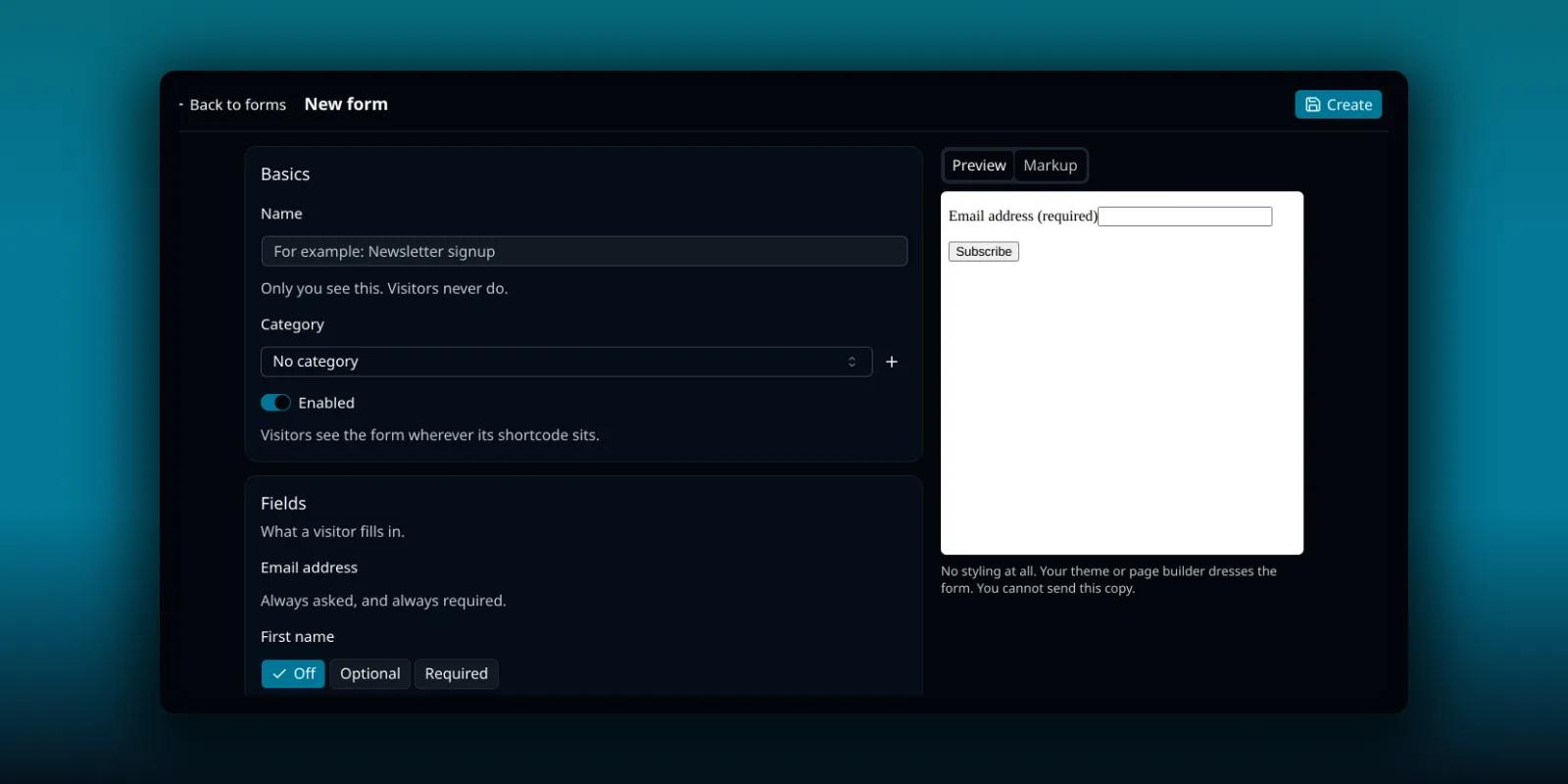
A signup form puts a newsletter box, a waitlist or a “tell me when it is ready” field on your site. Visitors type their address, and they land in a PressedMail contact list you can write to. There is no outside service to sign up for, because the form, the signups and the list all live in your WordPress database.
Signup forms come with the paid plans. The free plugin does not include them. This guide builds a form, puts it on a page and explains how it keeps spam out and what it stores.
Before you build one
A form needs a contact list to send its signups to, and it has to be one of your own. If you have no list yet, make one first. The contacts guide shows how.
Forms live in the Templates library. Open Templates in the header, then choose Forms in the left column.
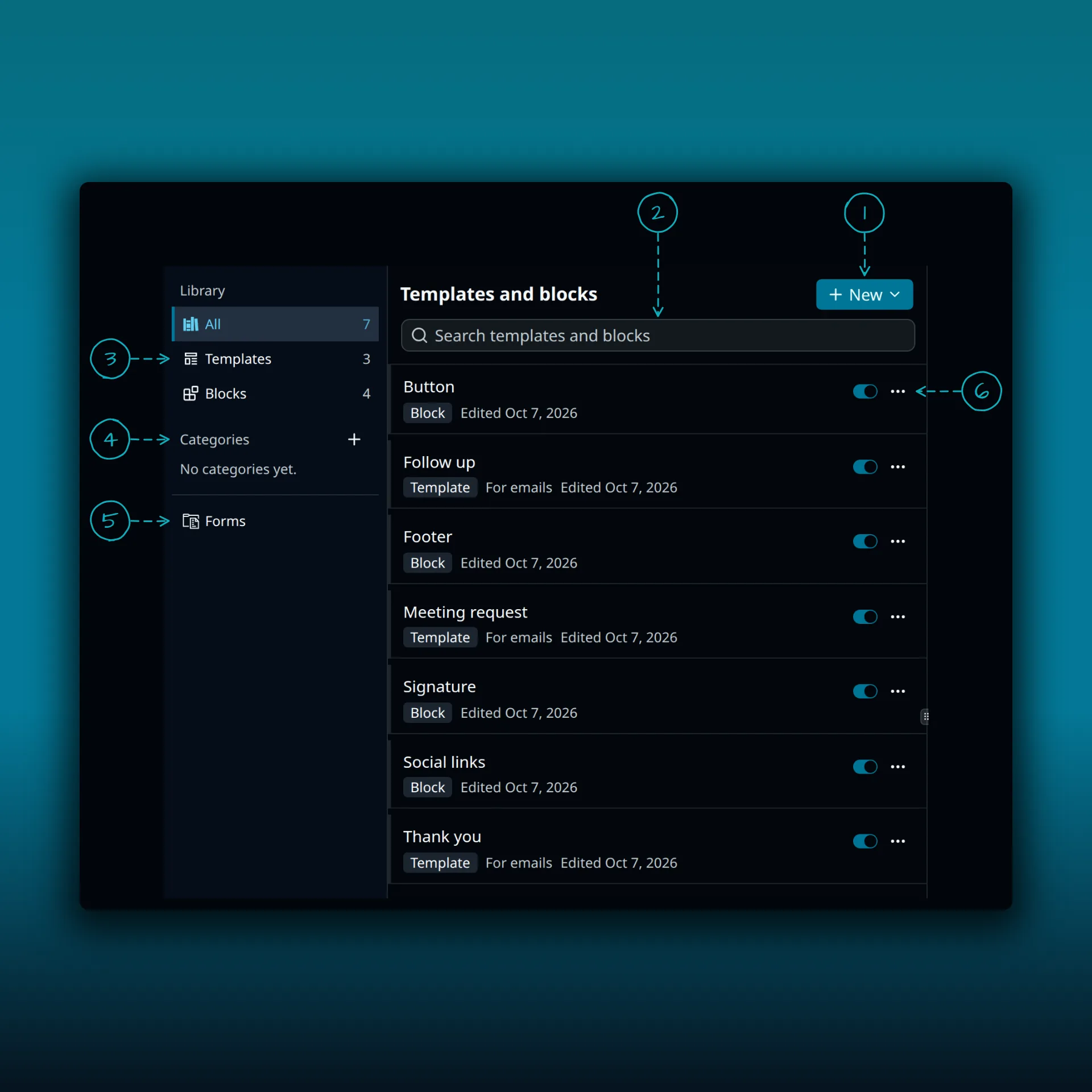
- New. Opens a menu for creating something new.
- Search templates and blocks.
- The library filters: All, Templates and Blocks.
- Categories.
- Forms. Opens your signup forms.
- The switch and the three-dot menu on a row.
Build a form
Choose New form. The editor groups the settings into sections.
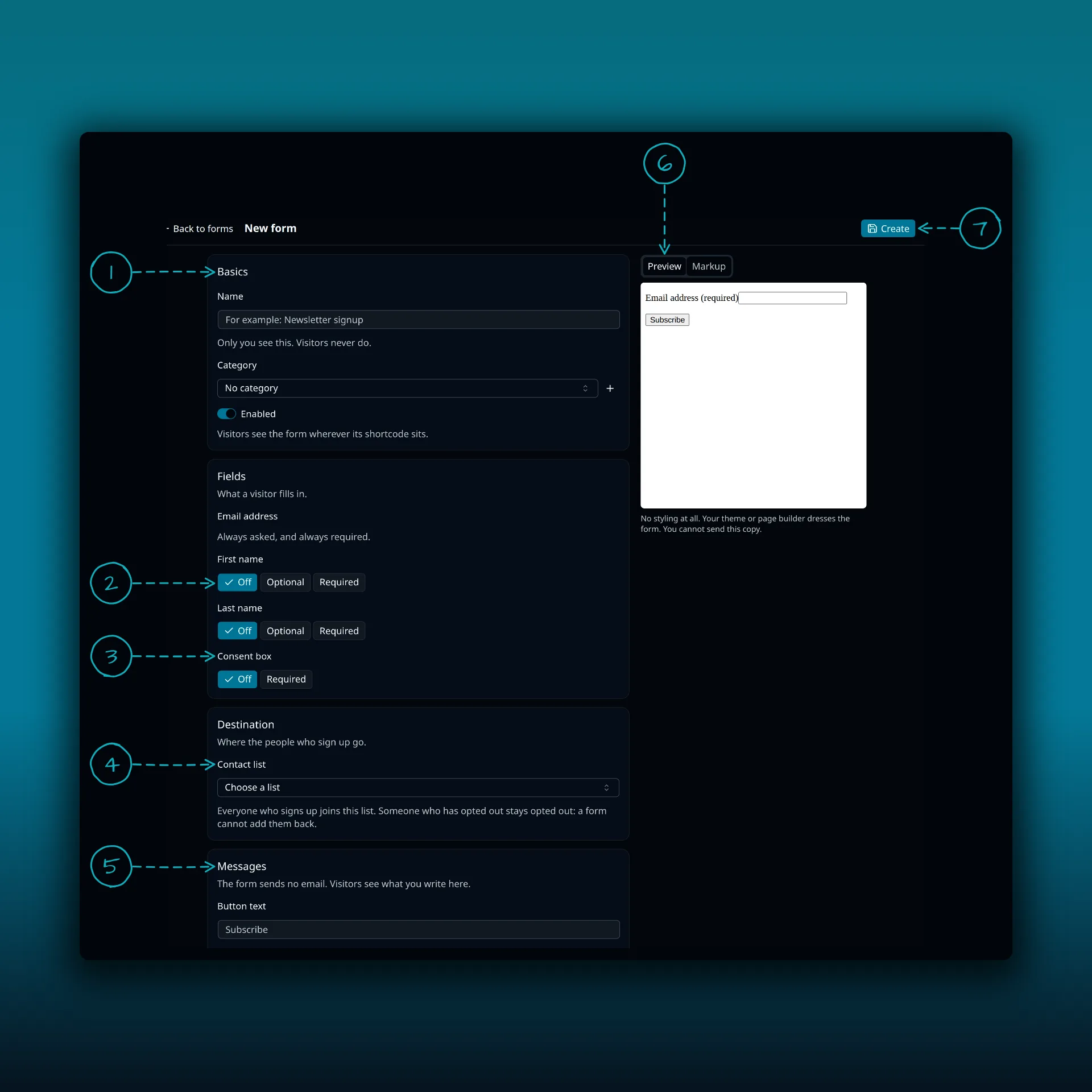
- Basics. A name only you see, an optional category and the Enabled switch.
- First name and last name. Each can be Off, Optional or Required.
- Consent box. Off or Required.
- Contact list. The list everyone who signs up joins. Someone who has opted out stays opted out, because a form cannot add them back.
- Messages. The button text and what happens after someone signs up. The form sends no email of its own.
- The Preview tab, with Markup beside it. The preview has no styling, and you cannot send it.
- Create.
Work through them in order.
- Basics. Give the form a name that only you see. A category is optional and lets you filter the list. Enabled starts on.
- Fields. Email is always asked and always required. First name and last name can each be Off, Optional or Required, and both start Off. Set Consent box to Required if people must tick a box to join. Then fill in what people agree to, and add a link to your privacy policy. The box needs both. The wording is saved with each signup, so write what you actually promise.
- Destination. Pick the contact list everyone who signs up joins.
- Messages. Set the button text, which says Subscribe when you leave it empty. Choose what happens after someone signs up. You can show a message, with “Thanks for subscribing.” when you leave it empty, or send them to a page. The thank-you page has to be published and have no password.
- Preview. It redraws as you type and shows the form with no styling. You cannot send it from there.
When it looks right, press Create. Later changes use Save. The shortcode then appears under Embed, with a button to copy it.
On your site, the form uses your theme’s fonts and colors.
Put it on a page
There are two ways, and both give the same result.
- In the block editor, add the PressedMail signup form block and pick the form.
- Anywhere shortcodes work, paste the shortcode. Copy shortcode on the form gives you the exact one, which looks like
[pressedmail_form id="3"].
Any author on the site can embed an active form. If you switch a form to Paused, it disappears from every page without losing its settings or the contacts it collected. Deleting a form works the same way for your pages, and the contacts it already collected stay in your lists.
Use it on another website
The Markup tab gives you the form as plain HTML to paste. Allowed websites under Embed lists the sites that may post to it. It starts as *, which means any website. Narrow it if the form is only meant for one site.
Stop spam
Every form has three protections on, with nothing to set up. A hidden field that only bots fill in. A minimum time between loading the form and sending it. And limits per visitor network and per form.
If you want more, add a CAPTCHA. On the Forms tab, press Spam protection at the top. It opens the spam protection keys, where you pick Cloudflare Turnstile or Google reCAPTCHA v2 (checkbox) and paste the site key and secret key from that provider. Then open a form and set its Spam protection to use the site’s spam check. A form can also carry its own keys, or take no spam check at all.
If the keys go missing or stop working, the forms that use them refuse every signup until you fix the keys or set those forms to no spam check. So nothing slips through unchecked. Turnstile and reCAPTCHA each have their own privacy terms. See Cloudflare’s Turnstile privacy policy and Google’s privacy policy before you turn one on.
What the form stores
Everything stays in your WordPress database. That includes what the visitor typed, the consent text they agreed to, the page they were on and the time. Turn on Email me each signup and one email per submission goes to the address you name. It carries what the visitor submitted, and it leaves through the mailbox the form sends from.
A signup form loads nothing from outside your site unless that form uses a CAPTCHA. No third-party font or tracker comes with it either way. PressedMail adds suggested text about signup forms to Settings, Privacy, and WordPress’s personal data export and erasure tools cover signup records.
Confirmation emails and unsubscribing
A plain form adds people to the list straight away. If you want people to confirm by email first, that is double opt-in, and it needs Campaigns on an Ultimate licence. The double opt-in guide covers it, along with unsubscribe links. When you send to the list, the roundup guide shows a good first email.
If your licence lapses
Forms stop showing on your pages. The contacts they collected stay put, and people who unsubscribed stay unsubscribed. If you switch back to the free plugin, the shortcode shows up as plain text, so remove it from your pages.
Which plan do I need?
Signup forms need a paid plan, and double opt-in needs Ultimate. The plan comparison lists what each plan adds.
Frequently asked questions
Does the form need an outside email service?
No. Signups go into a PressedMail contact list in your own WordPress database.
Can I put the same form on several pages?
Yes. Embed it with the block or the shortcode wherever you want it.
How do I take a form down without losing signups?
Set it to Paused. It disappears from every page and keeps its settings and the contacts it collected.
Do I need a CAPTCHA?
Not to start. Every form has a hidden bot field, a minimum fill time and rate limits. Add Turnstile or reCAPTCHA if you still see spam.
Where do I put the privacy policy link?
On the form’s consent box. A required consent box needs both the wording and the privacy policy link.
Manage your email inside WordPress
PressedMail Free adds an email client directly to your WordPress dashboard. Connect a compatible IMAP/SMTP mailbox, read and send mail, organize messages, and configure WordPress SMTP.

