

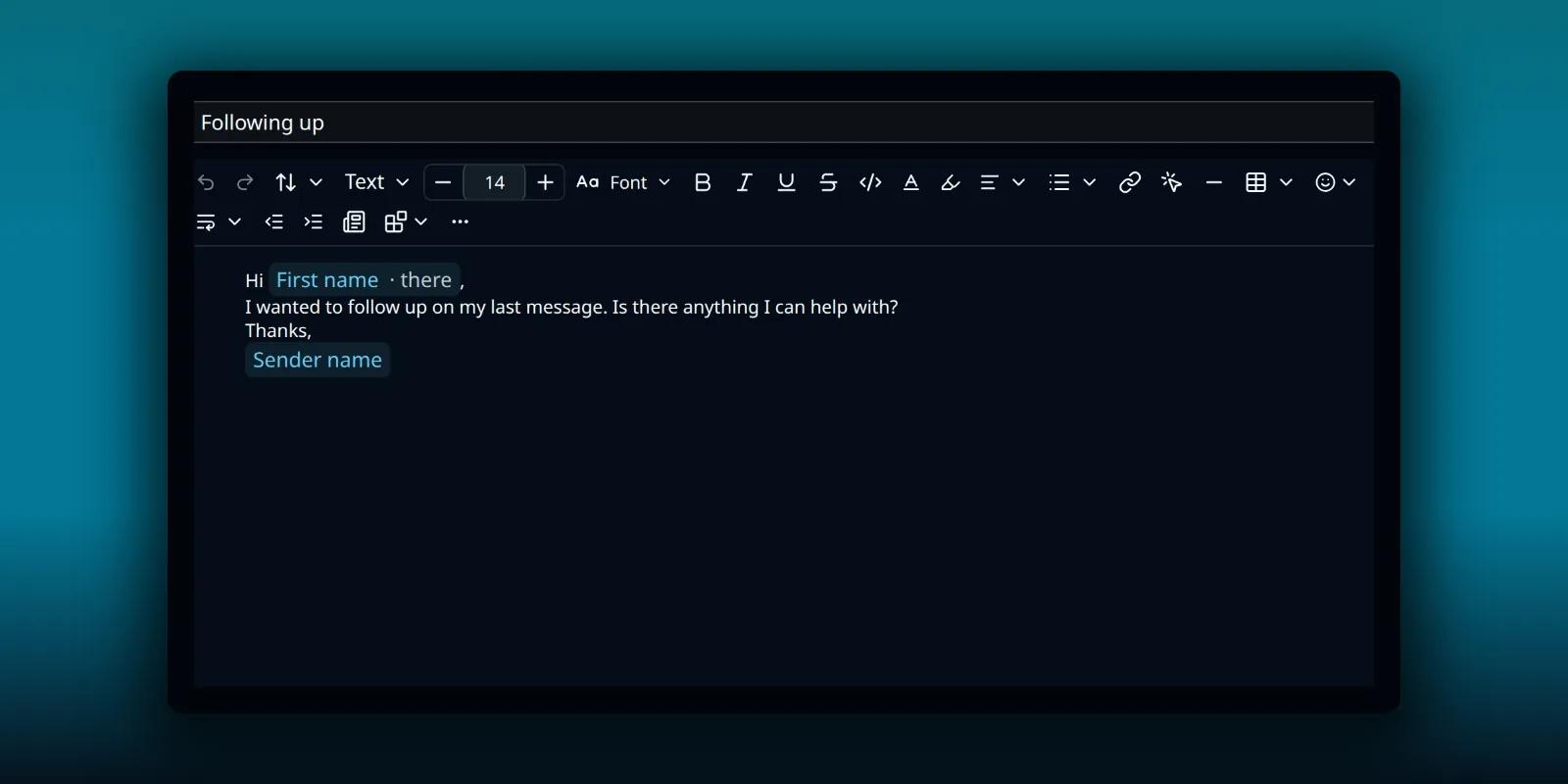
You write the same email again and again. A welcome note for a new client. A price list. A reply to the question everyone asks. A template saves it once so you can start from it every time, and it can greet each person by name when it goes out.
Templates are a paid feature. The free plugin does not include them. This guide covers making one, the personal fields you can drop in, what a fallback does, and how to preview and use a template.
Where templates live
Templates is the fourth icon in the workspace header. One library holds your email templates, your reusable blocks and your signup forms.
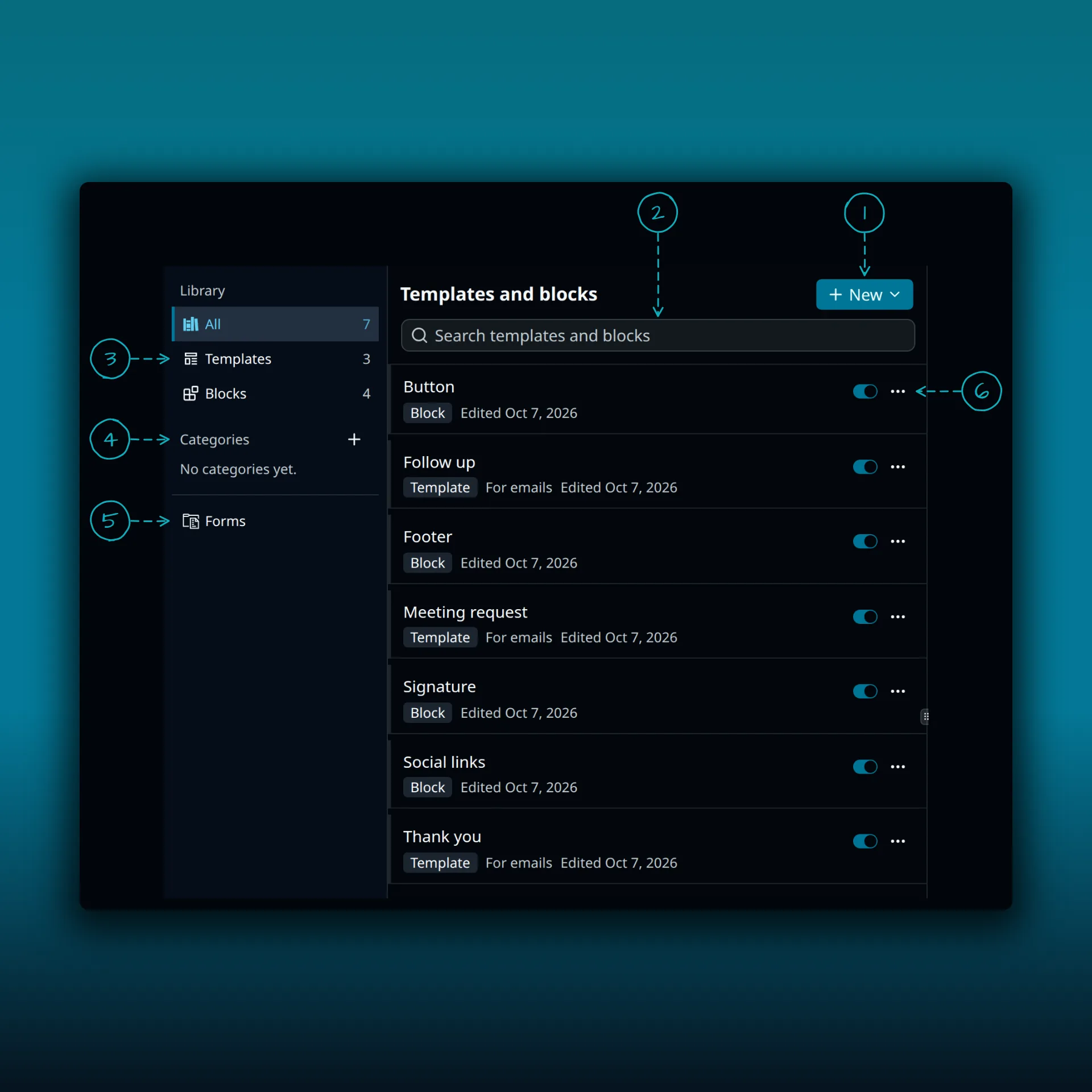
- New. Opens a menu for creating something new.
- Search templates and blocks.
- The library filters: All, Templates and Blocks. The number on each is how many items it holds.
- Categories. The plus button creates a category.
- Forms. Opens your signup forms.
- The switch and the three-dot menu on a row. The switch turns the item on or off.
Each row says whether it is a Template or a Block, and when it was last edited. Click a row and it opens in the pane on the right.
Make a template
- Open Templates and choose New, then template.
- Give it a name. A category is optional, and helps once the list grows.
- Write the subject and the body in the same editor you use for email.
- Press Save.
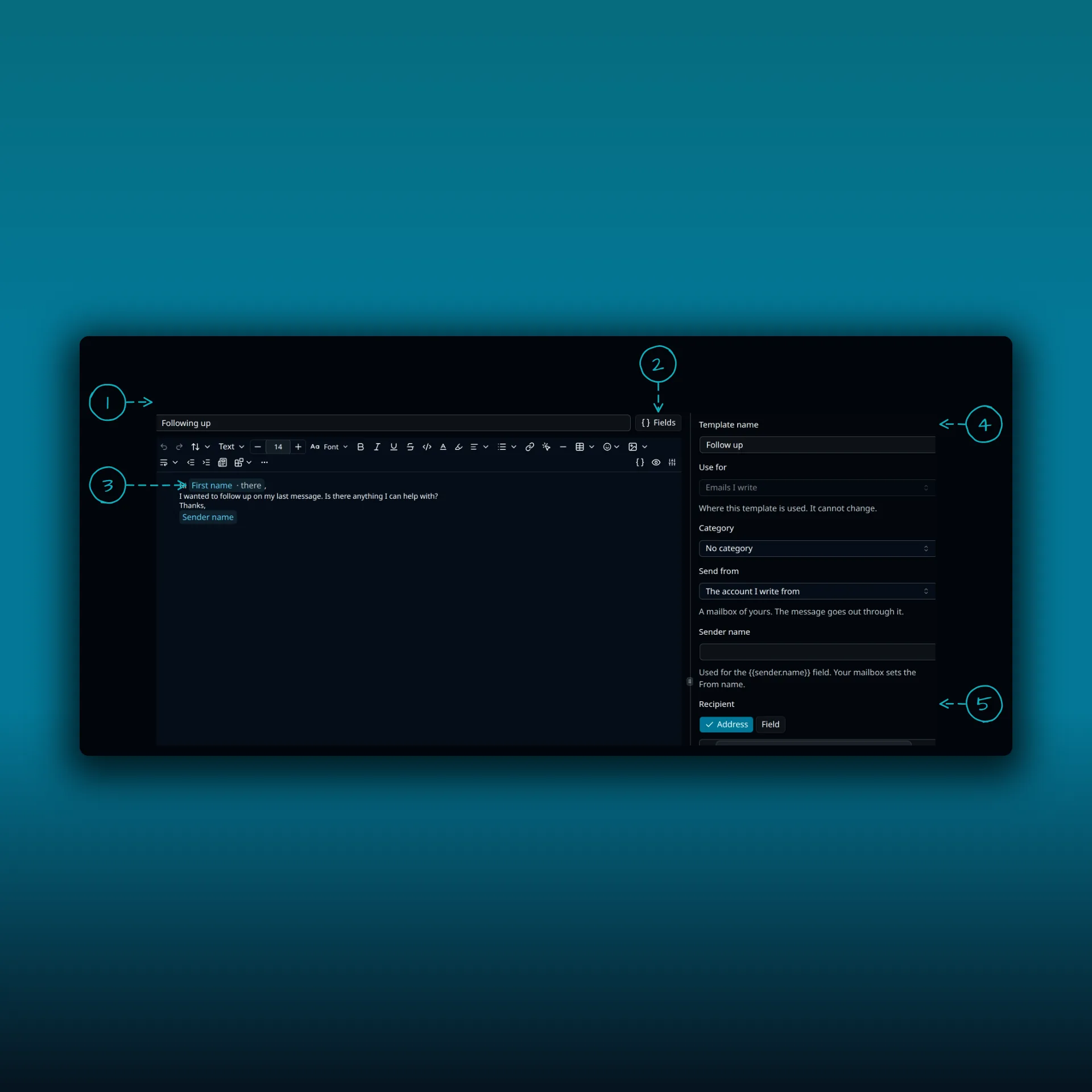
- Subject. Fields work here too.
- The Fields button. It lists the nine fields you can insert.
- A First name field in the body. It shows as a chip, here with the fallback “there”.
- Template name. The settings column also has Category, Send from and Sender name. Use for is fixed to emails you write.
- Recipient. Leave it empty to choose the recipient when you use the template.
The settings column ends with Fields in use, which lists the fields this template contains. The picture shows one of the sample templates on the demo site.
You can keep up to 500 templates. Open one from the list to change it, or delete it from there. Templates are private to the person who made them.
Add personal fields
Use the Fields button beside the subject, or the one in the editor, to drop a field into the subject or the body. It shows up as a chip. PressedMail swaps in the real value when you start an email from the template. Nine fields are available.
- First name, last name, full name, email and company, from the contact card.
- Your name and your email, from the sending mailbox.
- Site name.
- Today’s date.
Give every field a fallback
A field can have a fallback, the text used when the value is empty. Give First name the fallback “there”, and “Hi [First name]” reads “Hi there” for a contact with no first name. Set fallbacks for the fields you use most. A greeting that reads “Hi ,” is worse than a plain “Hi there”.
When the fields are filled in
In an email you start for one person, the fields are filled in when you start it. In an email to a whole contact list, they are filled in at the moment each copy leaves. A scheduled send, or an Undo Send delay, uses each contact’s details as they are at that moment. The roundup guide covers sending to a list.
The fields are stored as plain text, so your drafts stay readable even if your licence lapses.
Preview before you send
Open Preview while you edit a template. Pick a contact and you see the subject and body with their fields filled in. It is worked out by the same code that runs when you start an email from the template. Leave the contact empty to see how the fields fall back. Check a contact with missing details, because that is where a fallback matters.
Use a template
Open the Templates menu and choose New email from template, or choose Use in a template’s menu. Pick a template and, if you like, add a recipient so their fields are filled in. Then press Start email. A new email opens with the subject and body already in place.
If another email is open with unsaved changes, PressedMail first asks whether to save or discard it. Review the email before you send it, especially the greeting and any link.
Templates and signatures
A signature is a sign-off added to the end of a message. A template is the body. They work together. Set up the signature for each mailbox first, and the template can stay focused on the message. The signature guide shows how. If you build a contact list to send to, the contacts guide covers import and lists.
Sending limits still apply
A template does not change what your provider allows. Send limits and spam rules come from your email provider. A long list sent from a personal mailbox can reach the provider’s daily cap. For example, Google publishes sending limits for Gmail.
If your licence lapses
The Templates page stays open in read-only mode. You can still see and delete what you saved. Inserting templates and filling in fields need an active paid licence.
Which plan do I need?
Templates come with every paid plan. The plan comparison lists what each plan adds.
Frequently asked questions
Can I use a template on the free plugin?
No. Templates need a paid plan.
How many templates can I keep?
Up to 500.
What happens when a contact has no first name?
The field uses its fallback. If you set First name to “there”, the greeting reads “Hi there”.
Can other people on my site use my templates?
Templates are private to the person who made them. On Ultimate and Lifetime you can share a template with teammates as a Viewer. The sharing guide covers that.
Will the fields be filled in if I schedule the email?
Yes, when each copy leaves, using the contact’s details at that moment.
Manage your email inside WordPress
PressedMail Free adds an email client directly to your WordPress dashboard. Connect a compatible IMAP/SMTP mailbox, read and send mail, organize messages, and configure WordPress SMTP.

