

A monthly roundup is the easiest newsletter to keep going, because the content already exists. It is your recent posts, with a short note on top. PressedMail can build that email from your site’s own posts and send it to a contact list, so you do not copy links by hand.
This needs a paid plan. It uses templates, contacts and a connected SMTP mailbox. This guide covers the blocks that make a roundup, how to preview it, and what happens when you send it to a whole list.
What you need first
- A paid plan. Templates and contact lists are not in the free plugin.
- A contact list with subscribed members. The contacts guide shows how to import and organize one.
- A connected SMTP mailbox. A send to a whole list needs one.
- A template. The template guide covers making one and adding fields.
The three blocks that make a roundup
Templates can carry three extra blocks beyond text.
- Button is a link styled as a button, with your own label and colors. The link has to start with https://, http:// or mailto:.
- Posts is a list or a grid of posts from your site.
- Unsubscribe link turns into a personal unsubscribe link in a Full contact list email. In a one-to-one email it is left out.
Choose which posts
The Posts block can show the latest posts, posts from one category, or posts you pick by hand. It holds up to 12 posts, with or without featured images. Pick a list for a plain digest, or a grid if the featured images carry the email.
The posts are read when the email is sent. A saved roundup template therefore always carries your newest posts. You do not have to rebuild it each month.
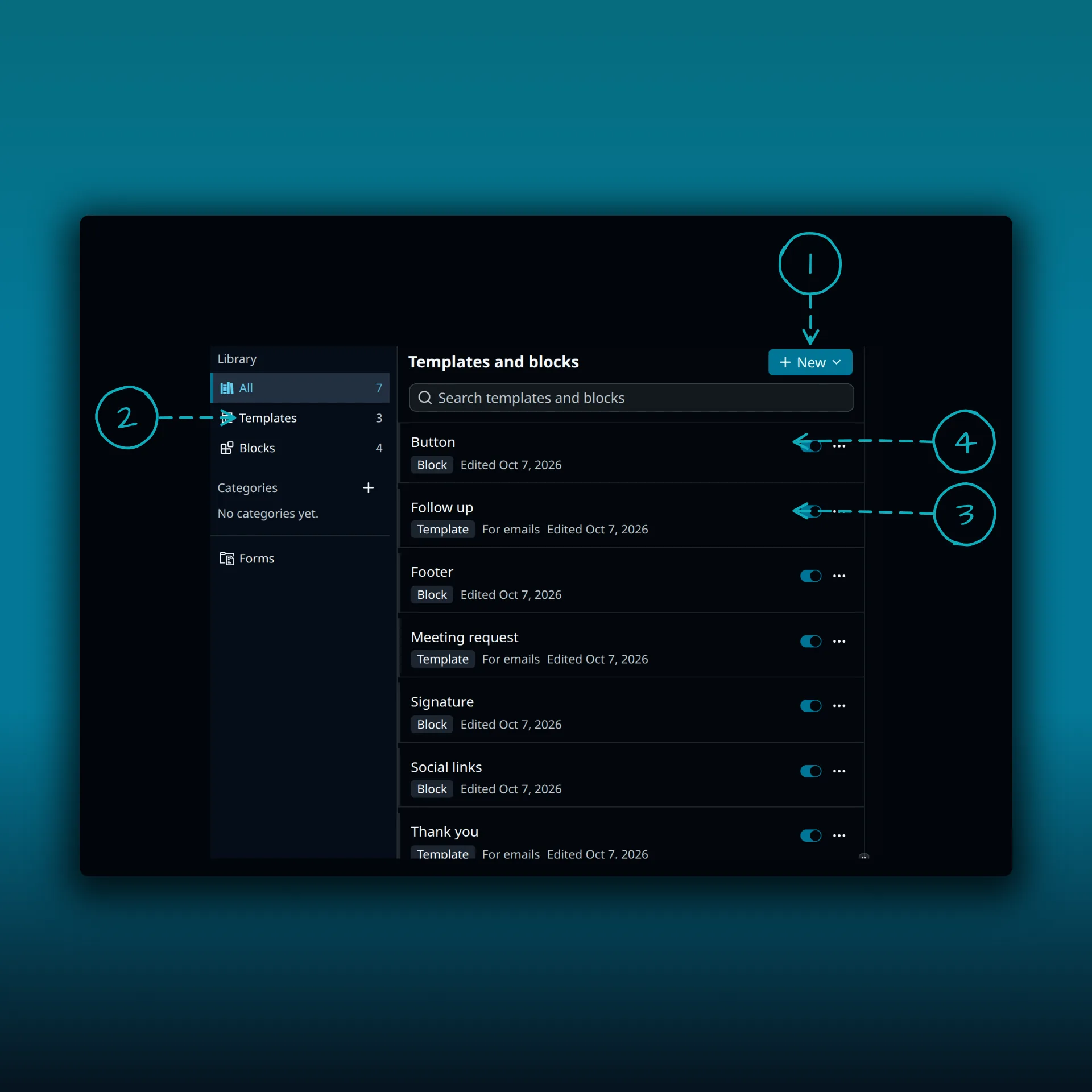
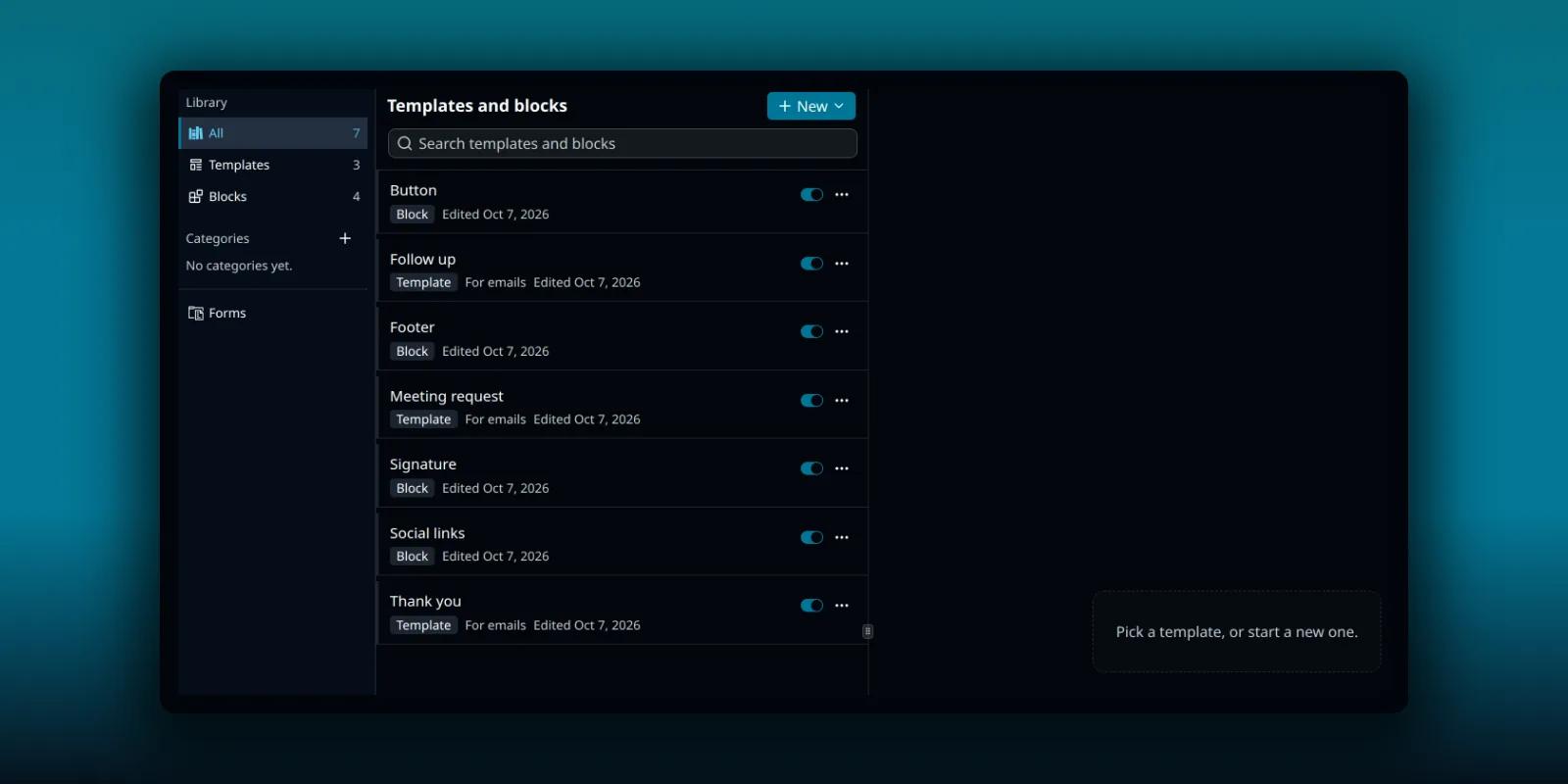
- New. Starts a new template or block.
- The Templates filter. The number beside it is how many templates you have.
- A template row. Templates say “For emails”.
- A block row. A block is a reusable piece you drop into messages.
The Posts, Button and Unsubscribe link blocks are added inside a template’s editor, which opens when you click a row.
Write the note on top
Add a few lines above the Posts block. Say what this issue is and who it is for. The template editor is the same one you use for a plain template.
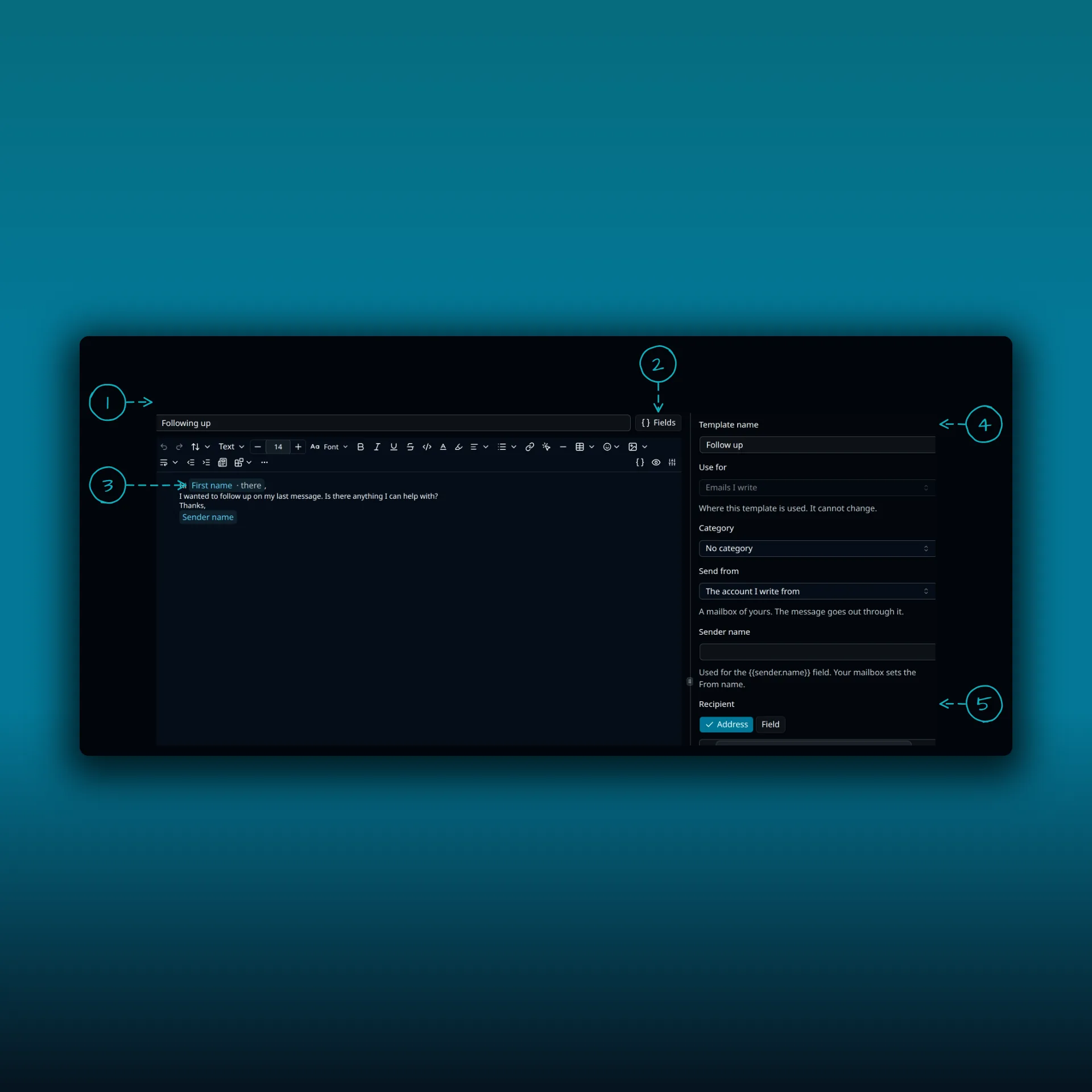
- Subject.
- The Fields button.
- A First name field with its fallback.
- Template name and settings.
- Recipient.
In your roundup, the Posts block goes under the note you write here. Use the First name field with a fallback such as “there”, so everyone gets a greeting. Keep the subject short and specific. The templates guide explains fields and fallbacks.
Preview it
Open Preview while you edit the template. Pick a contact and you see the subject and body with that person’s fields filled in and your posts loaded. The preview is worked out by the same code that runs at send time. Check three things: the greeting for a contact with a missing name, the order and number of posts, and that every link goes where you expect.
Send it to a list
Start an email from the template with New email from template. Then change Individual recipients to Full contact list, and choose the list under Contact list.
Each member gets a separate private message with their own details filled in and a personal unsubscribe link. Nobody sees anyone else’s address. A Full contact list email can reach up to 25,000 members. A bigger audience is refused and nothing is sent.
A send reaches the members who are Subscribed and can be mailed. A member who is Pending, because they signed up with double opt-in and have not confirmed, is skipped. So is anyone who unsubscribed. The double opt-in guide explains each state.
This is different from adding a list to To, Cc or Bcc in an ordinary email. In that case, the members receive that one email privately as Bcc recipients, there is no personal unsubscribe link, and a message that includes a list can have at most 100 recipients.
Mind your provider’s limits
PressedMail sends through your mailbox. Send limits and spam rules still come from your email provider, and a long list sent from a personal mailbox can reach the daily cap. Check what your provider allows before a big send. Google, for example, publishes guidelines for senders that cover authentication and unsubscribing. If mail is going to spam, the post on why WordPress emails go to spam lists the usual causes.
A checklist for each issue
- Open the template and look at the Posts block settings.
- Preview it for a contact with a full name and one without.
- Start an email from the template, choose Full contact list and pick the list.
- Check the number of members the composer says will be mailed, then send.
- Open the sent copy in your own mailbox and click one link.
Which plan do I need?
Templates, contact lists and sending to a list need a paid plan. Double opt-in needs Ultimate. The plan comparison lists what each plan adds.
Frequently asked questions
Does the roundup update when I publish a new post?
The posts are read when the email is sent, so a saved roundup carries your newest posts at send time.
How many posts can the block show?
Up to 12.
Can everyone on the list see each other’s address?
No. Each member gets a separate private message.
Why did some people not receive it?
A send reaches only members who are subscribed and can be mailed. Pending and unsubscribed members are skipped, and so are invalid addresses.
Is there a size limit for a list send?
A Full contact list email can reach up to 25,000 members. A bigger audience is refused and nothing is sent.
Manage your email inside WordPress
PressedMail Free adds an email client directly to your WordPress dashboard. Connect a compatible IMAP/SMTP mailbox, read and send mail, organize messages, and configure WordPress SMTP.

