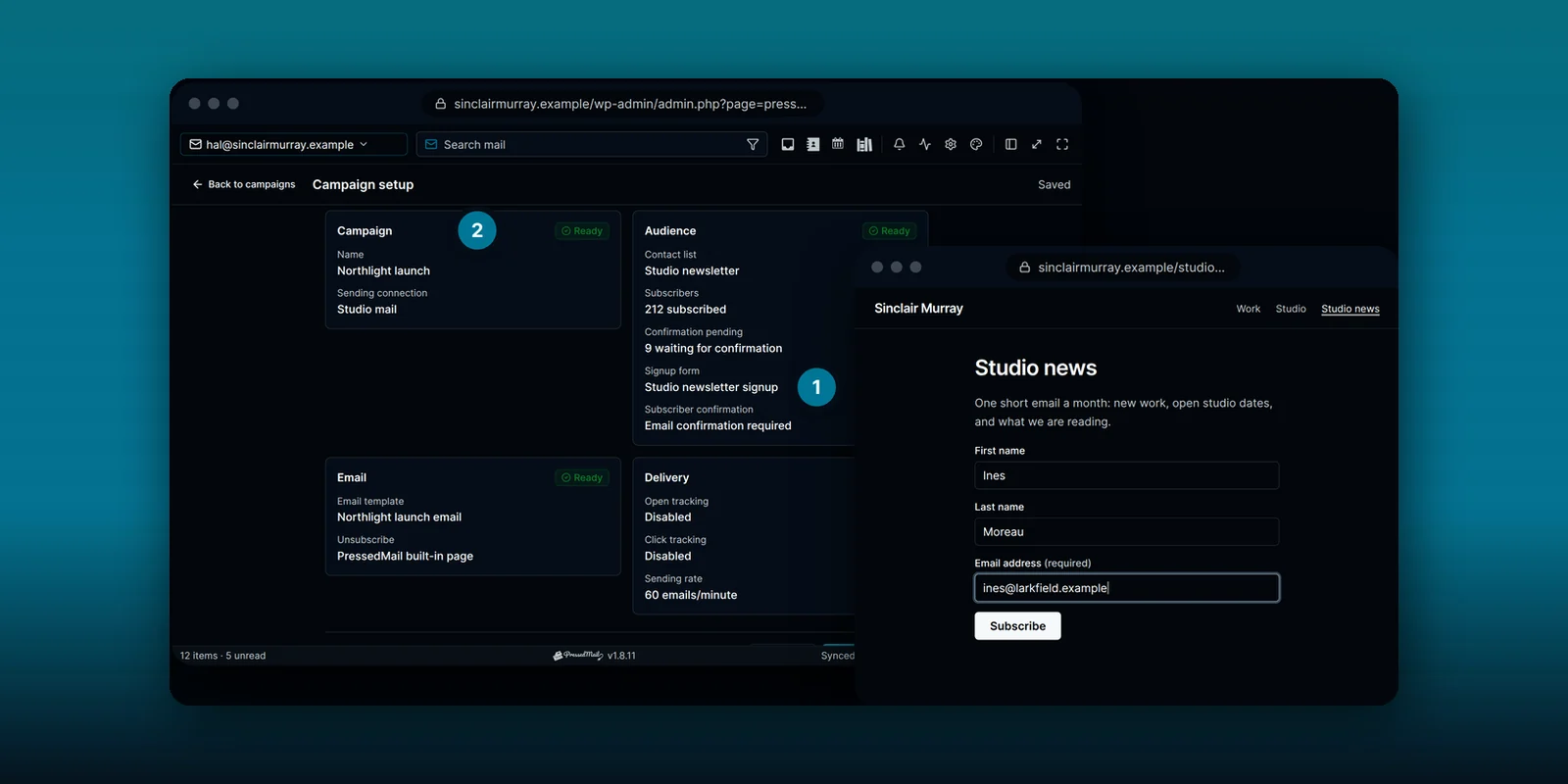
Black Friday, Cyber Monday, a December sale. If your customers signed up on your WordPress site, you can tell them about it from the same dashboard. No export to another email service, no second login.
This guide covers what to set up first, how to write and send the email, and how to time it. That last part matters more than it sounds, because a campaign goes out when you launch it.
Which plan does what
- Ultimate and Lifetime have Campaigns: a setup wizard, double opt-in, a sending rate you control, and optional open and click tracking. Campaigns are for administrators.
- Starter and Premium can email a contact list as a Full contact list email. Every one carries an unsubscribe link.
- Free has no list email or signup forms.
The rest of this guide uses Campaigns.
Start with people who asked to hear from you
A sale email to people who never signed up is the quickest route to the spam folder, and in many countries it breaks anti-spam law. Your list should hold people who agreed to hear from you.
The easiest way to build that list is a signup form on your site. How to add a signup form shows how. With double opt-in, each new signup gets a confirmation email and stays Pending until they confirm, so nobody can sign up an address that isn’t theirs. How double opt-in and unsubscribe links work has the details.
Importing an old list? Only bring in people who agreed to your emails. How to import contacts and build lists covers the import itself.
Get the sending connection ready
A campaign sends through one SMTP connection you set up under WordPress email settings. A mailbox can’t send it, and nothing falls back to another route if that connection fails.
So test it a few days before the sale, not on the morning of. Then check what your mail provider allows per hour and per day. A list that fits comfortably on a quiet Tuesday can hit a provider limit halfway through a sale. How to test SMTP in WordPress walks through a test send.
Write the email
The email is a campaign template. It must contain the unsubscribe link field. The campaign won’t send without it, and the wizard tells you when it’s missing.
Keep a sale email short. What’s on sale, how much off, until when, and one button. Personal fields such as a first name help if you collected them. How to write an email template with personal fields shows how.
When the campaign launches it takes its own copy of the email. Fixing a typo in the template afterwards doesn’t change what already went out, so proofread first.
Set up the campaign
Open the Templates menu and choose Campaign setup. It checks what you already have, then walks through five steps:
- Campaign details: a name and the SMTP connection.
- Audience and signup: the contact list, an optional signup form, and whether new signups confirm by email.
- Email and unsubscribe: the template and the unsubscribe page.
- Tracking and delivery: open and click tracking, off unless you turn them on, and the sending rate.
- Review and launch: everything grouped, with the subscriber count.
In the first step you can send a test through the connection. Type a test recipient and select Send Test Email. It sends one message and doesn’t start the campaign. Send it to yourself and read it on your phone, because that’s where most people will.
Reaching the end of the wizard doesn’t send anything. Activation and launch live in the campaign editor. How to set up your first PressedMail campaign goes through every screen.
Time the send
Campaigns have no scheduled send. The campaign starts going out when you launch it. Pick your time, then launch at that time.
The sending rate decides how long it takes. It accepts 1 to 600 emails a minute and starts at 60. At 60 a minute, 1,200 subscribers take about 20 minutes. Choose a rate your provider allows rather than the fastest one.
Sending runs in the background on WordPress’s scheduler. On most sites that just works. If yours gets very few visits, or your host switched WP-Cron off, read how to run PressedMail background jobs from real cron before the big day.
Send the last-day reminder
A “last day” email often does better than the first one. When a campaign has finished, it offers Send a new issue. That makes a new draft with the same connection, list, template, unsubscribe page, tracking and pace.
Edit the template, or pick another one, so the reminder says something new. Nothing goes out until you launch the new draft. Anyone who unsubscribed after the first email is skipped.
After the sale
Open the campaign’s Analytics and pick a date range. One thing to keep in mind: SMTP acceptance records the hand-off to your outgoing server. It doesn’t prove an email reached an inbox. If you turned tracking on, treat open counts as estimates.
Frequently asked questions
Can I schedule a campaign for later?
No. A campaign starts sending when you launch it. Scheduled send in the composer is for ordinary emails, not campaigns.
Do I need Ultimate to email my list?
For Campaigns and double opt-in, yes. Starter and Premium can send a Full contact list email, which carries an unsubscribe link.
What happens to people who never confirm?
They stay Pending and aren’t mailed until they confirm.
Is open tracking on by default?
No. Open and click tracking are off until you turn them on.
Manage your email inside WordPress
PressedMail Free adds an email client directly to your WordPress dashboard. Connect a compatible IMAP/SMTP mailbox, read and send mail, organize messages, and configure WordPress SMTP.