

A customer asks for a change to a page you already have open in WordPress. You need to read the request, answer from your business address, and leave the conversation somewhere you can find it later. PressedMail lets you do those email tasks inside the WordPress dashboard.
A useful routine is short: check that mail has synchronized, read the request, reply, check the outgoing result, and file the message. PressedMail Free supports the single-mailbox version of that routine. Your existing email provider continues to host the mailbox.
Start with a connected mailbox
You need an email address with compatible IMAP and SMTP access. IMAP gives the client access to messages and folders; SMTP submits the replies you send. Installing the plugin does not create a new address or move your domain's mail hosting.
If you have not connected an account, start with reading email inside WordPress. Once a mailbox is connected, make sure a recent message appears before treating the inbox as up to date. A successful WordPress login tells you nothing about the mailbox connection.
For a first run, send yourself a harmless message from another address you control. Use a subject you can recognize, such as “Website contact page question.” That gives you a known message to follow without making a real customer part of your setup test.
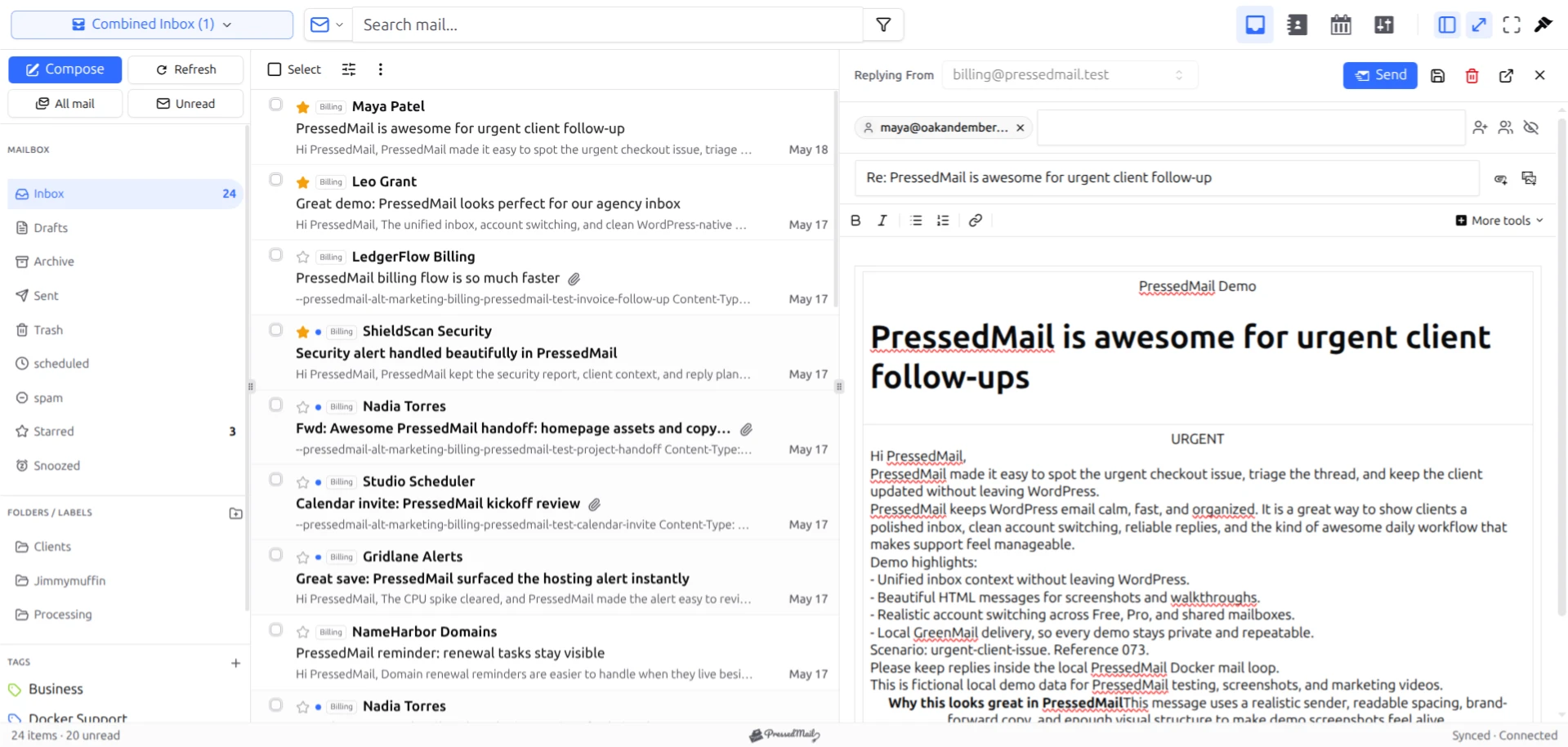
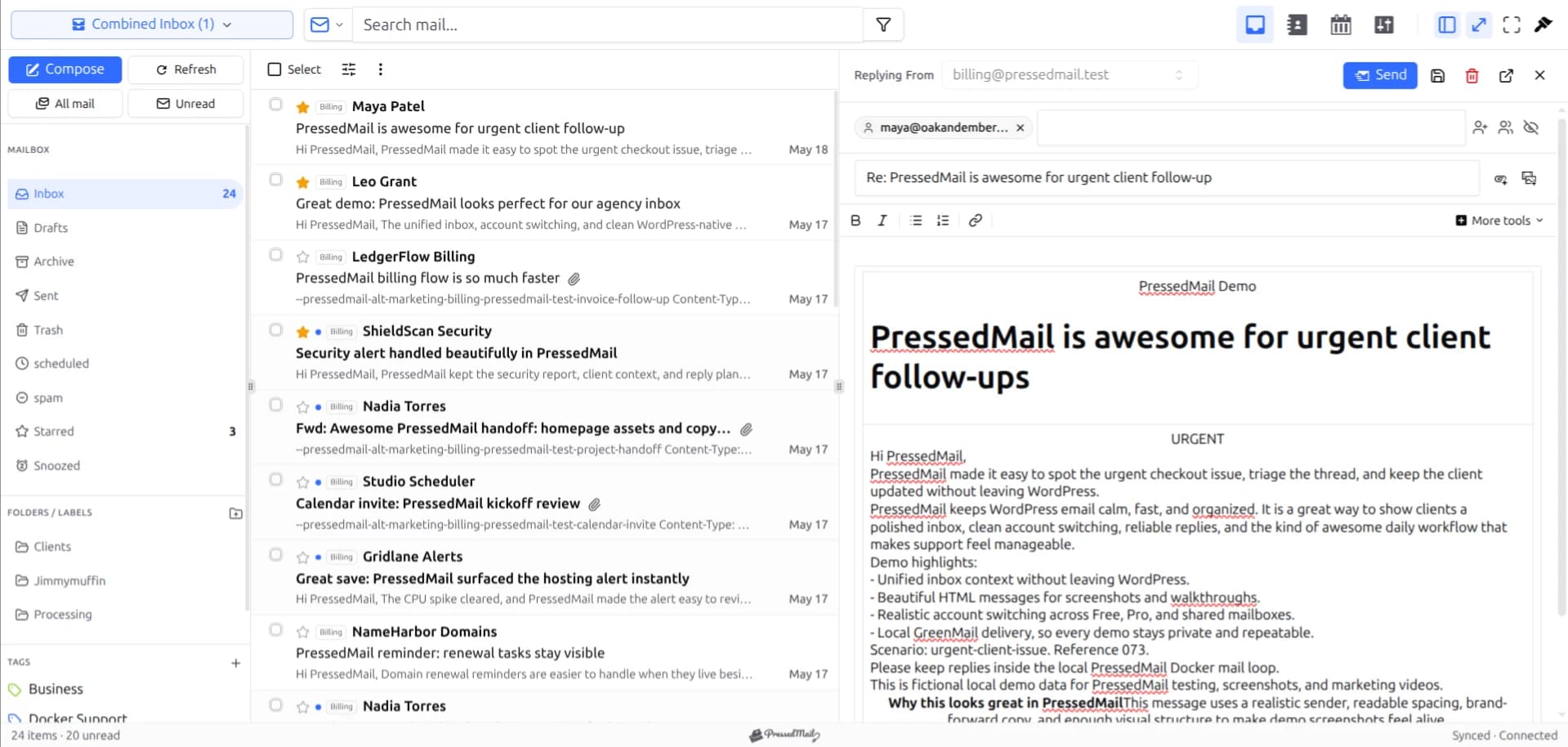
Screenshot of the PressedM inbox and reply composer with fictional email. Interface details can vary by version.
Read the request before changing its state
Open PressedMail from WordPress and inspect the message list. Check the sender's full address and the account receiving the message. A display name alone is a poor way to distinguish two people with the same name or a message imitating a familiar contact.
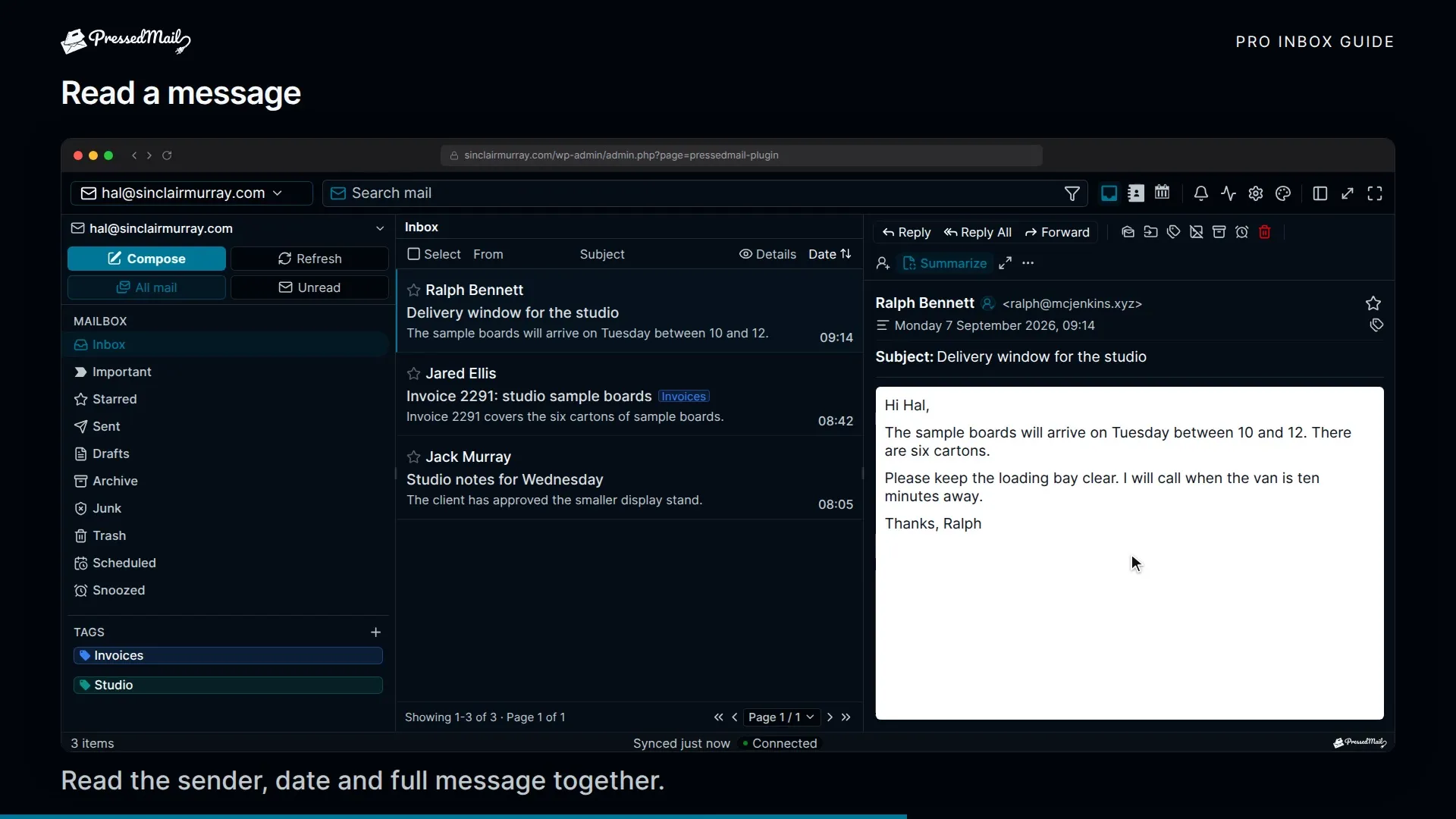
Read the complete request before filing it. In our example, imagine the customer wants a phone number changed on the contact page and asks for confirmation. There are two jobs: make the website change and send a reply. Marking the email as read completes neither of them.
If the message contains remote images, decide whether you need them before loading them. A written request often makes sense without its signature logo. PressedMail's security documentation explains the related controls. Attachments and external links deserve their own checks.
When the message refers to an earlier exchange, find that context before answering. The guide to searching email from WordPress explains search scope and filters. Search operates on available mirrored message data, so a missing result does not establish that the provider deleted the message.
Reply from the address the customer expects
Choose Reply for the existing conversation. Check the From address, recipient, and any copied recipients before writing. This becomes especially useful if you later use a paid setup with several accounts, but it also catches a wrongly configured identity in a single mailbox.
Write the answer around the action you took. For the fictional contact-page request, a useful reply would identify the page and confirm the new number. If you need clarification, ask for the missing information instead of sending a vague acknowledgment that leaves the job unchanged.
Open any attachment you intend to send and confirm that it is the right file. File names such as “final” and “final-new” do not tell the recipient which revision they are receiving. Use a name tied to the project and keep unrelated customer information out of the file.
The basic composer is enough for a text reply and normal correspondence. Free includes one signature. Advanced composer and productivity features belong to paid plans, so you do not need to reproduce every control visible in a paid screenshot to follow this routine.
For a fuller walkthrough of the incoming and outgoing paths, use sending and receiving from the WordPress dashboard.
Check what happened after Send
After sending your test reply, inspect the Sent folder and then the receiving mailbox you control. These answer different questions. A Sent copy helps you find what you wrote. Receipt at the other address shows that this particular message reached that mailbox.
If the reply does not arrive, check the recipient address and spam folder before sending several copies. Then inspect the account's outgoing connection. A working inbox can coexist with broken SMTP settings because reading and sending use separate connections.
For customer correspondence, avoid repeatedly resending merely because the other person has not replied. They may not have read the message. If a send reported an error, use the error and provider information to decide the next step.
Pressing Send in the inbox also does not prove that your site's password-reset or form notifications work. Those are WordPress system messages, commonly sent through WordPress's wp_mail function. PressedMail has a separate WordPress SMTP configuration for them. The SMTP-plugin decision guide explains how to keep those responsibilities clear.
File the conversation according to what remains
Use folders for where a message belongs and tags for a local grouping you want in PressedMail. You might move the completed contact-page request to a client folder while keeping a “Waiting for reply” tag on a different message.
Provider folders are part of the connected account. PressedMail tags form a local organization layer; do not expect them to appear as identical labels in every other client. These behaviors are described in the folder documentation.
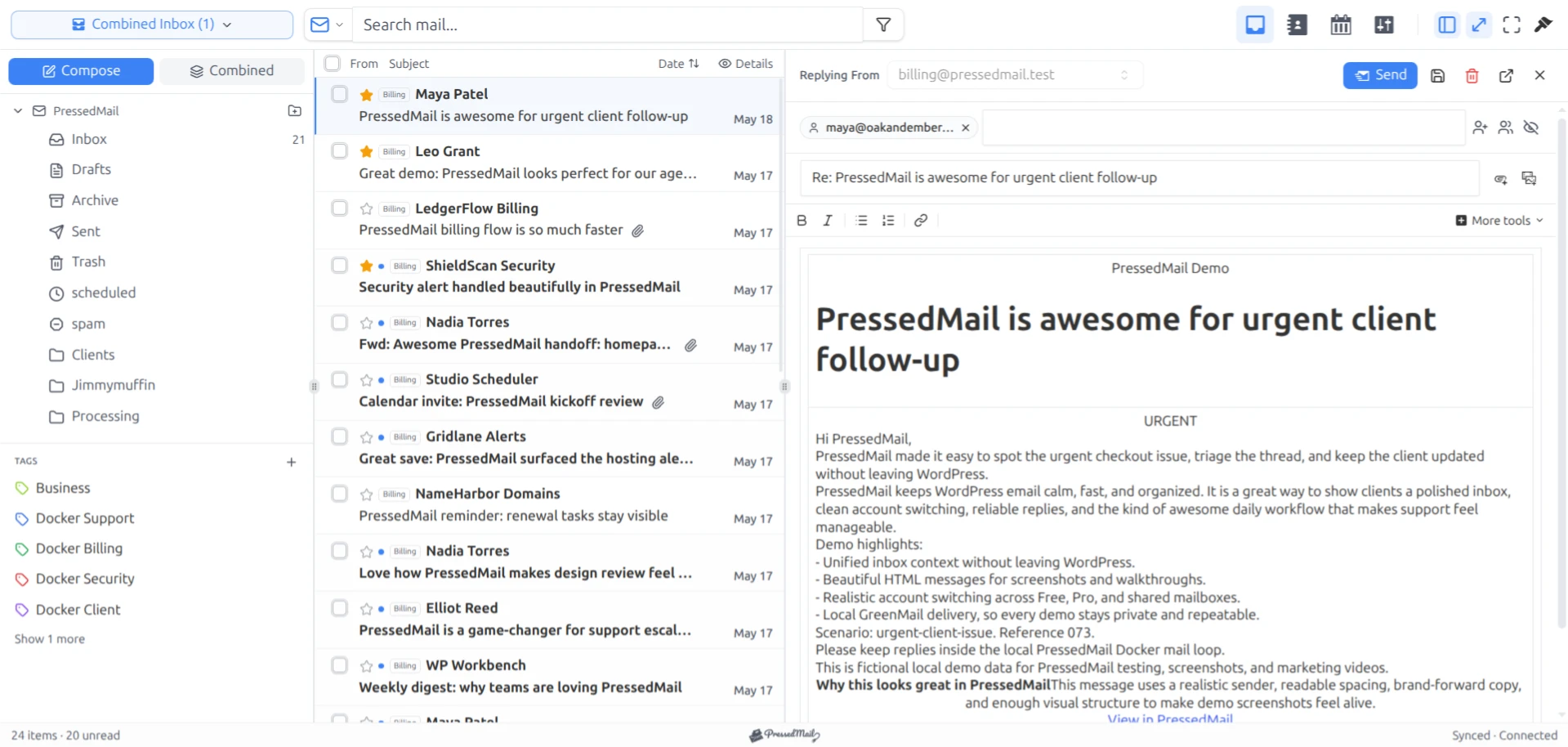
Screenshot of fictional mail in the PressedOut layout, a paid layout option. Folder browsing and manual tags are also available in Free.
For your initial test, move the harmless message to an ordinary folder and check the provider's webmail after synchronization. This helps you recognize the folder mapping before you start filing important mail.
Keep permanent deletion out of an ordinary end-of-session routine. Archive, Trash, and Delete have different consequences, and the provider can have its own retention policy. The practical guide to organizing messages with tags and folders walks through those distinctions.
Make the next session easy to begin
Before returning to the website, identify messages that still need an action. A folder for active work and a small number of manual tags can be sufficient. Avoid building a detailed filing system whose names you cannot remember the next morning.
If you automate filing, start with a narrow sender or subject rule and inspect its preview. Current rule documentation lists important limits: the automatic matcher does not evaluate body conditions or execute its add-label action. An option appearing in a rule interface does not mean every automatic path supports it.
Provider webmail remains useful when you are away from WordPress or the website is unavailable. A desktop or phone client can suit work that happens mainly outside the dashboard. Choose the interface that makes the current task convenient while retaining access to the original mailbox.
Common questions
Can I keep using my existing email client?
Yes, provided the provider permits the connections. Both clients can access the same mailbox. Folder changes and other synchronized state can appear in the other interface, while PressedMail-specific tags should not be assumed to do so.
Does opening WordPress create an email account?
No. Connect an address that already exists at a compatible provider. The provider remains responsible for the mailbox service.
Can I connect several mailboxes on Free?
Free supports one mailbox. Multiple accounts and the combined inbox require a paid plan. Contacts, calendar, and advanced automation are also separate paid capabilities.
Will a reply always appear immediately in the other client?
The timing depends on synchronization and the provider. Check the correct account and Sent folder, allow the other client to refresh, and troubleshoot the connection if the expected copy remains absent.
Manage your email inside WordPress
PressedMail Free adds an email client directly to your WordPress dashboard. Connect a compatible IMAP/SMTP mailbox, read and send mail, organize messages, and configure WordPress SMTP.




