

WordPress can send a password reset without giving you anywhere to read a reply. Its administration screens do not include a general email inbox. To read an existing mailbox inside wp-admin, you need an email-client plugin and a mailbox that permits the connection.
PressedMail Free provides that interface for one mailbox. Your provider continues to host the address and its mail; PressedMail connects to it from your WordPress server. You can keep using the provider's webmail while you get the WordPress view working.
Start by opening one message you already know exists. Once that works, you can test sending and receiving a complete conversation.
Before opening the installer
Have these three things ready: permission to install a WordPress plugin, access to the mailbox, and the provider's settings for third-party email clients.
The company hosting your website may also sell your email account, but those services still have separate settings. A WordPress administrator password cannot authenticate an email mailbox. A webmail login URL is usually a browser page, not the IMAP hostname.
Sign into the provider's webmail first. Find a harmless recent message and note its subject and folder. That gives you something specific to look for after connecting. If webmail cannot open the mailbox either, resolve that account problem before changing WordPress.
The mailbox also needs a supported authentication method. Google accounts use an eligible app password in the current PressedMail release; Microsoft mailbox connections use Microsoft's OAuth flow. Other providers may offer passwords, generated app passwords or account-specific restrictions. Use the IMAP connection guide to identify the right route.
Install PressedMail Free
In WordPress, open Plugins and choose Add Plugin. Search for PressedMail, check the plugin identity and open its details before installing. Install and activate the Free plugin from the official WordPress.org listing.
WordPress documents directory installation and ZIP uploads in its plugin-management guide.
If you downloaded the Free ZIP from that listing, WordPress also supports Upload Plugin. Choose the ZIP itself rather than an extracted directory. You need an account with permission to install plugins; some managed WordPress services and multisite installations restrict that operation.
Activation adds the plugin to WordPress. It does not create a mailbox, move mail hosting or connect an account automatically. If you are still deciding whether this arrangement suits your site, WordPress as an email client explains the hosting and access requirements.
Add the existing mailbox
Open PressedMail's settings and find Email Connections. Choose Add Account, then select your provider when a supported preset is available. Use Custom Email when the provider supplies manual IMAP and SMTP settings.
Enter the mailbox address and the authentication details required by that provider. Keep generated app passwords private. They belong in the connection form, not in a WordPress page, a support screenshot or an email to another administrator.
For a custom account, copy the incoming server, port and encryption mode from the provider's client settings. Enter the outgoing settings separately. The two connections perform different jobs, and their hostnames do not have to match.
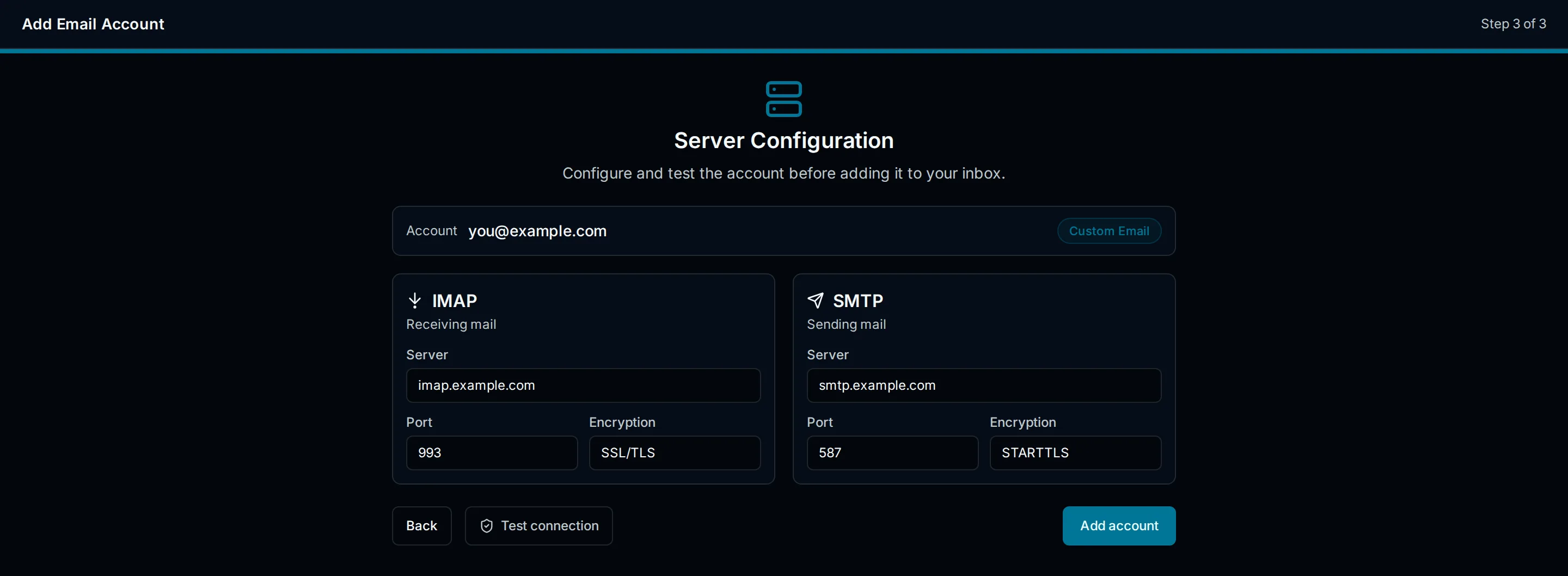
Illustration of custom IMAP and SMTP settings. It explains the fields; it is not a screenshot of a completed connection.
Run the available connection tests. If a test reports an authentication failure, verify the username format and supported sign-in method. If it reports a connection or certificate problem, check the hostname and the hosting environment. Turning encryption off is not a sensible way to make a secure provider connection succeed.
Save the account after its configuration checks pass. The IMAP and SMTP explanation helps if you are unsure which settings belong to the failed test.
Find and open your first message
Allow the initial synchronization to finish, then open Inbox. Look for the known subject you found in webmail. Select the message to read its body and inspect its sender, date and recipients.
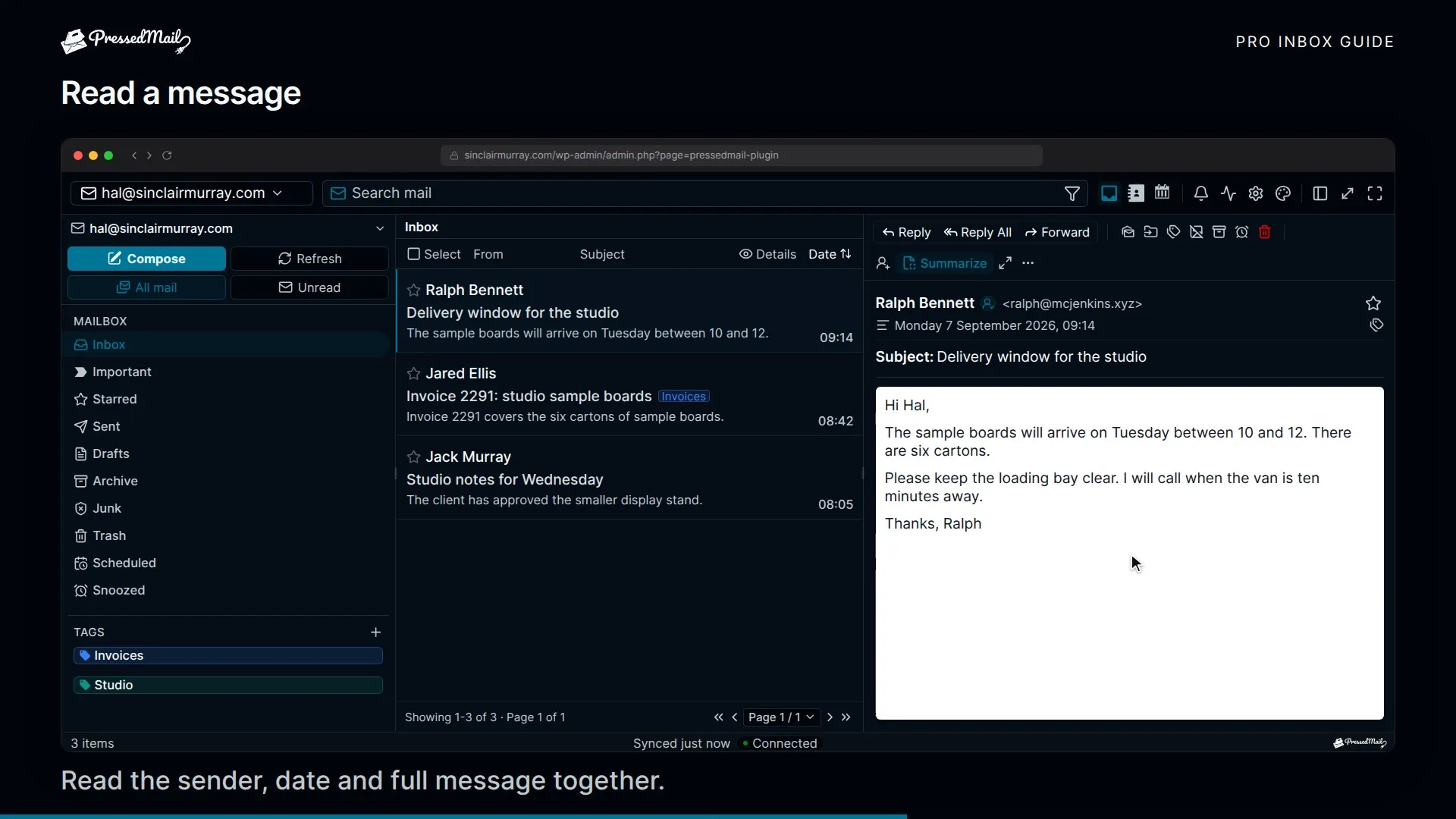
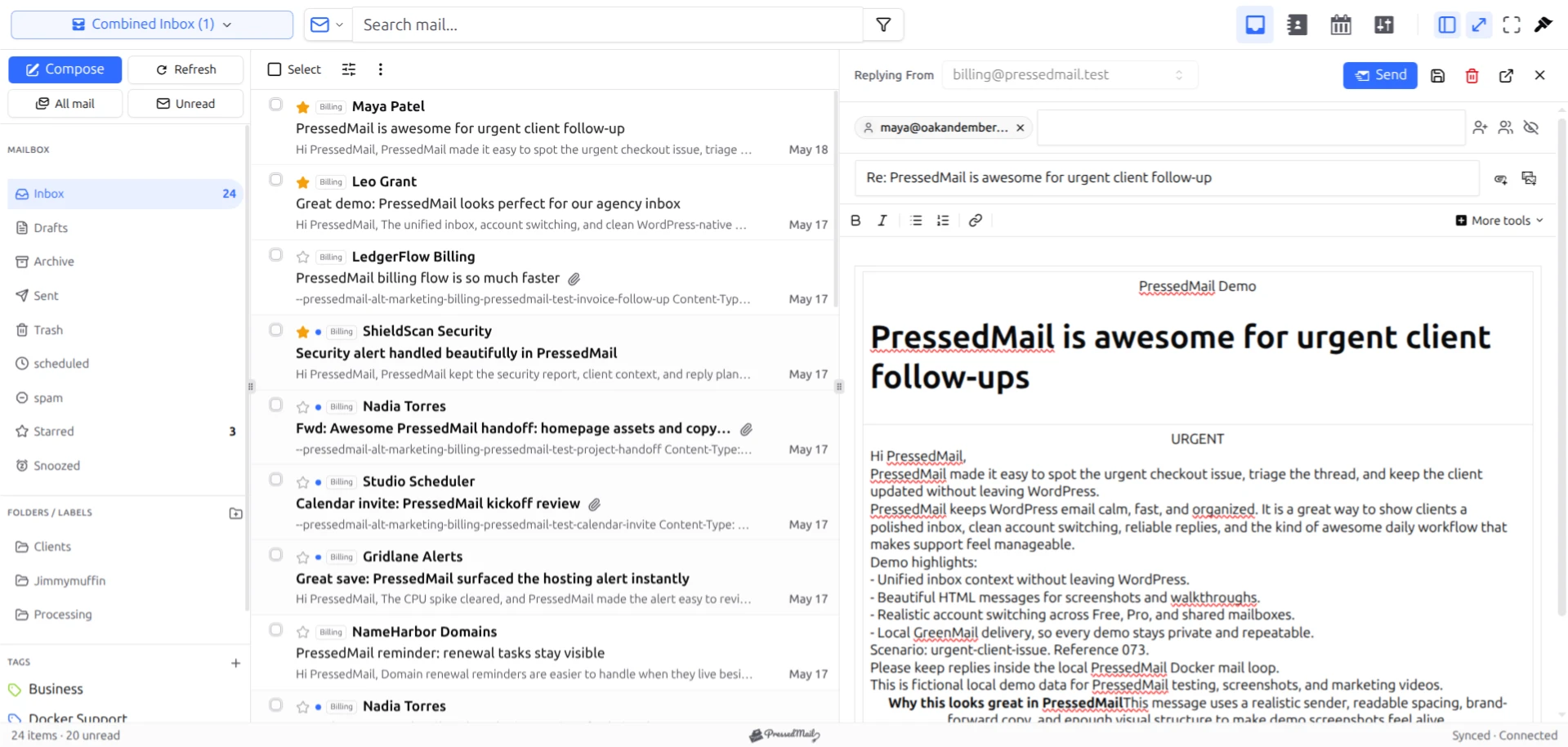
PressedMail screenshot with fictional messages and a reply composer. This layout example may include controls beyond the current Free edition.
If the message is absent, check the folder you recorded earlier. A message in Archive, Spam or a custom folder will not necessarily appear in Inbox. The mailbox can be connected correctly while the currently selected folder is empty.
Refresh the view once and inspect the connection state. Avoid repeatedly removing and recreating the account: doing so makes it harder to distinguish an initial synchronization from an authentication failure. If new mail appears in provider webmail but remains absent in PressedMail, investigate synchronization rather than the website's SMTP settings.
Do not assume an unread badge represents a newly delivered message. Unread state and arrival time answer different questions. Compare the subject, sender and date to identify the message you intended to open.
Know what changes affect the mailbox
IMAP exposes the provider's mail and folders to clients. Reading, moving or deleting mail through a client can affect the same mailbox you see elsewhere. Start with a harmless test message before experimenting with folder actions.
PressedMail's local data includes message metadata used to build the list and support its interface. The provider remains responsible for mailbox storage and delivery. The product's data-location documentation describes what the WordPress installation retains.
Email can also contain remote images and unfamiliar links. Opening an invoice-looking message does not establish that its sender is genuine. Keep ordinary mail precautions and review secure email display in WordPress before changing image-loading behavior.
When another interface is easier
Provider webmail works well when you want immediate access without installing anything in WordPress. A desktop client may suit someone who spends most of the day outside a browser. PressedMail fits when the WordPress dashboard is already part of your daily work.
You can use these interfaces alongside each other. Connecting PressedMail does not require abandoning webmail. If all you wanted was a quicker way to reach the provider's page, the alternatives in using webmail inside WordPress may solve that with less setup.
Free covers the one-mailbox reading workflow here. Extra mailboxes, contacts, calendar and advanced workflows are paid features. You do not need those features to open an existing message.
Frequently asked questions
Does WordPress have an inbox before I install a plugin?
No general mailbox inbox is included in WordPress administration. Site notifications and stored form submissions are separate from a client that reads an existing email account.
Will I still see my mail in webmail?
Yes. The provider continues to host the mailbox. Folder and message-state changes may be reflected across connected clients, so test unfamiliar actions on nonessential mail first.
Why is Inbox empty after a successful connection?
Check whether the mailbox has messages in that folder, whether the initial synchronization has finished and whether the same message appears in webmail. A connection test and a populated folder are separate observations.
Can I reply after reading?
Yes, once outgoing mail is configured successfully. Follow the send-and-receive walkthrough and confirm the reply at a separate test address before relying on the setup.
Manage your email inside WordPress
PressedMail Free adds an email client directly to your WordPress dashboard. Connect a compatible IMAP/SMTP mailbox, read and send mail, organize messages, and configure WordPress SMTP.




